Plays are automated workflows that prompt users to take specific actions based on buyer signals. Buyer signals can include events like meeting bookings, email replies, or buyer engagement that originate from Salesloft or third-party applications.
Effectively managing Plays ensures that revenue-generating actions are assigned to the right team members, improving your team’s workflow and efficiency.
Salesloft admins can access and manage their team’s Plays from the Play Settings page. To access this page, navigate to your settings, then select Plays under the Workflow category.
In this article, you will learn how to manage Plays from the Play Settings page. This article includes:
The Plays: Manage permission allows Salesloft admins to create, edit, disable, or delete Plays for their team. This permission is automatically enabled for default admin roles and can be enabled for custom admin roles.
Admins have access to all Plays, including third-party integration Plays.
User roles cannot create or modify Plays unless granted permission by an admin. These roles can only view Plays and execute tasks.
To learn more about Salesloft roles and permissions, check out our Roles and Permissions article.

Example: Plays: Manage Permission.
Salesloft admins can create Plays and configure them to determine which actions should follow a particular event. When it comes to creating Plays, Salesloft offers six pre-configured Plays as well as Third-Party Integration Plays.
Pre-Configured Plays
Pre-configured Plays are out-of-the-box workflow automations designed to help you take timely and effective action based on key selling signals. These pre-configured Plays are built into Rhythm and are enabled for all teams by default– this means that there is no manual setup required.
The six pre-configured Plays are:
- Meeting Reminder: This Play creates an email task due 24 hours before the scheduled start of the meeting anytime a meeting is booked with a buyer.
- Meeting Follow-up: This Play creates an email task due 24 hours after the scheduled start of the meeting, anytime a meeting with a buyer is completed.
- Meeting Follow-up + Action Items: This Play creates an email task and prompts you to share action items 24 hours after a meeting with a buyer is completed.
- Meeting Follow-up + Recording: This Play creates an email task and prompts you to share a recording link 24 hours after a meeting with a buyer is completed.
- Email Follow-up: This Play creates an email task any time a Person (potential buyer) responds to a lofted email.
- Prepare for Meeting: Share Internal Note: This Play creates a task that prompts you to prepare for upcoming meetings and share internal notes.
Things to Note: If you do not want your team to use the default Plays, you can edit, disable, or delete the Plays.
Third-Party Integration Plays
Third-Party Integration Plays generate actions based on signals from third-party applications. The third-party applications supported include:
-
Docusign: Creates an email or call task when a document has been signed.
-
G2: Creates an email or call task when a buyer views a Pricing, Category, Competitor, or Comparison page
-
Highspot: Creates an email or call task when a buyer downloads content
-
Seismic: Creates an email or call task when a buyer views content
-
Vidyard: Creates an email or call task based on a buyer's engagement with a video
Things to Note:
- Before creating a third-party integration Play, be sure that users have enabled the integration from the Administration Integration Settings.
- Enablement for third-party integration plays varies based on the integration partner. To learn more about enabling third-party integration Plays, click the link for each third-party application. This will direct you to the respective documentation where you can learn more about enablement for that particular integration.
The Plays Settings page is where you can view and manage your team’s Plays. From this page, you can manage which Plays are available to your team.
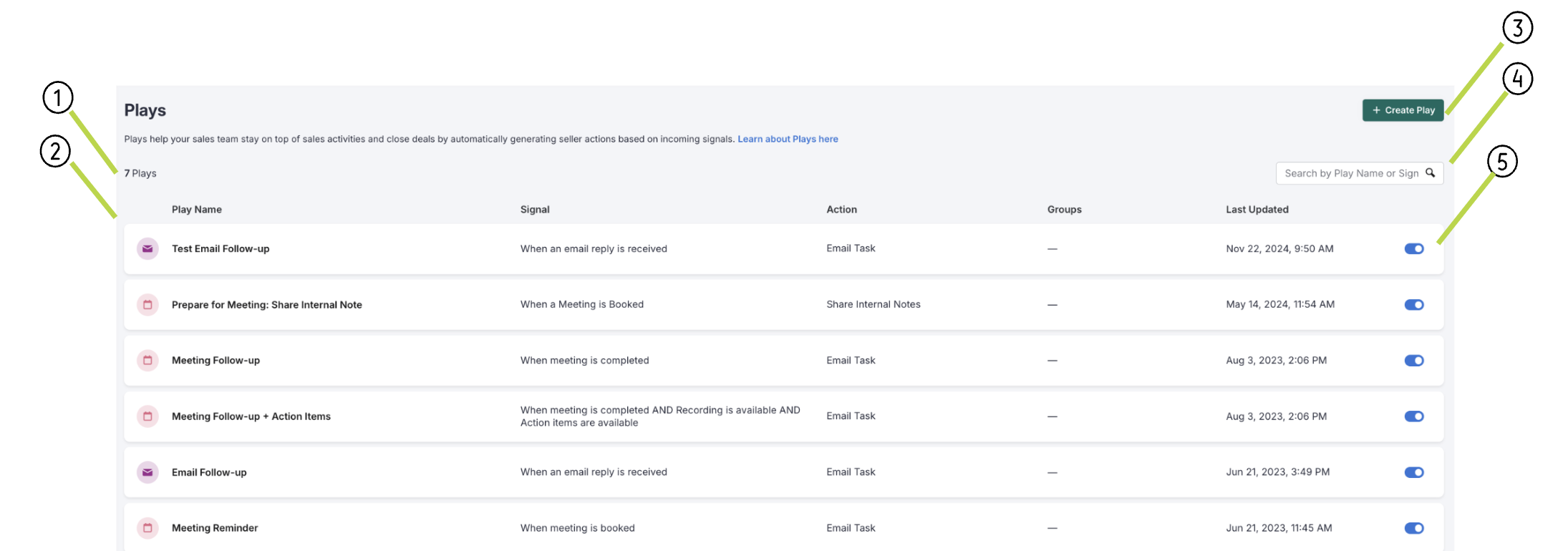
Here’s a look at the Plays Settings page:
Example: Plays settings page.
The Plays Settings page displays the following:
-
Number of Plays: The total number of Plays that have been created for your team.
-
Plays List: Displays each of your Plays. The Plays List is organized by the following columns:
-
Play Name: The Play name tells you which type of play this is. The name is designated by Salesloft.
-
Groups: Salesloft groups assigned to this Play. When a play is assigned to a group, it will only run for that group.
-
Signal/Action: Signals are messages from internal or third party systems that make Salesloft aware of an event and trigger a Play into action.
-
Last Updated: When the Play was recently edited. This date could be the date the Play was created.
-
Create Play Button: Directs you to the Create Play page where you can create a Play.
-
Search Plays: Type a play to search for a specific play. You can search by name or signal.
-
Plays Toggle: Determines whether the play is active or inactive. Plays that are active are turned on (blue), and will run when the signal occurs. Plays that are inactive (gray) will not run.
When you go to create a Play, you will be directed to a list of available Play Frameworks. This list is your Plays Library where you can discover all of the Play Frameworks published by Salesloft and our partners.
Check out our List of Play Frameworks article to learn more about each of the frameworks available.
