Preparing for upcoming meetings helps you effectively engage your buyers. Information across Salesloft, like Conversations Summaries and notes on the Person Profile, can be used to learn more about your buyers and set up a pre-meeting brief with internal teammates. The Prepare for Meeting: Share Internal Note Play helps you quickly execute this important step by prompting you to prepare for meetings 24 hours in advance.
An admin can set up this Play for your team, which will prompt Salesloft to generate a task in your Rhythm Focus Zone. The task that is generated depends on the way your admin configures the play. The default task for this play is Share Internal Notes, which prompts you to take notes and share them with internal participants on the meeting. An admin can also configure this Play with a call task or an email task.
By using the Prepare for Meeting Play, you can efficiently prepare yourself and internal invitees for meetings to build rapport and accelerate the opportunity.
In this article, you will learn about the Prepare for Meeting Play, including:
- While the Default Prepare for Meeting Play is enabled by default, a team admin can disable or edit the play if the default setting doesn’t suit your team.
- The Prepare for Meeting Play pulls information of the last meeting with the Account, not specific contacts.
- If the Play is created from a Framework, the signal may not be edited.
- Prepare for Meeting tasks will be generated immediately for any upcoming meeting. The Due Date field determines when the task appears inside your Rhythm Focus Zone.
- When you log Meeting Prep Notes after being prompted by the Prepare for Meeting Play, the notes are automatically synced to your CRM (Salesforce or Dynamics) as an activity. The log will use the subject “Prepare for Meeting: Share Internal Note”. Salesloft associates the activity with the first participant or record in Salesforce.
- The Prepare for Meeting Play is only available for Google Calendar users. Before the button will appear, you must meet these conditions:
- Your Google Calendar must be successfully connected and synced to Salesloft.
- The Prepare for Meeting: Share Internal Note Play must be enabled in your settings.
- You must be the owner of the meeting on the calendar event.
- If the Meeting Prep button is missing in your Google Calendar, check your Salesloft settings to confirm your Google Calendar is connected. Then, make sure the "Prepare for Meeting" Play is turned on. Finally, try a hard refresh of your calendar page (Ctrl+Shift+R or Cmd+Shift+R).
The Prepare for Meeting Play is enabled by default. This means that there is no setup required to leverage this play.
The default configuration for the Default Prepare for Meeting Play includes the following settings:
- Play Name: Prepare for Meeting: Share Internal Note
- Signal: When a meeting is booked
- Action: Share Internal Notes
- Due Date: 48 hours after the signal is received. Admins can
- Task Expiration: Expires 5 days after due date
Admins can check out the Create a Play article to learn more about configuring the Prepare for Meeting Play.
When the Prepare for Meeting Play is enabled, it will run 24 hours before a meeting. This Play will create a task that prompts you to prepare for your upcoming meeting.
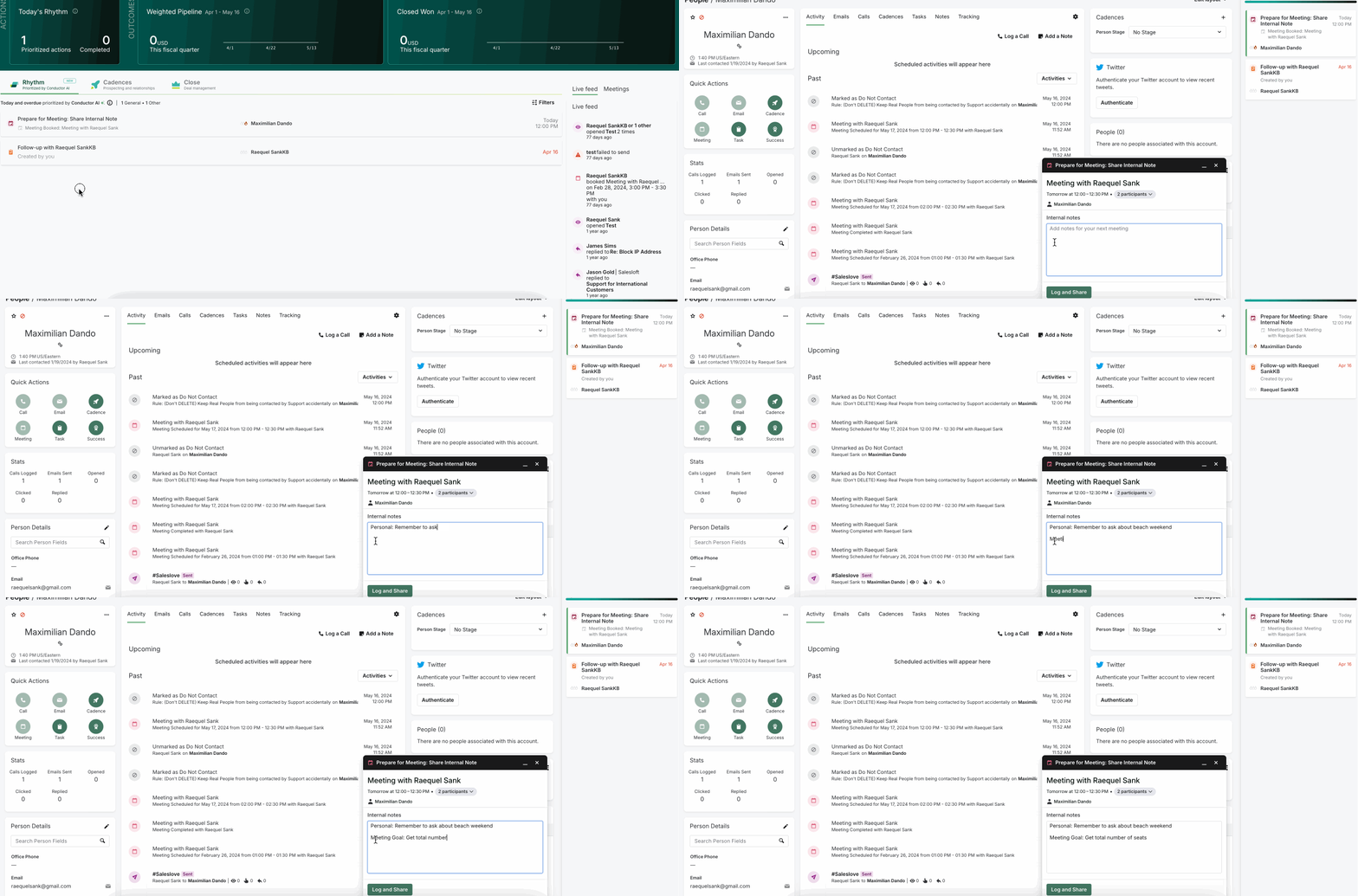
So what can you anticipate? How will you actually run a Prepare for Meeting task from a Play? Let’s walk through a step-by-step example:
- Your team has enabled the Prepare for Meeting Play.
- Salesloft identifies a meeting coming up within 24 hours and creates the Prepare for Meeting task.
- The task is then prioritized inside your Rhythm Focus Zone.
- Click the task inside your Rhythm Focus Zone to be directed to the appropriate page where you can complete the task:
- Email Task: You will be directed to the Person or Account Profile and an email window will appear. From there, you can send an email.
- Call Task: You will be directed to the Person or Account Profile and the dialer window will appear. From there, you can make a phone call.
- Share Internal Notes: Prompts you to log notes. You will be directed to the Conversation Details Page where you can see the meeting details, the Conversation's Summary, Action Items, and Key Moments. A notes log will appear where you can add notes and share them with internal participants.
- If you shared notes with internal participants, they will receive the notes in plain text. They can also view the prep in Salesloft.
Here’s a look at what internal participants will receive when you share notes:
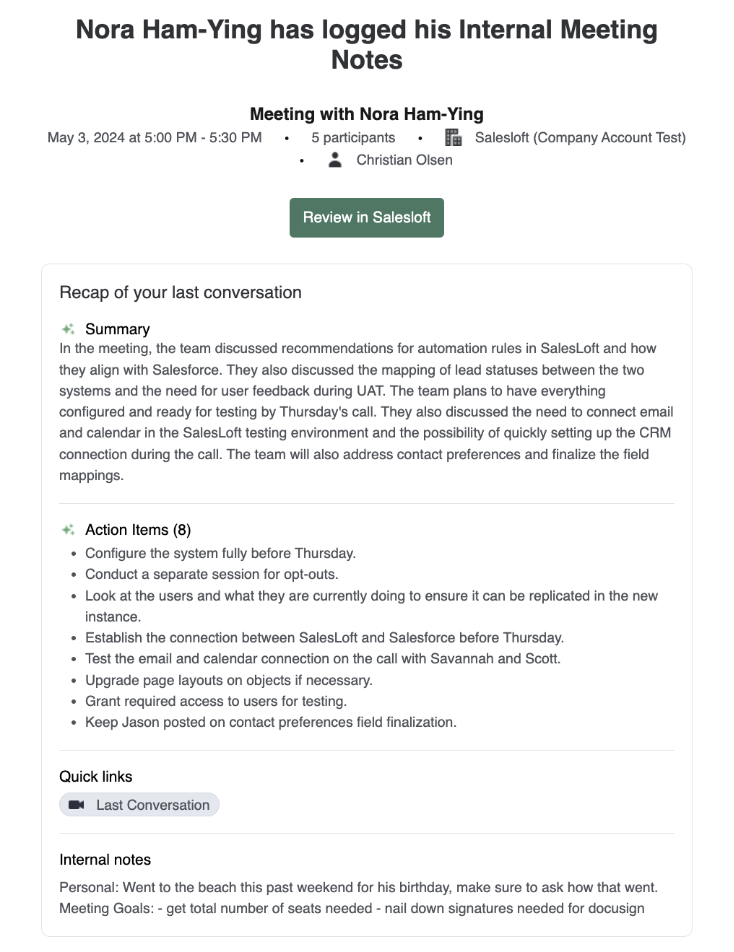
Figure 1: Meeting notes shared with an internal participant.
The Meeting Prep button in Google Calendar provides a direct shortcut to your Salesloft Meeting Prep workspace, letting you quickly access research, notes, and planning tools for each event. This helps you stay organized, save time, and ensure you’re fully prepared for every call.
To access your Meeting Prep workspace from Google Calendar, follow these steps:
- Open an event on your Google Calendar.
- Click the Meeting Prep button within the event details.
- A new browser tab will open, taking you directly to the Salesloft Meeting Prep workspace for that specific meeting.
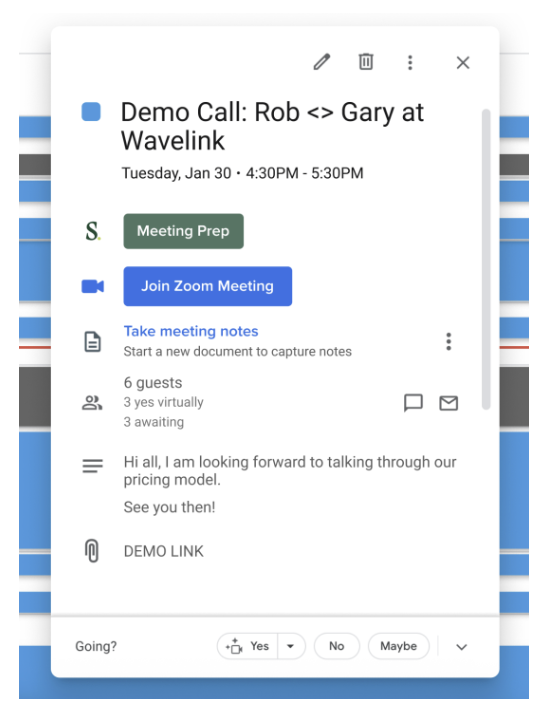
Figure 2: Meeting Prep button on a Google Calendar invite.
