The Sales Strategist Agent surfaces Coaching insights from your calls, emails, and meetings, allowing you to easily see where you have room to improve.
In this article we’ll cover the Sales Strategist Agent, including:
Before you can leverage the Sales Strategist Agent as a rep, there are some important things you should know:
- The Sales Strategist Agent included as part of the Coaching Agent Add-on.
- The agent identifies patterns across various sources, including:
- Performance Metrics: Goals and Analytics data.
- Deal Progression: Deals data.
- Conversations: Call and meeting transcripts and analysis.
- Engagement Data: Email interaction patterns and user activity.
- The agent's effectiveness is directly proportional to the quality and quantity of data in Salesloft. For full functionality, customers should have:
- The Generative Artificial Intelligence setting must be enabled by an admin in order for the Sales Strategist Agent to work. To learn more about the Generative Artificial Intelligence Setting, check out the Manage Generative Artificial Intelligence article.
- Users need to opt-in to receive weekly emails in their Profile Settings. This weekly email is enabled by default when the Coaching agent is enabled.
- Within Coaching, users can add their own goals or focus areas in the custom instructions for the agent to consider in future analyses.
- The agent cannot be triggered on-demand; it runs on a fixed weekly schedule.
- Insights reflect analysis as of the last weekly refresh and are not real-time.
- The agent does not analyze text message (SMS) content or any non-Salesloft data sources.
Once enabled, every Monday morning the Sales Strategist Agent will provide a weekly email.
To view the weekly AI-Generated Email Summary, follow these instructions:
- Go to your email: Monday morning, go to your email’s inbox and open the summary email.
- Read through your Coaching Insights: The email will be broken down into three sections that can help you decide what to focus on in the coming week. Read through the following:
- Your impact last week
- Things to focus on this week
- Areas for improvement
- Key strengths to leverage this week
- View in Coaching: Click View in Coaching to open your Insights tab and see more insights and actionable suggestions.
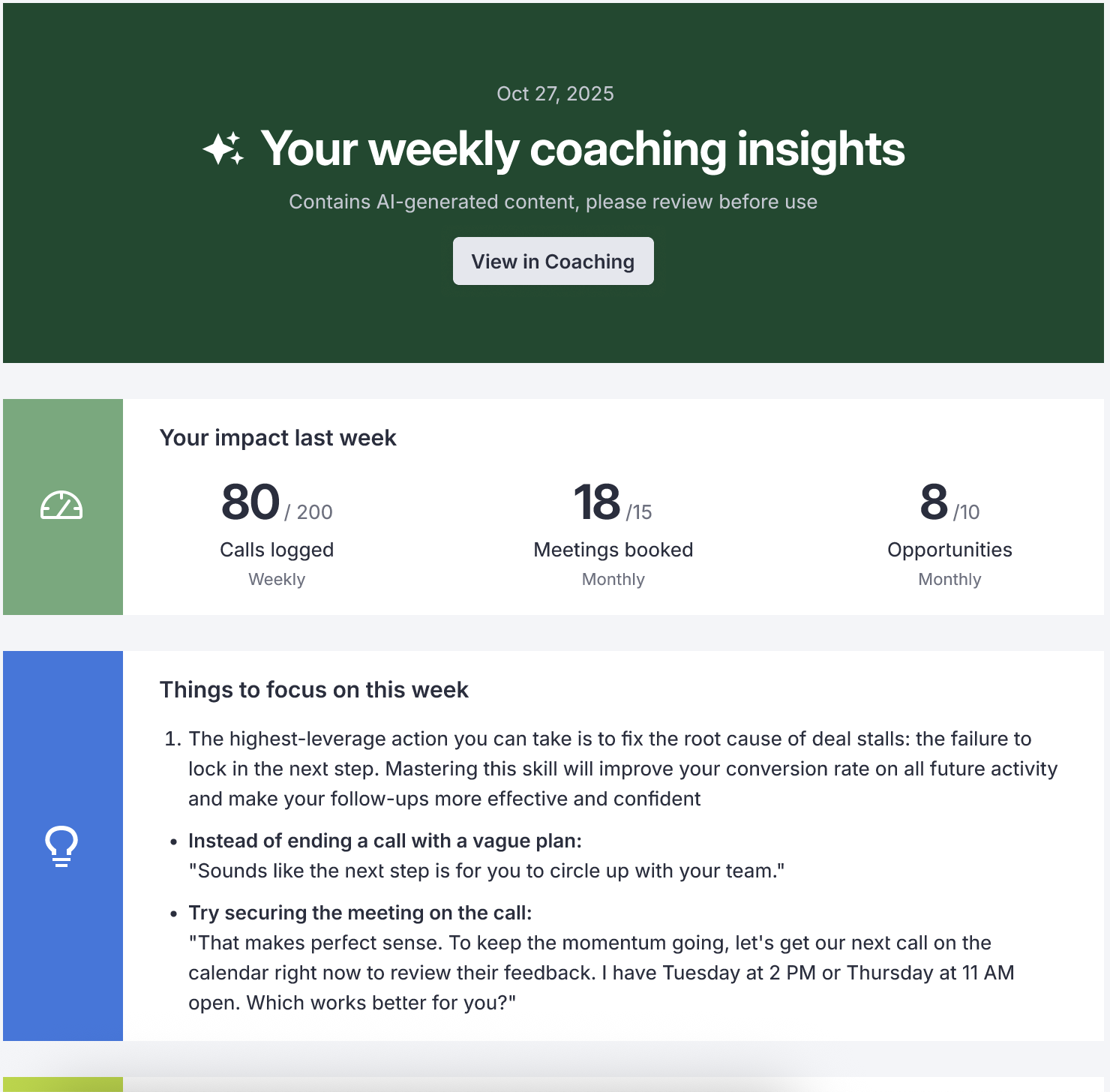
Figure 1: Seller weekly insight email
The Coaching Insights compiled by the Sales Strategist Agent are found on the Insights tab. To access the Insights page, follow these instructions:
- Access the user’s Insights inside of Coaching: Navigate to the Insights tab within the Coaching section of the platform by hovering over Workspaces and selecting Coaching. The Coaching Insights tab will open by default
- Read through the Coaching areas: Read through the points to see the trends AI has gathered in the following areas:
- What to focus on
- Areas of improvement
- Key strengths to leverage
- Follow up on Recommended Tasks: The Sales Strategist agent will create task actions for the rep to complete. These will appear in the user’s Rhythm workflow. In the manager view, follow up on whether the item is open or completed.
- Add Instructions (optional): In the event that the curated content isn’t perfectly suited for the rep, add instructions that will prompt the Salesloft Strategist Agent. Select the Add Instructions button. In the pop up window, enter your instructions and click Save.
- Rate Insights: Click the ‘thumbs up’ or ‘thumbs down’ icons to rate your insights.
- Things to Note: Ratings are visible to any user that has access to the page, however, only the insight owner can rate their insights.
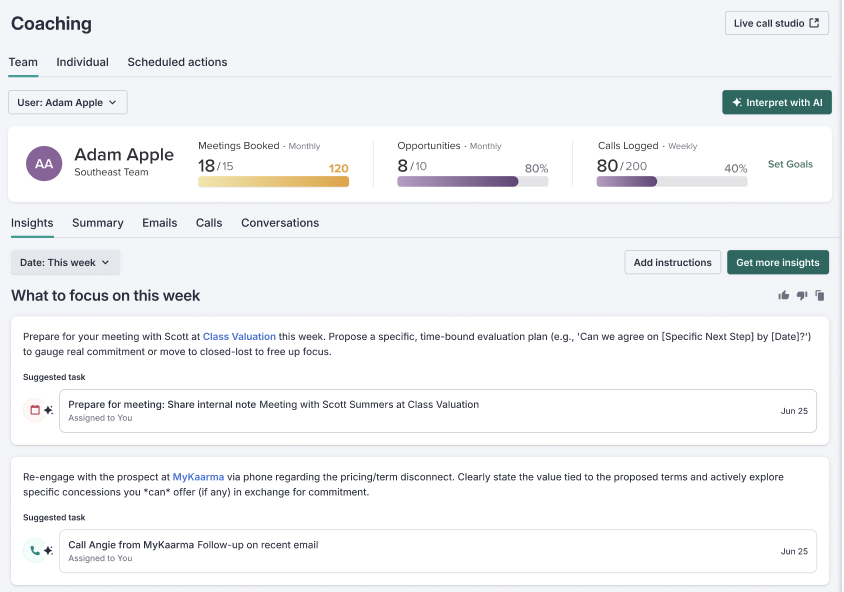
Figure 2: Coaching Insights
The Sales Strategist Agent automatically creates high-priority, actionable tasks that appear in your Rhythm workflow as well as your coaching Insights page.
To access Coaching Tasks outside of Rhythm, follow these instructions:
- Access Coaching: Navigate to Coaching by hovering over Workspaces and select Coaching
- Access Insights: The Insights tab will open by default
- Locate Tasks: Look for Recommended Tasks in the What to focus on section of the Insights tab.
- Execute Tasks: Complete the Tasks that have been assigned to you by the Sales Strategist Agent. Here are some examples of Automated Tasks that can be generated by the Sales Strategist Agent:
- Review Record: For a specific deal or conversation
- Score Conversation: For managers to review a rep's call
- Time Block: To dedicate time for a strategic activity
- Call or Email: With AI-generated body/subject suggestions
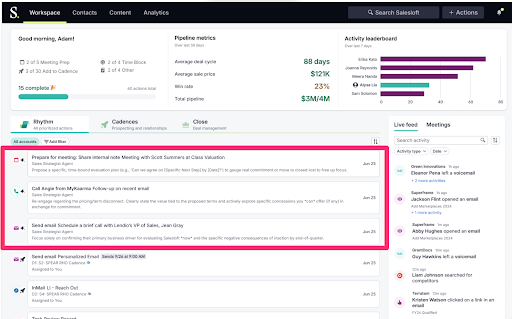
Figure 3: Rhythm dashboard showing tasks.
If the “Area for Improvement” section of your weekly emails is inaccurate, click the source link(s) provided with the insight. This will take you to the specific deal, call, or email the Agent used for its analysis. Here you can find the context the Agent was using to make its analysis. You can also use the feedback modal here to submit feedback about the Agent.
These are contextual tips that appear in Coaching when a user is about to execute a key selling motion (e.g., a reminder to ask about budget before starting a call, based on past activity).
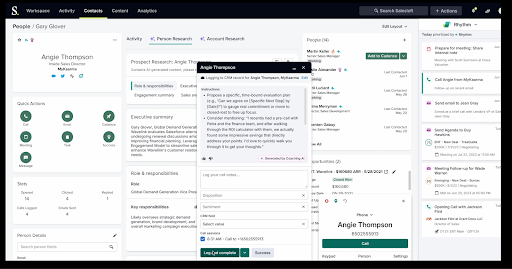
Figure 4: Example of an In-Workflow Coaching Tip while making a Call
- Complete and Rhythm tasks that are generated by the Agent.
- Sync with your manager to review any calls that got marked as “room for improvement”.
