Tasks are a way to create and track one-off actions in Salesloft — think of them as activities that fall outside of your standard cadence workflow.
They exist because not every action fits neatly into a cadence; Tasks give you a flexible way to assign yourself a specific call, email, or general action tied to a Person, with a due date and optional reminder notification.
Tasks are available to all users by default, though admins control whether the Tasks permission is enabled for each role. Once created, Tasks surface in the Rhythm Focus Zone and on Person and Account profile pages, and can be run with a single click directly from those locations or from the Rhythm Sidebar.
In this article:
|
Use Case
|
Feature
|
Documentation
|
|---|
|
As a rep, I want to create a one-off call, email, or general action reminder tied to a Person
|
Task Creation
|
Create a Task in Salesloft
|
|
As a rep, I want to see all my upcoming tasks in one place so I know what to work on
|
Upcoming Tasks View
|
View Upcoming Tasks in Salesloft
|
|
As a rep, I want to execute a task directly from a Person's profile or my Rhythm workflow
|
Task Execution
|
Run a Task in Salesloft
|
|
As a rep, I want to push a task to a later date without losing it
|
Task Rescheduling
|
Reschedule a Task in Salesloft
|
|
As a rep, I want to update the subject, due date, or assignee on an existing task
|
Task Editing
|
Edit a Task in Salesloft
|
|
As a rep, I want to remove a task that is no longer relevant
|
Task Deletion
|
Delete a Task in Salesloft
|
|
As a rep, I want to receive task Notifications
|
Task Browser Notifications
|
Update Settings in the Salesloft Connect Chrome Extension
|
- Admins can enable or disable the Tasks permission for each role, and can create, run, edit, reschedule, and delete tasks. Admins can also assign tasks to other team members.
- Reps (Users) can create, run, edit, reschedule, and delete tasks when the Tasks permission is enabled for their role, and can assign tasks to other team members.
Things to Note: If you don't see Tasks in your Salesloft account, contact your team admin to confirm the Tasks permission is enabled for your role.
Tasks are accessible from multiple locations in Salesloft:
- Rhythm Focus Zone: From the Salesloft homepage, click the Rhythm Focus Zone tab.
- Person Profile Page: Navigate to any Person record — upcoming tasks appear in the Upcoming Activities panel.
- Account Profile Page: Navigate to any Account record — upcoming tasks appear in the Upcoming Activities panel.
- Salesloft Connect Chrome Extension: Open the Connect side panel while viewing a Person in your CRM or Gmail from your Chrome browser. Click the Create Task icon in the Quick Actions button group to create a task without leaving your inbox.
- Salesloft Connect for Outlook: Open the Connect side panel while viewing a Person in Outlook and click the Create Task icon in the Quick Actions button group to create a task without leaving your inbox.
Things to Note: Tasks created from the Salesloft Connect for Outlook side panel are automatically linked to the Person whose profile is open. They surface in your Rhythm Focus Zone and on the Person's profile page the same as any other task.
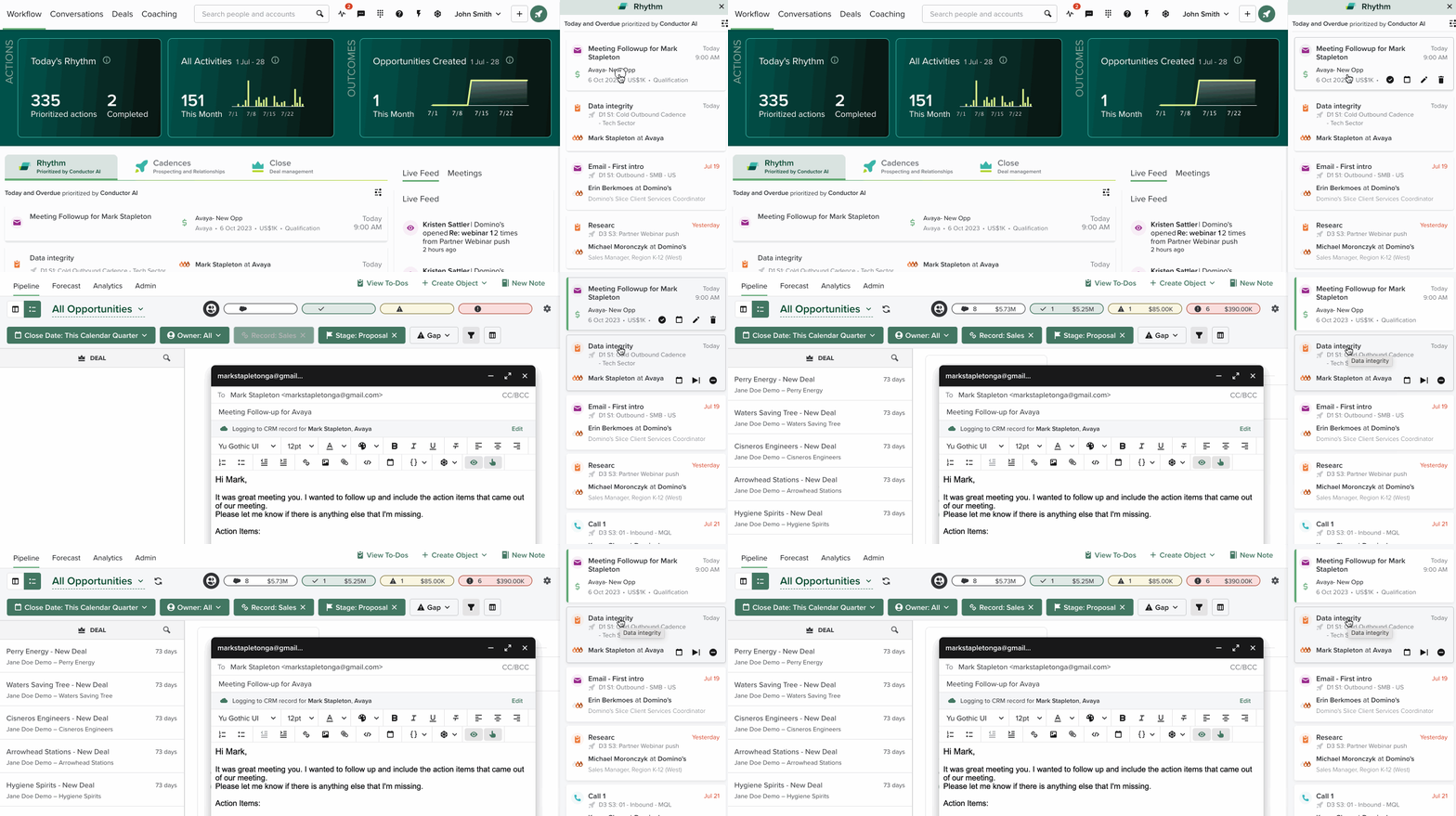
GIF 1: Run tasks from Rhythm Focus Zone tab in the Sidepanel
|
Term
|
Definition
|
|---|
|
Task Type
|
The category of action assigned to a task — General, Call, Email, or LinkedIn Sales Navigator. Task Type cannot be changed after a task is created.
|
|
Rhythm Focus Zone
|
The prioritized task workflow on the Salesloft homepage where all due and upcoming tasks surface for execution.
|
|
Rhythm Sidebar
|
A persistent task panel that appears alongside the Person profile page while you work through tasks, allowing you to move through your workflow without returning to the homepage.
|
|
Task Reminder
|
An optional Chrome notification triggered at a specified time when a task is due — requires Chrome Notifications to be enabled.
|
Create a Task in Salesloft: How to create a one-off call, email, or general action task tied to a Person, including from Salesloft Connect for Outlook.
Run a Task in Salesloft: How to execute tasks from the Person profile page, Rhythm Focus Zone, and Rhythm Sidebar.
Reschedule a Task in Salesloft: How to move individual or multiple tasks to a new due date.
