Tasks let you assign one-off actions to yourself or a teammate outside of your standard cadence workflow. Use this guide to create a task with a due date, task type, and optional reminder so it surfaces at the right time in your Rhythm Focus Zone.
After completing this guide, you will be able to:
- Create a General, Call, Email, or LinkedIn Sales Navigator task tied to a Person.
- Set a due date and optional reminder time for the task.
- Assign the task to yourself or another team member.
This article includes:
Before you create tasks, be aware of the following:
- Tasks must be enabled for your role by a team admin — if you don't see Tasks, contact your admin. The Create Task option in the global ‘>’ menu appears only for users who have permission to create tasks.
- To receive task reminder notifications at the time a task is due, enable the notifications in the Salesloft Connect Chrome extension.
1. Open the Create Task module: Open the Create Task module from one of the following locations:
- Click the + (plus) icon in the upper-right corner of the Salesloft Navigation bar.
- Click Quick Actions on a Person Profile Page and select Create Task.
- In the Salesloft Connect Chrome Extension side panel, click the Create Task icon in the Quick Actions button group while viewing a Person's profile. This automatically pre-populates the Person whose profile is open.
- In the Salesloft Connect for Outlook side panel, click the Create Task icon in the Quick Actions button group while viewing a Person's profile. When creating a task from the Connect for Outlook side panel, the Related Person field is automatically pre-populated with the Person whose profile is open. Create Task is also available from the Quick Actions menu in the Account and Person views. The modal reads context automatically and pre-fills the related record (Person and Account) based on where you launched it, so no manual search is needed.
- Global ‘>’ Menu in Salesloft Extensions. From any page where the Salesloft extension is open, open the extension, open the global ‘>’ menu, and select Create Task. You don’t need to open a Person or Account first. Because the task isn’t started from a record, select the Person in the Related Person field.
2. Enter a subject: In the Subject field, enter a name for the task — up to 255 characters. Use something descriptive enough to remind you what the action is. Don't skip the Subject field — a vague or empty subject makes it hard to identify the task when it surfaces in your Rhythm workflow days later.
3. Select a task type: Choose one of the following Task Types:
- General: for any action outside of calling or emailing; add notes to describe what you'll do
- Call: triggers the Salesloft Dialer when the task is run
- Email: opens an email compose window when the task is run
- LinkedIn Sales Navigator: available with the LinkedIn Sales Navigator integration enabled; includes Ask for an Introduction, Connection Request, InMail, and Research
Things to Note: Task Type cannot be changed after the task is created.
4. Select a related deal (optional): Use the Related Deal field to associate the task with an open opportunity if applicable. When you Create Task from an Account or Person view in Outlook Connect, the related record (and deal, where applicable) is auto-filled for you.
5. Set a due date: Enter a date in the Due Date field. Optionally, add a specific time.
6. Set a reminder (optional): Click Set Task Reminder to add a Chrome notification at the time the task is due. Enter a time of day or use the arrows to adjust. To remove the reminder, click the minus icon to the right of the reminder field.
7. Select an assignee: The Assignee field defaults to yourself. To assign the task to a teammate, click the dropdown and select another team member.
8. Save the task: Click Create Task.
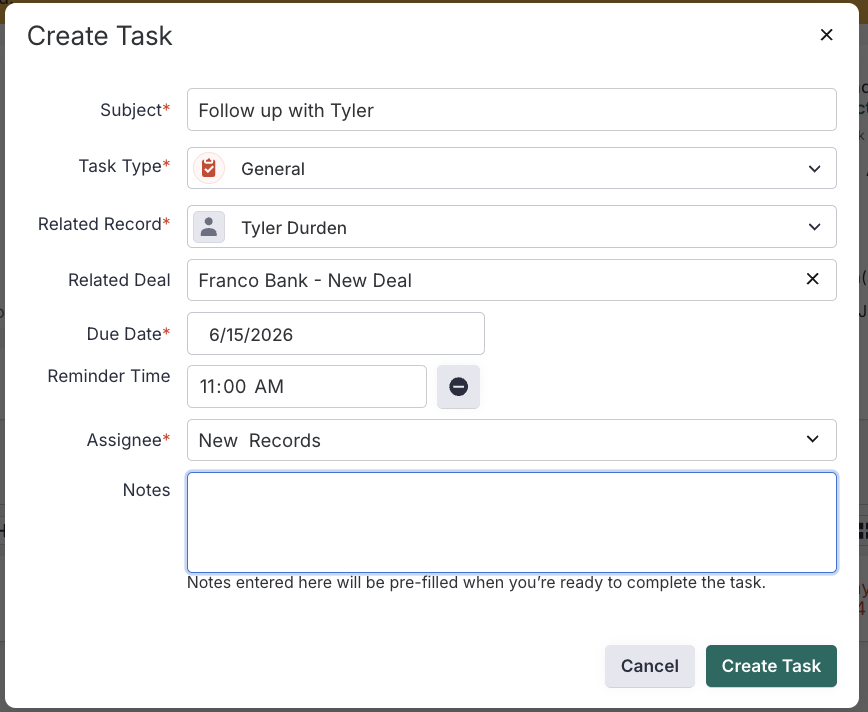
Figure 1: Create Task module with all fields completed
You've successfully created a task when:
- The task appears in your Rhythm Focus Zone on the Salesloft homepage.
- The task appears in the Upcoming Activities panel on the related Person's profile page.
- If a reminder was set, a Chrome notification fires at the specified time.
- If you created the task from the Outlook Connect side panel, a success toast appears in the panel confirming the task was created and synced to Salesforce.
General Task notes: When running a General Task, any notes you entered at creation are pre-filled in the task execution window — use them to capture the context you'll need when it's time to act.
Assigning to teammates: Assigning a task to a teammate transfers ownership of that action to them — it will appear in their Rhythm Focus Zone, not yours.
Salesloft Connect for Outlook & Chrome Extension: The Salesloft Connect panels for both Outlook and Chrome automatically bind the task to the active Person record, so you don't need to search for the contact manually. The task syncs to Salesforce through standard activity synchronization, no additional setup required. Note that the Notes field may require vertical scrolling inside the modal due to side panel dimensions.
Next: Run a Task in Salesloft: How to execute a task from the Person profile page or Rhythm Focus Zone.
Related: Tasks in Salesloft: Overview: What Tasks are, who can use them, and how they fit into your workflow.
Related: View Upcoming Tasks in Salesloft: Where to find all your due and upcoming tasks across Salesloft.
