Your CRM is most likely your primary hub for customer management needs. But managing the data and logging actions in your CRM can quickly become a daunting task.
HubSpot CRM users can breathe a sigh of relief by connecting your CRM to Salesloft. With Salesloft's HubSpot integration, you can log activities and share data records between your sales engagement platform and your CRM. This means that the actions you perform using Salesloft, automatically log to HubSpot. You don’t need to worry about logging activities, so you can focus on taking your deals to the next stage.
In this article, you will learn about the features available in Salesloft for HubSpot users, including:
Before you can take advantage of Salesloft's HubSpot integration, you must connect your HubSpot account to your Salesloft account.
This is required in order for activities you log in Salesloft to sync to HubSpot.
To Connect your Salesloft Account to your HubSpot Account, follow these steps:
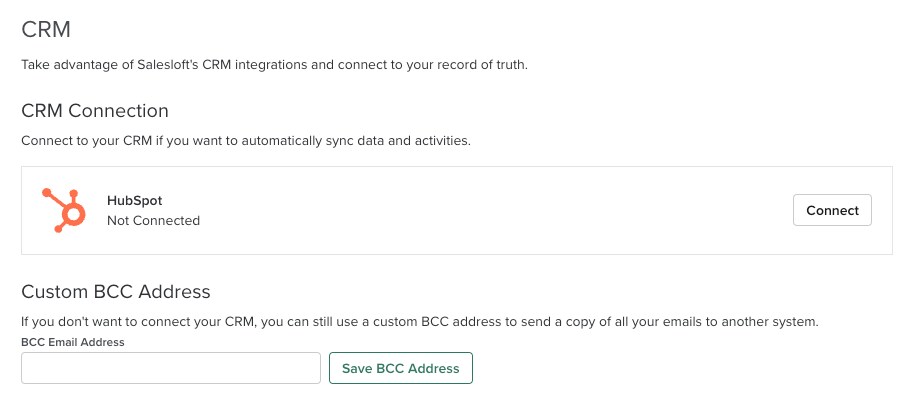
- Go to your Salesloft Settings. Then select CRM.
- Under the CRM Connection on the CRM page, you should see the HubSpot integration option. Click Connect. This will direct you to your HubSpot login page.
- Things to Note: If you do NOT see the HubSpot integration option, contact your team admin and make sure the correct CRM Type is enabled for your team.
- Log in to your HubSpot Account.
- Enter your HubSpot Login Password.
- Once you are connected, you will see the email address you are connected to on your CRM Settings page.
Salesloft Connect expands Salesloft’s functionality beyond the application and into your most used tools, like your HubSpot CRM.
By downloading the Salesloft Chrome Extension and connecting Salesloft to your HubSpot CRM, Salesloft Connect for HubSpot allows you to Loft emails, view Salesloft People information, and execute Cadences from your HubSpot account.
Things to Note: Salesloft Connect for HubSpot is only available in the Salesloft Connect Early Access version of the Chrome Extension.
You can learn more about the Chrome extension, including how to download the extension, here .
After the extension has been installed, you will gain access to Salesloft features within your HubSpot. These features include:
- Import: Import Contacts directly into Salesloft and jump straight into the respective Salesloft record
- Engage: Quickly and easily send an email or make a call directly from the HubSpot Contact page, including:
- Click to Call in HubSpot
- Loft an Email in HubSpot
- Execute: Run your Salesloft workflow directly from the HubSpot interface
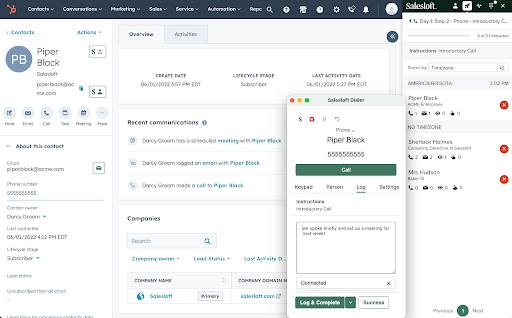
While there are many Salesloft actions you can take on Lead and Contact records using Salesloft Connect for HubSpot, a large portion of the functionality occurs within the Connect for HubSpot side panel. From the side panel, you can view Salesloft Person info and run Cadences.
To access the Connect for HubSpot side panel, click on the Salesloft logo on the right-hand side of the page. The side panel will appear on the right side of your page.
If you wish to close the panel, simply select the X in the upper right corner of the panel.
HubSpot Contact records can be imported into Salesloft using the Import to Salesloft button. This button is only available to Salesloft HubSpot users who have downloaded the Salesloft Chrome Extension.
You can import Contacts into Salesloft from HubSpot using the following methods:
- Single Contact Importing
- Single Account Importing
- Import all Contacts related to a specific Deal
- Import all Contacts related to a specific Account
- Bulk Importing options:
- Select Contact View (100 contacts)
- Contact list (2000 contacts)
When People are imported into Salesloft using the same email address that is found in their HubSpot record, the records link together. The same happens for Accounts based on their web domain.
When this linking occurs, activities can be logged to the record and fields can be updated (based on your field configuration settings).
You can also open a Person’s Contact record in HubSpot from their Salesloft Person Profile Page. In the Person Information Panel, you will see different icons. These icons are actually links to connected integrations.
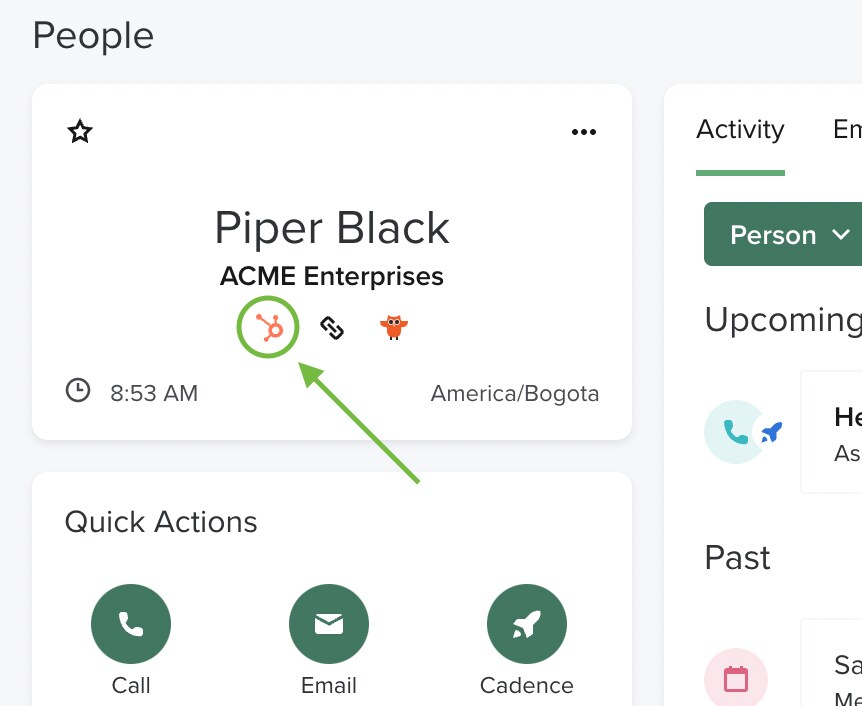
If you go to a Person’s Profile Page or an Account Profile Page and see the HubSpot icon below the Person/Account Information (aka their name), click the icon to open the record in HubSpot in another window.
Once inside HubSpot, you can still view your Salesloft details, cadence information, and more using the Connect for HubSpot Side Panel
Salesloft will also sync and display all Opportunity records related to Salesloft People and Accounts and display these Opportunities in a component on a Person and Account Page that is associated with the Opportunity record in HubSpot CRM. You can easily navigate to any of the Opportunity records in HubSpot CRM via a link on the Opportunity panel in Salesloft.
