Ensuring GDPR compliance is crucial for businesses operating within or contacting EU residents. Salesloft's EU Resident label allows users to easily manage and respect these regulations. By properly marking individuals, you protect your company from potential legal issues and maintain ethical communication practices.
Salesloft's "Mark as EU Resident" feature allows users to designate contacts as EU residents, automatically disabling open tracking, click tracking, and Live Website Tracking to comply with GDPR. This feature is vital for maintaining data privacy and avoiding legal penalties.
In this article, you will learn how to identify and mark a person as an EU resident in Salesloft, including:
Before you Mark a Person as an EU Resident
For an overview of how to mark a person as an EU resident, check out the video below:
A person can be marked as an EU Resident from the People List or on their Person Profile Page. Here we’ll walk through marking a person as an EU in both locations.
Mark a Person as an EU Resident from People Lists
To mark a Person as an EU resident from the People list views, follow these steps:
- Navigate to People Page: Go to the People Page or the People tab inside a Cadence.
- Select People: Select the Person (or People) you want to mark.
- Open Action Items: Click "More" from the action items at the top of the list.
- Mark EU Resident: Select "Mark EU Resident."
- Confirm Action: A blue shield icon will appear next to the Person's name, confirming the action.
- (Optional) Remove Label: To remove the label, follow the same steps and select "Remove EU Resident".
Mark a Person as an EU Resident from the Person Profile Page
The mark a Person as an EU Resident from the Person Profile Page, follow these steps:
- Navigate to Person Profile Page: Navigate to the Person Profile Page.
- Open Action Items: In the Person Information Panel, click the actions menu (ellipsis icon).
- Mark EU Resident: Select "Mark EU Resident."
- Confirm Action: The EU blue shield icon will appear on the top status line of the Person panel.
Mark a Person as an EU Resident from a Salesloft Extension or Add-in Instructions
People can also be marked as an EU Resident from the Salesloft extensions - Salesloft Connect Chrome Extension or Salesloft Connect Outlook Add-ins. While these experiences are very similar to the web platform, they require accessing the Salesloft side panel in each extension to create the note.
To mark a Person as an EU Resident from a Salesloft extension, follow these steps:
- Open the Salesloft Side Panel and go to a Person View: Access the side panel in the extension and view a Person Profile.
- Open Action Items: In the Person Information Panel, click the actions menu (ellipsis icon).
- Click the “Mark EU Resident” Quick Action: Select "Mark EU Resident"
- Confirm Action: The EU blue shield icon will appear on the top status line of the Person panel.
Salesloft identifies EU Residents in the following locations:
Person List Views
If a Person has been marked as an EU Resident by a Salesloft user, the EU blue shield icon can be found inside the People list on the People Page or the People tab Inside a Cadence.
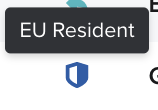
Figure 1: EU Resident Badge on the People list page
Person Profile Page
People marked as EU Residents will display the shield icon on the top status line of the Person panel on the Person's profile page.
Figure 2: EU Resident Badge on the Person profile page
When a Person is marked (or unmarked) as an EU Resident, the event is logged in the activity feed.
Figure 3: EU Resident status in the activity feed
Disabled Open and Click Tracking
Depending on the team's privacy settings, open tracking and click tracking are disabled when sending emails to a Person marked as an EU Resident.
When users send an email to a person marked as an EU resident, the click and open tracking icons will be grayed out. This means tracking has been disabled for those features. If you hover over the icons, a pop up label will explain that the tracking has been disabled due to the Person being an EU resident.
Figure 4: Grayed out click and open tracking icons
- Regularly review and update EU resident statuses to ensure compliance.
- Educate your team on GDPR regulations and the importance of accurate labeling.
- Configure CRM field configurations to maximize efficiency of marking EU resident status.
- Monitor activity feed to ensure proper implementation of EU resident labeling.
