Salesloft lets you delete individual tasks or clear out large backlogs in bulk directly from your Rhythm dashboard. Use this guide to remove tasks you no longer need — one at a time or all at once.
After completing this guide, you will be able to:
- Delete a single task from Rhythm or a profile page
- Delete tasks in bulk using the Clean Up Tasks tool
- Understand what happens to Cadence-associated tasks when they are deleted
In this article:
Before deleting tasks, make sure you have the following:
- An active Salesloft account.
- Important: Deleting tasks is permanent and cannot be undone.
- Only one bulk deletion job can run at a time per user.
- When a Cadence-associated task is deleted, the person is automatically removed from that Cadence. If you have automation rules configured for "person removed from cadence," those rules may fire as a result — this is expected behavior.
- Bulk deletion cannot be stopped once it has started.
- Bulk deletion may take up to 24 hours to complete under high system load, though most jobs finish within minutes.
You can delete a single task from the Rhythm workflow homepage, the Rhythm side panel, or a Person or Account profile page.
Delete a Task from the Rhythm Workflow
- Access your tasks: Go to the Rhythm home page or the Rhythm Workflow Tasks panel.
- Hover over the task: Move your cursor over the task you wish to delete. Action icons will appear where the due date was listed.
- Click the trash icon: Select the trash can icon to delete the task. A "Delete task?" window will appear.
- Confirm the action: Click Delete.

Figure 1: Delete a Task from Rhythm home page
Delete a Task from a Profile Page Activity Feed
- Find the task: On a Person or Account profile page, navigate to the Activity panel. Tasks appear in the Upcoming section of both the Activity and Tasks tabs.
- Hover over the task: Move your cursor over the task. Action icons will appear where the due date was listed.
- Open the options menu: Click the down arrow to open the additional task options menu.
- Select Delete Task: Click Delete Task in the dropdown.
- Confirm: Click Delete in the confirmation prompt. The task will be removed.
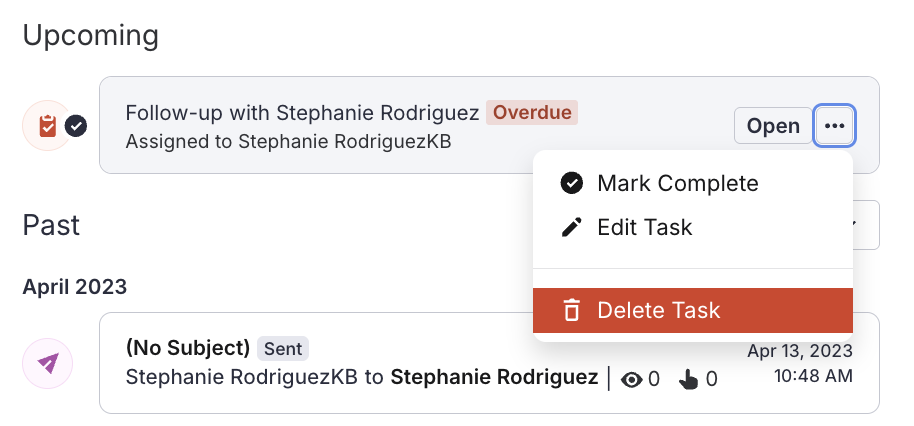
Figure 2: Delete a Task from a Person Profile page activity feed
In addition to deleting solo tasks, you can delete large numbers of overdue tasks at once directly from your Rhythm dashboard. Deletion runs as a background job, so you can keep working while it completes.
To delete tasks in bulk, follow these steps:
- Select the Remove Overdue Tasks tool: From the Rhythm dashboard, click the trash icon to open the Remove overdue tasks window.
- Configure your deletion: Select your options in the following sections:
- Remove tasks due: Selects tasks based on their due-date cutoff (e.g., tasks overdue by more than 6 months)
- Task Source: Select which task types to delete (e.g., Cadence tasks, one-off tasks, API-sourced tasks).
- Things to Note: If you select Cadence tasks, a warning will appear confirming that people associated with those tasks will also be removed from their Cadence. Review this carefully before continuing.
- Review the confirmation: The second modal displays the total number of tasks that will be deleted and reminds you that this action is permanent and cannot be reversed.
- Confirm: Click Confirm to start the job. The deletion runs in the background — you can continue working normally.
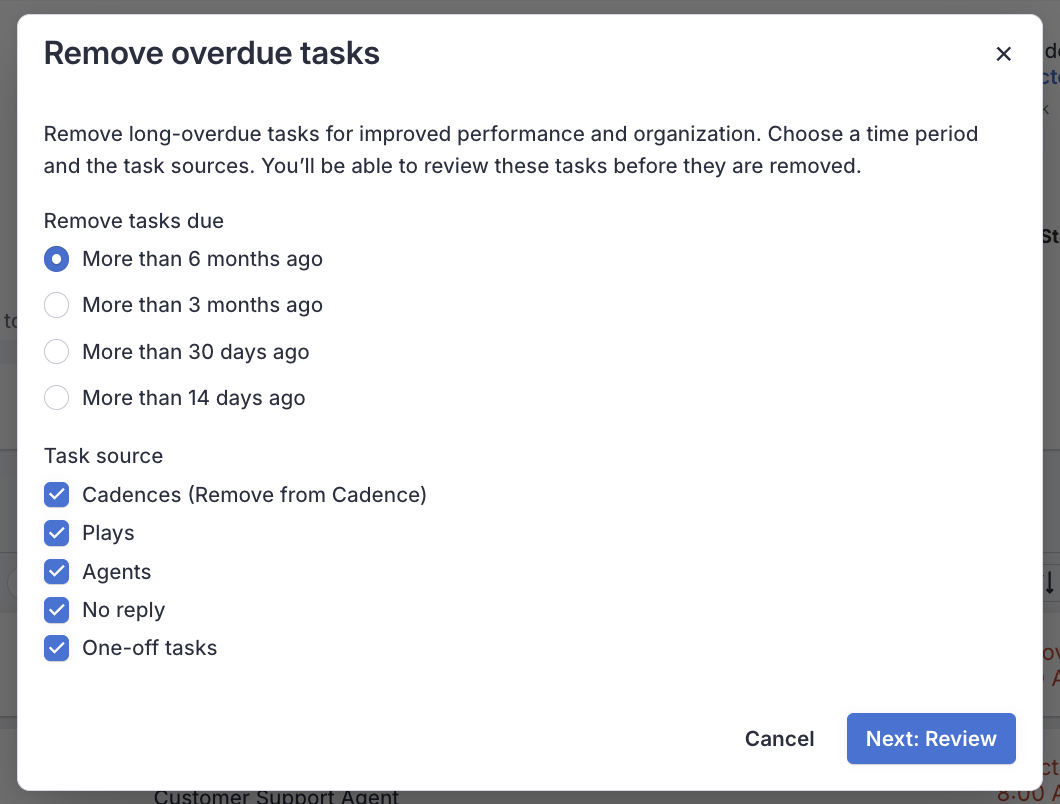
Figure 3: Configure which overdue tasks to remove by selecting a time period and task sources
Individual task deletion: You've successfully deleted a task when it disappears from your Rhythm workflow or profile page activity feed and a confirmation message appears.
Bulk task deletion: You've successfully submitted a bulk deletion job when the confirmation modal closes and you receive a completion email summarizing the results — including how many tasks were deleted, how many failed, and whether the job completed.
- Cadence removals may trigger automation rules: Deleting Cadence-associated tasks removes those people from their Cadence, which can fire any automation rules you have configured for that event. Review your automation rules before running a bulk deletion if this is a concern.
- No in-product progress view for bulk deletion: There is no live progress indicator while a bulk deletion job runs. The completion email is the only confirmation that the job has finished.
- Archiving vs. deleting: Deleting a task is permanent. If you think you may need a record of the task later, consider logging notes on the associated Person or Account before deleting.
Troubleshooting
|
Problem
|
Likely Cause
|
Fix
|
|
Trash icon not visible on Rhythm dashboard
|
Bulk deletion not enabled for your org
|
Contact your admin to confirm the feature is enabled
|
|
No completion email received after bulk deletion
|
Job may still be running or email was filtered
|
Wait up to 24 hours; check your spam folder. If no email arrives, contact Support
|
|
Cadence automation rules fired unexpectedly
|
Bulk deletion removed people from Cadences, triggering configured rules
|
Review automation rule settings with your admin; this is expected behavior
|
