Salesloft People can be assigned, or linked, to Accounts.
Linking People to an Account in Salesloft allows all of the metrics and logged information that are associated with the individual Person to link to their Account information. This results in complete data regarding your conversations with that Account, which can help your sales engagement.
Salesloft offers various ways to update the Account that is linked to a Person. You may need to update a Person’s Account if they are imported into Salesloft without an Account or if a Person changes companies.
In this article, you will learn how to update a Person’s Account in Salesloft, including:
- People imported with their Account information should be linked to their Account as defined by your Account Management Settings.
- Make sure you have the Manage Accounts permission assigned to your role. When this permission is enabled, the Create Person button will be available to add additional People to that Account from the Account Profile Page.
For an overview of how to link a person to an account, check out the video below:
Person Profile Pages hold all of the details related to a Person record in Salesloft. So, it makes sense that the Person Profile page would also show an Account linked to the Person.
If a Person is linked to an Account, the Account name will appear under the Person’s name inside the panel found in the upper left corner of the profile.
To link (or unlink) a Person to an Account, follow these steps:
- Navigate to the Person Profile Page: Select a Person’s name in Salesloft to access their profile page.
- Open the Profile Menu: Click the '•••' icon in the upper right corner of the panel to open an actions menu.
- Select Link/Unlink from Account: You will have to option to Link or Unlink from Account. A module will appear.
- Search for the Account: Use the text box to search for the appropriate Account. Account names will populate below the text box.
- Select the Account to Link: Click Link to select an option. The linked account will now appear beneath the Person’s name.
This panel is also where you can link (or unlink) a Person to an Account. Click the '•••' icon in the upper right corner of the panel to open an actions menu. You will have to option to Link or Unlink from Account.
Figure 1: (GIF) Link Person to Account from Person Profile Page
You can edit a Person record to update their linked account. Editing an Account takes place from People lists found on the People Page or the People tab Inside a Cadence.
This form of editing is particularly useful if you need to update the account information for multiple people at the same time.
To assign People to an Account or update their existing Account, follow these steps:
- Navigate to a People Page: Go to the People Page or the People tab Inside a Cadence.
- Select People: Select the People you want to assign to an Account.
- Click Edit: Click the Edit button from the top bar. The Edit People module will appear
- Type Account Name: In the Account text box, begin typing the name of the Account. You must add two characters before the name will populate.
- Select Account: When the list of Accounts populate, click the Account's name.
- Save: Click Save. The People will be added to the account. You will now see the Account name listed on the Person's details.
Figure 2: Edit People to Link Account
The Account Profile Page includes a People panel that lists all of the People linked to that Account.
To add a Person from the People at Account Panel, follow these steps:
- Navigate to a People page: On the Person Profile or Account Profile page, find the People at Account Panel.
- Open Add New Person to Account Module: Click Create Person. The Add New Person to Account module will appear.
- Search for the Person: From the module, search for the Person in Salesloft.
- Select Person: When the Person's name appears, click the name to add them to the Account.
If the Person does not already exist in Salesloft, follow these steps:
- Navigate to a People page: On the Person Profile or Account Profile page, find the People at Account Panel.
- Open Add New Person to Account Module: Click Create Person. The Add New Person to Account module will appear.
- Create New Person: From the module, click Create new Person.
- Enter Person Details: Enter the name, email, and phone number of the Person. You will also see additional fields, including:
- Related Account field: Sources existing Accounts in Salesloft to ensure it gets tied to the correct record. When creating a Person from the People at Account panel, this field will be pre-populated.
- Job Seniority: Automatically populate based on inputs from Title field.
- Time Zone: Automatically populate based on inputs from the Location' field.
- Create and Add to Account: Click Create and Add to Account.
Figure 3: Add People to Account module
The Edit Person Details page also shows you the Linked Account. However, you can only view the Linked account inside the Person Details. If you click the Linked Account in the details, you will be taken to the Account profile page.
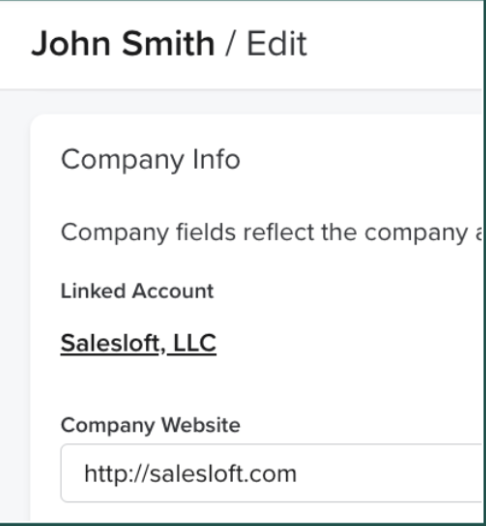
Figure 4: Linked Account inside the Person Details
If you click the linked Account in the details, you will be taken to the Account profile page.
Account Page Layout
Import accounts into Salesloft
Familiarize yourself with the:
