Out of Office (OOO) Detection helps you manage Cadence actions for People who are currently out of office.
Let's be honest, if a prospect is on a beach somewhere, they probably want to disengage as much as possible. When an Out of Office reply comes back from a Person, Salesloft pauses Cadence actions to that Person to prevent you from repeatedly reaching out to prospects who are less likely to connect due to being out of office or on PTO.
In this article, you will learn how to mark a Person as Out of Office in Salesloft. This article includes:
Here are the requirements and things you must know in order to mark a Person as Out of Office within Salesloft:
- The Generative Artificial Intelligence setting must be enabled to set up and automatically mark a Person as Out of Office.
- Mark a Person Out of Office is different from Seller Out of Office Automation. Marking a Person Out of Office identifies the behavior of a Person record based on an email response message. Seller Out of Office Automation uses calendar sync to identify when a user is out of office and pauses activities.
- OOO Detection is currently only available to users connected to Gmail or Outlook Office 365 accounts.
- Salesloft can detect out of office messages in English and in the following formats:
- US Format - MM/DD/YYYY
- Non-US Format - DD/MM/YY
- Explicit Written - Ex. January 15th, 2022; Jan 15
- Relative Written - Ex. "Next Tuesday, mid-January, next week"
- OOO replies will be detected in the following languages:
- OOO detection must be enabled at the Cadence level.
Whether Cadence steps should shift is governed by a setting on the Cadence level.
When the Automatically reschedule step due dates when a person is marked out of office Cadence setting is on, associated cadence steps will be shifted when an OOO email is detected (automatic OOO detection) or a Person is manually set to OOO.
If this setting is off, Cadence steps will not be shifted and the steps will be due on their original schedule.
To enable automatic Mark a Person as Out of Office, follow these steps:
- Create or edit a Cadence: Create a Cadence or go to your Cadence Settings page.
- Enable the Out of Office detection setting: Under the Cadence Settings Automation section, check the box Automatically reschedule step due dates when a person is marked out of office.
- Save the Cadence: Click Save Settings.
Figure 1: Enable Automatic Mark a Person as Out of Office at the Cadence level.
Automatically marking a Person as Out of Office will apply to any Person that is added to the Cadence after the setting has been saved.
Automatically detection of an Out of Office Person aims to pick up the data from received out of office responses. However, if you learn that a Person will be out of office during a phone conversation or in the event that the out of office message is in a different format, you have the ability to manually mark a Person as Out of Office from their Person Profile page.
When you manually mark a person as OOO, Salesloft shifts affected Cadence steps to a specified return day you select.
To manually mark someone as out of office, follow these steps:
- Go to the Person Profile Page: Hover over the Contacts tab, then select People. Click the name of the Person whose out of office status you want to remove.
- Open the Person Profile Actions: Click the ellipses icon in the upper right corner of the Person Information Panel. The Person Profile Actions dropdown will appear.
- Select “Mark Out Of Office” In the menu, select Mark Out of Office. The Mark Out of Office module will appear.
- Set a “Return Date”:. Your return date will be the day your cadence actions resume. So, you can either make it the day the Person is due to return or the day after.
- Confirm the action: Click Mark Out of Office. The Palm Tree icon will appear on the Person’s Profile page.
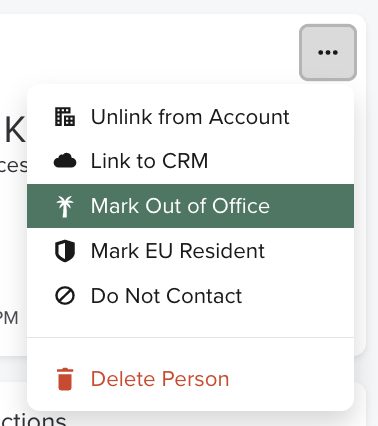
Figure 2: Manually Mark a Person Out of Office.
People can also be marked as out of office from the Salesloft extensions - Salesloft Connect Chrome Extension or Salesloft Connect Outlook Add-ins. While these experiences are very similar to the web platform, they require accessing the Salesloft side panel in each extension to create the note.
To mark a Person as out of office from a Salesloft extension, follow these steps:
- Open the Salesloft Side Panel and go to a Person View: Access the side panel in the extension and view a Person Profile.
- Access Dropdown Menu: Click the ellipses in the side panel.
- Open Mark out of office Menu: Select “Mark out of office.”
- Set out of office duration: Use the dropdown to set the out of office date or duration.
- Remove out of office (Optional): Select Remove out of office to remove the out of office status.
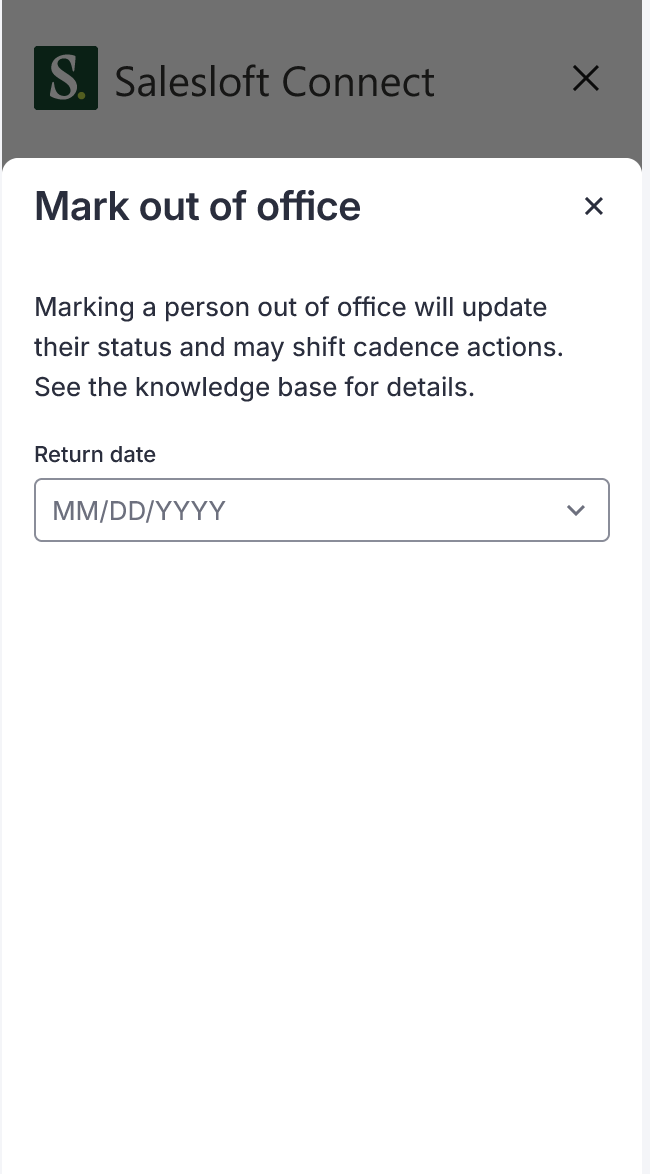
Figure 3: Mark as Out Of Office within the Salesloft Connect side panel in Outlook
If a prospect reaches out and informs you that they have returned to work, you can remove the out of office status to either mark as back in office or to change the out of office date.
To remove an Out of Office, follow these steps:
- Go to the Person Profile Page: Hover over the Contacts tab, then select People. Click the name of the Person whose out of office status you want to remove.
- Open the Person Profile Actions: Click the ellipses icon in the upper right corner of the Person Information Panel. The Person Profile Actions dropdown will appear.
- Remove Out of Office: From the menu, select Remove Out of Office. The Remove Out of Office Status module will appear. Click Remove OOO Status. The Palm Tree icon will be removed from the Person’s Profile page. Any cadence steps will be due immediately.
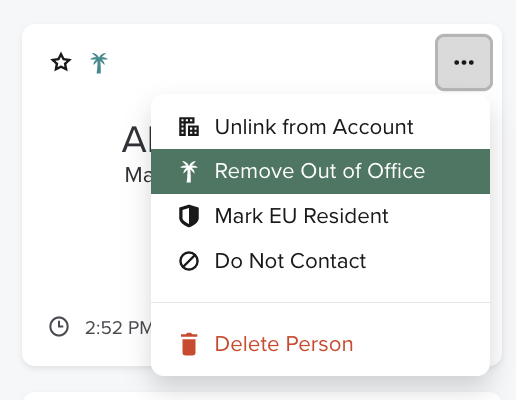
Figure 3: Remove a Person’s Out of Office status on the Person Profile.
Q: If I choose to automatically Mark a Person as Out of Office, how does Salesloft determine when to resume Cadence actions?
Salesloft uses algorithms to identify Out of Office replies and extract the sender’s expected return date. This allows Salesloft to automatically pause Cadence steps and reschedule automated emails. When an OOO reply is detected, Salesloft analyzes the email to find the return date, then automatically shifts Cadence steps and automated emails to one day after that date (return day +1).
Q: Why are actions delayed until the day after the return date?
Giving your prospect one extra day after they return helps them catch up before receiving new outreach, increasing the chances of a meaningful response.
Q: Do tasks also shift when someone is Out of Office?
No. Tasks do not shift. Steps that are overdue will stay overdue, but their due dates will update to reflect the adjusted schedule.
Q: Why doesn’t Automatic Mark a Person as Out of Office apply to all planned actions and Cadences by default?
The Automatically Mark a Person as Out of Office setting lets you determine whether or not pausing Cadence actions when an email recipient is the best action in relation to your Cadence type. Cadences can be used for different types of communication. While some may focus their cadences on inbound or outbound prospecting, others use Cadences for event communications and announcements.
Q: What happens when a person is marked as Out of Office?
When a person is marked as Out of Office, Salesloft automatically shifts their scheduled Cadence actions until they return.
Q: Can I still reach out to someone who is Out of Office?
Yes. You can still send one-off emails or make phone calls to someone marked as Out of Office. However, Salesloft will notify you that the person is currently away. You’ll see indicators in emails, the Dialer, and on the Person Profile page letting you know their OOO status.
Email
Dialer
Person Profile Page: Palm Tree Icon. Hover over the palm tree to view the return date.
- Check Cadence and Email Analytics to confirm paused actions are accurately reflected.
- Plan follow-up timing based on detected or manually set return dates.
