Sometimes you need to completely stop all communication with a specific Person. Salesloft allows you to add individuals to the Do Not Contact list.
In this article, you will learn how to Mark a Person as Do Not Contact in Salesloft.
- You must have permissions to "Toggle DNC on People". This permission is enabled by default for Salesloft standard admin and user roles.
- You will not be stopped from contacting linked people from a third party such as Gmail or Outlook.
- All people marked Do Not Contact will be removed from cadences, with the exception of any operational cadences.
- If someone is marked as Do Not Contact, the following will apply:
- Email is disabled.
- Calling is disabled.
- The Person cannot be added to any Cadence.
- The Person is removed from all Cadences.
There are four methods to mark a Person as Do Not Contact:
- People List (recommended for bulk actions)
- Person Profile Page
- Salesloft Connect Chrome Extension
- Salesloft Connect side panel in Outlook
Mark a Person as Do Not Contact from the People List
To mark a Person as Do Not Contact from People List views in Salesloft, follow these steps:
- Navigate to the People list: Go to either the People page or the People tab within a Cadence. To access the People page go to the top navigation bar hover over Contacts, select People. You will land on the People list page.
- Select People: Check the box next to the Person you want to add to the Do Not Contact list. Actions will appear above the list view.
- Select "More": Click the More button that appears above the People list.
- Choose "Do Not Contact" from the dropdown menu: Click Do Not Contact. The Do Not Contact status window will appear.
- Check the box next to "Do Not Contact": Select the option for Do Not Contact (Calls, Emails, or Adding to Cadence). When you select this option, all of the other options will immediately update so you can not select them. The options are all included in the Do Not Contact selection.
- Click "Update Status": Confirm the action by clicking Update Status to add the Person to the Do Not Contact list.
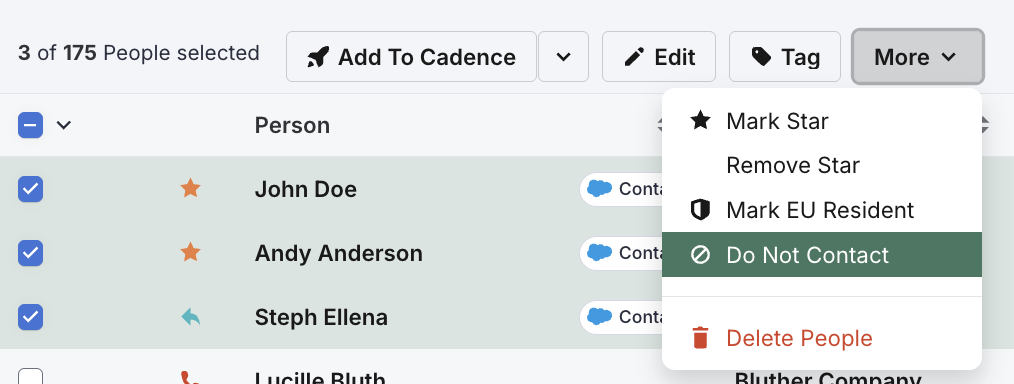
Figure 1: Mark a Person as Do Not Contact from a People List
Mark a Person as Do Not Contact from the Person Profile Page
To mark a Person as Do Not Contact from the Person Profile Page in Salesloft, follow these steps:
- Navigate to the Person Profile page: Access a Person's profile page by selecting a Person's name or in the top navigation bar hover over Contacts, select People, find the Person name in your list view, and select the Person.
- Open the Person Information Panel Actions menu: In the first panel that contains the person's name, click the ellipses icon (...) in the upper left corner. This will open a menu.
- Select "Mark Do Not Contact": From the menu, select Mark Do Not Contact. A pop up will appear to confirm the action.
- Check the box next to "Do Not Contact": Select the option for Do Not Contact (Calls, Emails, or Adding to Cadence). When you select this option, all of the other options will immediately update so you can not select them. The options are all included in the Do Not Contact selection.
- Confirm: Review the confirmation notice then click Confirm.
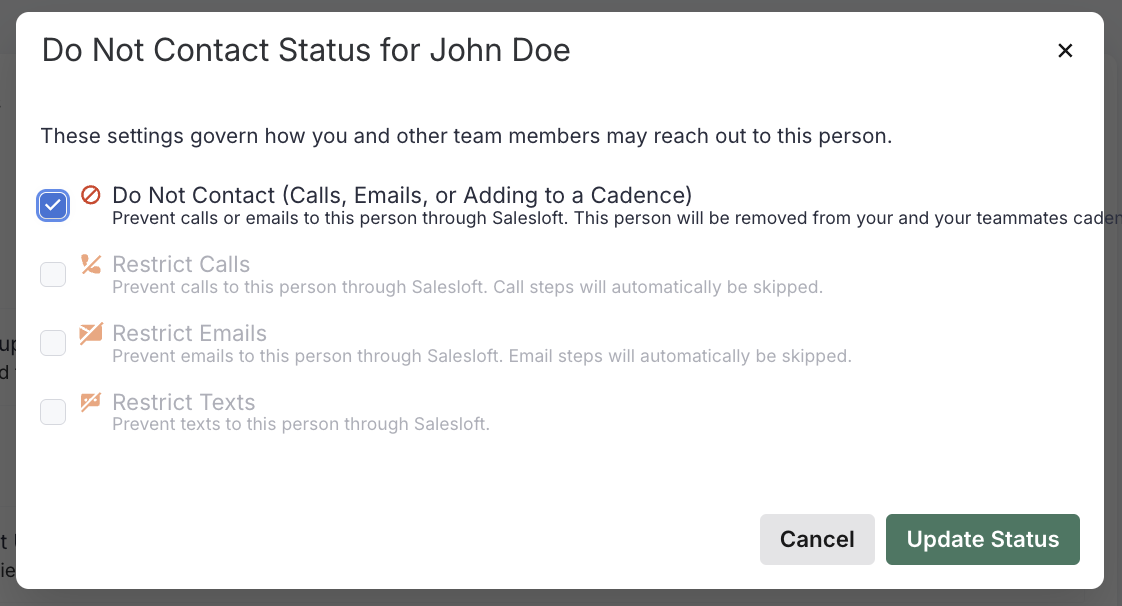
Figure 2: Mark a Person as Do Not Contact from the Person Profile Page
Mark a Person as Do Not Contact from a Salesloft Extension or Add-in Instructions
People can also be marked as an do not contact from the Salesloft extensions - Salesloft Connect Chrome Extension or Salesloft Connect Outlook Add-ins. While these experiences are very similar to the web platform, they require accessing the Salesloft side panel in each extension to create the note.
To mark a person as do not contact from a Salesloft extension, follow these steps:
- Open the Salesloft Side Panel and go to a Person View: Access the side panel in the extension and view a Person Profile.
- Open Action Items: In the Person Information Panel, click the actions menu (ellipsis icon).
- Click the “Mark as Do Not Contact” Quick Action: Select "Mark as Do Not Contact".
- Open Do Not Contact Menu: Select “Do Not Contact”.
- Check the box next to "Do Not Contact": Select the option for Do Not Contact (Calls, Emails, or Adding to Cadence). When you select this option, all of the other options will immediately update so you can not select them. The options are all included in the Do Not Contact selection.
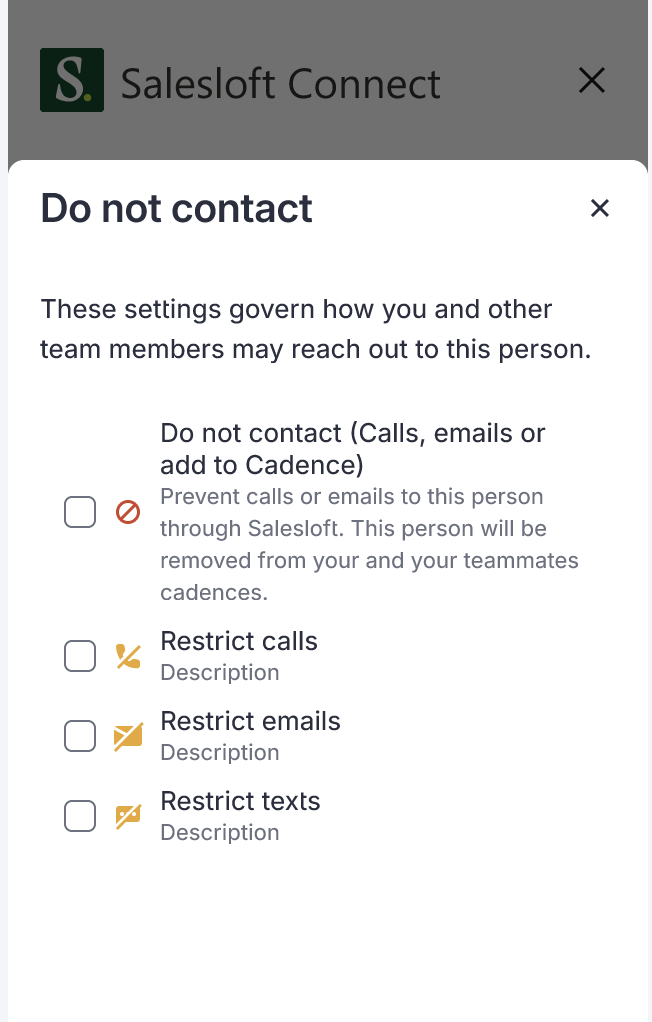
Figure 3: Mark a Person as Do Not Contact from the Salesloft Connect Side Panel in Outlook
Mark a Person as Do Not Contact from Salesloft Connect
To mark a Person as Do Not Contact from from Salesloft Connect, follow these steps:
- Navigate to the Person: Access the Person within Salesloft Connect.
- Open the Side Panel: Open the Salesloft Connect side panel within Gmail or your CRM.
- Access Dropdown Menu: Click the ellipses in the side panel.
- Open Do Not Contact Menu: Select “Do Not Contact”.
- Check the box next to "Do Not Contact": Select the option for Do Not Contact (Calls, Emails, or Adding to Cadence). When you select this option, all of the other options will immediately update so you can not select them. The options are all included in the Do Not Contact selection.
Adding a Person to the Do Not Contact list prevents all communication with them through Salesloft.
- Review your People records and add any individuals who should be on the Do Not Contact list.
- Communicate with your team about any People who have been added to the Do Not Contact list.
