An individual Account Profile Page contains the Activity feed which offers a detailed look into all of the activities logged to the various People linked to the Account.
The Activity feed gives you complete visibility into an Account's Salesloft history. You can quickly learn whether an activity was completed by you or another Salesloft user, through a Cadence or an Automation Rule. This will help you keep track of the level of engagement your team has had with the Account.
The tabs at the top of the Account Activity Feed allow you to quickly access and view certain activities on one page. These tabs are perfect for filtering by a specific type of action. For example, you could check how many People on the Account have received an email or keep track of their Cadence activities. The tabs include the following:
- Activity: Displays the activities relevant to People linked to the Account you are viewing. Any activity, whether you add People to a Cadence, send an email, log a call, create Tasks, mark them as a success, etc., will appear in the activities.
- Emails: Shows all emails sent to the People on this Account along with their email engagement (open, click, reply metrics). You can even see a complete log of replies you have received from People on the Account. To get a more in-depth look at the email, click on an individual email. The email will expand to show the full message.
- Calls: Shows all of the calls made to this Account. Each call log includes any notes, the disposition, and sentiment of those calls. You can even access Call Recordings from the link below the call notes.
- Cadence: Shows all of the Cadences People at the Account are or have been on, including the Cadences of your teammates.
- Tasks: View any Tasks – Upcoming and Past (completed) – that have been assigned to People associated with the Account.
- Notes: Allows you to log notes on the Account’s record in Salesloft. When you log a note you can quickly reference it from the Notes tab, or view it under recent activity.
- Conversations: Shows recorded conversations that have been linked to the Account or People on the Account Record and allows you to download the video/transcript and share the link to the recorded conversation.
In this article, you will learn how to view account activities from the Account Profile Page, including:
Before you view Account activities from the Account Profile Activity Feed, there are some important things you should know:
- When an activity is pinned for a Person, it appears in the Pinned Activities section on the Person Profile and Account Profile.
- When an account activity is pinned, it appears in the Pinned Activities section on the Account Profile only.
- The Expand All option will apply to the Calls and Notes tabs.
- New Tasks cannot be created from the Account profile page.
- Only Signals generated on or after the beginning of August 2025 will appear in the Activity feed.
- Signals seen in the activity feed include standard Salesloft signals (e.g., email reply, missed call) and signals that come through the Signals API (from both partners and customers).
- Signals in the activity feed do NOT include Opportunity records or No Code/CRM Signals.
- Who Can Access, Edit, and Manage Notes? The answer depends on the user's role and level of permissions. The table below lists Salesloft's notes management permissions.
- Things to Note: The Account Record Owner is the Salesloft user who owns the Account Record and is responsible for the actions related to an Account in Salesloft. The Account Record Owner's name appears on the Account Profile Page.
| Action | User With Record View Permissions | Account Record Owner | Admin |
| View all notes | Y | Y | Y |
| Create a new note | Y | Y | Y |
| Pin/Unpin my note | Y | Y | Y |
| Pin/Unpin other user’s note | N | Y | Y |
| Pin/Unpin inactive user’s note | Y | Y | Y |
| Edit my note | Y | Y | Y |
| Edit other user’s note | N | N | Y |
| Delete my note | Y | Y | Y |
| Delete other user’s note | N | Y | Y |
To view activities logged to an Account, you must first navigate to the Account Profile Page. To find specific activity types (Emails, Calls, Notes, etc.), use the dedicated tabs found at the top of the Account Activity feed.
To view activities logged to an Account, follow these steps:
- Navigate to the Account: In Salesloft, go to the Accounts profile page. Select the specific Account you want to view activities for. Alternatively, you can select an Account name from anywhere in the Salesloft Platform.
- View the Activity Feed: The center panel of the Account Profile Page displays the main Activity Feed.
- View activities by Activity type: Use the Specific activity tabs for additional research:
- Emails Tab: Go to the Emails tab to see all emails sent to people on the account, including engagement metrics and replies. Use the Email filter to view specific types of email activities.
- Calls Tab: Go to the Calls tab to see all calls made to the account, including notes, disposition, sentiment, and call recordings. Use the Call filter to view specific types of call activities.
- Cadences Tab: Go to the Cadences tab to see all cadences associated with people on the account.
- Tasks Tab: Go to the Tasks tab to view upcoming and past tasks assigned to people on the account.
- Notes Tab: From the Notes tab, click the "Add Note" button on the Account Profile Page to log notes related to the account.
- Reviews Tab: From the Reviews tab, view any Review Record tasks assigned from Plays.
- Meetings Tab: The Meetings tab shows meetings that have been scheduled using calendar sync.
- Conversation Tab: Go to the Conversation tab to see recorded meetings logged to people on the account. You can view the meeting from the Activity Panel or access the full recording and details.
- Signals Tab: Shows all signals that come through the Signals API associated with a person or account.
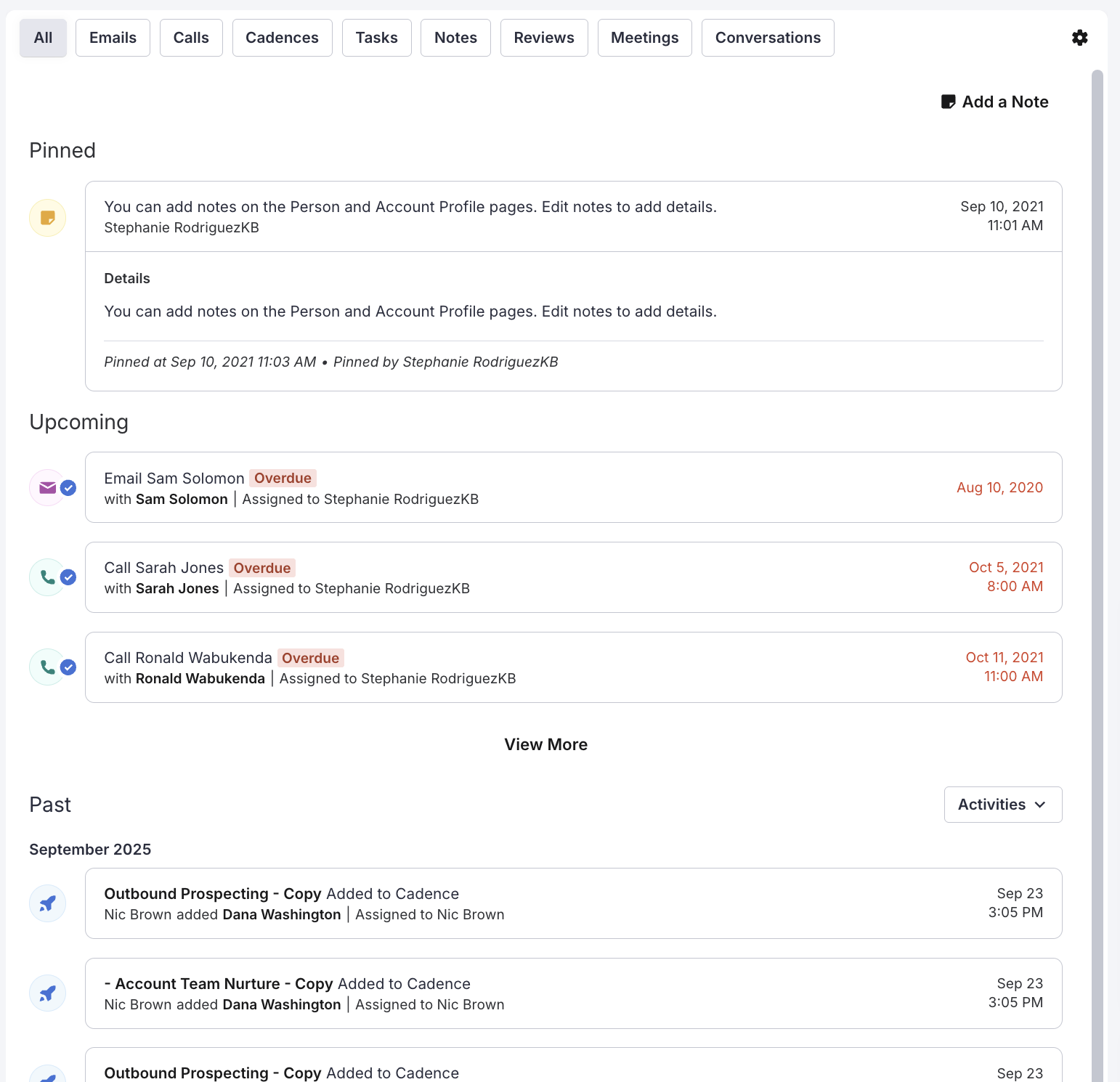
Figure 1: Example: Account Activity Feed
To see scheduled activities and tasks, view the Upcoming section of the Activity Feed.
- Go to the Account Profile Page: Follow the steps above to access the Account Profile Page.
- Locate the Upcoming Section: The Upcoming Actions will be displayed on the main Activity tab. By default, you will see three activity tiles.
- View All Future Actions (If applicable): If there are more actions scheduled than the three displayed tiles, click the View All button at the bottom of the Upcoming Actions to see all actions that are due.
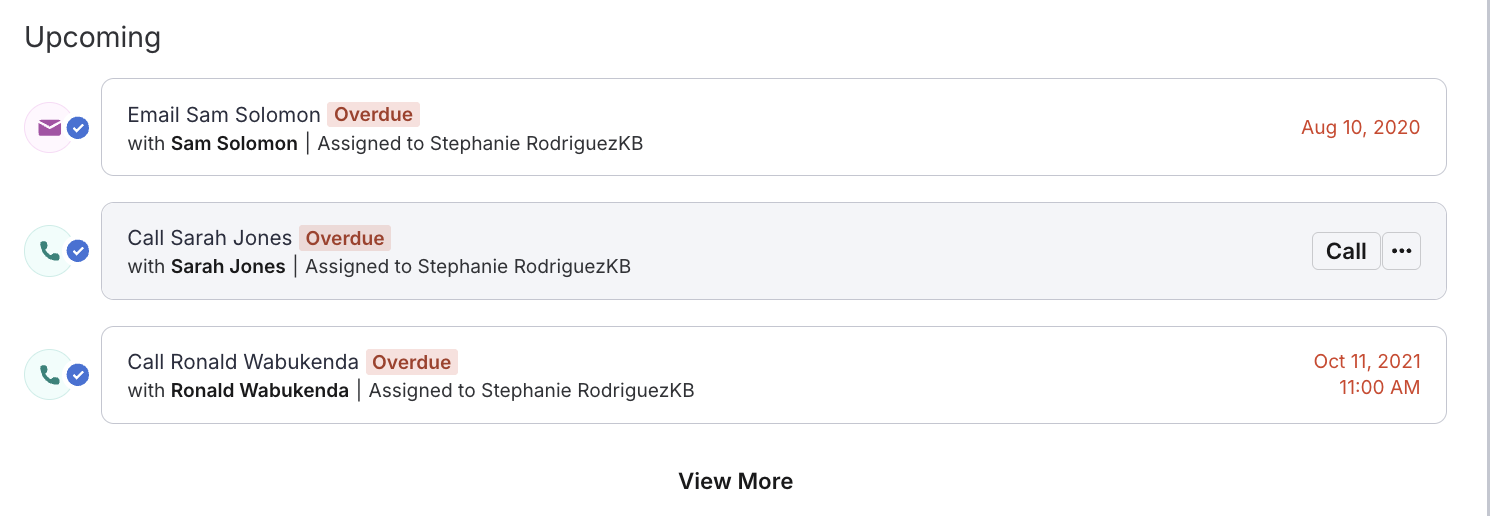
Figure 2: Upcoming Activities
The Past section includes all activities that have been previously logged to the Account and will appear below all Upcoming Activities in the Activity Feed.
- Go to the Account Profile Page: Follow the steps above to access the Account Profile Page.
- View the Activity Feed: Look at the center panel of the Account Profile Page to see the Activity Feed. You can view the main activity feed to see all activities or select a tab to view by a specific type of activity.
- View the Past Section: Locate the Past section on the main Activity tab. Past activities will be split by month in the Activity Feed.
- Filter Date (Optional): Click the Date button to filter past activities.
- Things to Note: The Date filter button will only appear in the Activity Feed for Meetings, Emails, Notes, and Conversations.
- Filter Activities (Optional): Inside the Past section, you can filter activities by activity type:
- Engagement: Recommended to view the history of touches and interaction between seller and the prospect.
- Cadences and Tasks: Recommended to review the history of completed cadence steps and tasks.
- Other: Recommended to find specific activity, like Success, Do Not Contact, or EU Resident.
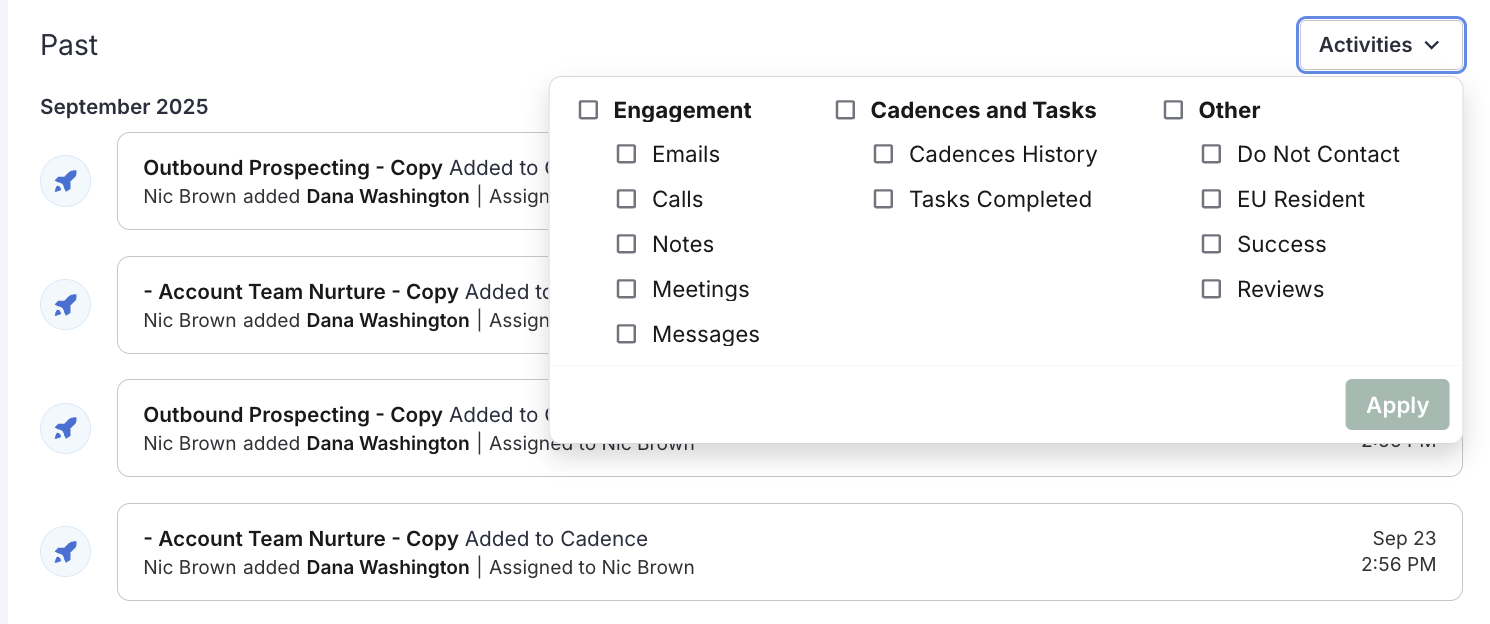
Figure 3: Past Activities
To highlight and easily access important notes, calls, or emails, use the pin feature.
- Locate the Activity: Find the note, call, or email you wish to highlight in the Activity Feed or its dedicated tab.
- Pin the Activity: Hover over the activity and select the pin option. The activity will now appear in both the Pinned and Past sections.
- View Pinned Activities: Go to the Pinned section of the main Activity tab to see all highlighted items, sorted by the activity date (most recent on the top).
- Unpin the Activity (Optional): To remove an activity from the Pinned section, hover over it and select the unpin option.
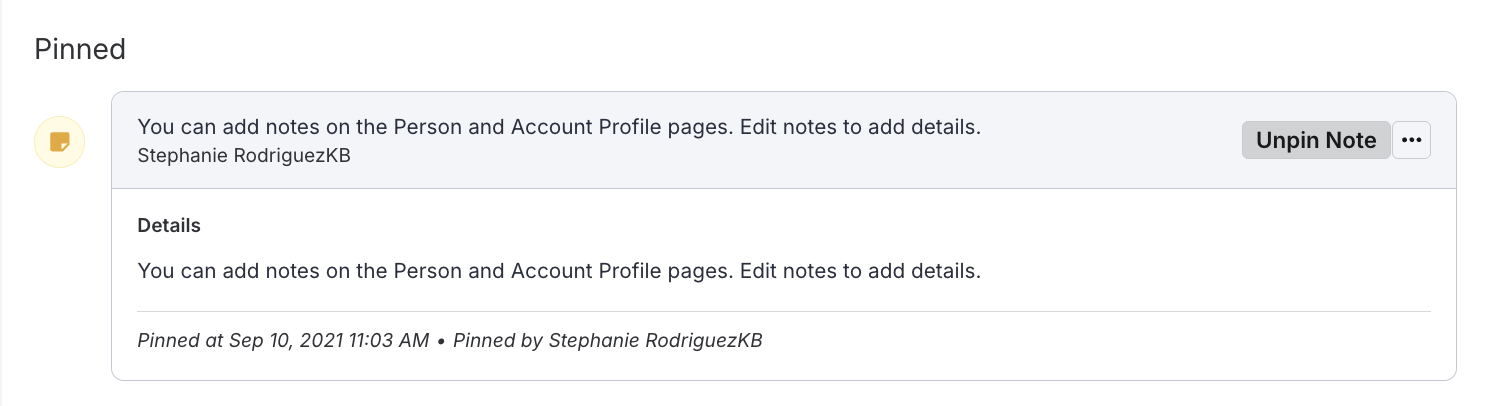
Figure 4: Pinned Activities
To see less information in your activity feed and switch from the default Expanded View, enable the Compact View. The compact view will show the first couple of lines of the activity. You can still click the activity to expand the details.
To switch to the compact view, follow these steps:
- Go to the Activity Feed: Access the Account Profile Page as described above.
- Access the Settings: Select the cog icon (settings) in the upper right corner of the Activity Feed panel.
- Enable Compact View: Enable the Compact View option. This setting will apply to all Person and Account profiles you view.
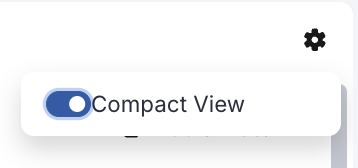
Figure 5: Compact View Enabled
- For a complete list of activities and actions, see the Logged Activities Inside the Activity Feeds article.
- Each activity tile displays the following:
- Activity icon
- Name of Activity
- Date and time: For upcoming activities, this will show the due date. Past activities will show when the activity was completed.
- Description of the Salesloft activity
- Salesloft user who performed or triggered the activity
- Hover over Upcoming Activities to view additional actions.
- Click on an activity to expand and view more details.
- Conversation entries in the activity feed include a mini-player that allows you to play/pause, adjust volume, scrub the recording, and copy a shared link. Click the expand button in the mini-player to open the video in a larger view.
Use the Upcoming and Planned tasks section of the Activity feed.
