Salesloft Tags are labels that you can use to classify and group different Salesloft objects together.
You can tag Salesloft People, Accounts, Cadences, and templates.
In this article, you will learn about using tags in Salesloft, including:
- A team admin can manage tags inside the admin settings. Managing tags includes adding, editing, merging, and deleting existing tags. Check out the Manage Tags article for more information.
- The Manage People permission includes the capability to tag People records. This permissions is enabled for standard Salesloft admin and user roles by default.
- The Team Cadences: Tags permission includes the capability to tag Team Cadences. This permissions is only enabled for standard Salesloft admins by default.
Add Tags to a Cadence
Cadence tags help group specific types of cadences. You can create cadence tags to label cadences by region, use case, content, etc.
To set tags from the Cadence list, follow these steps:
- Go to the Cadences Page.
- Find the Cadence you would like to add the tag to and select the down arrow to the right of the Cadence Name. This will open the Cadence Page Actions.
- Select Manage Tags. The Edit Tags window will appear.
- Type the name of the tag you want to apply. Results for existing tags will appear as you type. If the tag you want to use already exists, select the name of that tag. The selected tag will appear as a pill in the text box.
- If you don't see the name of the tag you want to use, you have the option to create a new tag. Select + Create to add the new tag name.
- Repeat the process to add more than one tag.
- Hit Save to apply the tag(s).
Figure 1: Edit Tag on Cadence Page
Add Tags to Accounts and People
From The Accounts Page and People Page lists, you can add tags by following these steps:
- Select the Accounts or People you want to add tags to by clicking the checkbox next to the each record's name.
- When you select a record, a line of action items will appear at the top of your list. Click the Tag button. The Edit Tags module will appear.
- Under Add Tags, type the name you would like for the tag.
- If the tag had not been used before, a message will display "No tags match your search." Click + Create to create a new tag.
- If they tag already exist, select it from the search dropdown.
- Each tag will appear as a pill above the search bar. If you change your mind, click the X in the tag name box and the tag will not be added.
- Things to Note: Tags will not be added until you click Update.
- Click Update. The tags will be added below the tag column in your Account list.
Add Tags to Templates
From the Templates Page, you can add template tags by following these instructions:
- Select the template (or templates) you want to add tags to or remove any tags from by clicking the checkbox next to the template name.
- When you select a template, a line of template action items will appear at the top of your list. Click the Tags icon.
- To add a tag, click the Add Tags link. Then, type your tag and click Add. Continue adding your tags individually, and click Save.
You can view, apply, create, and remove tags directly from the Chrome Extension or Outlook Connect sidepanel — without switching to the main Salesloft web app. The Tags card appears automatically under the Overview tab on both Person and Account records.
Things to Note:
- The contact or account record must be matched to a Salesloft Person or Account object for tags to apply. Tags cannot be added to unmatched records.
- Tags created from the extension or sidepanel are added to your team's shared tag library and are immediately available across Salesloft.
Apply an Existing Tag from the Chrome Extension or Outlook Connect Sidepanel
To apply an existing tag from the Chrome Extension or Outlook Connect sidepanel, follow these steps:
1. Open a contact or account record in the Chrome Extension or Outlook Connect sidepanel.
2. Navigate to the Overview tab and locate the Tags card.
3. Click inside the Tags input field. A dropdown displays the top 15 most frequently used team tags.
4. Type to filter the list. The dropdown narrows in real time to matching tags.
5. Click a tag or press Enter to apply it. The tag renders immediately as a chip below the input field.
Create a New Tag from the Chrome Extension or Outlook Connect Sidepanel
To create a net-new tag from the Chrome Extension or Outlook Connect sidepanel, follow these steps:
1. Open a contact or account record in the Chrome Extension or Outlook Connect sidepanel.
2. Navigate to the Overview tab and locate the Tags card.
3. Click inside the Tags input field and type a tag name that does not exist in the dropdown list.
4. A + Create '[tag name]' option appears at the bottom of the dropdown. Click it or press Enter.
5. The new tag is created in your team's shared tag library and applied to the record immediately.
Things to Note: New tags created from the extension or sidepanel are added globally to your team's tag library. There is no draft or preview state — the tag is live as soon as it is created. If your team has strict tag naming conventions, confirm the tag name before creating it.
Remove a Tag from the Chrome Extension or Outlook Connect Sidepanel
To remove a tag from the Chrome Extension or Outlook Connect sidepanel, follow these steps:
1. Open a contact or account record in the Chrome Extension or Outlook Connect sidepanel.
2. Navigate to the Overview tab and locate the Tags card.
3. Find the tag chip you want to remove and click the X icon on the chip. The tag is removed from the record immediately.
If you do not want a record to contain a tag, you can remove the tag. Once a tag is removed, the pill icon with the tag name will no longer appear in listviews.
To remove Cadence tags, follow these steps:
- Go to the Cadences Page.
- Find the Cadence you would like to add the tag to and select the down arrow to the right of the Cadence Name. This will open the Cadence Page Actions.
- Select Manage Tags. The Edit Tags window will appear.
- Any existing tags will be listed in line. Click the X next to the tag name you want to remove.
To remove Account and Person tags, follow these steps:
- Go to the record page (Accounts or People).
- Edit your tag using the following options:
- Accounts: Select the Account (or Accounts) you want to add or remove any tags from by clicking the checkbox next to the Account’s name. When you select an Account, a line of Account action items will appear at the top of your list. Click the Tag button. The Edit Tags module will appear. :
- People: Select the Person (or People) you want to add or remove any tags from by clicking the checkbox next to the Person’s name. When you select a Person, a line of action items will appear at the top of your list. Click the Tag button. The Edit Tags module will appear.
-
- Under Remove Tags, type the tag name you would like to remove or click Remove All Tags.
- Click Update. The tag update will be reflected in your list.
Figure 2: Remove Tag on People Page
To remove Template tags, follow these steps:
- From the Templates Page, select the template (or templates) you want to add tags to or remove any tags from by clicking the checkbox next to the template name. When you select a template, a line of template action items will appear at the top of your list.
- Click the Tags icon. Menu options will open.
- Select Remove Tags. The Remove Tags window will open with any existing tags listed.
- Click the X inside the tag pill that contains the tag you want to remove.
- Click Save.
With tags, you can group together similar templates so you can easily compare common objects.
Filter by Tags
Filter your listviews by tag so you only see records with that label. This is particularly beneficial if you create tags using categorization. Here are some examples. The tag category is in bold.
- Your Accounts by region
- People you wish to prospect from a specific event
- Templates geared towards a specific role
- Updates Cadences developed for a certain campaign
Search Template Tag when adding a Template to a Cadence
Tagging templates can help you select the best performing template for your cadence emails.
Let’s say you have created multiple templates for follow-up emails. By tagging all of those templates with the tag “Follow-Up,” you can track the best template.
Create a Cadence and Add an Email Step . In your email step, Insert a template. From the template insert, you can Search Template Tags for personal or team templates. When you add a tag, only templates with that tag label appear. Review the metrics for the listed templates, and select the top performing email template. The top performer is the most used template with the highest reply percentage.
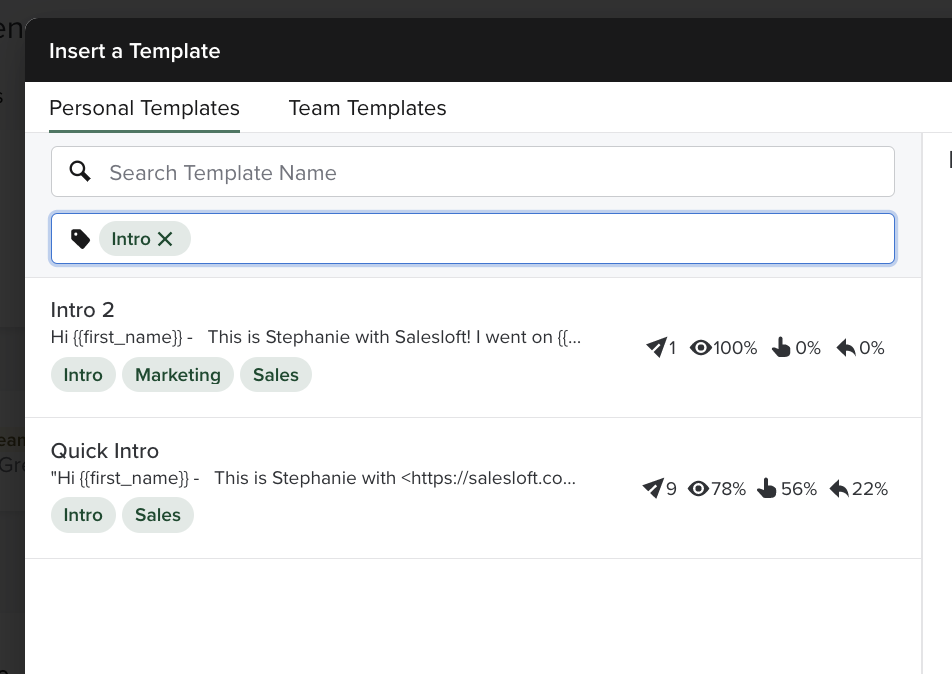
Figure 3: Search for Template by Tag
Explore different tag categories and naming conventions to effectively organize your Salesloft records.
