The Model Context Protocol (MCP) is an open standard that allows AI "Hosts" (like Claude Desktop) to safely "talk" to external data sources.
Salesloft MCP Server allows Claude to query your live revenue data directly.
In this article, you will learn how to configure Salesloft MCP with the Claude Desktop application including:
Prior to connecting Salesloft’s MCP Server for Claude, there are some important things you need to know:
The Salesloft MCP Server is available via the Claude Connectors Directory.
To connect Salesloft MCP through the Desktop app:
- Go to the Connectors Directory: Log into the Claude desktop app and click Customize on the left hand sidebar.
- Navigate to Connectors: Click Connectors from the Customize column that opens, then click the plus sign in the Connectors column and choose Browse connectors.
- Install the Salesloft MCP Server Connector: In the Search connectors field, type in Salesloft and click the plus sign on the Salesloft tile card to continue the authorization process.
- Authorize the Salesloft and Claude Connection: Click Authorize to complete the connection between Salesloft and Claude.
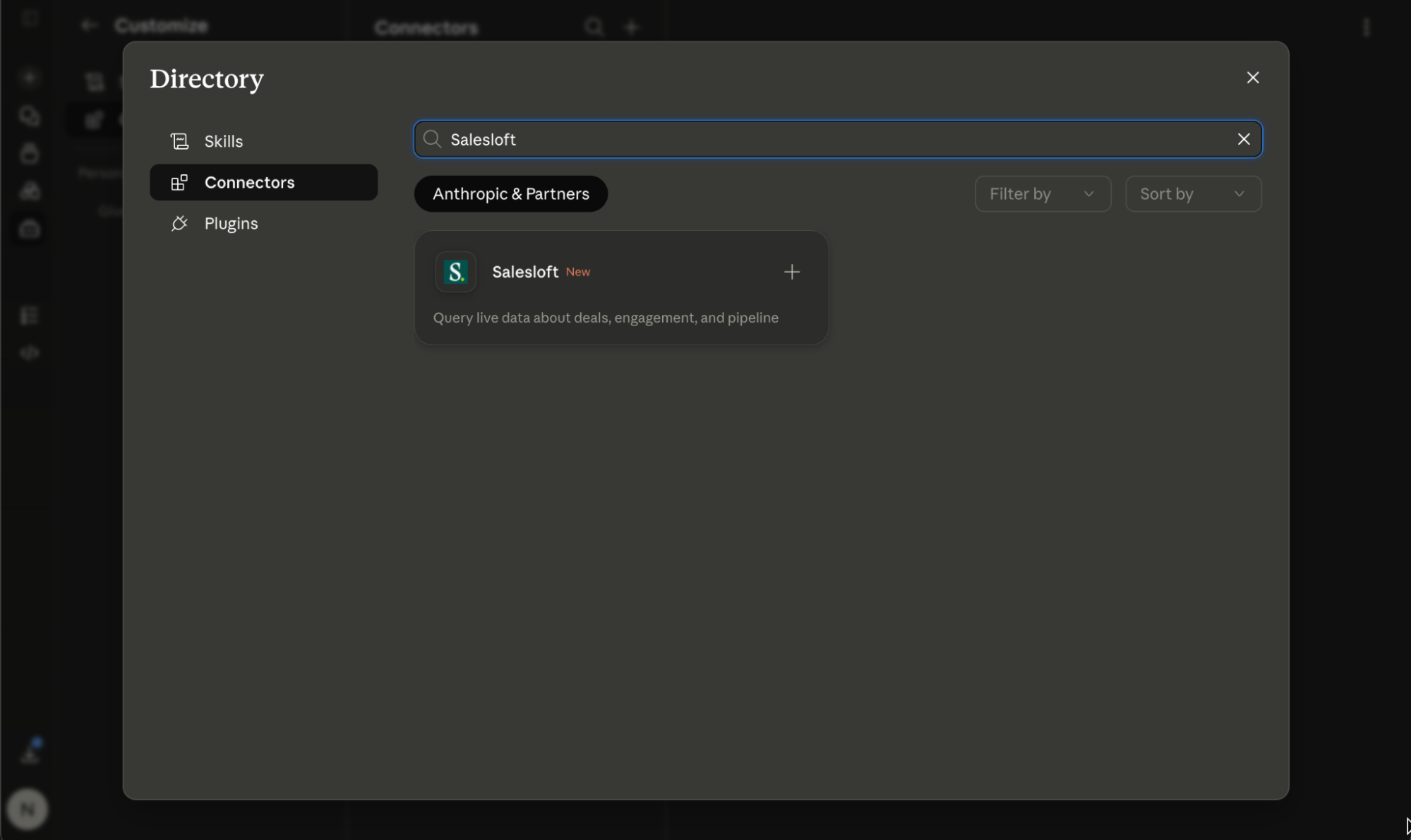
Figure 1: The Salesloft MCP connector in the Claude Connector Directory.
FAQ
Q: Can I use this on the Claude mobile app or web browser?
Currently, MCP support is primarily focused on Claude Desktop. Mobile and standard web browser support are limited as they cannot easily access local configuration files or npx commands.
Q: Do we need to have Claude connected to our Salesforce CRM to be effective with our MCP Server?
No! Claude will interact with whatever data you have in Salesloft. You do not need to have it connected to your CRM, though that could open up additional use cases.
Troubleshooting
I’m getting an error in Claude. What should I do?
You can ask Claude what the error means and it should be able to help you troubleshoot.
For example, if you get this type of error when trying to connect to Salesloft: {“type”:“error”,“error”}, follow these steps:
- Report the error to Salesloft.
- Then start a new chat session in Claude and ask Claude “Am I connected to Salesloft MCP?” or “Who am I in Salesloft? Use the Salesloft MCP to answer this question.”
- The prompts forced Claude to test the connection and pull data, and the subsequent prompts should work.
Use Cases
Here are some examples for when Claude would be the best LLM to leverage alongside your Salesloft MCP Server:
- Analyzing call data
- Quick Q&A about a deal or account
- Data analysis and structured reporting
- Deal prep or objection handling
For some suggested prompts, check out the AI-powered Revenue Query Examples found in the Salesloft MCP Server Overview article.
Resources
Next Steps
Use Salesloft in your chats with Claude: Start a new chat with Claude by clicking the + New chat icon. Navigate to connectors and enable the Salesloft toggle as needed.
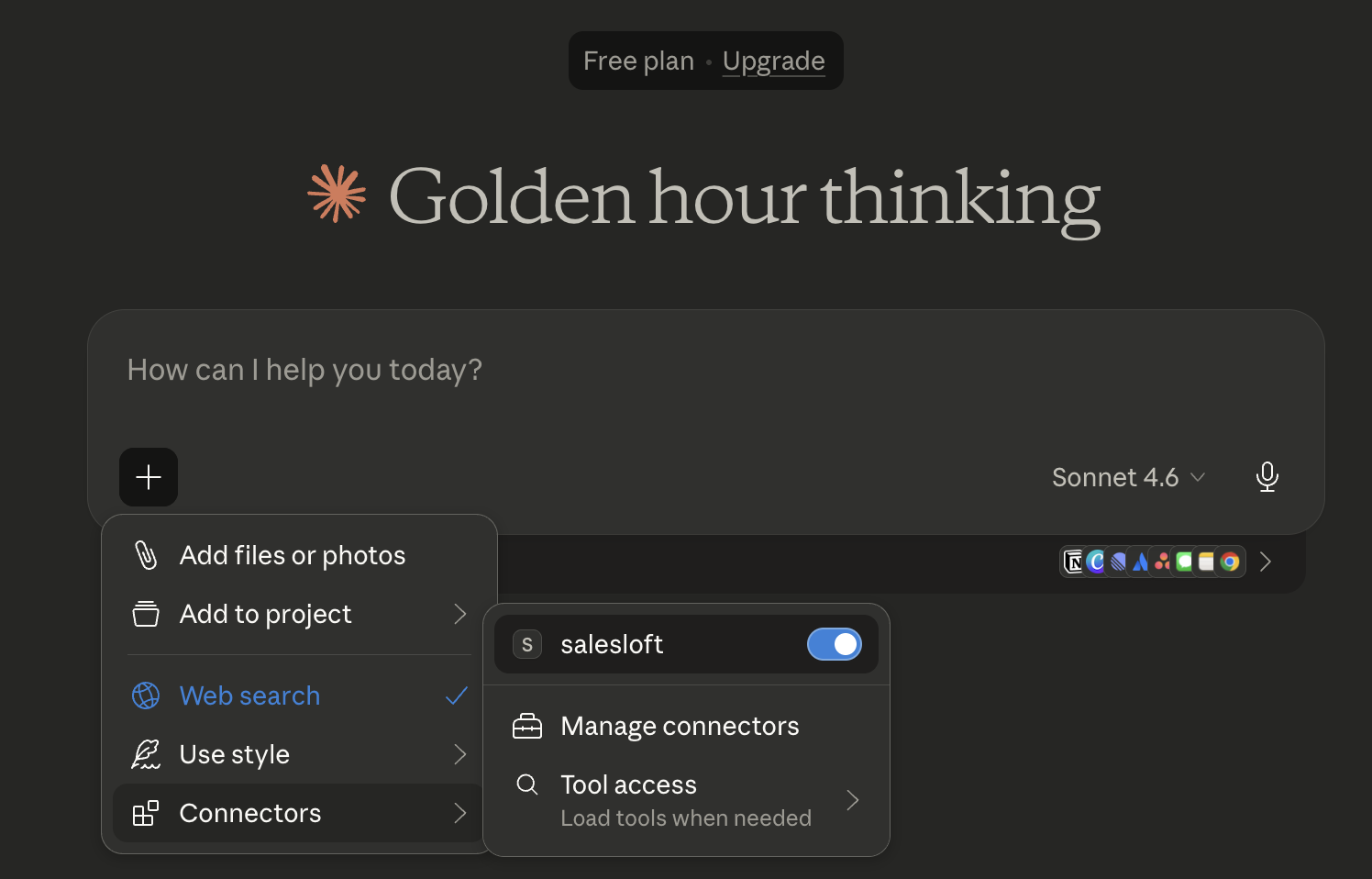
Figure 2: The Salesloft toggle option in a Claude chat
