If you're a G Suite user, you probably live on your Google Calendar page. While scheduling meetings within Salesloft is possible, you can also schedule meetings from your Google Calendar and Loft the meeting invite so everything syncs into Salesloft. Google Calendar Lofting performs the following:
- Logs new events to Salesloft and Salesforce directly from the Google calendar.
- Allows you to retroactively log events that were not previously synced to Salesloft. To complete this, go into your Google calendar and edit the event. In the event details, toggle Lofting on, and click Loft It.
- Control which Person record an event will be logged in Salesloft if there are multiple guests
- Designate which CRM record will log an event in Salesforce.
- Create a new Person in Salesloft if an invitee doesn't have a Person record in the Salesloft platform.
- Log meetings you didn't organize (including those set up by an external client or prospect) to Salesloft and your CRM, even when your calendar sync is turned off.
In this article, you will learn how to Loft a Google Calendar invite. This article includes:
Before you can follow the steps in this guide, you must have the following prerequisites:
- A connected Google Calendar in your Salesloft settings.
- The Salesloft Chrome Extension installed and up to date.
- Lofting a Google Calendar invite will not appear from the event invite slots on the calendar page. In the event module, click More Options to go to the calendar event page. This is where the Lofting toggle will appear. The page will appear as the standard Google Calendar invite page until Lofting is turned on.
- The Calendar event lofting setting enabled within the Salesloft Chrome Extension. Once the setting is enabled, the Lofting toggle and CRM Record Selection widget will appear when you create or edit events in your calendar.
- You can Loft meetings you did not organize. Salesloft locally logs events where you are a guest and an external client or prospect is the organizer to sync them to your CRM even if your Salesloft calendar sync is turned off. This does not modify the organizer's calendar invite.
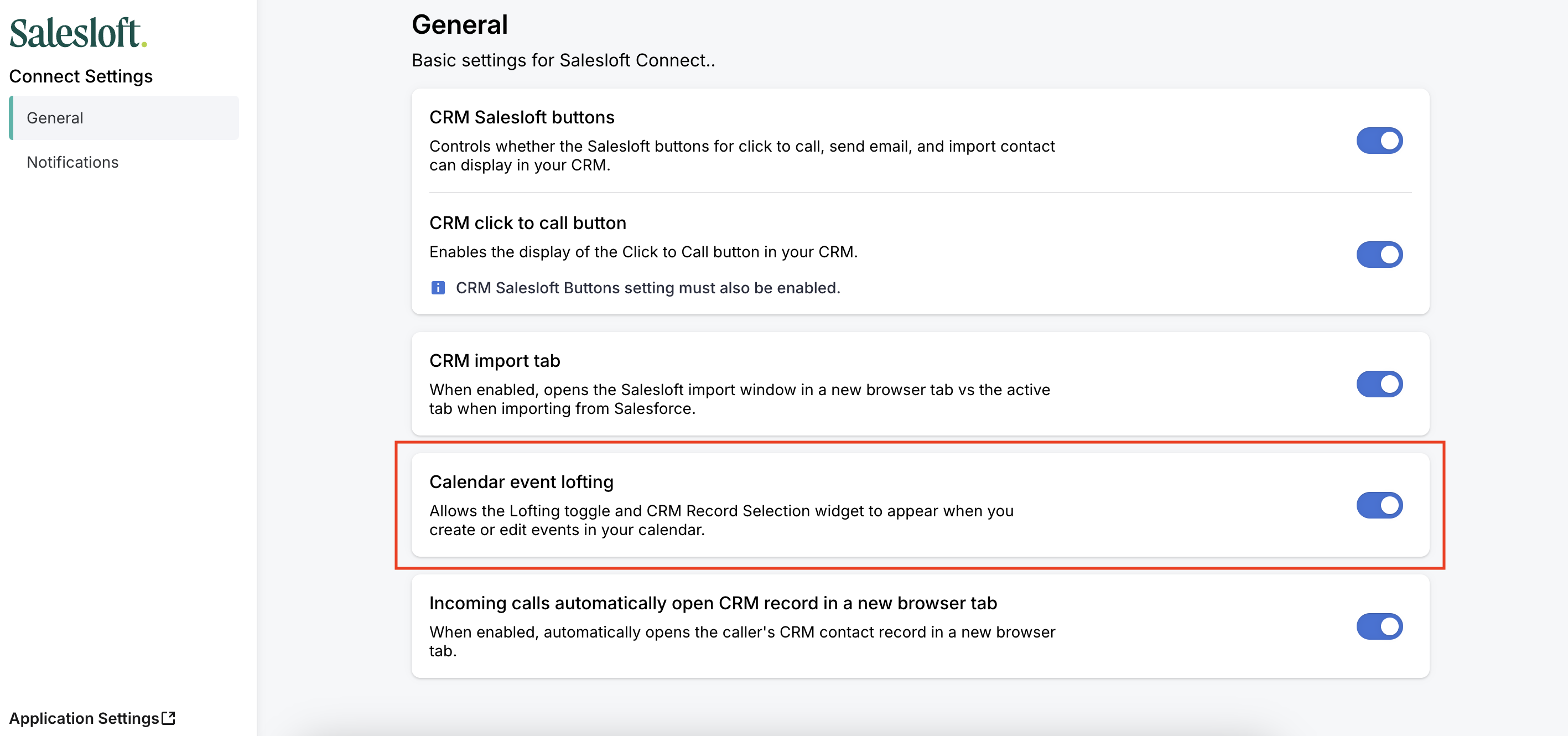
Figure 1: Calendar event lofting setting enabled within the Salesloft Chrome Extension
Follow these steps to Loft Google Calendar invites:
- Create an Event and Open More Options: Navigate to your Google Calendar and create a new event. Click More Options from the quick-create event window to open the full event details page.
- Add Guests: Add the email addresses of the people you want to invite to your meeting.
- Toggle Lofting On: On the event details page, find and toggle the Lofting option to the "on" position. By default, the first guest you added will be selected as the main person to log the meeting against.
- (Optional): Select the Right Person and CRM Record
- Change the Main Person: If you want to log the meeting to a different Person record in Salesloft, click the dropdown next to Lofting to and select the correct contact.
- Select a CRM Record: If your team has the CRM Record Selection feature enabled, the CRM record will be selected by default if the guest has an existing record in your CRM with that email. To change this, click the Edit button and select a different record.
- (Optional) Log Custom CRM Fields for Events: Sync specific custom fields to your CRM while booking the meeting.
- Loft the Invite: To send the meeting invite and log it to Salesloft and your CRM, click Loft It next to the meeting title. If a guest does not have an existing Person record in Salesloft, you will see a prompt with two options:
- Save Without Logging: Turns Lofting off, sends the invite, but does not log the meeting in Salesloft.
- Create Person and Log: Adds the guest as a new Person in Salesloft and logs the meeting to their record.
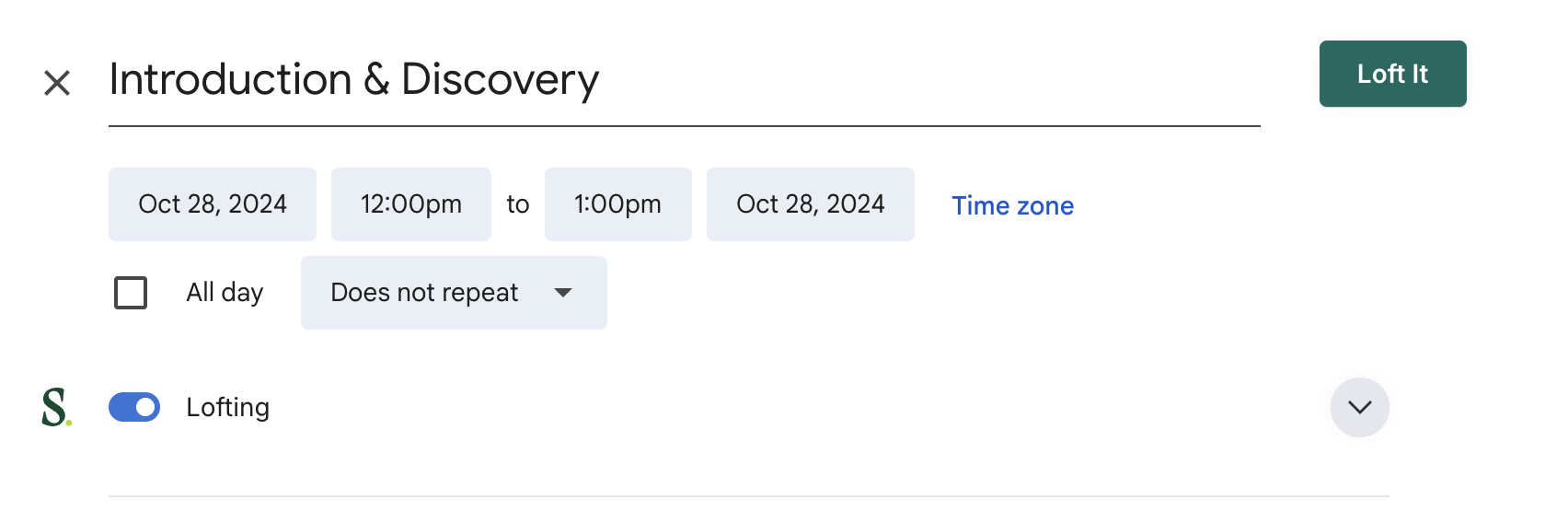
Figure 2: Loft a Google Calendar Invite
Lofting will be automatically disabled for certain events. If any of these occur, hover over the toggle to view the reason Lofting is disabled. Errors include the following reasons:
- Events without guests
- The primary guest is on the Domain Exclusion List (both Team and Personal)
- Private events
- Events with the guests not existing in Salesloft: In cases where the user does not have permission to Create People when Lofting.
Logging as Task vs. Event: What's Supported
Not all meeting types support logging as a Task. The table below shows which
logging methods are available based on how a meeting was created and whether
it is recurring.
|
Meeting type
|
Source
|
Log as Task
|
Log as Event
|
|---|
|
Recurring
|
External
|
✗ Not possible — no record generated in Salesloft
|
✓ Supported — record generated in Salesloft and synced to CRM
|
|
Recurring
|
Internal
|
✗ Not possible — record is generated in Salesloft, but does not sync to CRM
|
✓ Supported — record generated in Salesloft and synced to CRM
|
|
Non-Recurring
|
External
|
✗ Not possible — no record generated in Salesloft
|
✓ Supported — record generated in Salesloft and synced to CRM
|
|
Non-Recurring
|
Internal
|
✓ Supported — record generated in Salesloft and synced to CRM
|
✓ Supported — record generated in Salesloft and synced to CRM
|
Task logging is supported only for non-recurring, internal meetings. For all other meeting types, logging as an Event is the reliable option and works across all combinations.
If you attempt to log an external meeting as a Task, note that the failure mode differs depending on the meeting:
- External meetings: no Salesloft record is generated. The log never reaches CRM.
- Recurring internal meetings: a Salesloft record is generated, but it does not sync to CRM. The failure is not surfaced in the UI.
If you need to log a recurring or externally organized meeting, use the Event option.
Lofting meetings you didn't organize (non-organizer events)
You can Loft externally organized meetings, (events where someone outside your organization created the invite) whether your calendar sync is on or off.
- If your calendar sync is turned off, Salesloft uses fallback mapping to set the Lofting to contact: it matches a known Salesloft contact on the invite where possible, and otherwise defaults to the first participant added to the invite.
- Salesloft saves these events to its own database only to drive the CRM sync. It never modifies or sends updates to the external organizer's live calendar invite, your client sees no changes.
- When you click Loft It on a recurring series you did not organize, Salesloft logs it instantly and skips the calendar-owner prompts (such as “Edit this or following events”). The event is recorded in Salesloft and your CRM without any change to the organizer's calendar.
- When calendar sync is off and no matching Salesloft contact is found, the fallback engine defaults to the first added participant on the invite. Use the Lofting to dropdown to select the correct contact before clicking Loft It.
Loft Google Calendar invites that contain Microsoft Teams meeting links
Follow these steps to Loft Google Calendar invites that contain Microsoft Teams meeting links:
- Install the Teams add-on for Google Calendar.
- Go to your Google Calendar. Create an event time in the calendar. Click More Options.
- Click the Teams add-on icon on the right side of the screen and under add-ons select Microsoft Teams Meeting.
- Add guest(s) to your invite list.
- Toggle Lofting on. The first added guest will populate as the Lofting to Person.
- (Optional) Manually update the main guest by selecting the Lofting to contact from the dropdown. This will change which Person the meeting invite will log to in Salesloft.
- (Optional) Teams with CRM Record Selection enabled will see the CRM record selection widget. After adding a guest, the records will be selected by default if that guest has an existing record in Salesforce with that same email address. Update the default records by clicking the Edit button and selecting a different record in the pop-up.
- Click Loft It to the right of the meeting title. The event will be logged to Salesloft and Salesforce. If an event is Lofted and the Person doesn’t exist in Salesloft, you will receive a prompt to select what action they would like to take:
- Save Without Logging: Click the toggle to turn Lofting off. This will the send the meeting invite without logging the meeting in Salesloft. When the toggle area is gray, Lofting has been turned off.
- Create Person and Log: Click Loft It to add the Person in Salesloft and logs the meeting invite to their record.
- Check the Person's record in Salesloft to confirm the meeting was logged correctly and the information is accurate.
