Sales teams can spend an unreasonable amount of time devoted to account research. However, manual research and contact discovery can distract you from what truly drives revenue: selling. You need to get to that first email or cold call faster, armed with the right contacts and information, to make every point of contact more impactful and ultimately more successful.
The Account Research Agent gathers and synthesizes relevant information about prospective accounts. It looks at various sources, such as publicly available website data, CRM data, and activity data. This helps to streamline the research process, providing sales representatives with a centralized view of key prospect information.
In this article we’ll learn about the Account Research Agent, including:
The Generative Artificial Intelligence setting must be enabled by an admin in order for the Account Research Agent to work. To enable Generative Artificial Intelligence, follow these steps:
- Navigate to Settings and scroll down to the Data section.
- Click Artificial Intelligence.
- Click the toggle next to Generative artificial Intelligence.
- Fill out the Company Summary located on the Artificial Intelligence settings page. This provides the Research Agent with context about what your company does and as a result will drastically improve the quality of the Research Agent.
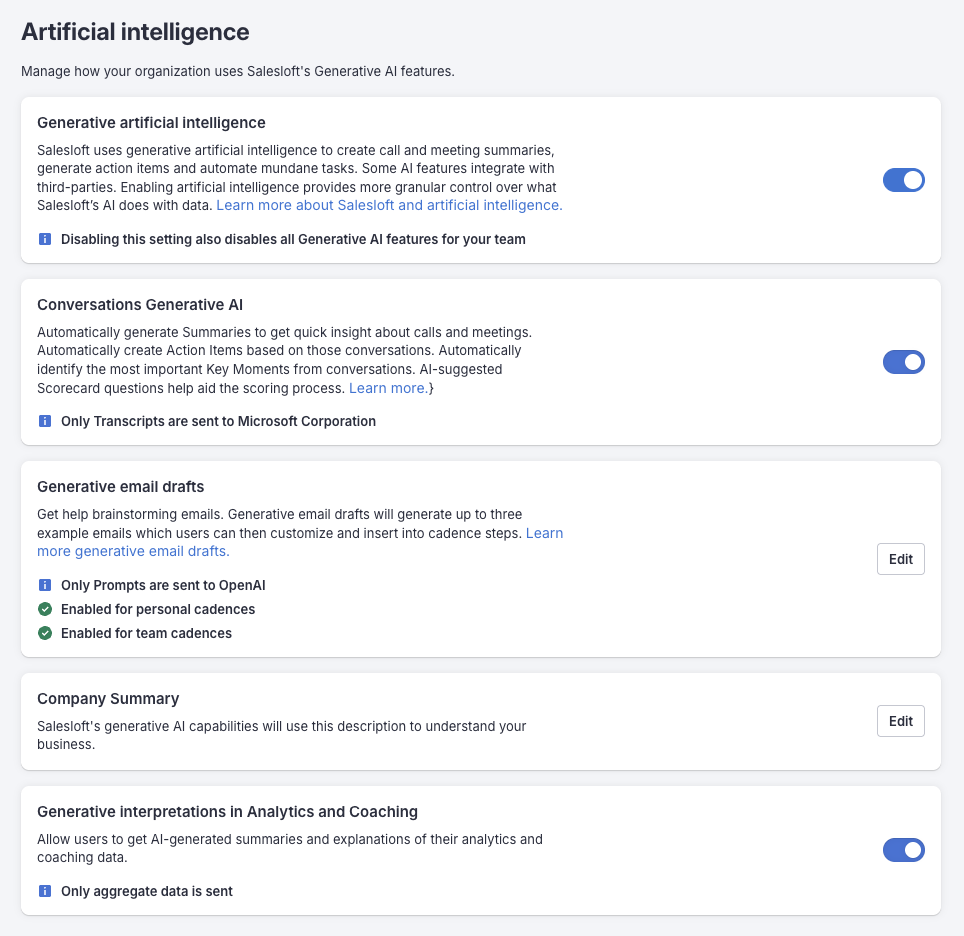
Figure 1: Example: Artificial Intelligence settings page
A team admin has the ability to edit and create new focus areas that are included in the Account Research Agent. Any changes made in the Account Research Agents settings will be applied to the Research Agent view that is visible.
To learn more, check out Manage the Account Research Agent.
The Account Research Agent retrieves and summarizes relevant Account information. Using the Account Research Agent, you can quickly learn about your Accounts without having to spend hours doing manual research.
The Account Research Agent securely accesses and intelligently queries your team’s configured Knowledge Library. When a request for research on a target account is made, the agent will perform its standard external data gathering and simultaneously query the internal Knowledge Library for relevant company-specific context. The Account Research Agent will then synthesize these internal insights with the external prospect research to generate significantly more pointed, relevant, and actionable "Sales Angles" and "Points of View" within the Research Brief.
In addition to summarizing Account information, you also have the ability to give feedback on each piece of data by rating the information in each panel with a thumbs up or thumbs down.
Once enabled, the Account Research Agent can be found on any Account or Person Profile page. Once on a page, click the Research button next to the Activity over the center panel.
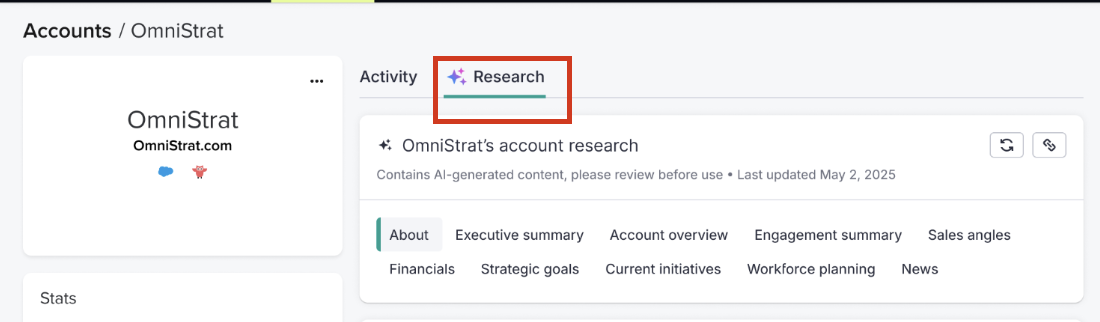
Figure 2: Example: Account Research Agent Research button
The Account Research Agent consists of several panels that all contain different pieces of information. You can either scroll down the page to access each panel or use the links at the top of the page to be brought to a specific section.
Let’s walk through the default panels that are included in the Account Research Agent.
Account Research Header
Introduces the research found in the panel. From here, you can select a section to jump directly to that research.
This panel also provides the following details:
- Last updated date
- Refresh button
- Link: Copies the URL of the Account Research page. This is helpful to share information with other team members.
About
The About panel contains a summarized description of the Account you are viewing. The information here typically includes information regarding the service they provide. Along with a summary, the About panel can show the following information:
- Public or private business
- Revenue
- Employee count
- Headquarters location
- Industry type
- Link to website
The information that populates the About panel is dependent on what the Agent can find. If the Agent is unable to locate a piece of information, it will not be shown.
Executive Summary
The Executive Summary contains more specific information about the account than the “About” panel. The information here may reference their opportunity stage, their level of intent, and tips on how your product may be a good fit for the account.
Account Overview
The Account Overview panel looks at various data in your CRM to decide where an Account is in the buying cycle. It then takes this data to form a summary of where the Account is in the buying journey. Here you can find the account status, as well as the Opportunity stage.
Engagement Summary
The Engagement Summary tells you how engaged the Account is with your sales reps by looking into the content of the Activities, such as Conversations transcripts and emails. Any recent activity that has been taken by the Account will be mentioned here as well.
Select View All Activity to see the Activity tab on the Account with a list of the 50 most recently logged activities. There is no time constraint on the Activities that the Agent pulls.
Sales Angles
The Sales Angles panel provides talking points and recommendations about how your company can address the needs of the prospect as well as help them achieve their goals. The information generated here can also be used when creating AI Emails for Cadences.
The talking points that appear here can range from Persona-focused talking points to Product Value talking points and will differ depending on the Account you are viewing.
Financials
The Financials panel offers relevant financial information about the Account you are viewing. You can find summaries for the following topics:
- Accounts target market
- Accounts revenue generation
- Accounts financial performance
- Accounts funding
- Accounts fiscal year
Strategic Goals
The Strategic Goals panel lays out the core strategies of the business. The panel is broken down into four sections.
- Current Challenges: Surfaces any current challenges the Account may be facing.
- Growth Opportunities: Provides insight into where the Account may be able to grow in the future.
- Strategic Goals: What is the Account trying to achieve with their business/product?
- Competitive Landscape: Lists potential competitors of the Account.
Current Initiatives
The Current Initiatives panel houses information regarding Business Initiatives the Account is undertaking as well as any upcoming events that the Account may be hosting or participating in.
Workforce Planning
The Workforce Planning panel displays information about the accounts hiring trends, layoffs, and leadership hires.
Recent News
The Recent News panel provides you with links to any recent news articles about the Account as well as a summary of the article.
Signal Summary
The Signal Summary panel summarizes the Account’s most recent behaviors that suggest interest or intent to engage. These behaviors are called signals.
The Account Research Agent looks at signals from the past three months and summarizes the insights to help you personalize your communication, and determine the best timing for engagement.
Recent Signals
The Recent Signals panel displays key signals that have occurred within the last three months.
High-frequency, lower-intent signals (like multiple email opens) are aggregated to reduce noise (e.g., "5 email opens today"). Click a signal to be directed to the source of the signal where you can gain more insight.
You can also click View All Activity to be directed to the Activity Feed where you can see a full list of recent signals.
Things to Note:
- Only key signal types that are already available in Salesloft (Email Engagements, Hot Leads, Meetings Booked, and select Partner integrations) will appear.
- Signals are updated upon page load or manual refresh.
- If signals appear missing, verify the "Last updated" timestamp on the Research Brief and refresh the page.
- Ensure the Admin has enabled the "Recent Signals" component in the Research Brief layout configuration.
