Act on Behalf allows you to impersonate users on your team. Impersonation refers to the act of accessing another user's account.
As an admin, you may want to gain insight on how a particular role, permission, or group behaves. Or perhaps, you want a visual of a minor issue that a user is experiencing. Act on Behalf allows you to impersonate users for these purposes. You can even access an impersonation log so that you know each time an account was impersonated.
In the event that more technical troubleshooting is needed, our Salesloft internal team also uses Act on Behalf to gain insight on the issue. Impersonation by Salesloft Internal is also documented in the impersonation log.
In this article, you will learn about Act on Behalf, including:
Admin Permissions for Act on Behalf
Act on Behalf is automatically enabled for the default Administrator role.
Additional admin roles can gain access to Act on Behalf by enabling the following Team Management permissions:
- Manage Team
- Manage Act on Behalf Setting
- Allow Act on Behalf Rights
Once these permissions are enabled, you can begin acting on behalf of users.
To learn more about these permissions, check out our Roles and Permissions article.
Act on Behalf of Users
As an admin with the appropriate permissions, you can Act on Behalf, or impersonate, users on your team.
To Act on Behalf of Users, follow these steps:
- Navigate to the Team Users settings.
- From the User Management table, find the user you would like to impersonate and check the box beside their name.
- Click the Act on Behalf Of button.
- Review the notification then click Act on Behalf. This will direct you to the user’s homepage where you can begin impersonating.
- Things to Note: When you are acting on behalf of a user, a banner labeled You Are Acting on Behalf of [User Name] will appear across the top of the page.
- When you are ready to stop acting on behalf of the user, click the dropdown beside their name, then select Stop Acting on Behalf.
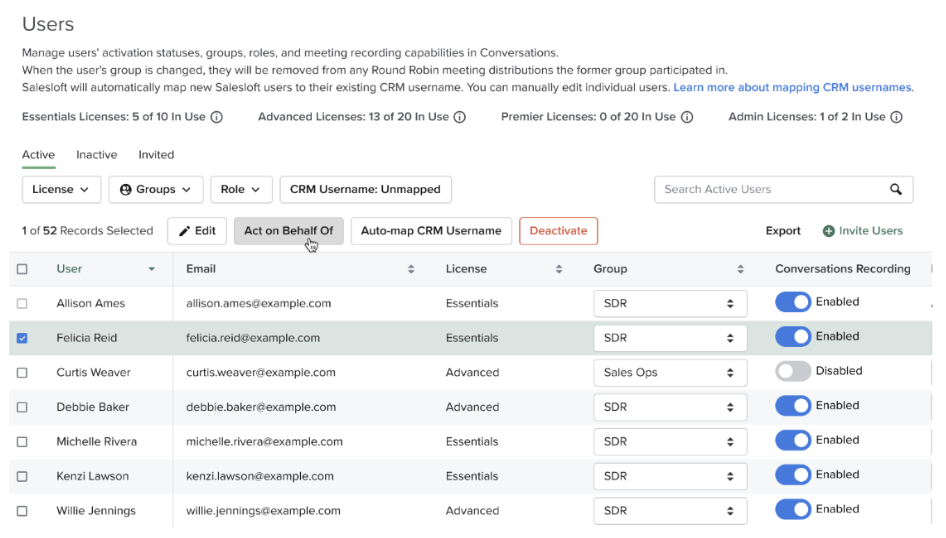
Figure 1: Act on Behalf setting on the Users table
Manage Salesloft’s Act on Behalf Access
Our Salesloft Internal teams may use Act on behalf to impersonate your teams’ accounts for technical troubleshooting purposes.
When you submit a support ticket, for example, our internal team may need to access your account to gain insight on the issue you’re experiencing.
As an admin, you can choose to limit the access that Salesloft Internal teams have to Act on Behalf. Limiting Salesloft Internal teams’ access to your account does not restrict access or limit our ability to provide support.
Limiting Act on Behalf means that before impersonating your account, Salesloft Internal teams must provide a written explanation about why impersonation is taking place. You can review the documentation explanation from the Impersonation Log.
To manage Salesloft Internal teams’ impersonation access, follow these steps:
- Navigate to the Team General settings
- Scroll to the Act on Behalf tile and click Edit.
- Choose from the following options:
- Check the box labeled Allow Salesloft account team members to act on behalf of users on this team to allow Salesloft account team members to access your users' accounts.
- Things to Note: Leaving this box unchecked limits Salesloft’s access to your users’ accounts.
- Check the box labeled Receive email notifications when any Act on Behalf session is started to add an email address where Salesloft can send Act on Behalf notifications.
- Add a notification email address. Any time impersonation occurs, an email notification will be sent to the address.
- Hit Save.
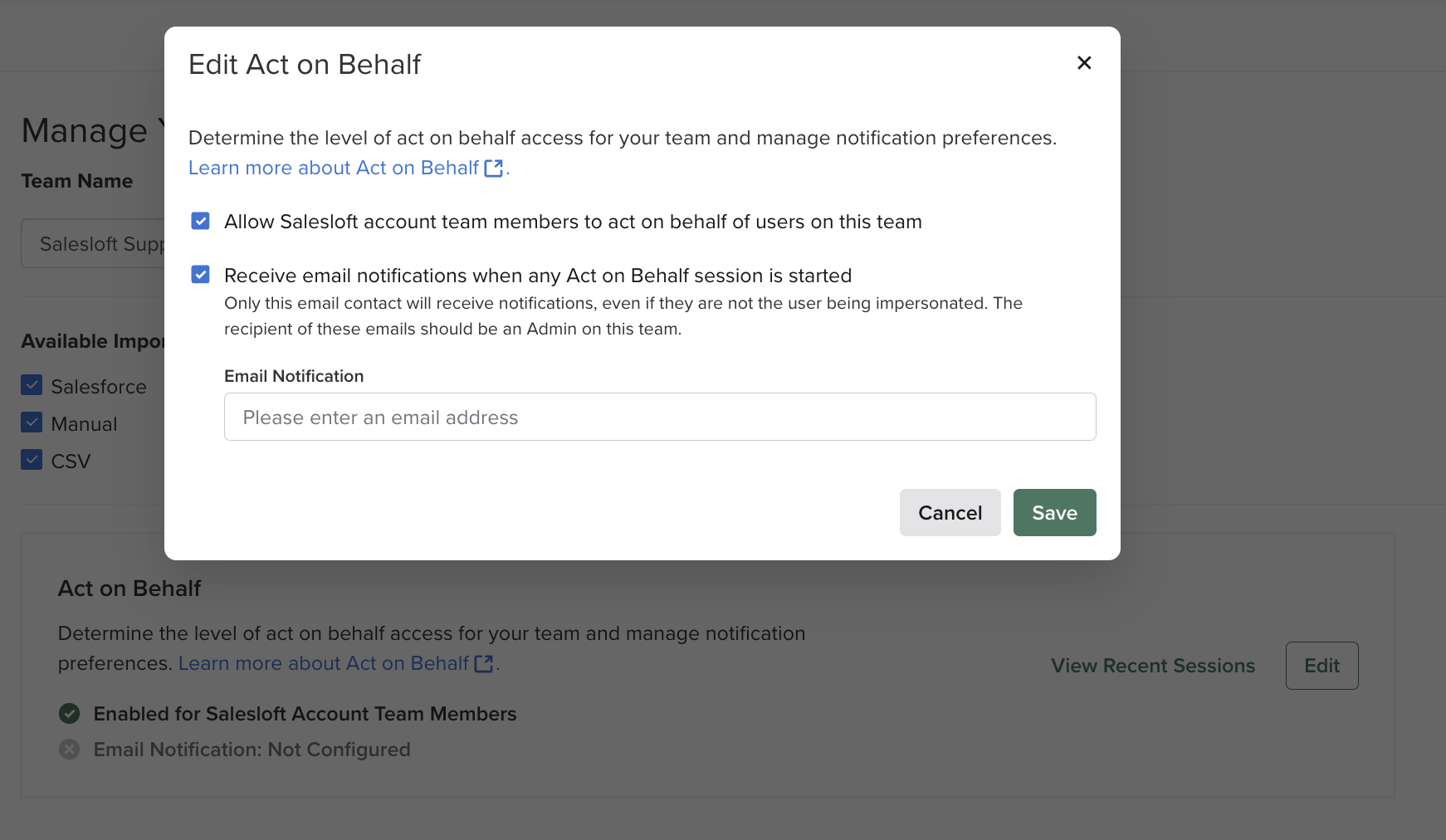
Figure 2: Edit Act on Behalf
Review Act on Behalf Impersonation Log
The Impersonation Log shows a full list of individuals who accessed your teams’ accounts, and when the accounts were accessed.
If you choose to limit Salesloft’s access to your account, and for troubleshooting and onboarding purposes, a Salesloft internal team accessed your account, you will also see a description that includes a case number or details around why the account was accessed.
To view the Act on Behalf Impersonation Log, follow these steps:
- Navigate to the Team General settings.
- Scroll to the Act on Behalf tile and click View Recent Sessions.
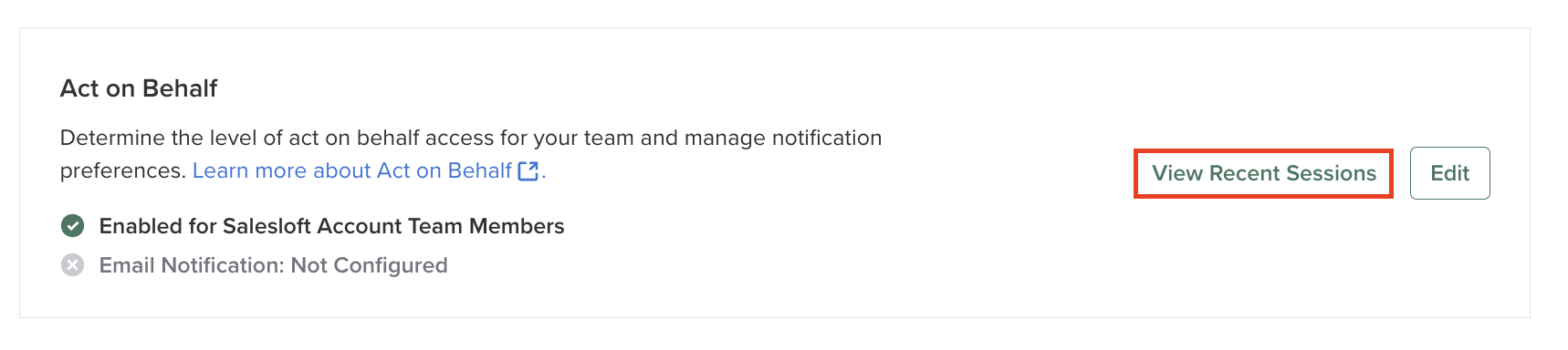
Figure 3: View recent Act on Behalf Sessions option
