Group Hierarchies allow you to organize your Salesloft users into defined sections.
The ability to import groups via a .CSV into Salesloft allows teams to quickly create your organizational hierarchy in Salesloft.
This article includes:
You must have a .CSV under 10mb and less than 2000 lines with the following fields:
- Group name
- Group parent (if using child groups)
Things to note: If you don’t have a .CSV template, Salesloft will provide you a link to download a .CSV template after clicking Create Groups during step 2 of the Bulk Import Group process.
In lieu of using a .CSV file to bulk add Groups to Salesloft, you can select Manually create new group during step 2 to create a single new group. Check out our doc on Groups and Hierarchy for more information.
To bulk import groups via a CSV:
- Go to the Groups Settings: Click on your initials on the top right hand corner and go to Settings > Team > Groups.
- Select “Create Groups”: Click Create groups.
- Add a CSV: Select Bulk import groups from CSV and click choose CSV.
- After importing your CSV you’ll be able to preview the import and map fields as needed.
After importing your CSV, Salesloft will automatically detect the headers and map them to the appropriate field and give you a preview of your import.
If the system has failed to detect the proper mapping, you’ll be presented an opportunity to manually map the header to the appropriate Salesloft field by clicking the Map to Salesloft field drop down.
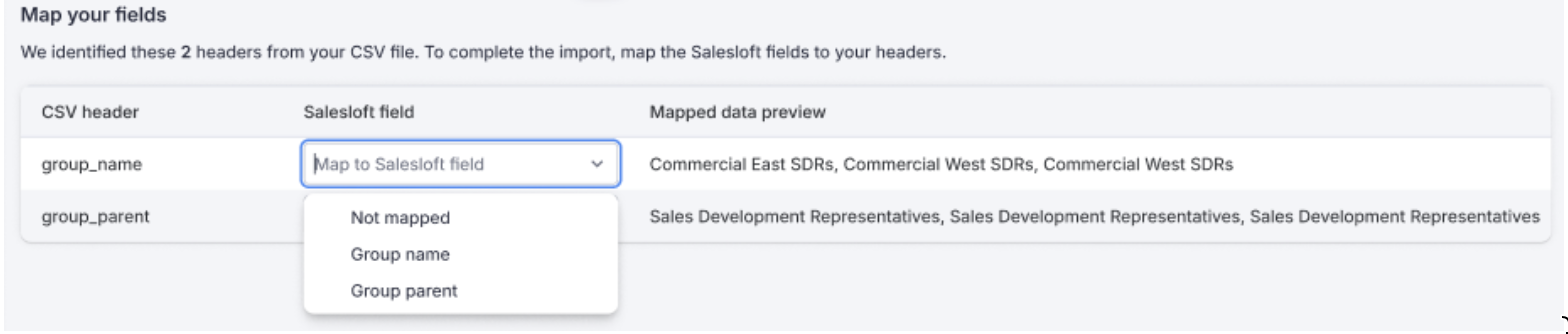
Figure 1: Identifying the proper field after importing a CSV
Things to note: Salesloft fields can only be mapped to one header, if selecting a field that has already been mapped, Salesloft will display a “This field is already in use” error when selecting the field. If errors occur in the import, you will be given the option to download a CSV with the errors for review.
After successfully importing your CSV, you’ll be returned to the Groups settings screen with your groups imported.
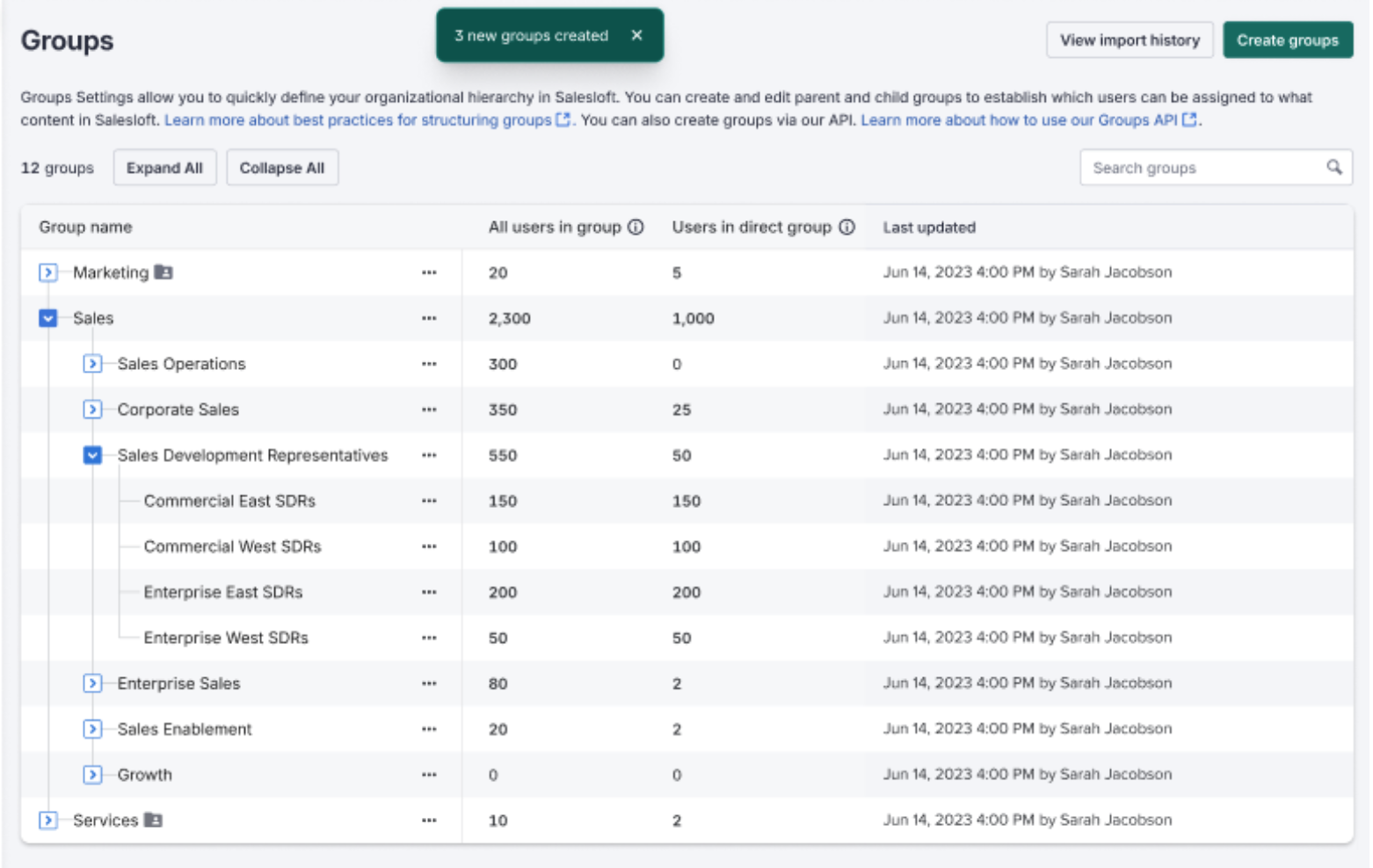
Figure 2: A successful import
To review your import history:
- Click on your initials on the top right hand corner and go to Settings > Team > Groups.
- Click View import history.
Assign content to your groups. For information on assigning group content, check out our Group Content Assignment help doc.
