Cadence Approvals adds a review step before a cadence can go live. When your org enables this feature, cadences created by reps move to a Pending Review state and must be approved by an admin or designated approver before they can be activated.
This feature is designed for teams that need to verify messaging for accuracy, compliance, or brand consistency before it reaches prospects — without preventing reps from building cadences independently.
In this article, you will learn about Cadence Approvals, including:
- Cadence Approval is an org-level setting. When disabled, cadences work as they always have for all users.
- When enabled, reps whose roles require approval will see "Request Approval" instead of the standard "Activate" button.
- Admins should communicate this change to their team before enabling it. Reps who lose the ability to activate cadences without prior notice are likely to reach out to Support.
- Any user with a standard Admin role can approve cadences by default, with no additional setup required.
- A rep builds a cadence as usual. Nothing in the cadence creation flow changes.
- Instead of an "Activate" button, the rep sees "Request Approval." Clicking it opens a short form where they can select a specific approver and add an optional note.
- The cadence moves to Pending Review. While pending, the creator cannot edit the cadence, add people to it, or start any steps. The version the approver reviews is the version that will ship.
- The approver reviews the cadence and selects one of two actions:
- Approve & Activate — the cadence goes live immediately.
- Request Changes — the cadence is returned to the creator for edits.
- Once approved, the cadence works exactly like any other active cadence and is fully usable, shareable, and ready to run.
Any user with a standard Admin role can approve cadences automatically — no additional configuration required.
Admins can also grant approval rights to other roles (for example, Team Leads or Sales Ops) without making them full admins. To grant this permission, assign the "Cadence Approval: Create Cadences without Approval" permission to the relevant role.
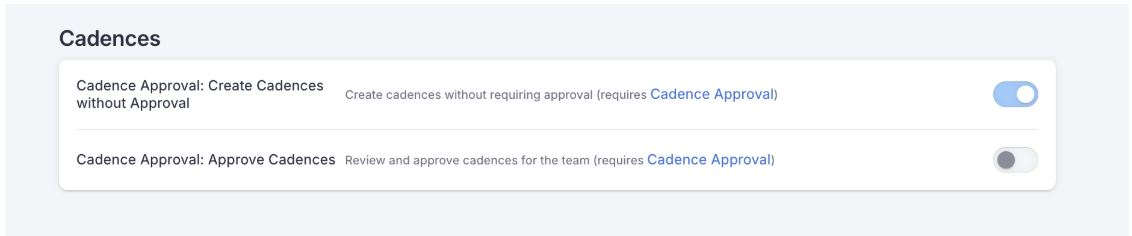
Figure 1: Cadence Approval Permissions.
Cadence Approval is turned off by default and must be enabled by an admin.
Things to Note: Before turning this on, notify your team. Sellers whose roles require approval will see "Request Approval" instead of "Activate."
To enable Cadence Approval, follow these steps:
- Go to the Cadences and Tasks settings: Navigate to your settings. Then select Cadences and Tasks under the Data category.
- Enable Cadence Approval: Scroll down to Cadence Approval. Click the toggle to enable the setting. When the toggle area is blue, the setting is enabled, or, ON.

Figure 2: Enable Cadence Approval Setting.
- Does this change how cadences work for everyone?
- Only if an admin enables the approval workflow for your org. If it's off, cadences work exactly as they always have
- Who can approve a cadence?
- Any Admin, by default. Admins can also grant approval rights to other roles.
- What happens to my cadence while it's waiting for approval?
- It's locked. You cannot edit it, add people to it, or start steps until it's approved or returned to you.
- Can a specific user skip the approval step?
- Not yet. Until a user-level exemption option ships, the workaround is to grant that person approver or Admin permissions.
- Can an approver fix a small issue instead of sending the cadence back to me?
- Not yet. Approvers can only choose Approve & Activate or Request Changes. Direct editing by the approver is planned for a future release.
"I don't see an Activate button anymore."
This is expected if your admin has enabled the approval workflow and your role requires approval. Look for "Request Approval" instead. If you believe you shouldn't need approval, contact your admin to review your role's permissions.
"My cadence is stuck waiting for approval."
Someone in your org must have Admin or approver permissions to review it. If no one currently holds those permissions, ask your admin to grant approval rights to someone on the team.
"I can't edit my cadence."
If the cadence is in Pending Review, this is intentional — it's locked until an approver acts on it. Once it's approved or returned to you, you'll be able to edit it again.
"I'm an approver but I don't see a review option."
Confirm you have Admin or "Manage Cadence Approvals" permission, and verify with your admin that the approval workflow is enabled for your org.
