Cadence Collections let you group related cadences into a single parent container and manage their settings in one place instead of configuring each cadence individually.
After completing this guide, you will be able to:
- Create a Cadence Collection and assign it a name and structure.
- Configure shared throttling, Salesforce sync, and permission settings that apply across all cadences in the group.
- Add existing cadences to a Collection.
- Apply an Inheritance Override when a single cadence needs to differ from the Collection default.
This article includes:
Before you create cadence collections, there are some important things you should know:
- You must be assigned the Salesloft Admin or have the “Manage Cadence Collection Membership” permission enabled for your role to add and remove cadences from cadence collections.
- Cadences must already exist in your account. Collections do not create cadences. Existing cadences are not automatically migrated into Collections at launch; you will assign them manually.
To create a cadence collection:
- Navigate to Collections: From the main navigation, select Cadences, then click the Collections tab in the cadence list view.
- Create a new Collection: Click Create Collection. The Create Collection window will appear.
- Enter Collection Settings: Add the settings that will apply to each cadence in the collection. These settings include the following fields:
- Name (Required): a descriptive name for your Collection — for example, "AMER Enterprise Q3" or "New Business — SMB." Use a naming convention that reflects how your team organizes cadences (by region, product line, persona, etc.).
- Description
- Cadence Function
- Priority
- Tags
- Daily People Target
- Set Cadence Automation Rules (optional): Determine the automations that will occur with Cadence activities. To learn more about the Automations in a cadence check out the Assign Cadence Automation Settings Instructions section of the Create a Cadence article.
- Set Cadence Sharing (optional): Select the types of cadences that will be included in the collection: Personal or Team.
- Set throttling rules (optional): In the Create Collection window, locate the Throttling section and enter your Max Starts Per Day limit. This value will apply to every cadence inside this Collection.
- Things to Note: If a specific cadence inside the Collection needs a different throttling limit, you can set an Inheritance Override after adding it. See Step 7.
- Set Advanced Cadence Settings (optional): Include an external identifier.
- Add cadences to the Collection: Return to the main Cadences list view. Use the checkboxes to bulk-select the cadences you want to include, then select Move to Collection and choose your Collection from the list.
- Apply Overrides for a specific Cadence (if needed): Open any cadence inside the Collection. If a specific setting — such as throttling limit or a sync rule — needs to differ from the Collection default, edit that field directly on the cadence. The field will display a visual indicator confirming it is no longer following the Collection default.
- Things to Note: Overriding a setting on an individual cadence does not affect other cadences in the Collection or the Collection-level default itself.
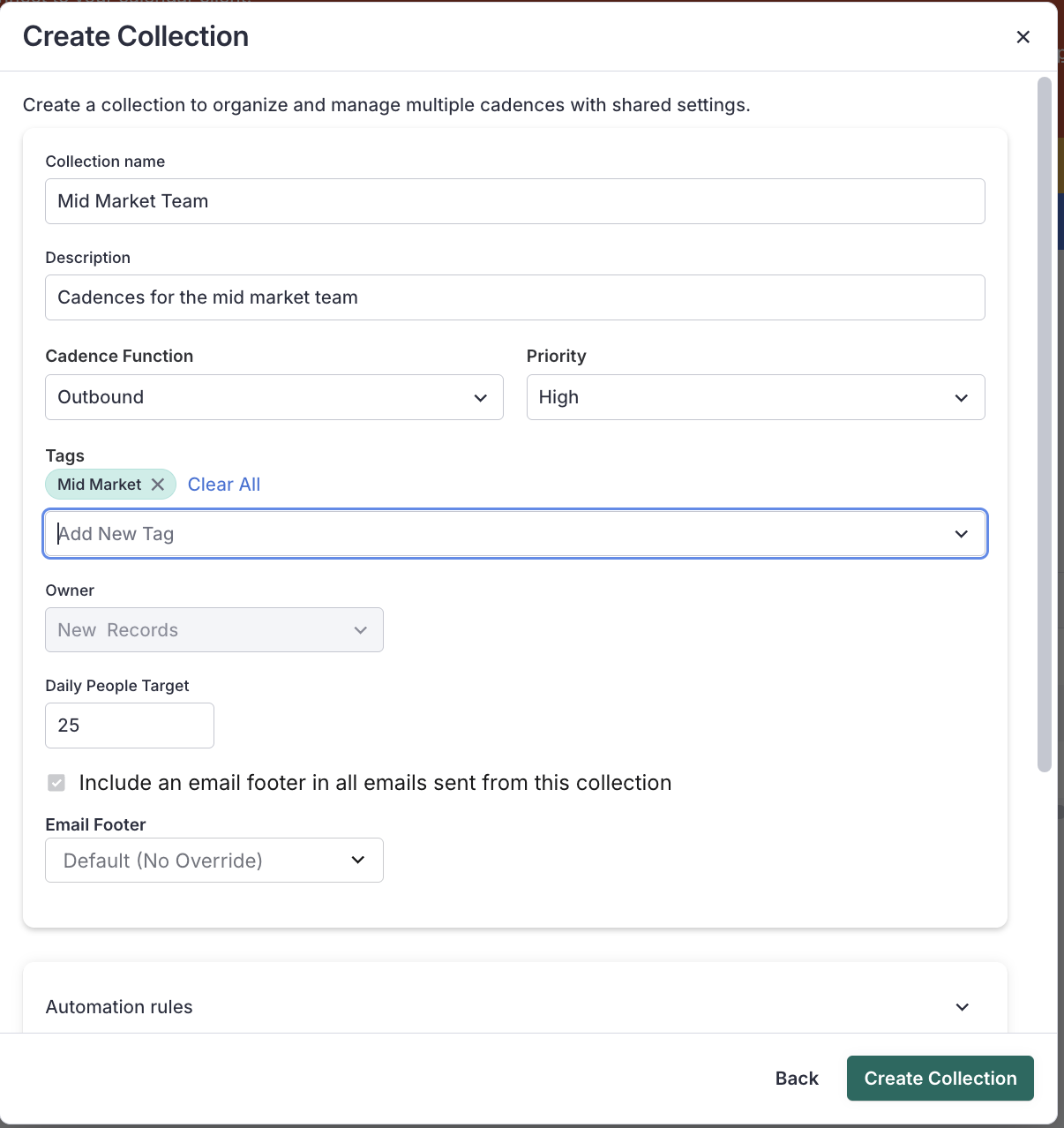
Figure 1: Create Collection window
You've successfully created a Cadence Collection when:
- Your new Collection appears in the Collections tab with the name you assigned.
- Cadences you added appear listed within the Collection.
- Settings fields on individual cadences within the Collection are grayed out with a tooltip indicating the Collection is controlling them.
- The Verified Master label is visible to reps on cadences within the Collection, identifying them as the approved company play
- Inheritance Overrides are field-specific: Overriding one setting on a cadence — such as its throttling limit — does not remove that cadence from the Collection or affect any other inherited settings.
- Your existing Complete Team Cadences Guide in Salesloft continue to apply alongside Collection permissions — the two systems work together, not in place of each other.
Problem
|
Likely Cause
|
Fix
|
| A setting on a cadence is grayed out and can't be edited | The setting is being controlled by a Collection | Hover over the grayed-out field to see the tooltip identifying which Collection controls it. To change the value, either update it at the Collection level or apply an Inheritance Override on that cadence. |
| A cadence was added to the wrong Collection | User selected the wrong Collection during bulk-move | Open the cadence, remove it from the current Collection, and use bulk-select to move it to the correct one. |
Next: Admins: Update appropriate roles with the "Manage Cadence Permissions"— Grants non admin users the rights to View, Edit, and Execute a Collection.
Related:
