Generative Artificial Intelligence (AI) generates text based on an input of data or insight. At Salesloft, Generative AI is integrated with cadences, Conversations, and more to help you make informed decisions and simplify your workflow. Some of the Generative AI functionalities available include:
As an admin, you can manage your team's access to generative AI throughout Salesloft via the Generative Artificial Intelligence settings page. To access the Generative Artificial Intelligence settings, navigate to your settings, then select Generative Artificial Intelligence under Data. From this page, you can manage your team's access to each generative AI integration, as well as manage access to generative AI in Salesloft as a whole.
In this article, you will learn more about the Generative Artificial Intelligence Settings, including:
Important Things to Know About the Generative Artificial Intelligence Settings
Artificial Intelligence (AI) can turn lengthy, mundane tasks into beneficial information in a fraction of the time. When you add AI to your team’s sales process, your reps can focus more on working with prospects rather than digging up information.
To enhance specific aspects of the Salesloft platform, Salesloft has created AI-specific integrations for certain purposes.
Before using AI-specific integrations, here are a few things you should know:
- AI output should be independently verified to confirm accuracy, as output may be false, incomplete, misleading or not reflective of recent events or information.
- The Generative Artificial Intelligence setting is a parent control for all Generative AI across Salesloft. Disabling this setting will override both the Conversations Generative AI setting and the Generative email drafts setting. if you choose to disable AI Integrations for Conversations, your team will lose access to all generative AI in Salesloft.
- Salesloft Conversations integrates with Google Gemini to process meeting transcripts and create the Conversations Summary and Next Steps. It integrates with Google Gemini to process meeting transcripts and create Key Moments.
- The extraction service is NOT customizable or configurable to specific needs.
- Enabling the Conversations Generative AI setting only impacts new Conversations going forward. Meetings will not be retroactively processed.
- The Generative AI setting affects email processing functionality, specifically leveraged in Out Of Office detection, the email signature parser that’s used to determine a person’s job seniority, and email sentiments.
- If your team does not wish to allow Google Gemini to process your company’s data, or if you would not like to see the Recap section in Conversations, you can disable the integration by toggling the Conversations Generative AI setting off.
- If the service is enabled, then disabled, action items extracted prior to the service being disabled will not be removed from the platform. Action items will no longer be extracted once the setting is disabled.
Disable Generative AI in Salesloft
Your organization may choose to limit access to generative AI features. As an admin, you can disable the Generative artificial intelligence setting to remove your team's access to all generative AI in Salesloft.
To disable Generative AI in Salesloft, follow these steps:
- Navigate to your settings.
- Select Generative Artificial Intelligence under the Data category.
- Click the Generative artificial intelligence toggle to disable Generative AI in Salesloft. When the toggle area is gray, the setting is disabled.

Figure 1: Generative Artificial Intelligence Setting Enabled.
The Conversations Generative AI setting governs the Conversations Summary, Key Moments, and Next Steps.
Things to Note: The Generative artificial intelligence setting overrides the Conversations Generative AI setting. The Generative artificial intelligence setting must be enabled before you can access the Conversations Generative AI setting.
To manage your team's access to Conversation Summary, Key Moments, and Next Steps, follow these steps:
- Navigate to your settings.
- Select Artificial Intelligence under the Data category.
- Click the Conversations Generative AI toggle to enable or disable this setting.
- When the toggle area is blue, the setting is enabled and the Conversations AI features are available.
- When the toggle area is gray, the setting is turned off and the Conversations AI features are disabled.
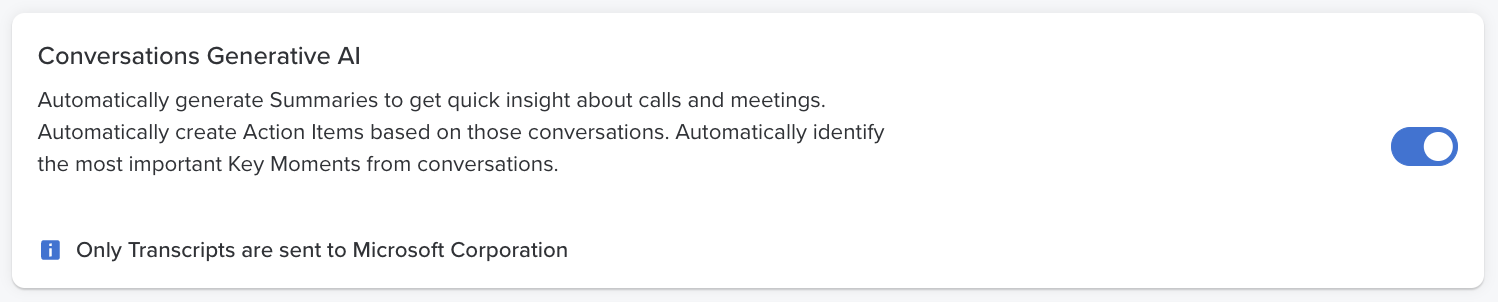
Figure 2: Conversations Generative AI Setting Enabled.
The Generative email drafts setting allows your team to draft cadence email steps with artificial intelligence. This setting is automatically enabled for team cadences by default, however, you can also enable it for personal cadences.
Things to Note: The Generative artificial intelligence setting overrides the Generative email drafts setting. The Generative artificial intelligence setting must be enabled before you can manage the Generative email drafts setting.
To manage the Generative email drafts setting, follow these steps:
- Navigate to your settings.
- Select Generative Artificial Intelligence under the Data category.
- Scroll to the Generative email drafts section and click Edit. The Generative Email Drafts window will appear.
- From the Generative email drafts window, use the checkboxes to enable or disable generative email drafts for Personal and Team cadences. Checked box = enabled. Unchecked box = disabled.
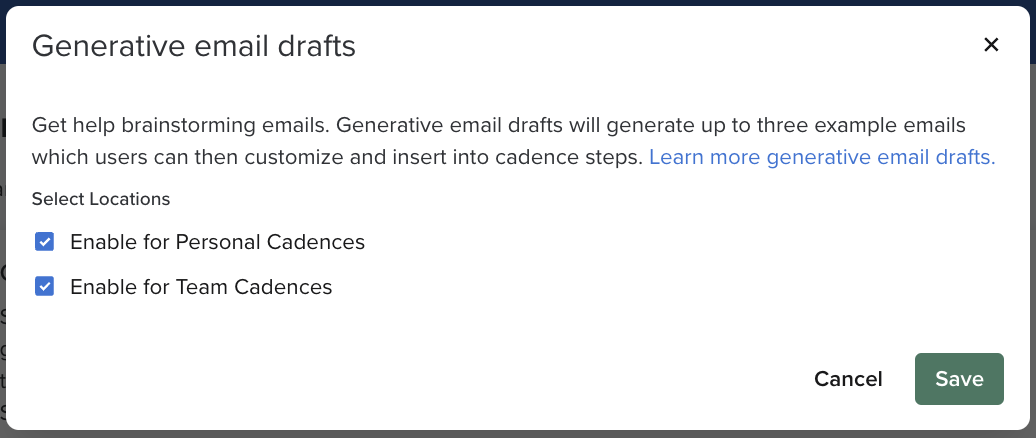
Figure 3: Generative Email Drafts Settings.
Ask Salesloft provides a conversational AI Assistant within your team's Salesloft instances. Team members can use Ask Salesloft to quickly get insightful answer by accessing the information you need instantly, without extensive manual searching or clicking.
Ask Salesloft is available and enabled by default to all teams. In the event that you with to adjust the settings for Ask Salesloft, you may disable the feature inside the Artificial Intelligence Settings.
To manage your team's access to Ask Salesloft, follow these steps:
- Navigate to your settings.
- Select Artificial Intelligence under the Data category.
- Click the Ask Salesloft toggle to enable or disable this setting.
- When the toggle area is blue, the setting is enabled and the Ask Salesloft features are available.
- When the toggle area is gray, the setting is turned off and the Ask Salesloft features are disabled. The AI "Ask" icon will also be removed from the top navigation of your team's Salesloft instances.

Figure 4: Ask Salesloft Setting.
The Company Summary Setting educates the Account Research Agent on what your company does so it can adapt the output and be more personalized.
Things to Note: The Account Research Agent will leverage the summary along with the materials added to the AI Knowledge Library to develop outputs personalized to your business.
To set up your team's Company Summary, follow these steps:
- Navigate to your settings.
- Select Artificial Intelligence under the Data category.
- Find the Company Summary section and select Edit. The Company Summary Settings will appear.
- Enter a brief description of your company. This can include the value of your business or services, benefits you offer, how you stand out from competitors. Provide the AI with the elevator pitch of your business.
- Click Save.
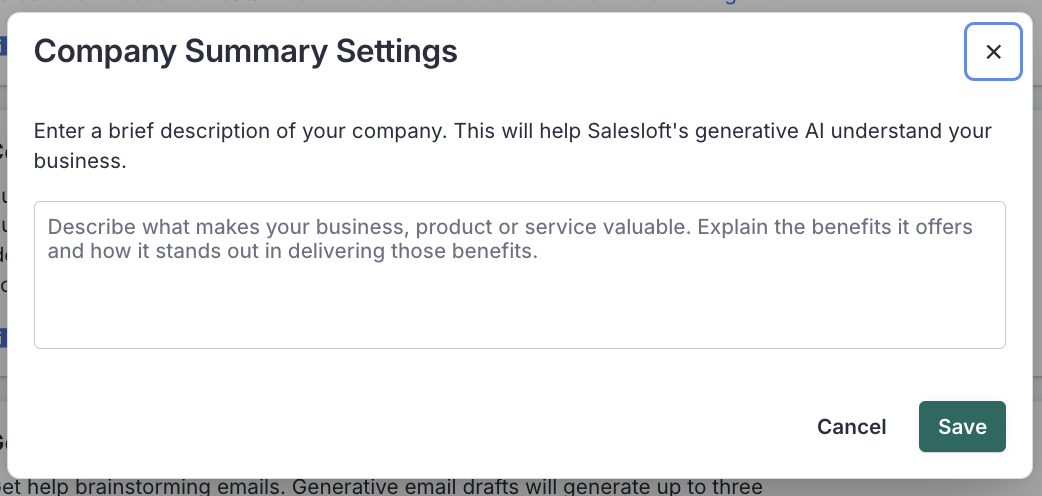
Figure 5: Company Summary Settings window.
AI Snippets are context-aware, reusable message blocks that surface inside the Salesloft email composer based on account signals like industry and funding stage. When enabled, reps can insert AI-generated, pre-personalized messaging into emails directly from a Cadence step or Task, with dynamic variables already resolved.
Things to Note: The Generative artificial intelligence setting overrides all other AI settings, including AI Snippets. The Generative artificial intelligence setting must be enabled before AI Snippets can be configured or used.
To manage AI Snippets for your team, follow these steps:
- Navigate to your Settings.
- Select Artificial Intelligence under the Data category.
- Scroll to the AI Snippets section and click the toggle to enable or disable the feature.
- When the toggle area is blue, AI Snippets are enabled and available to your team.
- When the toggle area is gray, AI Snippets are disabled.
- Once enabled, users can create AI Snippets by navigating to the Snippets tab and selecting AI created during the snippet creation flow.
Interpreting data is no small task—especially when you're trying to spot patterns in team performance, engagement trends, or deal progression across multiple dashboards.
Salesloft’s Generative Interpretations in Analytics and Coaching setting enables your team to use the Interpret with AI button in Analytics and Coaching button. The Interpret with AI button uses artificial intelligence to generate a summary and explanation of key data points on your Analytics pages.
To enable the Generative Interpretations in Analytics and Coaching setting, follow these steps:
- Go to your settings.
- Scroll down the left menu panel and find the Data category.
- Select Artificial Intelligence.
- Scroll down to the Generative Interpretations in Analytics and Coaching setting. Click the toggle to turn the setting on. When the toggle area is blue, the setting is ON.

Figure 6: Generative Interpretations in Analytics and Coaching Settings Enabled.
