Salesloft’s Analytics dashboards show data that can be used to understand how well your organization is performing. Reviewing this data can sometimes feel like staring at a complex map. The data points are there, but you need a guide to help you interpret the data and get to your destination.
The Analytics Interpreter Agent acts as a Salesloft Analytics guide, using artificial intelligence (AI) to generate summaries and explanations of your Analytics, Coaching, and Command Center data. You can click the Interpret with AI button to get a better understanding of the data points on a page, and quickly identify patterns and trends to make informed decisions.
In this article, you will learn about the Interpret with AI button, including:
- The Generative Artificial Intelligence setting is a parent control for all Generative AI across Salesloft. Disabling this setting will override the Generative interpretations in Analytics and Coaching setting, thus, disabling the Interpret with AI button.
- Salesloft team members must have the Interpret Analytics permission enabled to leverage the Analytics Interpreter. This permission is enabled by default for the standard Admin and User roles.
- Salesloft Analytics with AI is enabled by default. A Salesloft admin can manage the setting from the Generative interpretations in Analytics and Coaching settings.
- The Interpret with AI button uses artificial intelligence to generate analytics summaries.
- The interpreter detects yours selected language preference within the platform.
- The Interpret with AI button appears on the following pages:
- Command Center Analytics
- Prospecting Results Analytics
- Pipeline Review Analytics
- Team Productivity Analytics
- Content Performance Analytics
- Coaching
To access and use the Interpret with AI button, follow these steps:
- Navigate to any Analytics or Coaching page.
- Click the Interpret with AI button to the right of the dashboards. A panel will appear on the right-hand side of the page. The analytics interpretations should appear in the panel. This may take a few moments.
- Carefully review the insights.
- At the bottom of the panel, click the thumbs up or thumbs down icon to rate the feedback. Your rating helps improve the accuracy and quality of Salesloft’s AI over time.

For an overview of the Interpret with AI panel, check out the Key Components of the Interpret with AI button section below.
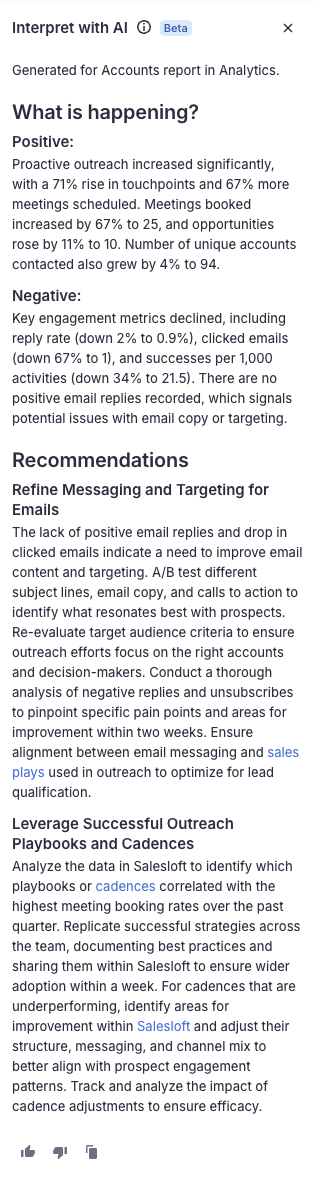
The Interpret with AI panel summarizes the data points on your Analytics page and provides an explanation of key data points. This panel gives the positives and negatives about what’s happening with your team or in your pipeline, then provides recommended next steps.
Here’s a breakdown of the Interpret with AI panel:
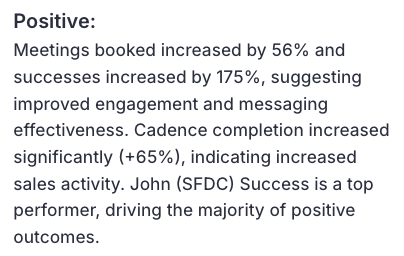
Positive
The Positive section highlights what’s working well based on your Analytics data. It surfaces strengths in your performance and includes supporting metrics to show where you're excelling.
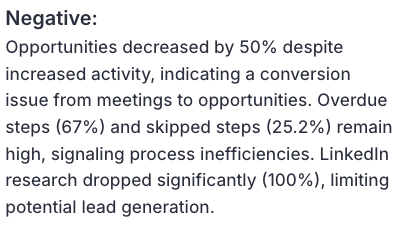
Negative
The Negative section identifies areas that may need attention, based on trends in your Analytics. It includes metrics that point to performance gaps or opportunities for improvement.
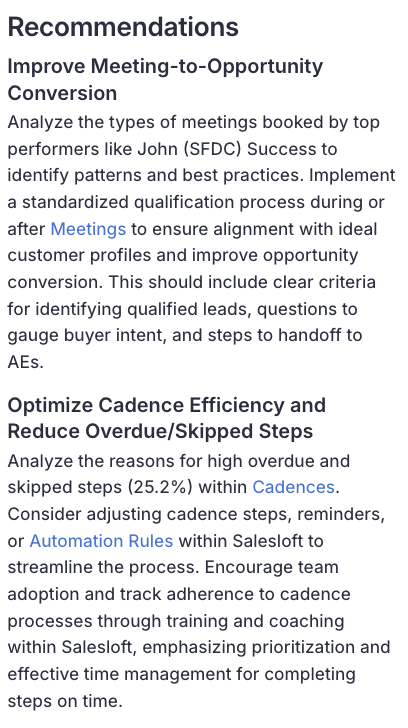
Recommendations
The Recommendations section offers data-driven suggestions to help you improve. Based on patterns in your Analytics, these tips provide clear next steps to enhance your outcomes.
- Apply Recommendations in Upcoming Calls: Use the AI suggestions to adjust your talk track, ask stronger discovery questions, or refine your objection handling.
- Bookmark Strong Examples: Use high-performing behaviors (as identified in the Positive section) to guide coaching or team discussions around what’s working and what can improve.
- Track Progress Over Time: Revisit your Analytics weekly to see if changes based on the feedback lead to measurable improvement.
- Tag Calls for Follow-up or Review: Mark calls that need attention—whether it’s a call with lots of negative feedback or one with standout moments worth highlighting.
- Incorporate Feedback into Cadence Strategy: Adjust your messaging or talk tracks within Salesloft Cadence based on what the AI recommends for improvement.
