Meetings Analytics encompasses a suite of meeting metrics to help improve your meeting efficiency and effectiveness.
Access the Meetings Analytics by selecting Prospecting Results from the Analytics dropdown in the Salesloft top navigation bar. From the Prospecting Results page, select the Meetings tab.
In this article, you will learn about Meetings Analytics, including:
The Meeting Analytics include three panel charts and two report options. You can adjust the filters at the top of the page to modify the data set included in the view.
Each panel and report contains metrics that are calculated in different ways. Check out the Analytics Metric Calculations for a complete list of metrics.
Let’s take a look at the different components of Meeting Analytics.
Leaders by Meetings Attended
This upper left panel highlights the top users or groups with high meeting attendance. The top row shows summary metrics for the selected time period. An indicator also shows the percent difference from the previous period.
The graph is a multicolor bar chart with different segments corresponding to different meeting metrics. This chart displays the top 10 users sorted by meetings attended for the selected time period. When you hover on a bar, you will see the user name and the meeting metric.
- Panel Name: Leaders by meetings attended
- Primary Metrics include:
- Meetings attended: Total number of booked and completed meetings that were not marked as no show or canceled.
- Meetings per opportunities: Average number of meetings it takes to create one opportunity.
- Opportunities created: Total opportunities created by a Salesloft user in their CRM and synced to Salesloft.
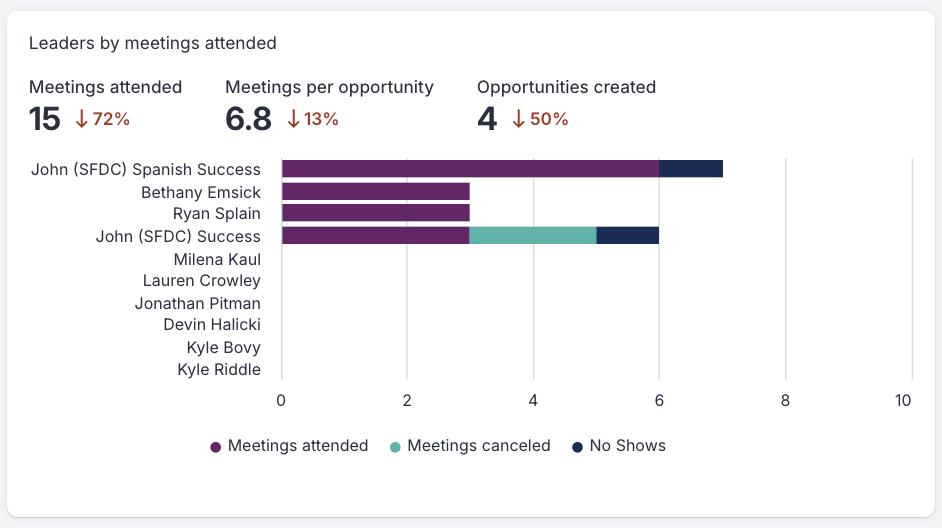
Figure 1: Example: Leaders by Meetings Attended chart
Leaders by Meeting Efficiency
This middle panel’s purpose is to highlight the top users or groups with high meeting efficiency. “Highly efficient” is defined as the lowest number of activities per meetings booked. Only users with at least one activity and one meeting booked will be displayed.
The graph is a bar chart of the top 10 users by lowest activity per meeting for the selected time period. When you hover over a cell, it shows the user name and the metric.
- Panel Name: Leaders by meeting efficiency
- Primary Metrics include:
- Activities per meeting: Average number of activities (calls, emails, integration steps, other steps, other tasks, and SMS Convos) it takes to book one meeting.
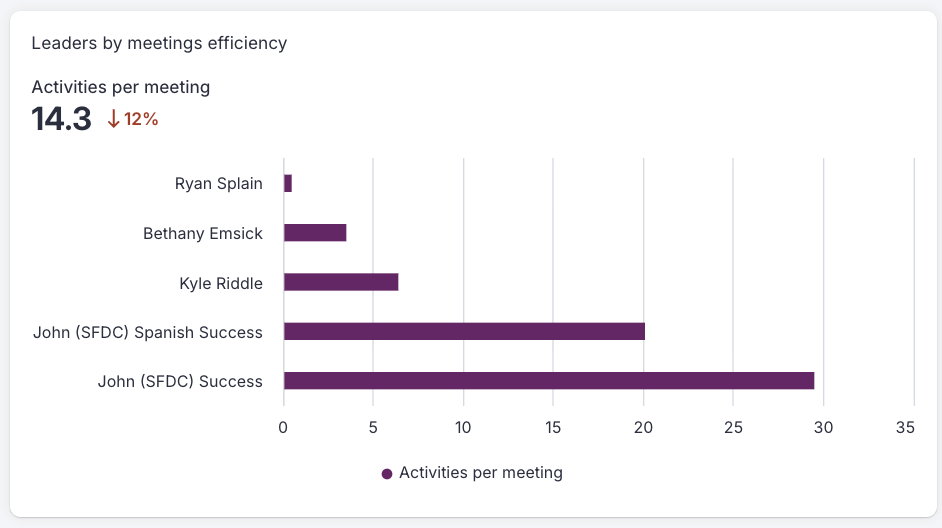
Figure 2: Example: Leaders by Meetings Efficiency chart
The Meetings Productivity Panel
The Meetings Productivity Panel contains the following details from the top of the panel working our way down:
- Panel Name: Meeting productivity
- Primary Metric: Meetings
- Period Comparison based on date selection: To the right of any metric, you will see a small percentage in either green or red. This will show how your numbers have increased or decreased over time.
- Graph: A multi-color line graph, where each meeting status has their own line. Each point on the x-axis is a Day.
- Legend: Shows which Meeting Statuses that are visible in the graph. The default status options include:
- Meetings: Total meetings booked excluding canceled meetings.
- Attended: Total number of booked and completed meetings that were not marked as no show or canceled.
- No Show: Total booked meetings that a user has marked as Not Attended to indicate invited attendees did not attend.
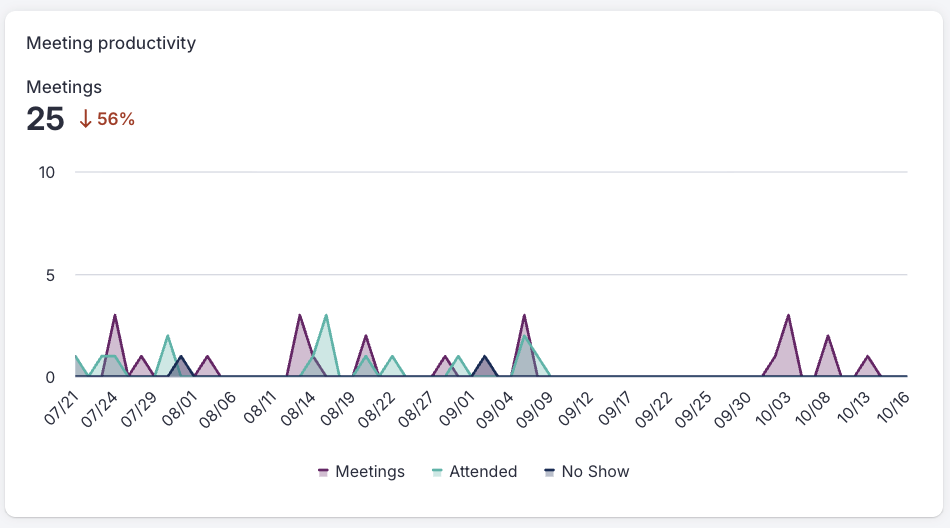
Figure 3: Example: Meeting Productivity chart
Meeting Standard Report
The Meetings Standard Report aims to help you understand and compare how your team is performing in terms of booking and completing meetings.
The Meeting Reports include these metrics:
- Meetings Booked: the total number of meetings booked (this metric will only appear on the Meetings reports)
- Meetings Canceled: the total number of booked meetings that were canceled
- % Meetings Canceled: sum(meetings canceled) / sum(meetings booked)
- Meetings: total meetings booked excluding canceled meetings
- Meetings Attended: the total number of completed meetings that were not marked as no show or canceled
- Average Meetings per Day: sum(meetings) / number of days
- Average Meetings Attended per Day: sum(meetings attended) / number of days
- Positive Replies per Meeting: sum(positive replies) / sum(meetings)
- Connected Calls per Meeting: sum(connected call) / sum(meetings)
Meetings Over Time Report
The Meetings Over Time Report can be exported and customized with saved views. Column management only applies to the table and not the panels. Filters include meetings booked, meetings attended, and meeting no-shows.
These are the table columns enabled by default:
- User
- Meetings Booked
- Meetings Canceled
- Meetings
- Activities per Meeting
- Connected Calls per Meeting
- Positive Replies per Meeting
- Attended
- No Show
- Meetings per Day
- Attended per Day
- Successes
- Opportunities
- Meetings per Opportunity
You can also export the table and customize it with saved views. Column management only applies to the table and not the panels. Filters include meetings booked, meetings attended, and meeting no-shows.
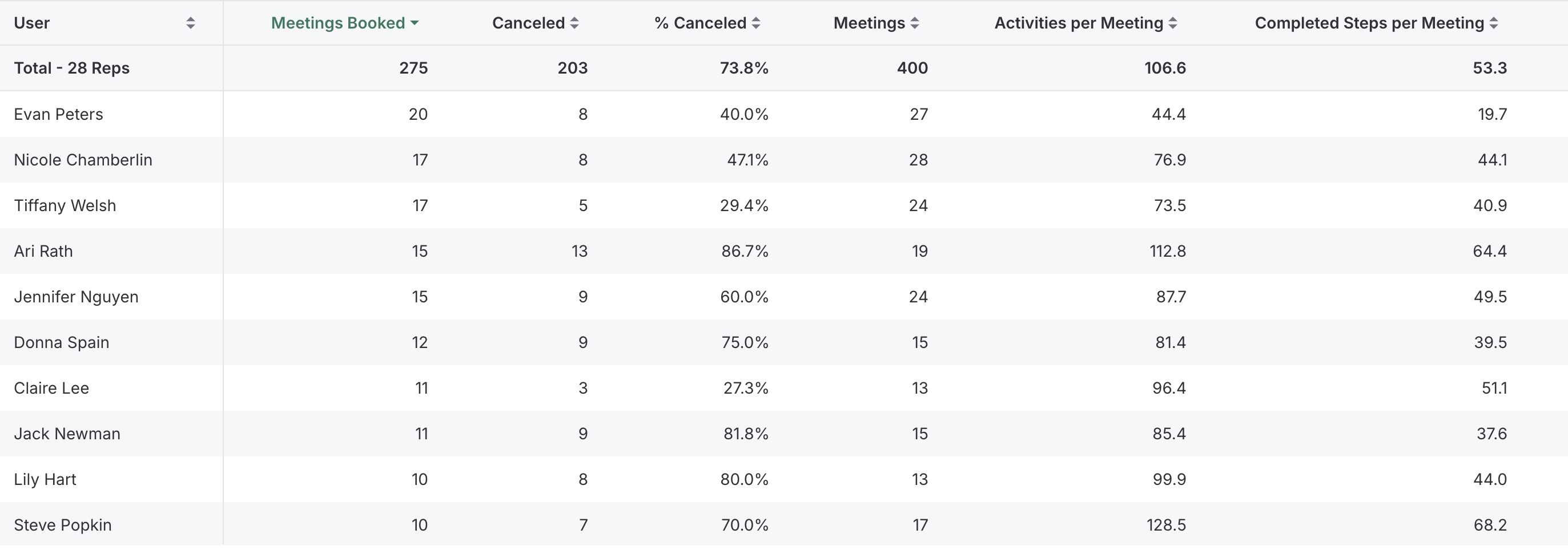
Figure 4: Example: Meetings Over Time report
The metric reports aim to help managers and reps answer the following questions:
Q: What is my ratio of meetings booked to meetings attended?
A: The “Leaders by Meetings Attended” panel shows you the total number of meetings booked and the total numbers of meetings attended within the timeframe you are filtering for.
Q: What percentage of meetings booked are no-shows?
A: The “Leaders by Meetings Attended” panel shows you the total number of meetings booked and the total numbers of no show meetings within the timeframe you are filtering for.
Q: Are we reducing or increasing meetings over time?
A: Use the date filter to track how your meetings have been decreasing or increasing over time.
To learn more about Meeting Analytics, check out:
