Team Cadence Analytics allows you to review and take action on a specific user's performance within a Team Cadence by showing metrics, charts, and data on a per rep basis. These data points provide insight into how successful a rep is when using a particular Team Cadence.
To access the Team Cadences Analytics, hover over Analytics in the Salesloft top navigation menu. A dropdown menu will appear. Click Prospecting Results. Then select the Team Cadences tab.
In this article, you will learn about the Team Cadence Analytics, including:
The Team Cadence Analytics include two panel charts and a report. You can adjust the filters at the top of the page to modify the data set included in the view.
Each panel and report contains metrics that are calculated in different ways. Check out the Analytics Metric Calculations for a complete list of metrics.
Let’s walk through the Team Cadence Analytics.
Top Reps by Cadence Outcomes Chart
The first chart on the Team Cadence Analytics is the Top reps by cadence outcomes chart. This chart shows the top reps sorted in descending order based on the number of outcomes they have achieved using Team Cadences.
Above the chart you will see the total amounts across for the following metrics on the top line:
- Influenced meetings
- Influenced opportunities
- Influenced pipeline
The bar chart will show the top 10 reps that have accumulated outcomes. The colors within the bars represent the type of outcome the rep was able to accomplish.
You can use this to analyze how often your reps achieve outcomes using team cadences.
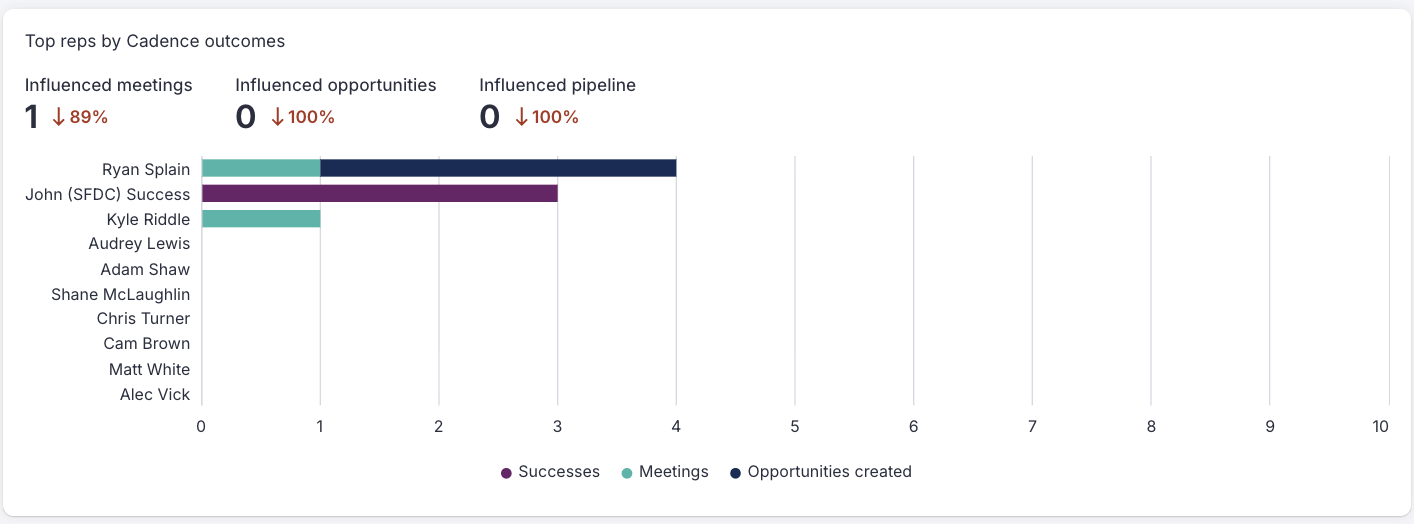
Figure 1: Example: Top Reps by Cadence Outcomes chart
Top Reps by Cadence Activity Chart
The second chart on the Team Cadence Analytics page is the Top reps by cadence activity chart. This chart shows the top reps sorted in descending order based on the number of activities they perform from Team Cadences.
Above the chart you will see the following metrics on the top line:
- First step completed
- Replied
- Positive calls
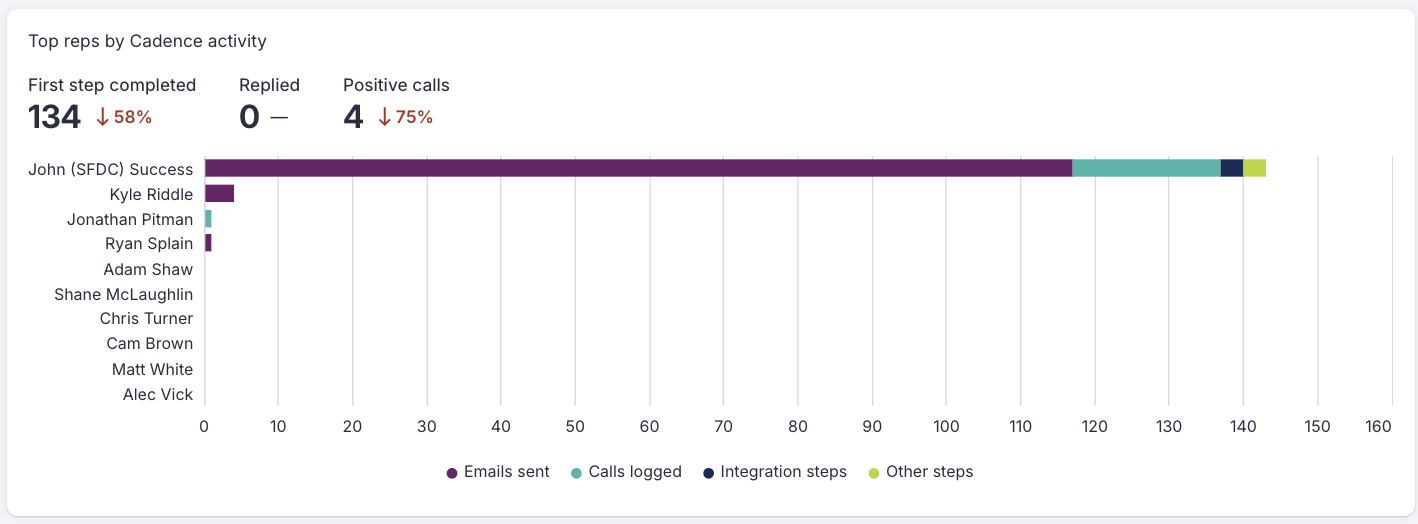
Figure 2: Example: Top Reps by Cadence Activity chart
Team Cadence Report
At the bottom of the Team Cadence Analytics, you will find the report table. This report lists all rep data based on their use within Team Cadences.
This list's default sort is alphabetically by rep name.You can sort the table by selecting a column header in order to see additional metric details for a desired rep.
To expand or modify the report, use the filters at the top of the page and the Edit Columns option to Create Custom Reports.

Figure 3: Example: Team Cadence Report
This dashboard will help answer the following questions in relation to Team Cadence performance:
Q: Who are the top performers by activity for Team Cadences?
A: You can determine your top performers from the "Top Reps by Cadence Activity Chart". The chart will show you the top 10 performers across your team. You can identify the best within that list.
Q: Which users have the best outcome metrics for Team Cadences?
A: You can determine which users have the best outcomes from the “Top Reps by Cadence Outcomes Chart”. The chart will show you the top 10 performers across your team. You can identify the top best within that list.
Q: How different are my top activity and outcome performers?
A: You can see the difference between your top activity and outcome performers by looking at both the “Top Reps by Cadence Activity” chart and the “Top Reps by Cadence Outcomes” Chart. “Top Reps by Cadence Activity” shows how your reps perform based off of emails sent, calls logged, integration steps, and other steps. “Top Reps by Cadence Outcomes” shows how your reps perform based off of Success, Meetings, and Opportunities.
To learn more about Team Cadence Analytics, check out:
