Frontline Managers must stay on top of hundreds of deals at a time. These managers typically have 5-8 reps per team with 20-40 deals per rep, so they are likely working 100-320 deals per manager. That's a lot to juggle.
The Deals Analytics Overview for Frontline Managers enhances the standard version of the Deals Analytics Overview page with additional filters so managers can zero in on individual reps or team trends. With this addition, frontline managers can answer questions like, "How is my team performing?" or "How is my pipeline level trending?"
In this article, you will learn about Deals Analytics Overview for Frontline Managers, including:
Enable the Deals Analytics Overview for Frontline Managers View
The Deals Analytics Overview for frontline managers view is exclusive to Salesloft users who have the permission.
If you are a Salesloft admin or have specific Filter Deals Summary permission assigned within your Roles and Permissions, you will have the ability to filter the Deals Overview.
Things to Note:
- The Filter Deals Summary permission is enabled by default for Salesloft Admins.
- The filter permission contains the Deals Analytics Overview’s previous name “Deals Summary.”
When you go to the Deals Overview page, the first word of the Two Sentence Summary tile (should be You by default) will appear as a green, underlined link.
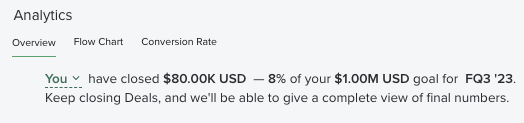
With the permission in place, the tiles and page layout will appear the same as the standard Deals Analytics Overview. To learn more about the tiles and the data they contain, check out the Deal Overview Analytics article.
Setting Goals for Groups and Individual Reps
Goals set the targets within Deals Analytics Overview.
A team admin can set goals for individual reps and for groups from the Goal Settings. These Goal Settings impact goals throughout the entire Salesloft platform.
To learn more about setting up your team's goals, check out the Manage Goal Settings article.
Deals Analytics Overview Filters
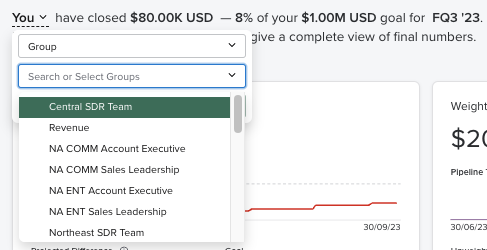
When you have the Deals Summary filter permission enabled, the Deals Analytics Overview page defaults to the You filter. Click on the word You to open the Deals Analytics Overview filter menu. Within the menu, you can select the dropdown to see the filter options. To select a filter follow these steps:
- Go to the Deals Analytics Overview by accessing your Analytics and selecting Pipeline Review. You'll land on the Deal Overview tab. In the Two-Sentence Summary, click the Deals Analytics Overview filter.
- In the dropdown, choose your filter option. The filters include:
- You
- Manager Hierarchy
- Salesforce Owners
- Specific Group Filter
- For some filters, you will need to select a filter option. Search or select a user from the dropdown menu.
- Click Apply. The Deals Analytics Overview will alter to show that user's Deal Analytics Overview.
Let's explore the available Filters.
You Filter
The first filter we introduced for frontline managers is the You filter. When this filter is selected, your personal Deals Analytics Overview will appear. This is great for managers who are in a player-coach role and have a quota in parallel with being a people manager.
Manager Hierarchy
The Manager Hierarchy filter identifies Salesloft users by their assigned manager.
This hierarchy is based on the assignments from the Salesloft Users Settings.
Things to Note: The Manager Hierarchy found on this page may differ from your Salesforce hierarchy.
Specific Owner Filter
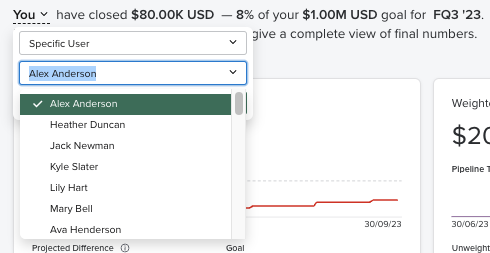
The Salesforce Owner filter shows an individual rep's Deals Analytics Overview based on their assignment from Salesforce. You can choose from any user in your Deals org.
Things to Note:
- Salesforce Owner visibility is not limited based on any group management ownership.
- This is a single-select filter, and managers can only select one user at a time.
Group Filter
The Group filter will show a group's Deals Analytics Overview data aggregated together and displayed in the tiles on the page. Additionally, when a group is selected, we will populate the page with the goal that is set on the group in the admin settings.
Things to Note:
- The group view will not sum together the individual goals of reps within a group. Group goals must be set within Deals Admin settings.
- Only groups without child groups (subgroups) will be shown. Additionally, child groups will only be displayed if their parent group also has other child groups.
- This filter is single-select.
- Groups that do not have users added to them will not appear in the filtered list.