Step Analytics pull data from an individual Cadence to show you the performance of the steps within Cadence.
To access the Step Analytics, click Team Performance in the Analytics dropdown and then click Steps. In the Step Analytics, the filter will be set to a specific Cadence. Adjust the filter to view the Step Analytics for a specific Cadence.
In this article, you will learn about the Cadence Step Analytics Dashboard, including:
Let’s walk through the components that make up Step Analytics.
Cadence Step Summary Metrics
The summary metrics at the top of the page offer a quick glimpse into how the Cadence is performing.
Things to Note: These metrics are also available as columns in the cadences report.
To the right of the % On-Time Steps and Success Rate you will see a smaller number. This is a comparison metric which offers a sense of how this Cadence is doing compared to other Cadences. The comparison metrics reflect the average for all Cadences with the same function. For instance, if this selected cadence is an outbound Cadence it will show the avg. % On-Time Steps and % Success for all outbound Cadences.
The summary metrics include:
- Completed Steps
- Steps per Opportunity: The number of completed steps it took to create an opportunity in the specified date range.
- Steps per Meeting Booked: The number of completed steps it took to book a meeting in the specified date range.
- Cadence Outcome Benchmarks: Steps per Opportunity and per Meeting have a corresponding benchmark found to the lower right. The benchmark displayed, found on the lower right, is the average of cadences with the similar cadence
- On-time Steps: The number of steps that have been finished on or before the due date.
- On-time Average: Average percentage of steps completed on time.
- Success Rate: Percent of all People in the Cadence with at least one activity that has been marked a success.
- Success Rate Average
Below the metric, select the View Cadence Overview link to go to the Cadence’s page.

Figure 1: Example: Cadence Step Summary Metrics
Cadence Performance Chart
The Cadence Performance Chart shows your Cadence metrics broken down by step.
Each step type is indicated by a different color bar, while the height of the bar represents the metric count for the specific step.
Things to Note: The Cadence Performance Chart defaults to show Cadence steps that have been marked as a Success. If your team does not use the success button, select the drop down menu and choose a different metric to populate data.
The Cadence Performance Chart contains the following details from left to right and then the top of the tile working our way down:
- Cadence performance: Name of the chart
- By (Metric): Drop down to select the metric which will alter the chart view. The chart is set to Opportunities by default. You can see the available metrics below.
- Y-axis: Number of times the interactions occurred
- X-axis: Cadence Steps by Number
- Legend: Each step type and the color that represents that step type in the Chart. The step types include the following:
- Emails
- Calls
- Integration
- Other
The Cadence Performance Chart shows how many steps fit a certain metric criteria. You can select the different criteria from the drop down in the chart title. The available metrics include:
- Successes (default): Shows when Success was marked on the Cadence based on the last action, such as clicking the Success button after a completed call step.
- Opened Emails
- Clicked Emails
- Replied Emails
- Connected Calls (based on standard connected call disposition)
- Skipped Steps
- Overdue Steps
- Completed Steps
- Opportunities
- Meetings Booked
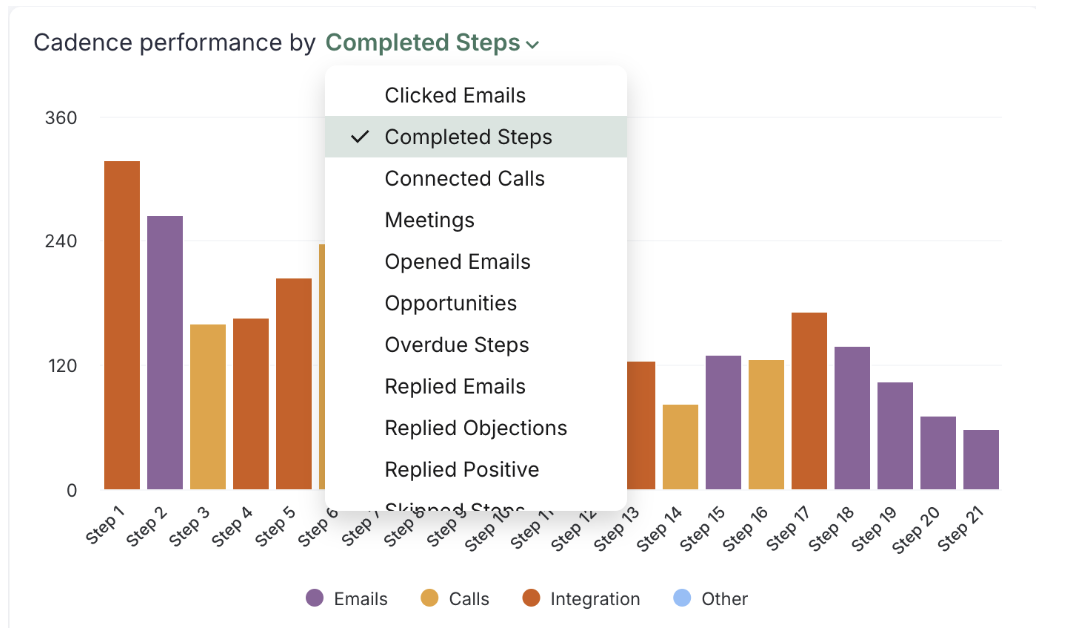
Figure 2: Example: Cadence Performance panel
Each bar represents a step in your Cadence. They will appear in different colors for the different step types. Hover over a bar to see specific details about the step. While bars will only appear for the steps that have data, you can hover, over the space of any step and see step stats. The stats include the follow:
- Step Name
- Day of the Step: Step Number - Step Type
- Number of times the selected Metric occurred
People Removed from a Cadence Chart
The When and why People leave the Cadence panel, also known as the People Removed from a Cadence Chart, highlights the steps when People are being removed from the Cadence and the reason they were removed. The data shown will be based on your filters.
The Cadence Performance Chart contains the following details from left to right and then the top of the tile working our way down:
- When and why People leave the Cadence: Name of the chart
- Y-axis: Number of a Person was removed from a Cadence while running that Cadence step
- X-axis: Cadence Steps by Number
- Legend: Each type reason a Person may be removed from a Cadence. The removal reasons include the following:
- Automation Rule
- Replied
- Bounced
- DNC - Person
- Meeting Booked
- Manual Removal
- Other
- Things to Note: "Other" may appear as a removal reason. Removals are split into Automated or Manual categories. The Removal reasons are the subcategories of those two types. "Other" removals are automated removals that do not fall into a designated subcategory.
- Bar: Each bar's height shows the number of people removed. The bar segment's color shows the removal reason. Clicking on the segment in the legend offers a special view of the data.
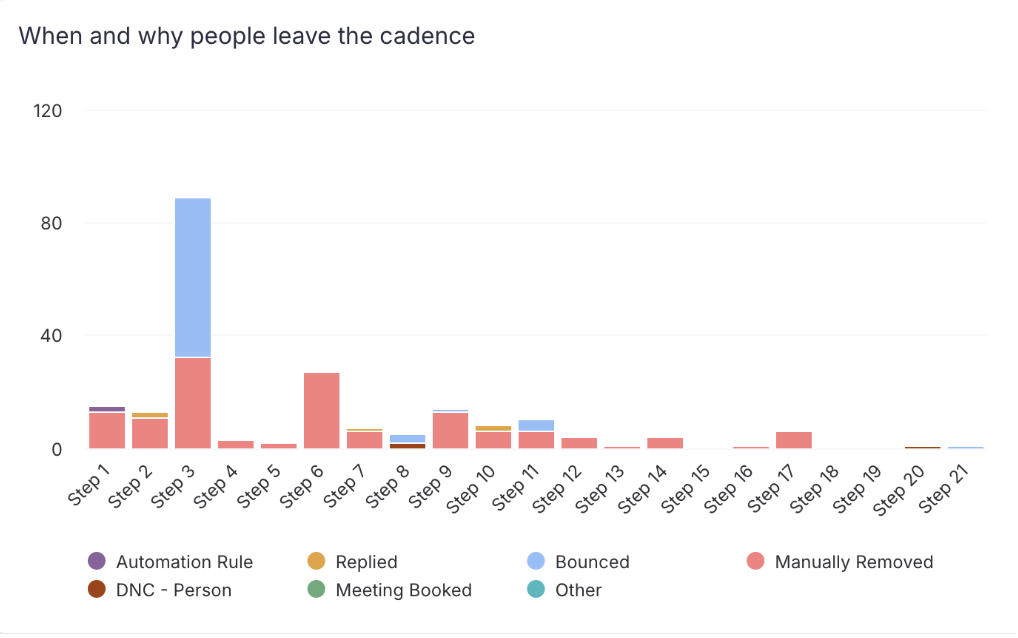
Figure 3: Example: When and Why People Leave the Cadence panel
To learn more about Steps Analytics, check out:
