The Accounts Analytics give an overview of the Account-based activity that has been completed by your team. These centralized metrics make it quick and easy to see the most and least engaged Accounts through several data points.
To access the Accounts Analytics, hover over Analytics in the Salesloft top navigation menu. A dropdown menu will appear. Click Prospecting Results. Then select the Accounts.
In this article, you will learn about the Account Analytics, including:
The Account Analytics include three panel charts and a report. Each panel and report contains metrics that are calculated in different ways. Check out the Analytics Metric Calculations for a complete list of metrics.
Let’s walk through Account Analytics.
The Account Activity Panel
The Account Activity panel shows the amount of engagement happening with Accounts.
The Account Activity panel contains the following details from the top of the panel working our way down:
- Panel Name: Account activity
- Primary Metric: Accounts contacted
- Primary Metric Chart: Shows the top five Accounts by total touches for the selected date period. Each bar represents the total touches. Each segment within the bar shows the types of activities for the specific Accounts.
- Secondary Metrics include:
- Total touchpoints: This is the total activities completed. Touches include emails sent, calls logged, integration steps, other steps.
- Average Touchpoints per Account: This shows how your Account engagement is changing. This is a team-level metric and not included in the drill down report.
- Hot Leads: Total number of new hot leads created (Person classified as hot leads based on custom configuration).
- Period Comparison based on date selection: To the right of the metrics, you will see a small percentage in either green or red. This will show how your numbers have increased or decreased over time.
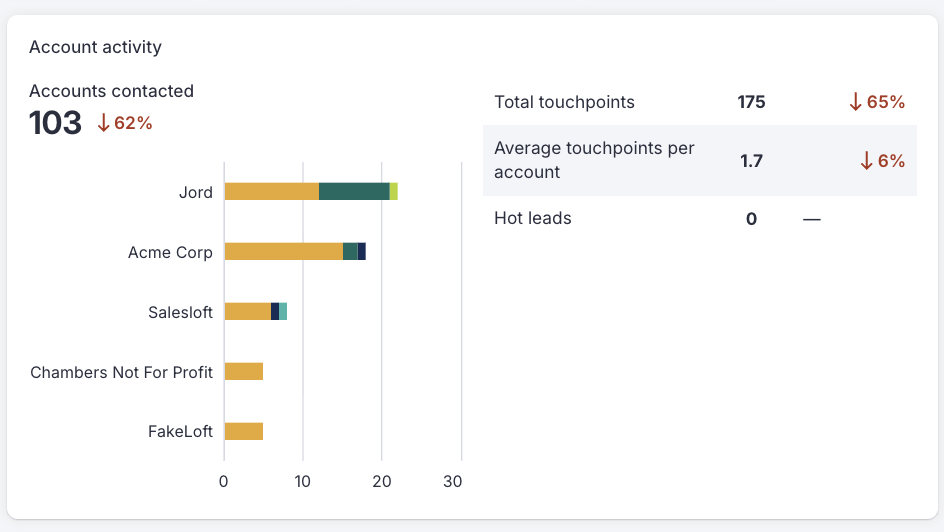
Figure 1: Example: Account Activity panel
Account Productivity Panel
The Account Productivity panel measures how successful your engagement efforts are in terms of getting email replies, successes, and meetings booked on Accounts.
The Account Productivity panel contains the following details from the top of the panel working our way down:
- Panel Name: Account productivity
- Primary Metric:
- Opportunities created: This is the number of times an opportunity was created on an Account.
- Primary Metric Chart: The horizontal bar chart shows the top five Accounts by the number of email replies received. Hover over each bar to see the total replies for the bar.
- Secondary Metrics include:
- % Replied: Percentage of delivered emails that had at least one reply.
- Meetings attended: The total meetings attended by Accounts.
- Period Comparison based on date selection: To the right of the metrics, you will see a small percentage in either green or red. This will show how your numbers have increased or decreased over time.
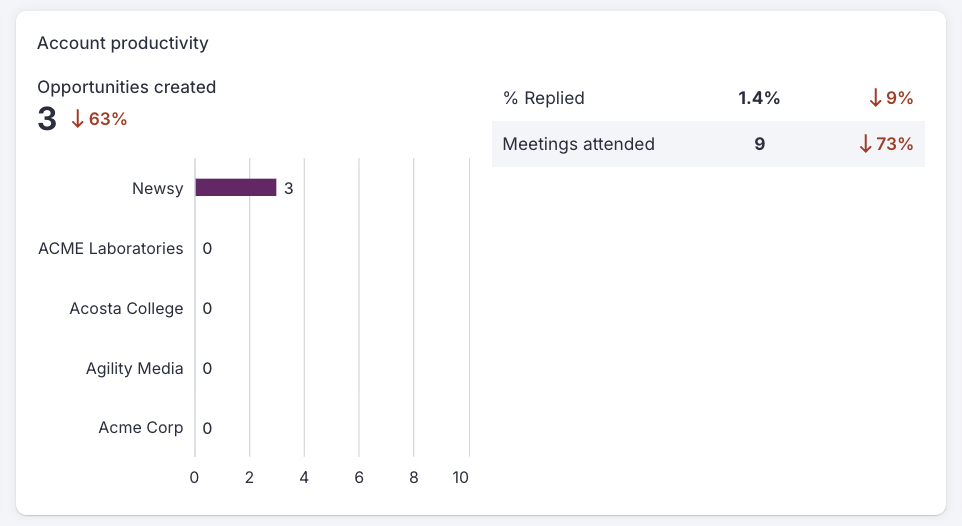
Figure 2: Example: Account Productivity panel
Account Positive Replies Panel
The Account Positive Replies panel shows Positive Email Sentiments distributed to each Account. By default, the Accounts shown will be any Accounts that you, the user, "own." You may filter the Overview page to view Accounts across the team or specific groups.
The purpose of this panel is to highlight for customers which accounts have high positive engagement while also highlighting accounts in need of attention.
The Account Positive Replies panel contains the following details from the top of the panel working our way down:
- Panel Name: Positive Emails
- Chart: A multi-color bar chart that displays the top 10 accounts by positive replies for the selected time period. The bars are colored according to which accounts have been touched within the last 48 hours or not.
- Hover: Hover over a bar to view information relevant to a particular Account. The hover information contains the account name and total number of positive replies.
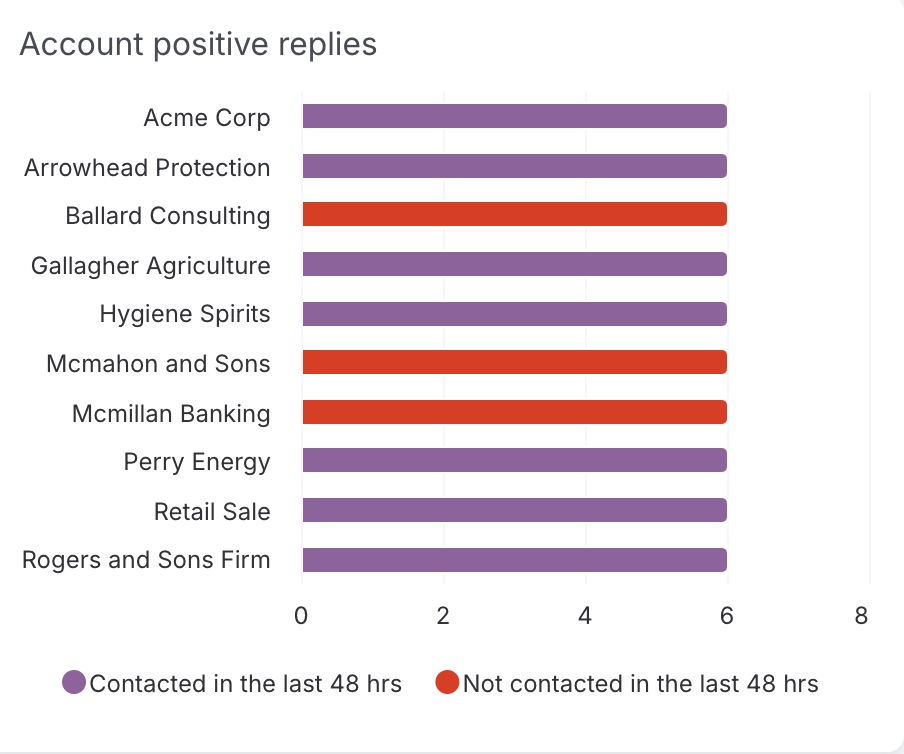
Figure 3: Example: Account Positive Replies panel
Account Standard Report
Account Reporting shows a detailed report for the Accounts your team interacts with. This way admins and users alike can figure out which Accounts are seeing the most traction versus which ones require more engagement.
Q: How many activities are associated with a specific account?
A: Use the Account Activity panel to determine how many activities are associated with a specific account.
Q: How many accounts did we touch?
A: View the Total Touchpoint metric in the table at the bottom of the page.
Q: Which accounts have the most activity in this time period?
A: The table at the bottom of the page shows you which accounts have the most activity in the time period you are filtering for.
Q: How engaged are we with prospects on accounts?
A: Use the Accounts Positive Replies panel to determine how engaged you are with prospects on accounts.
To learn more about Account Analytics, check out:
