Email Sentiments classify email replies into categories that help you identify reply trends and patterns. These qualitative descriptions allow you to truly understand what content is landing with your buyers so you can optimize your sales engagement. It can also help you learn the common types of objections your sellers are facing so you can coach them toward success.
Salesloft’s Email Sentiments feature uses LLM to assign a suggested sentiment to a reply of a Lofted email. Users can proceed with the suggested sentiment or select an alternative.
The model learns when you change an email sentiment. So changes you make will inform the model when labeling future email replies.
Once you've gathered Email Sentiments, your team can leverage a variety of Analytics panels and reports to understand which templates, levels of personalization, and reps generate the most positive replies from their email engagement.
In this article, you will learn how to choose an Email Sentiment. This article includes:
- To use email sentiments, you must have the Generative Artificial Intelligence setting enabled.
- The Email Sentiment Models only includeLofted content, meaning emails sent directly from Salesloft or those sent using the Loft it button in the extension
- New customers’ data will not be in sync with the email sentiment model.
- Email Sentiments are currently only available for English-based email correspondence.
- Since the data and model are specific to Salesloft, the data is currently only displayed within Salesloft reporting and panels under analytics. The data will not sync to your CRM.
- You cannot add, change, or remove an email sentiment. The AI model is designed to work with these specific sentiments. Adjusting sentiments could skew the expected behavior.
- Salesloft’s LLM model suggests an email sentiment on every reply to a Lofted outbound email message.
- Email Sentiments only appear for replies to Lofted emails - aka emails sent from the Salesloft platform OR using the Loft It button in Salesoft Connect.
- Any Salesloft user cc’d can edit the email sentiment. For example, a manager cc’d on emails sent by newer reps can make sure that the Email Sentiment is most accurately showing the rep’s performance.
- Salesloft recognizes the last sentiment assigned to an email reply.
- Any changes made to the sentiment will be reflected in Salesloft analytics.
Email Sentiments are qualitative descriptions assigned to your email replies that provide insight into how your message performed. When you open an email in your inbox, you'll see a suggested Email Sentiment in the top portion of the response.
You can (and should) review the suggested Email Sentiment when it appears. The LLM algorithm is good, but it can still learn. So, if you see an Email Sentiment assigned that doesn’t match the actual sentiment of the message, the best thing you can do is teach the algorithm by selecting a more appropriate Email Sentiment.
To choose an Email Sentiment, follow these steps:
Things to Note: Our example will show the steps inside Gmail. This can be performed in Outlook or Gmail.
- Open your Email Reply: Go to your email inbox and open your email reply.
- Review the Suggested Email Sentiment: Find the Email Sentiment at the top of the reply message. Review the explanation and confidence level.
- Choose a New Email Sentiment: Click the name of the Email Sentiment to open the dropdown menu. From the menu, select the Email Sentiment that is appropriate for your email reply. Your new Email Sentiment will be saved and sent to Salesloft Analytics and changes are reflected in charts and reports.
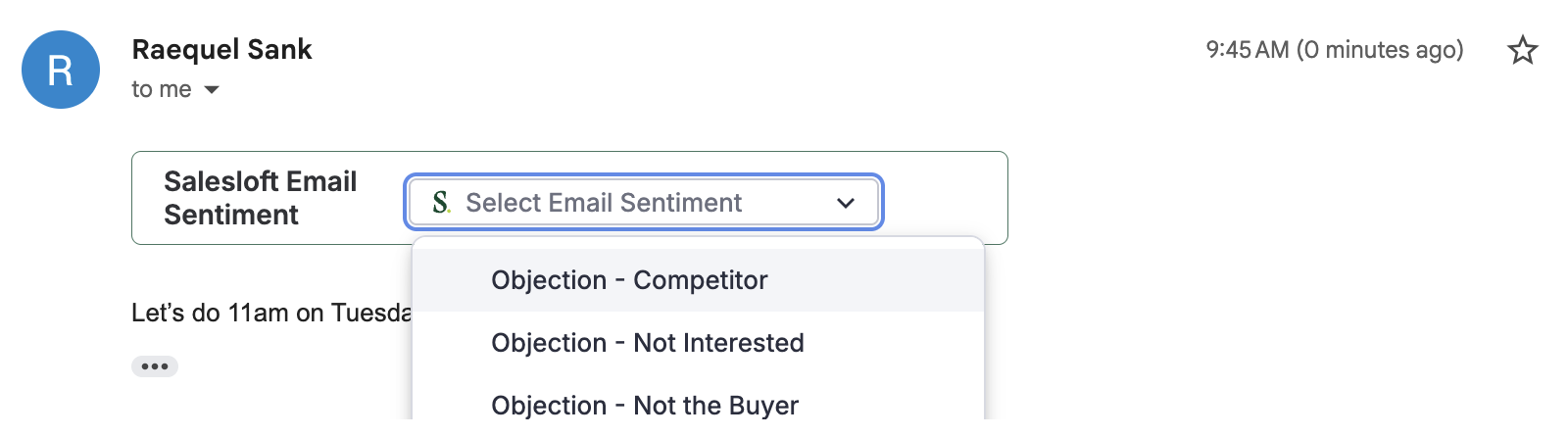
Figure 1: Choose an Email Sentiment.
FAQ
Q: Where do Email Sentiments appear?
Suggested Email Sentiments appear directly in your email replies. The appearance may vary depending on your email platform, such as Gmail, Outlook (Office 365 Online), or Outlook (Windows and Mac). To learn more about a specific email platform, check out the relevant article for your email provider:
Q: When does the LLM model assign a sentiment?
The LLM model assigns a sentiment when it has strong or moderate confidence in a match. If you feel the suggested sentiment is not accurate, you can manually change or edit it.
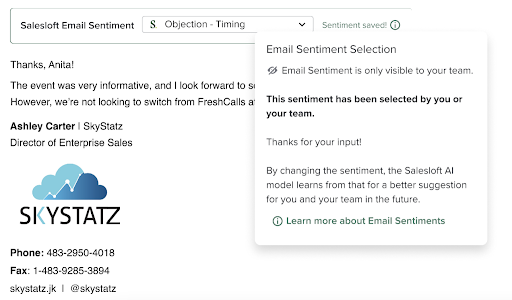
Q: Where is Email Sentiment data stored and analyzed?
Once suggested sentiments appear in your email replies, the data is collected in Salesloft Analytics. You can analyze sentiment data using:
- Email Sentiments by User Report
- Email Sentiments Over Time Report
- Objection Emails Panel
- Positive Emails Panel
You can learn more about these reports and panels in the Email Analytics article.
Q: Do suggested sentiments appear for all emails?
No, suggested sentiments appear only for replies to Lofted emails—emails sent from Salesloft or using the Loft It button.
Available Email Sentiments
The Email Sentiments feature uses a default list of available sentiments to determine the performance of an email. There are six (6) available sentiments. The six sentiments were decided upon based on customer research, sales enablement feedback, and Salesloft’s data scientist team. The sentiments available are:
- Objection - Competitor
- Objection - No Interest
- Objection - Not the Buyer
- Objection - Timing
- Other / Unsure
- Positive
Keep scrolling to learn more about each sentiment.
Objection - Competitor
The Objection - Competitor Email Sentiment is for those times when your prospect is not interested in a Connected Call because they are a customer of another company in your market.
Where applicable, the system will automatically assign this status. It is available to users to use as a sentiment when there is a clear mention of a competitor.
On hover, you can view the confidence interval meter for the suggested sentiment.
Objection - No Interest
Prospects expressing No Interest will come across as requests to unsubscribe or as very direct no interest with no additional reasoning.
Some popular examples include responses like “I’m not interested” or “Remove me from your list.”
While the strongest objection overall, there are arguments that any reply represents a chance to engage the user.
Example: Objection - No Interest - Strong Confidence Level
Hey Dan,
Thanks for your multiple emails. I appreciate your persistence. Unfortunately I’m not interested in your product and would like you to remove me from your email distribution list.
Kindly,
Objection - Not the Buyer
The Objection - Not the Buyer Email Sentiment is for when the prospects express they are not the right contact for the specific offer or solution.
While this situation is not as likely as the others, sometimes the recipient can recommend a better contact.
Also, if you notice a trend that this sentiment is used, it may suggest that you are not gathering the best contact information when prospecting.
Examples of this objection are, “I’m not the best contact,” “I’m not the right person,” or “Please reach out to Cam, she is the better contact." Whether a better contact is recommended or not, the AI model anticipates both examples when suggesting this sentiment.
Example: Objection - Not the buyer - Strong Confidence Level
Hey Frank,
I’m currently no longer responsible for vendor selection. Can you please reach out to Warner, his email information is below.
warner@company.com
Best,
Objection - Timing
The Objection - Timing Email Sentiment means the email most likely contains some delaying language.
The algorithm searches for phrases like, "Try me again in 6 months," "Follow back in 90 days," “Reach back out in 6 months,” “Now is not a good time,” or “We’re currently in a bit of a holding pattern on this.”
While the message is deemed an objection because it isn’t a "yes," these responses can technically be seen as a positive move. There is still hope for a deal in the future. You can use the delay language to shape the actions and workflow that can invite this prospect into Connected Calls.
Example: Objection - Timing - Strong Confidence Level
Hi Kevin,
We are currently under a two year contract with a different vendor and don’t plan on considering other options until at least this month next year. Could we plan to touch base again in about six months?
Regards,
Other / Unsure
The Other / Unsure Email Sentiment is the go-to selection when Salesloft, or the user, is unsure how to classify this email.
This category or label is a catch-all for any email replies that don’t have a match.
The system will not automatically assign this value to replies, but you can select it manually as part of the drop-down.
Positive Email Sentiment
The Positive Email Sentiment covers email replies where there is interest expressed in the reply. These are successful email interactions.
A wide variety of topics can express interest. Common themes are related to a willingness to talk or meet. For example, the phrase "Happy to connect," is definitely a positive response.
Usually, the algorithm assigns the Positive sentiment to mentions of dates or times. Responses including, “How about Thursday afternoon?” or "I'm free tomorrow," show the respondent has an interest in connecting with you.
Things to Note: If a response says, “Thank you, but no,” it’s still an objection, albeit a polite one. Hoping for the respondent to express gratitude or be polite is not enough to earn a Positive Email Sentiment. You g an interaction that leads to a successful outcome.
Example: Positive - Moderate Confidence
Jenny,
Thanks for reaching out. What you are sharing is interesting and I’d like to make sure some other people attend the demo. I’m out of town the next couple days but can you please send a placeholder invite for this day/time next week?
Best Regards,
