Salesloft Email empowers sellers to execute well-crafted email messages at scale and better manage their email engagement process. Salesloft connects to your personal email account, so messages are being sent and received through your standard email provider. Once your email is connected, you can send emails from Salesloft using personalized email templates, and analyze your emails with detailed tracking of opens, clicks, and responses.
Salesloft email allows users to create one-off emails leveraging AI personalization as well as reusable email templates and snippets. Sent messages may be tracked and logged to optimize your sales process.
Email in Salesloft is ideal for sales professionals who engage prospects and drive conversions through personalized email campaigns.
Out of the box, Email is available to all users!
Admins will need to establish team email settings, and review advanced team email settings to determine how their team can use email within Salesloft. Additionally, Admins will want to review all email tracking settings.
Additional permissions needed to access the full functionality of Email include:
Users with a license that enables them access to Email will be able to utilize these features directly from their Salesloft interface in both the web and mobile interface.
To begin using Email, users will need to set up their email account using Gmail, Outlook or other email clients and set up their Email Signature.
Salesloft emails can be sent from multiple locations within the Salesloft platform. You can send an email from the location in the platform that makes the most sense for your workflow.
You can start an email message from any of the following locations:
- Rhythm Focus Zones: Rhythm will organize tasks in order of priority. So the emails visible inside Rhythm are the most important for you to send. Execute Cadence and Task emails from within the Rhythm workflow.
- Cadence: Cadences allow you to systematically send emails to People through a consistent process.
- Rhythm Side Panel: Allows you to execute on your Rhythm prioritized email tasks and cadence steps from anywhere in the Salesloft platform.
- The People Page: Provides a full list of the People who have been created or imported into Salesloft and allows you to take quick actions on selected individuals, including sending one-off emails.
- Person Profile Page: Sending emails from a Person's Profile Page allows you to use the information in the profile to edit and personalize your email.
- Person Quick Actions: Located directly under the Person’s name, select the email icon.
- Click the Email Address: From the Person Details and Contact Info panel, select the Person’s email address for the email window to appear.
- The Emails Activity Tab: From your Person Activities Panel located in the center of the Person Profile page, you will find an Email tab devoted specifically to emails sent to that individual. Access that tab and click + Compose Email in the upper right corner of the panel.
- Stakeholder One-off Actions: Email: The Deals Buying Group panel allows you to email stakeholders from the Deal view.
- Salesloft Mobile: iOS and Android apps of Salesloft.
Sent and Scheduled emails may be viewed from the Emails page. To access the Emails page, go to the Activity section of the Navigation bar and select Email in the dropdown menu.
Reusable email content is created and managed from the Templates and Snippets pages.
Templates are full email drafts. They include individual and Team Templates. From the Templates page you can view, share, and create templates. To access the Templates page, go to the Content section of the Navigation bar and select Templates in the dropdown menu.
Snippets are small pieces of reusable content that can be added to emails. They include individual and Team Snippets. From the Snippets page you can view, share, and create templates. To access the Snippets page, go to the Content section of the Navigation bar and select Snippets in the dropdown menu.
When you send an email in Salesloft, whether from a Cadence or one-off message, the email window will pop up. From the email window you can compose, edit, and personalize your emails prior to sending them to their recipients.
Let’s walk through each aspect of the email window.
The Email title bar spans the top line of your email pane. It includes details about the email being sent and tools to manage the window itself.
The details found in the email title bar differ when you are working on an email in a Cadence step versus a one-off email.
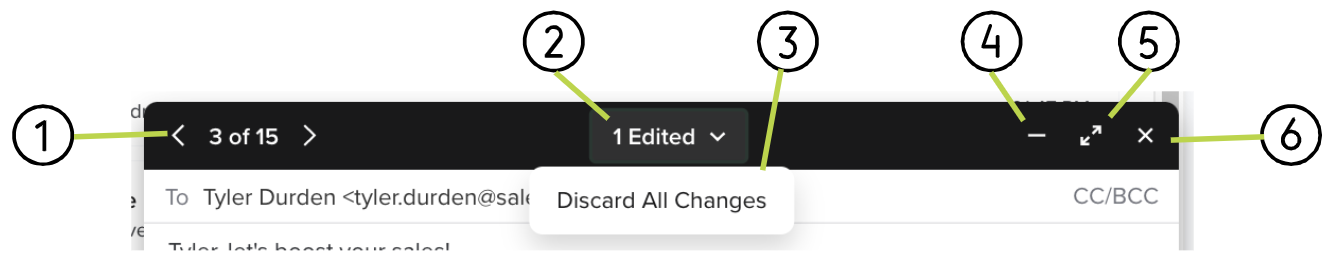
Figure 1: Example: Cadence Email Title Bar
Cadence Email Title Bar
- Email number in Cadence Step: At the top left of the email window, you will see arrows surrounding a "number out of total people in the Cadence step" (for example "< 1 of 5 >"). Use the arrows to view each email and make personalized edits for bulk email sends (Send All or Schedule All).
- Edited Emails: Number of emails that have been edited. Messages will be auto-saved after 3 seconds.
- Discard All Changes dropdown: Selecting this reverts ALL emails in the step back to the original template
- Minimize Window: Collapses the Email editor window.
- Pop out Window: Moves the window from the bottom right corner to the center of the page and expands the window.
- Exit Window: Closes the Email editor window.
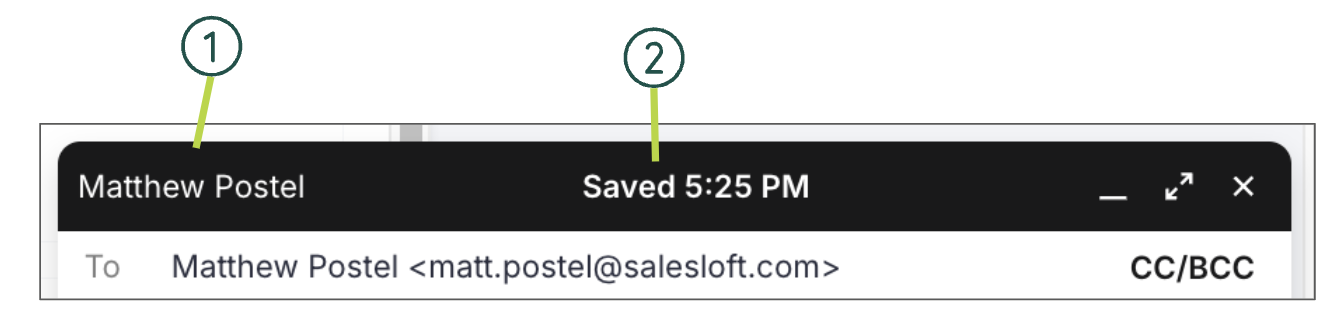
Figure 2: Example: One-Off Email Title Bar
One-Off Email Title Bar
- Person’s Name: The email's recipient based on the Person contact name.
- Saved Email Details: Shows the last timestamp or date when the email content was saved.
Towards the top of your email, you will find the send details. Here you can control your email recipients, subject line, and CRM logging information.
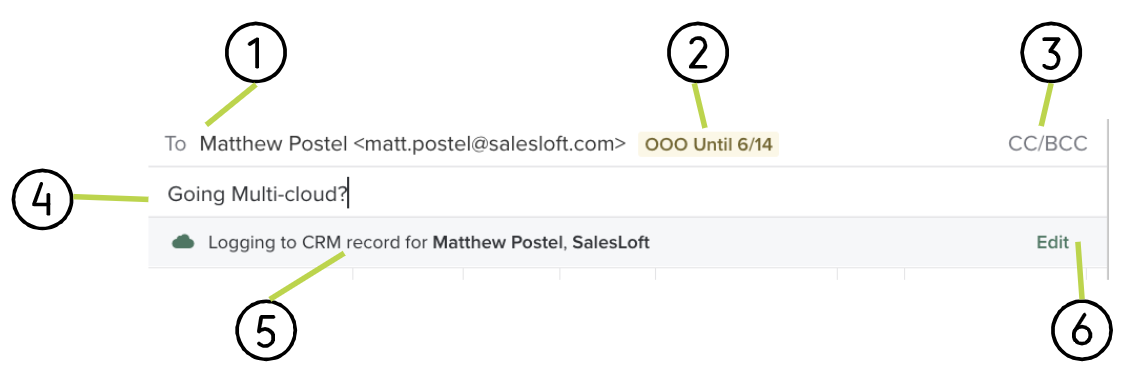
Figure 3: Example: Email Send Details
The Email Send Details include:
- To field: The first line of every email will contain the name and email address of the Person who will receive the email.
- If a Person has been imported into Salesloft with the name field completed, their name will show up in the To field followed by their email address.
- You can search for and add multiple existing Salesloft Person records to the "To" field of a one-off email.
- Person Marked as Out Of Office(appears when active): Denotes a Person has been marked as out of office. The status will show the date of return.
- Things to Note: A Person marked as Out of Office will not prevent you from sending an email. It's an informative status to make you aware this Person is not in office and is unlikely to respond until their return date.
- CC/BCC: When composing emails in Salesloft, you can add CC or BCC recipients by clicking the CC/BCC link in the upper right-hand corner of the email window. You can enter multiple email addresses in the CC or BCC fields.
- Subject: Your email subject line will show up in the recipient’s inbox. You want to make your subject line inviting and (if possible) amusing to encourage the recipient to open the message. Enter your subject line in the Subject box near the top of your email window.
- Best Practice Tip: Add Dynamic Fields to your subject line by dropping the field into the body of your email and copy and paste the field into your subject line.
- CRM Record Log: Shows which CRM record the email will log to.
- Edit CRM Record Selection: Allows you to change the CRM Record to the record of your choice.
Emails in Salesloft give you the control to draft and edit your message with your own personal touch all from the Email Window.
While you can deliver that personalized touch using your words in the email message, you can also customize your email using the features laid out in the email window toolbar.
The toolbar includes two rows worth of actionable buttons. We have split each row for the purpose of this walkthrough.
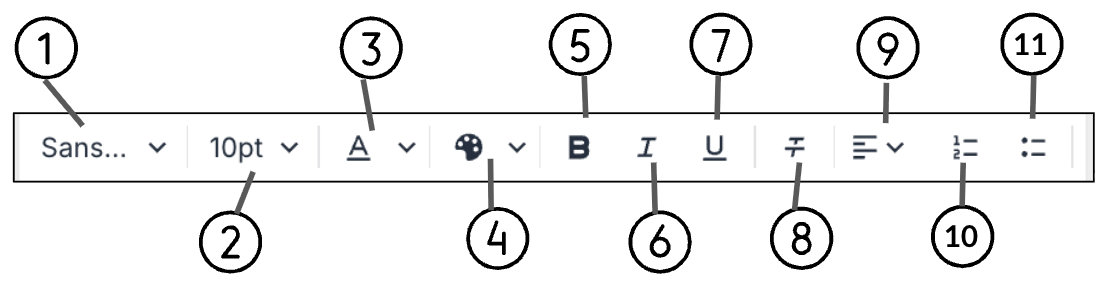
Figure 4: Example: Email Toolbar Line 1
Email Toolbar Line 1
- Font Style: You can customize the font style in your emails. Each user can edit the font style, size, and color in their Salesloft emails whether the text is from snippets, templates, one-off emails, or even their email signature in their profile.
- Things to Note:
- Salesloft admins are able to set a default font for the entire team. If there is a default team font style set, the individual user can override it when they set their own custom fonts in their snippets, emails, or templates. However, the Salesloft admin(s) can control if the user has the ability to customize font style in the Roles and Permissions settings (check with your admin about this).
- The same font options will appear when you Set Up Your Email Signature and create templates or snippets.
- Calibri and Century Gothic are not web-safe fonts. Using these fonts may affect your email recipient's ability to see your email/email signature content.
- Font Size: Adjust the size of the selected font within the email.
- Text Color: Changes the color of the text. Click the icon to edit the color of the text to the most recent color used. Use the drop down menu to select an alternative text color.
- Background Color: Highlights the text using the most recent color. Select the drop down menu to select an alternative background color.
- Bold: Changes font to the bold typeface.
- Italics: Changes font to an italic typeface.
- Underline: Underlines the text.
- Clear Formatting: If you have existing templates in a word processor, sometimes copying and pasting those into your Salesloft email can carry over some unwanted source code or funky fonts with it. Salesloft makes it easy to clear this up for clean, easy-to-read emails!
- Things To Note:
- When keeping some formatting in your email, be sure to send yourself a preview to ensure all of the formatting shows up the correct way.
- Alternative Clear Formatting Option: When you copy and paste text into your template that contains formatting, Salesloft will warn you and give you the option to remove the formatting. Click Clear Formatting to remove all formatting.
- Align Options: Edits the paragraph alignment of your text.
- Ordered List: Creates a numbered list.
- Unordered List: Creates a bullet point list.
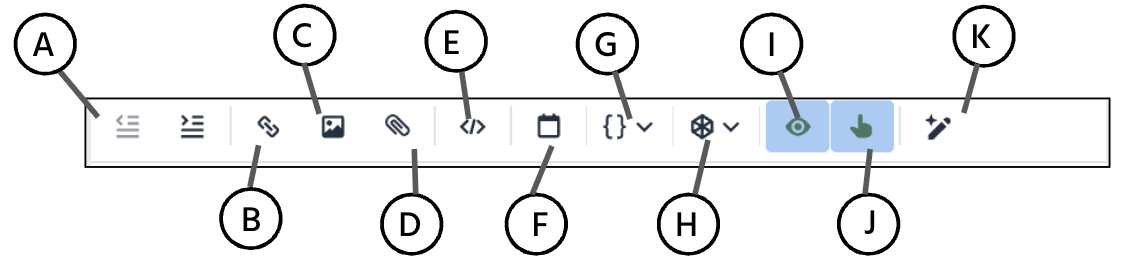
Figure 5: Example: Email Toolbar Line 2
Email Toolbar Line 2
- Increase/Decrease Indent
- Insert/Edit Link: Insert link into the text. A pop up window will appear. Enter the destination and the text that will contain the hyperlink.
- Things to Note: If you have selected text within the message, the Text to display should be in the dialogue box. If not, add the phrase you would like to link.
- Insert/Edit Image: Insert an image or GIF into your email. From the upload tab, drag and drop the image into the window OR select Browse for an Image. When you click Browse for an Image your computer files will pop up.
- Attach file: Adds a file to your email. Salesloft supports .pdf, .png, .jpg and .docx, .xls, .xlsx, .ppt, and .pptx file types, with a maximum of 10mb per email sent.
- Source Code: Opens the HTML code within the email editor. When the code view is open, the code view button will turn blue. Once your edits are complete, select the code view button to close the editor.
- Insert Meeting Link: Adds a meeting link to your email.
- Dynamic Fields: Adds a dynamic field to your email. Dynamic fields use information from a Person or Account to help add a personal touch to your emails. For a complete list of dynamic fields, check out our Available Dynamic Fields article.
- Things to Note: If a dynamic field is added to an email template, but the field type is missing data, Salesloft will prompt you about the blank dynamic field prior to sending your email. This way you can avoid sending a message with "Hey {first name}."
- Integrations: Access available integrations.
- Track Opens: Track the number of times an email is opened (via pixel). When tracking is enabled, the icon will appear green.
- Track Clicks: Turns open tracking on for this email (via link-wrapping). When tracking is enabled, the icon will appear green.
- Click-tracking takes the recipient’s message to a special URL momentarily that registers their click. Then the message is immediately redirected to the intended destination. Spammers sometimes use link redirects to trick people into thinking they're going to a specific webpage. For this reason, some spam filters penalize emails that are tracking clicks on links.
- If you are concerned about email deliverability or have existing poor email reputation, you can improve the likelihood of email deliverability by turning off click-tracking.
- AI Email Assistant: (“Help me write”) An integrated, AI-powered tool to efficiently draft and refine high-quality, personalized emails directly within their existing Salesloft workflows.
Writing and editing your email messages takes place in the Compose Pane. Email content can be typed into the compose pane (or inserted using a Template or Snippet). As a Salesloft best practice, typing your email works best for highly personalized, one-off messages. Use the Email Window Toolbar located above the email body to format your messages or add links, images, and dynamic tags.
Salesloft emails and templates use UTF-8 character encoding. This tells the computer how to display the internally stored representation of letters. In other words, it will make text characters, symbols, and even emojis look the way they are supposed to in your message and not like a confusing mess.
Things to Note:
- Copy and paste messages from a Word or Google doc may cause the following format errors:
- UTF-8 coding may break, resulting in varied text and line formatting.
- 1.5 line spacing vs the standard line spacing. This is due to the additional code being pulled from one text editor to the new one.
- To avoid any text errors, enable plain text mode or use "Paste and Match Style" when pasting text from another source.
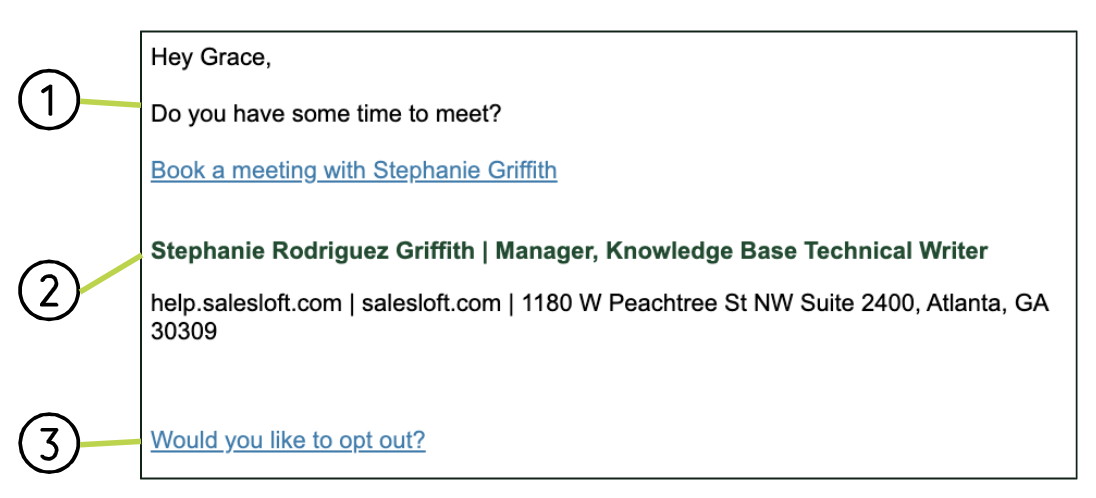
Figure 6: Example: Email Compose Pane
The Email compose pane includes:
- Email Body: The body of your email will be laid out in the compose pane. Just like when you are creating an email from your regular email server, you can type your message in the box and edit the message or add content from the email toolbar.
- Signature: Your email sign off. If you have saved an email signature in your Personal settings, the signature will automatically appear in the email window.
- Opt Out (optional): This link allows email recipients to opt out of future communication and marks the Person as Do Not Contact . The opt out link will appear in emails when an admin has enabled the Global Opt Out or the Opt Out Dynamic Field has been added to your email.
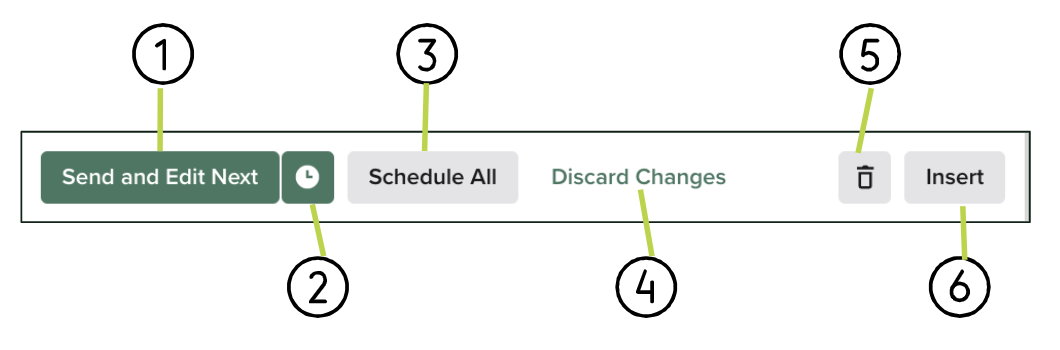
Figure 7: Example: Send Options for a Cadence Email
The standard send options for a cadence email include:
- Send Options: Button to send the email to the recipient. The button may show different options based on what type of email is being sent.
- Send: One-email send
- Send and Edit Next: (Cadence emails) Sends the current email and opens the next Cadence email step.
- Send and Finish: (Cadence emails) Sends the current email and completes the Cadence step for all People.
- Schedule: Schedules the email to this Person.
- Schedule All (Cadence emails only) Allows you to schedule the Cadence email to start sending to all People in this Cadence at a later time.
- Discard Changes: When you have edited the email, this button lets you delete any changes you have made and start over.
- Delete and Close: Discards your email draft and closes the email window.
- Insert Menu: Add previously created content from the Insert menu in the bottom right corner or the compose window. When you select the item you would like to add to your message, a module will pop up so you can select your content or meeting availability. If you would like to personalize or adjust any of the messaging in your template, you can edit the template after it has been selected within the email text box. From the Insert menu, you can add the following to your email:
- Availability: Adds specific meeting time slots to send to the email recipient.
- Template: Adds previously created email templates. Choose from My Templates or Team Templates, depending on the type of template you need. You may also search for a specific template.
- Snippet: Adds brief snippets of content into your email. Snippets act a lot like templates, but use bite-sized pieces of information and drop them into your emails. So if you write a personalized message you can add snippets full of additional information, like case studies or Knowledge Base articles.
- Follow Up (Not pictured - one-off emails only): Sets up a follow-up tasks for no reply emails.
The Emails page shows you the log of all emails you have sent using Salesloft. From this tab, you can view the send data and metrics of your emails. The Emails page also allows you to control and, more importantly, cancel sent messages.
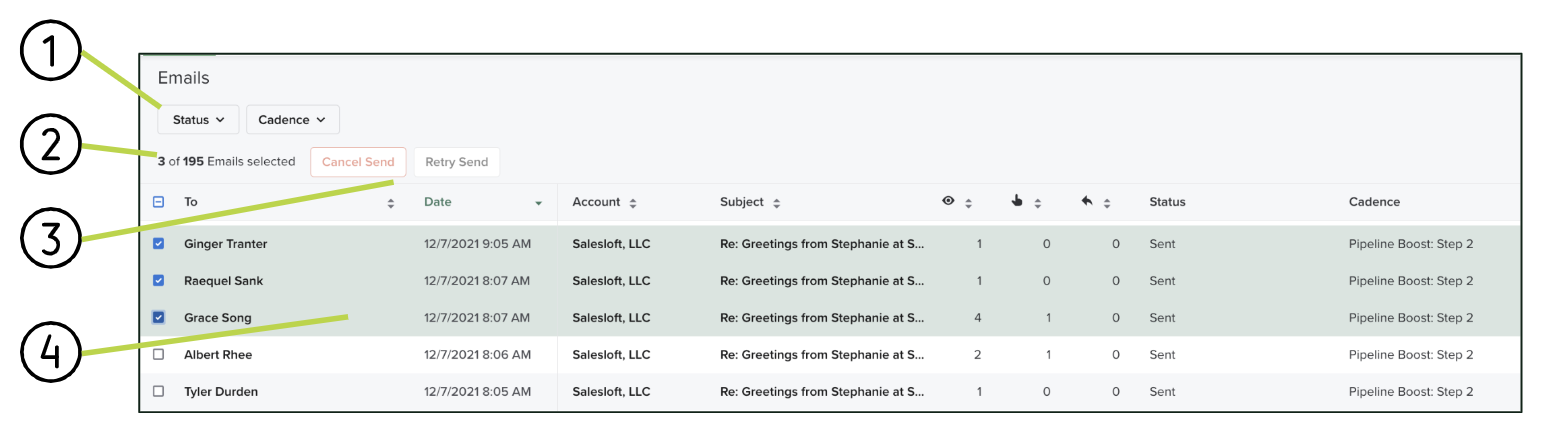
Figure 8: Example: Email Page Layout
The Emails Page layout contains the following features:
- Email Filters: The Emails page shows all emails you have attempted to send by default. You can use filters to specify a select type of emails.
- Number of Emails: The total number of emails in the current view. When you select an email, the number will show how many emails have been selected out of the total number of emails (example 3 of 25 emails will show if you have checked the box next to 3 emails on a full page.)
- Selected Email Actions: When you check the boxes listed towards the left of each email's row, email actions will appear at the top of the list.
- Emails List: The list of emails you have sent using Salesloft.
The Emails list out the emails you have sent on one page.
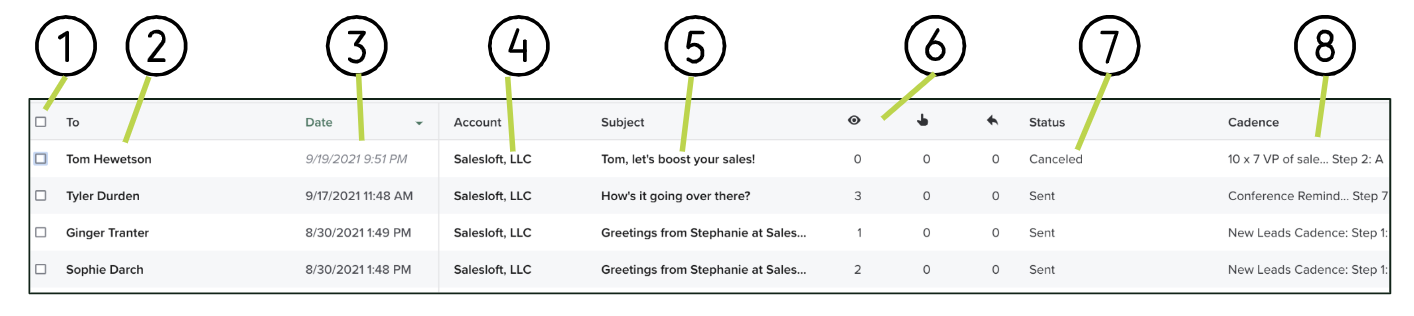
Figure 9: Example: Email List
The Emails page includes the following information:
- Checkbox: Select option for each email
- To: The Recipient's name is hyperlinked to their Person Profile Page. The person who received the email.
- Date: Sortable column by date the last action on the email occurred. Sent emails will appear in standard text. Canceled, Scheduled, or Failed messages will appear in italics to signify an alternative email event.
- Account: Account linked to the recipient Person, hyperlinked to the Account Profile Page.
- Subject: The subject line of the email. The subject line is a link you can click to view the full email and email details.
- Tracking Metrics:
- Opens: Number of emails sent that have been opened.
- Clicks: Number of times a link in the email has been clicked.
- Replies: Number of replies the email has received.
- Status: state of the email send. Options include Scheduled, Pending, Sent, Failed, Canceled
- Cadence: The name of the Cadence the email was sent from. If the email was sent as a one-off a dash will appear in the column.
Selecting the subject line of an individual email gives you further insights into the email metrics. This is particularly helpful if you want to view the entire email thread or need more information about the interaction.
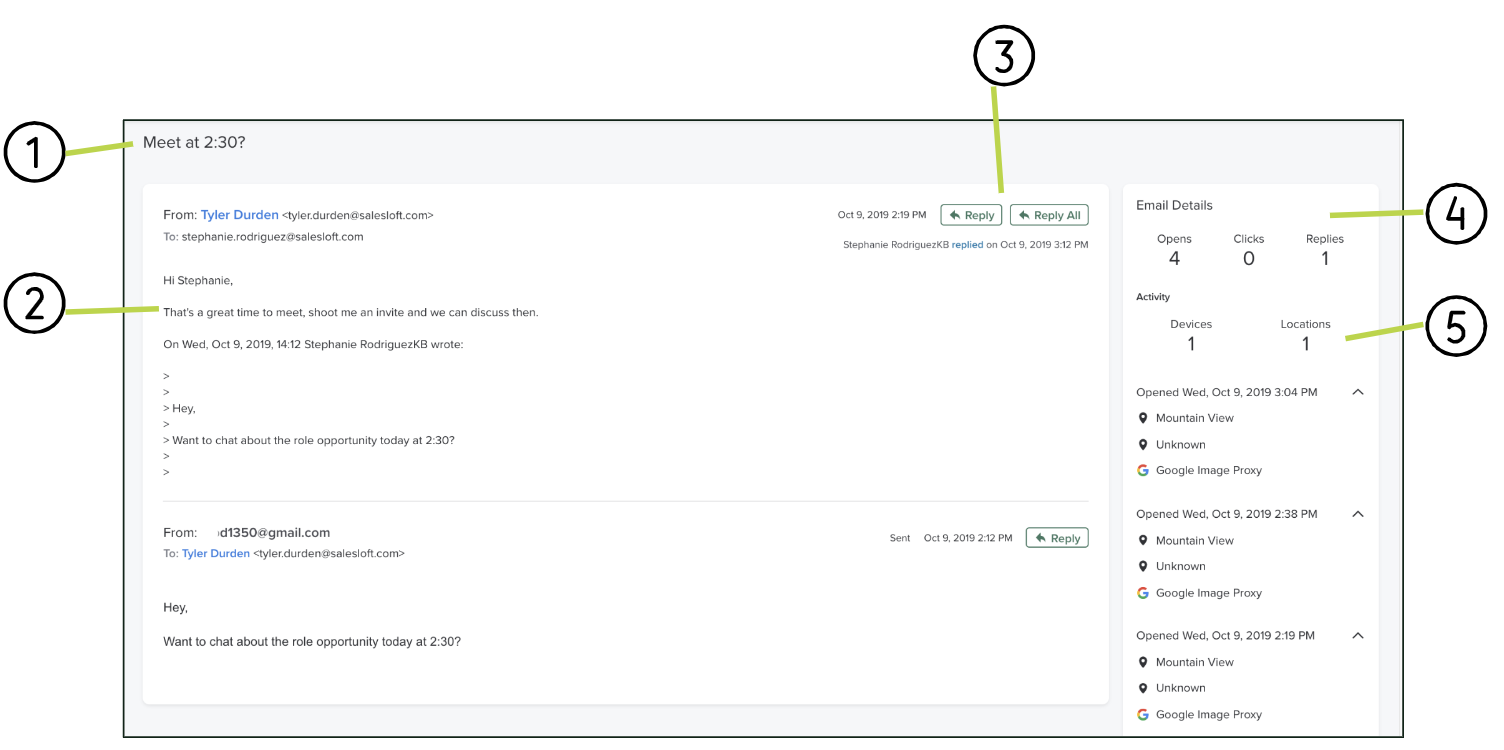
Figure 10: Example: Email Details Page
The Email Details Page includes the following information:
- Subject line: The Subject line of the email you are viewing.
- Email thread: The content of your email. The thread will include the dialogue between you and others. Each email will be broken by the From and To fields. The emails will also show the time the email was sent.
- Reply: Opens an email window so you can reply to the email thread and continue the email conversation.
- Email Metrics: Opens, Clicks, and Replies that have been registered to this email thread.
- Email Activity: Shows the number of Devices and Locations where activity was made on the email. This is helpful if you are curious how often an email was viewed. If an email has a large number of views, and you see that it has an equally large number of devices or locations, you can assume the email was forwarded and viewed by multiple people.
