Writing personalized emails from scratch takes time. AI Snippets surface ready-to-use message starters directly in the email composer, They map to account signals — like industry or funding stage — and insert into your email with dynamic variables already filled in. Use this guide to insert an existing AI Snippet into an email or create a new one from scratch.
After completing this guide, you will be able to:
- Insert an AI Snippet into an email from a Cadence step or Task.
- Create a new AI Snippet using the AI creation flow.
- Save and reuse AI Snippets across your outbound messaging.
In this article:
Before starting, make sure you have the following:
- Account access: An active Salesloft account with access to Cadences or Tasks.
- Artificial Intelligence Setting Enabled: Your admin must have AI Snippets enabled under Settings > Artificial Intelligence
- Snippets configured: At least one AI Snippet must exist in your workspace for suggestions to surface when inserting. If none have been created, start with the Create an AI Snippet section below.
- Existing snippet permissions apply: AI Snippets follow all standard Salesloft snippet permissions and settings. If a rep can't see certain snippets, check the permission settings with your admin.
Admins and users can create AI Snippets and map them to account signals so the right messaging surfaces for the right account.
1. Navigate to Snippets: Go to your Salesloft Snippets library. You can access this from your main navigation by hovering over Content and selecting Snippets.
2. Begin the snippet creation flow: Click Create Snippet to open the creation flow.
3. Select AI creation: When prompted to choose a creation method, select AI created.
4. Review the AI-generated output: Salesloft will generate a snippet based on your inputs. You can:
- Accept the output as-is
- Edit the text directly
- Regenerate to get a new version
Things to Note: The AI generates snippet content based on the signals and context you provide. Review the output before saving to make sure it aligns with your messaging standards.
5. Save the snippet: Click Save. The snippet is now available to be inserted into emails across your workspace.
When you open the Salesloft email composer from a Cadence step or Task, relevant AI Snippets surface automatically based on account signals like industry or funding stage.
1. Open the email composer: Navigate to a Cadence step or Task and open the email composer.
2. Review suggested snippets: The AI Snippet selection modal appears automatically, surfacing snippets relevant to the account you're emailing. Browse the suggestions to find the one that best fits your message.
Things to Note: If no snippets appear, your workspace may not have any AI Snippets configured yet. Ask your admin to set them up or create one yourself — see Create an AI Snippet below.
3. Click the desired snippet: Select the snippet you want to use. It will insert directly into the email body.
4. Confirm dynamic variables are resolved: Review the inserted text to confirm that dynamic variables — such as {{First_Name}} and {{Company_Name}} — have populated correctly before sending.
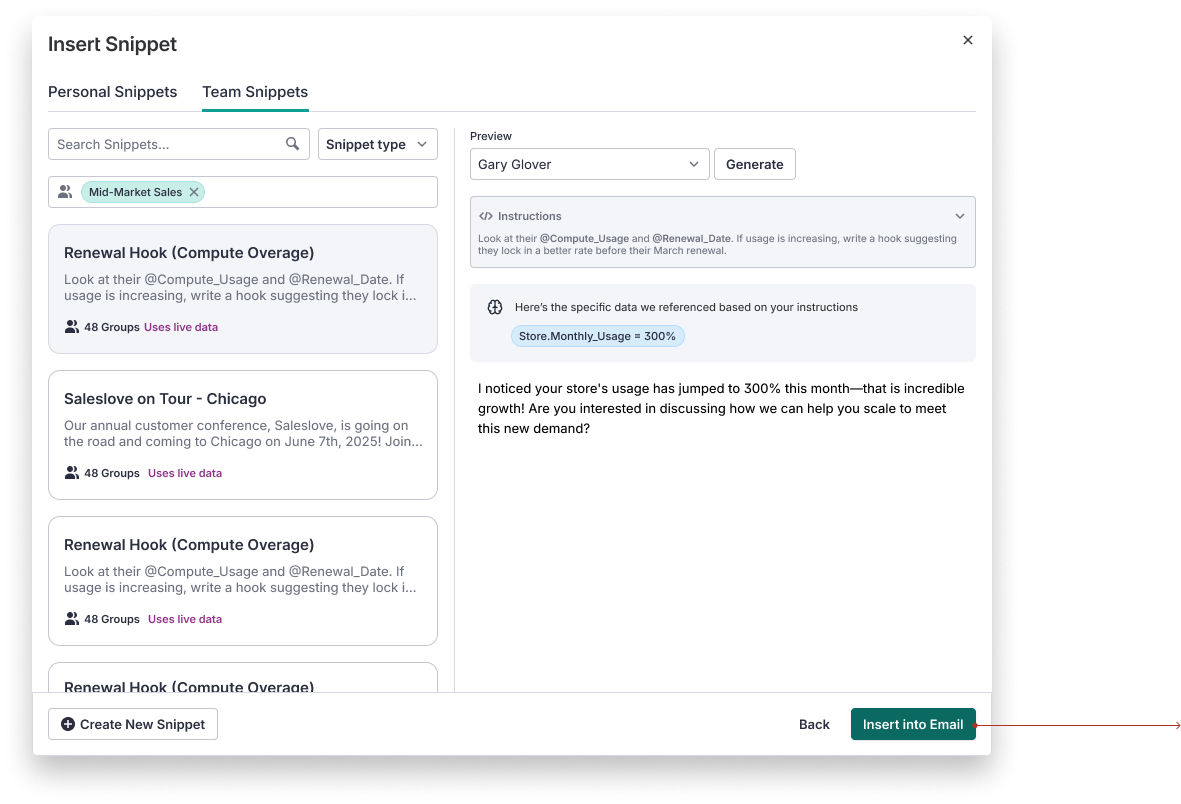
Figure 1: Insert AI Snippet
You've successfully created an AI Snippet when:
- The snippet appears in your Snippets library after saving.
- The snippet surfaces in the AI Snippet selection modal when composing a relevant email.
You've successfully inserted an AI Snippet when:
- The snippet text appears in the email body with all dynamic variables (e.g., {{First_Name}}, {{Company_Name}}) already resolved.
- The email is ready to review and send without needing to manually fill in variable placeholders.
- Signal-based surfacing: AI Snippets surface based on account signals like industry and funding stage — not as generic templates. The more accurately your account data is maintained in Salesloft, the more relevant the suggestions will be.
- Dynamic fields: AI Snippets use standard Salesloft dynamic fields (e.g., {{First_Name}}, {{Company_Name}}). These are automatically applied when the snippet is inserted. Please review before sending to confirm data accuracy.
- Avoid: Saving a snippet without reviewing the AI output. AI-generated content should be verified before it's used to ensure accuracy and brand alignment.
- Current limitations: AI Snippets do not currently support pulling in meeting transcripts or historical Copilot data, cadence approval workflows for brand review, or snippet performance tracking (acceptance/reply rate).
