Salesloft’s meetings bring calendar links into your email communication. With meeting links, you can send out your own or even your teammates’ meeting link.
Then, when a Person receives a meeting link, they can view available meeting times and schedule time on your calendar for calls, demos, or to finalize deals.
In this article, you will learn how to send meeting links and book meetings through your email, including:
- Before you can insert calendar links into your emails, you must set up your calendar in Salesloft.
- When you add meeting links to an email, you can select your own calendar or a teammate’s calendar.
To insert your calendar link into an email, follow these steps:
- Compose an email.
- Select the calendar icon from the compose window toolbar. The Meetings window will drop down.
- Select a calendar to book on. This is where you will determine whose calendar link you will be using. You can choose your personal calendar or a team member’s calendar.
- Things to Note: You can only send a teammate's meeting link if their calendar is set up.
- Select a Meeting Type:
- Select a Meeting Length.
- Things to Note: You may edit the meeting length even if the Meeting Type has a previously designated length.
- Click Insert Link.
- Send your email.
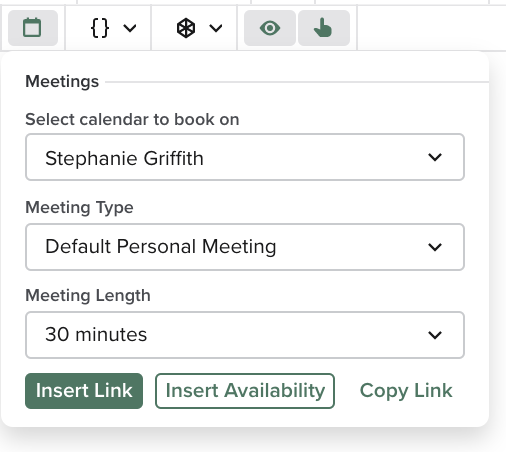
Figure 1: Insert your calendar link into an email.
The Meeting URL dynamic field populates your meeting link into your email message. Adding this field to your personal or team templates or snippets makes it easy for you to send meeting links. Instead of adding the individual link to an email, you can skip that process, and insert the previously created content.
When you create your email template, use the dynamic tag drop-down menu to find the My Meeting URL tag under My Tags.
To add the dynamic field, follow these steps:
- From the Templates Page, click Template Actions.
- Select Add Templates.
- Click the Insert Dynamic Field {/} icon.
- Scroll to My Fields.
- Select My Meeting URL.
- Complete your email draft and hit Save.
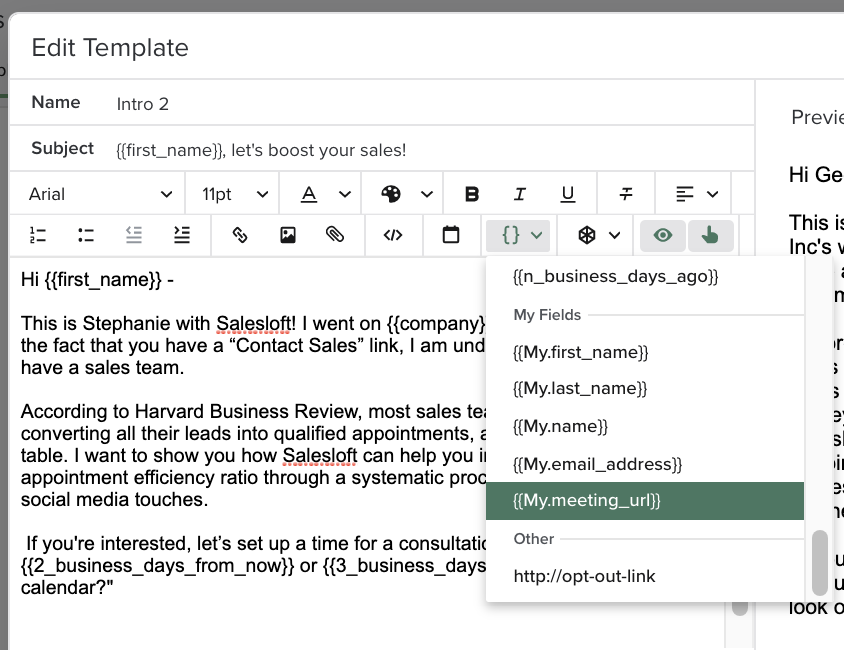
Figure 2: Insert your calendar link into an email via a dynamic field.
The Insert Availability feature allows you to send email recipients specific meeting time slots. This provides more control over your own calendar, and still gives prospects and customers the ability to book a meeting with fewer clicks of their mouse.
Insert Availability is available within the Salesloft platform, as well as within your Gmail.
To insert your meeting availability in a Salesloft email, follow these steps:
- Create an email and compose your message.
- Click the calendar icon in your compose window toolbar. The Meetings window will appear.
- From the Meetings window, complete the following fields:
- Meeting Owner: The meeting owner determines whose calendar to book the meeting on. This can be your calendar or one of your team members' calendars.
- Meeting Type: Use the dropdown to select from the following options:
- Meeting Length: Determines length of time for meeting slots
- Click Insert Availability. Your calendar will appear in a pop-up window.
- Things to Note: To view an alternative calendar when selecting a Meeting Owner or Adding Attendees, you must have access to the other person's calendar. This means either your Salesloft team member has set up their Calendar Settings in their Salesloft account or that the person being invited has shared their Google Calendar with you previously.
- From your calendar, click the dropdown in the upper right corner to set a time zone for the calendar.
- Click individual time slots or click and drag your cursor to select multiple time blocks. Click the slots to remove them. You can also click the arrows in the upper left corner to choose different dates/weeks.
- Things to Note: Availability can be selected for up to 90 days from the current date, regardless of your Scheduling Limit.
- Click Insert Times in the bottom right corner to insert your availability. You will be directed back to the email window.
- All of the selected times will appear as clickable links.
- Things to Note: If your email recipient is located in a different time zone, the time slots you chose will appear typed out. To view a clickable link, select View in Your Time Zone.
- Send your email.
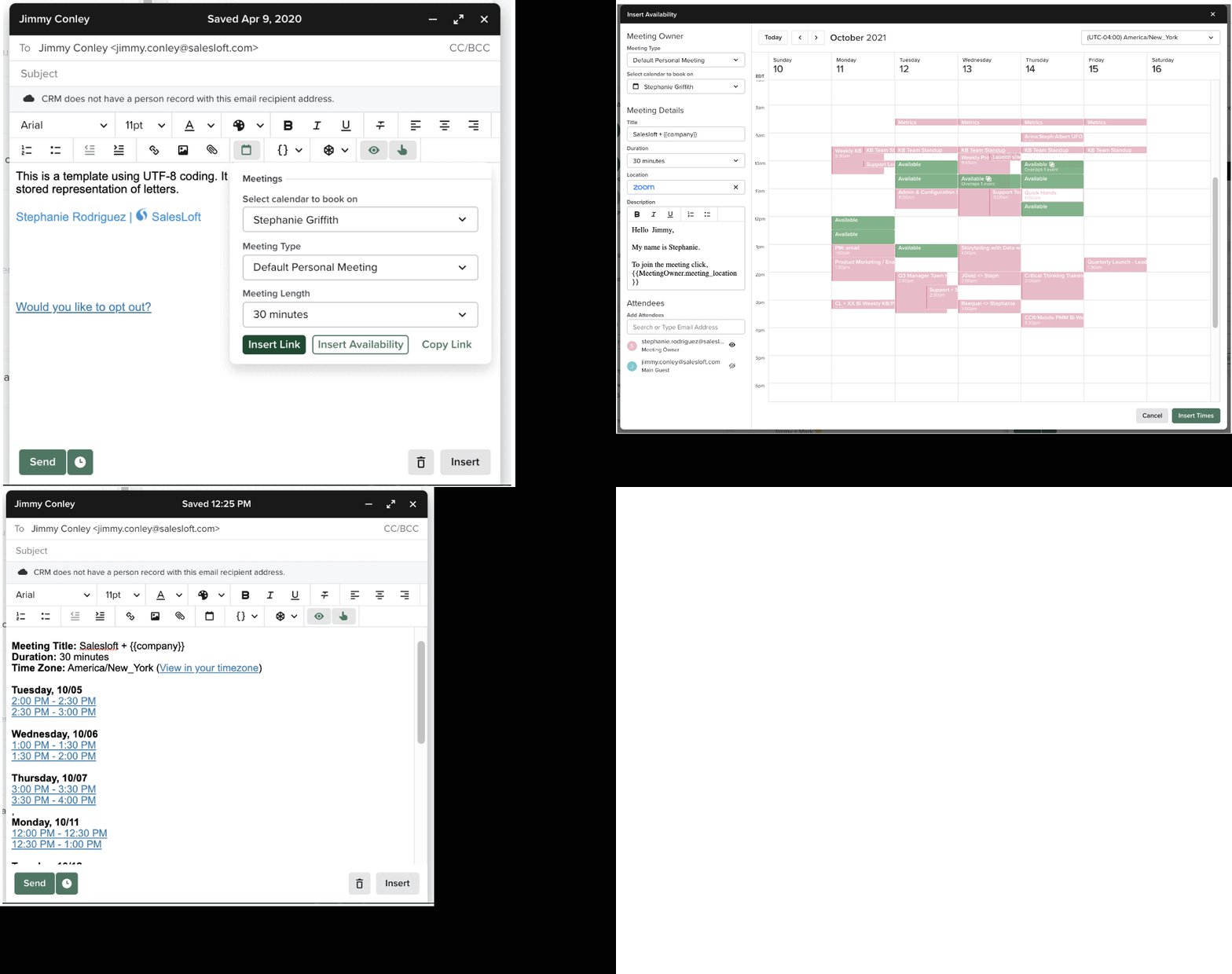
Figure 3: Insert meeting times into an email based on your availability.
When an email recipient clicks on a link, they will be taken directly to the confirmation page, as long as the selected time slot is still available on the Meeting Owner's calendar.
If the selected time slot has already been taken, the link will direct the recipient to a page where they can view all other available time slots.
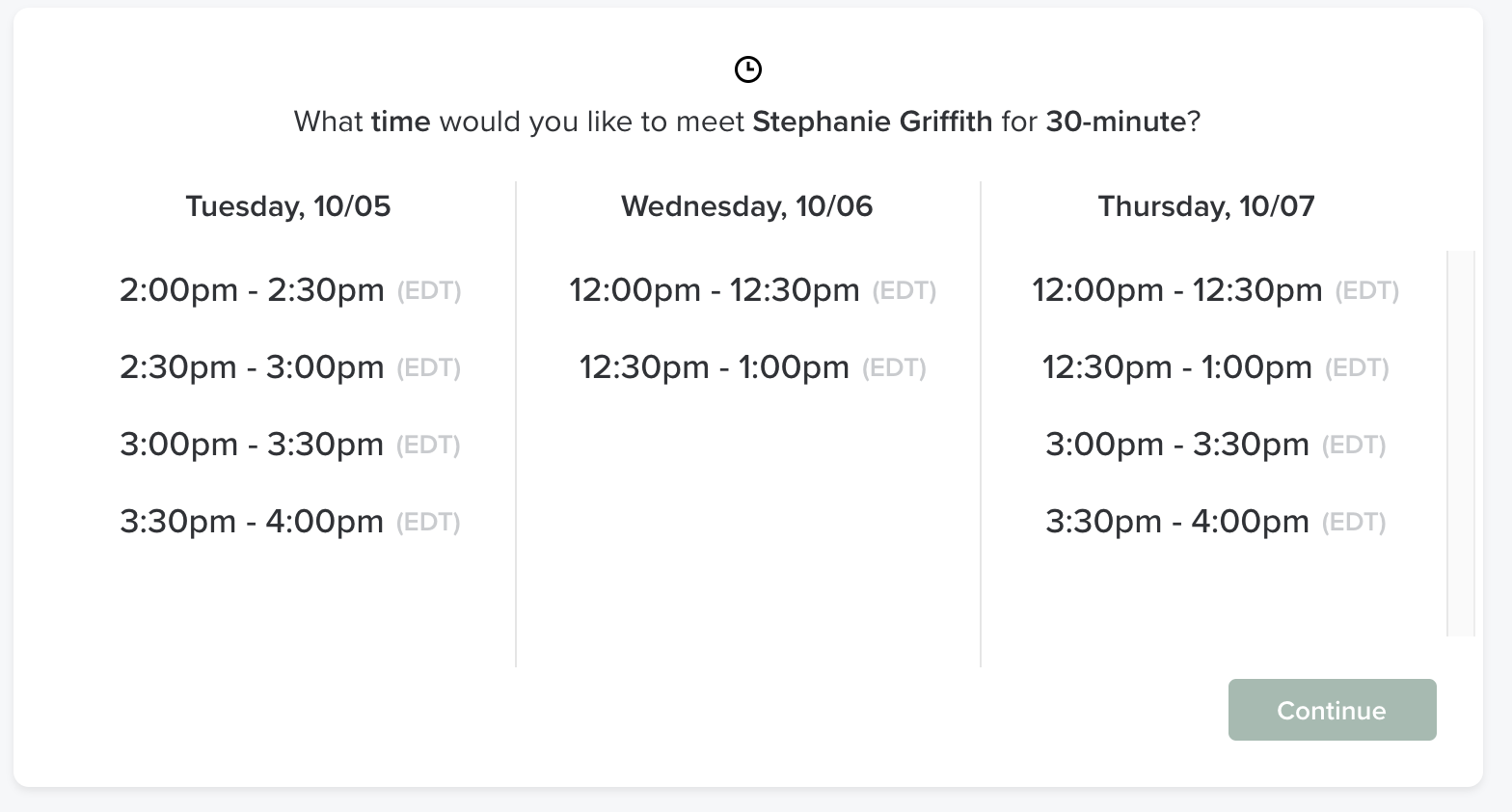
Figure 4: Recipient's view of scheduling a meeting outside of the availability you included in the email.
For more information on booking meetings outside of emails or what a Person sees as they select a meeting time, check out our Book Meetings Through Salesloft article.
