Salesloft gives each user the ability to create their standard meeting availability. However, your team may need different types of meeting formats. For example, a demo call may take more time than a Q&A or check-in call. Meeting types allow you to set up as many meeting formats as the team is using in the sales process.
Users are able to select a meeting type when inserting a meeting link or apply a meeting type to automatically fill out meeting details when inserting availability. To learn more about the user experience with meeting types, check out our
Book Meetings Through Salesloft article.
As an admin, you can create standard meeting types for your team from the
Meetings Settings.
In this article, you will learn about meeting types, including:
To add a meeting type, click the Create New Meeting Type button in the upper right corner of the Meeting Types tab.
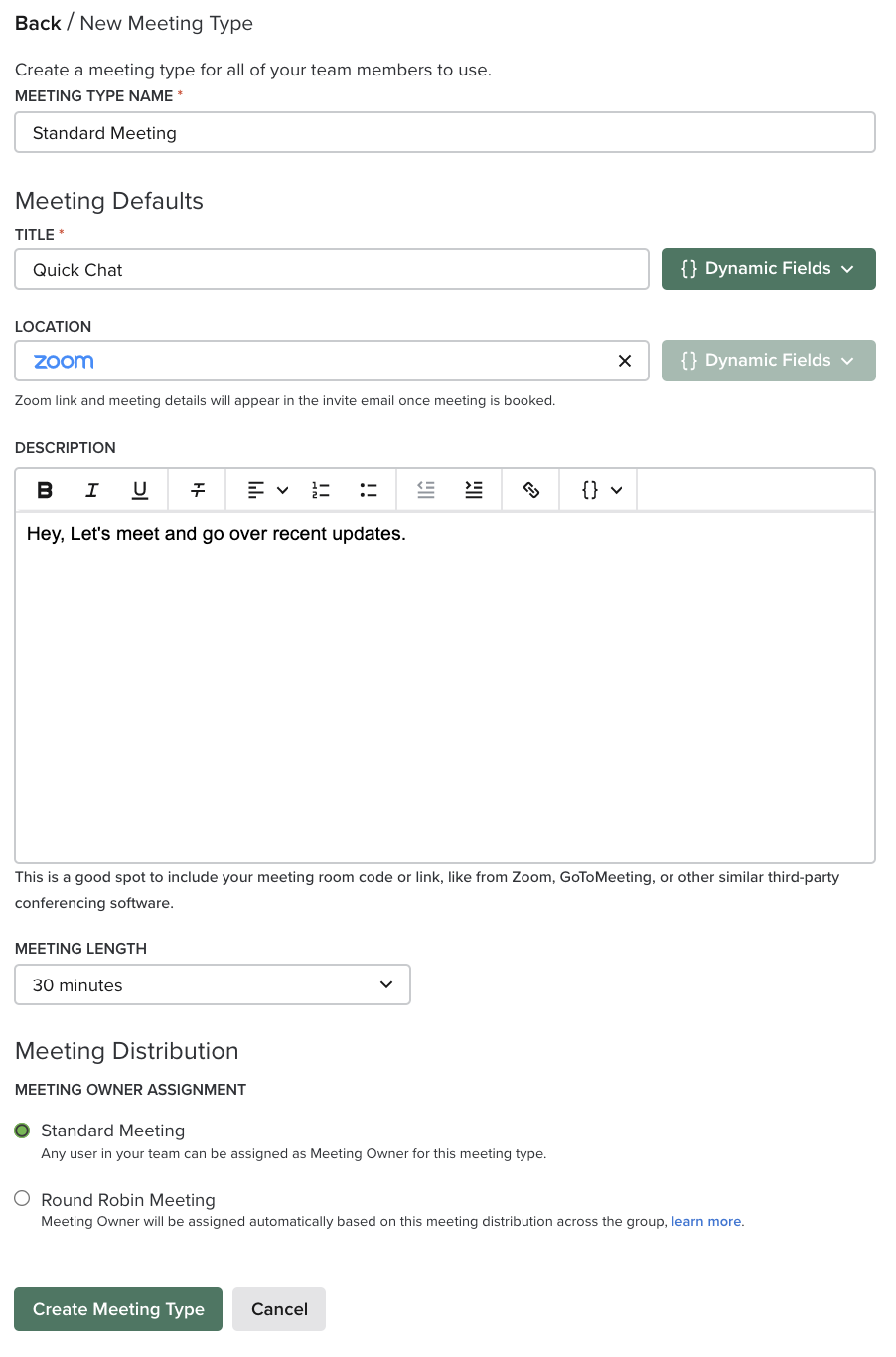
When you click Create New Meeting Type, you will be directed to the New Meeting Type page where you will add meeting type details.
To create meeting types, follow these steps:
- Go to the Meetings Settings, listed under the Communication section.
- Click the Meeting Types tab.
- If this is your first time accessing the tab, or you have not previously created meeting types, hit Create New Meeting Type on the page.
- Enter the Meeting Type Name that best fits the meeting you are creating (this is a required field).
- Add a Title. The title will show up on the calendar invite. To provide a user-specific, personalized touch, use the Dynamic Fields to the right of the Title text box. These tags pull from the user's default Calendar Settings.
- Add a Location. We recommend using the Dynamic Field for {{MeetingOwner.meeting_location}} to match the user's specific location.
- Set the meeting length. The available times include:
- 15 Minutes
- 30 Minutes
- 45 Minutes
- 60 Minutes
- 90 Minutes
- 120 Minutes
- Set the Meeting Distribution. This will decide who is assigned the meetings. You can select from the following options:
- Standard Meeting: Any single user can be assigned the meeting.
- Round Robin Meeting: The meeting owner will be assigned in turn to each user in a given group.
- Once the required fields are completed, hit Create Meeting Type. Prior to the required fields being filled out, the Create Meeting Type button will be disabled.
After the first meeting type is created, you can view, create, and delete meeting types from the Meeting Types tab.
The meeting types view shows the following information:
- Meeting Type Name: Click the name link to edit the meeting type details.
- Meeting Assignment:
- Meeting Title
- Duration
If a meeting type is no longer relevant or needs to be removed, you may delete the meeting type.
To delete a meeting type, follow these steps:
- Go to the Meetings Settings, listed under the Communication section. Go to the Meeting Types tab.
- Find the row for the meeting type you want to delete. Click the Delete button on the right side of the row.
- A message will pop up to confirm you would like to delete the meeting type. Click Delete.
- You will see a prompt that your meeting type has been deleted.
