The General Data Protection Regulation (GDPR) extends the European Union’s data protection laws. Salesloft's team wide privacy settings and person-related settings in our platform provide the appropriate data security and privacy tools to keep up with the new protocols.
Things to Note: Only users who have the EU Resident permission enabled can mark residents as EU from their profile page.
In this article, you will learn how to manage EU Resident Privacy settings for your team, including:
To learn more about GDPR compliance, check out our GDPR Overview page.
People who are marked as EU Residents have open tracking, click tracking, and Live Website Tracking disabled by default. Admins can choose to override these settings from the privacy settings.
You'll find the European Union Resident Privacy Settings under the Communication section of your Team Settings.
The privacy settings contain the following checkboxes:
- Allow Open Tracking to People marked as an EU resident
- Allow Click Tracking to People marked as an EU resident
- Allow Live Website Tracking to People marked as an EU resident
If you select any of these check boxes, tracking will occur.
When a person (or account) is marked as Do Not Contact (DNC), the person will not receive any further communication in Salesloft, but the activity record is still logged.
As an admin, you can add account domains to the Do Not Contact list, and enforce a global DNC to ensure that your users do not reach out to those people.
- Under your Privacy Settings, scroll to the Do Not Contact List.
- Type in the email domain (end of the email address after @) of the account you would like to add.
- Hit Save.
Similar to marking a person as Do Not Contact (DNC), customers can mark a person in Salesloft as an EU Resident. People who are marked as EU Residents have open tracking, click tracking, and Live Website Tracking disabled by default. So, to keep in accordance with GDPR protocols, it is important to mark the correct people as EU Residents.
Salesloft offers two ways to mark people as EU residents. This way, you can ensure that all of the appropriate Salesloft people meet the regulations. The two methods for marking a person as an EU resident include:
CRM Field Configuration
Admins can also map the new EU Resident field to any field in your CRM to sync this setting to and from Salesloft – if you don't already have this field in your CRM, you will need to create a new, custom field to map this new Salesloft field. This way, you're enabled to set up workflows in your CRM to automatically mark or unmark a Person as an EU Resident in Salesloft.
From the People Page
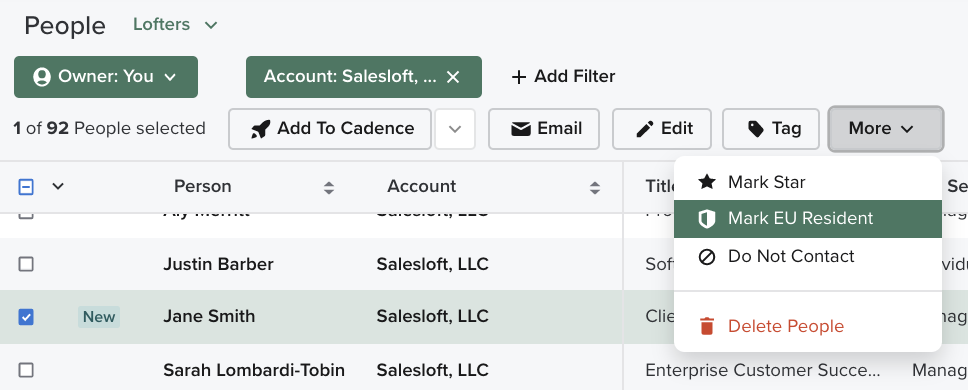
You can mark a Person or multiple People as EU Residents from the People Page list. On the People page, select a Person from the list. Actions will appear at the top of the list. Click More to view additional People actions . From there, you can select Mark EU Resident.
From the Person Profile Page
From the Person Information Panel on the Person Profile page, users can manually mark a Person as EU Resident via the actions menu (ellipsis icon).
Things to Note: Only users who have the EU Resident permission enabled can mark residents as EU from their profile page.
As an admin, you can provide your users with the ability to mark people as EU residents from the person's profile page. Users cannot mark or unmark a person as an EU Resident by default.
To enable the EU permission for your users, go to Roles and Permissions, create a custom role or edit an existing role and add the EU permission. Once the role is set up, assign it to the users who need to mark any residents EU.
While privacy settings and marking a person as an EU resident may help to comply with GDPR, some people that have been added to Salesloft may need to be completely wiped from the database.
If a Person needs to be removed from Salesloft due to GDPR requirements, email a CSV file to Salesloft support with the email addresses or CRM id for that individual. Our support engineers will remove the person from the Salesloft database.
