Domain Level Access lets admins centrally enable and manage calendar integrations for their entire team, which eliminate the need for users to connect their calendars individually. Once configured, all existing and new users within the authenticated domain are automatically integrated, so your team can start booking meetings and syncing calendar activity without manual setup.
After completing this guide, you will be able to:
- Enable domain-level calendar authentication for your entire team with Google Calendar or Outlook Calendar.
- Monitor user connection status and identify any connection issues.
- Manage individual user calendar connections after domain authentication is active.
This article includes:
Before following any steps in this guide, there are important things to know:
- You must have Admin access in Salesloft.
- You must enable the Enable standalone calendar connection setting in Meetings Settings before you configure Domain Level Access. If this setting is off, the domain-level calendar section is greyed out and shows the message "Requires standalone calendar connections to be enabled." For steps, see Manage Meetings.
- Only one calendar provider can have domain-level authentication active at a time. Before you configure one provider, confirm that domain-level authentication is not active for the other.
For Google Calendar
- You must have Google Workspace Admin access for your organization's domain.
- You will need to download a JSON key file through Google Cloud Console as part of setup. For more information, see Manage API Keys on Google.
For Outlook Calendar
- Your organization must use Microsoft 365 and Outlook.
- You need access to your organization's Microsoft Azure application registration. If you do not have access, work with your IT or Microsoft admin to complete setup. For instructions on registering an application, see Register an application with the Microsoft identity platform in Microsoft's documentation.
- You need the following values from your Azure application registration: Azure Tenant ID, Client ID, Client Secret, Workspace Email, and Workspace Domain.
To bulk authenticate with Google Calendar, an admin must approve the Salesloft application.
To bulk authenticate with Google Calendar, an admin must approve the Salesloft application. To approve Salesloft for Google Calendar, follow these steps:
- Navigate to Meeting Settings: Click your Profile icon in the upper right corner of the Salesloft platform. Select Settings, then navigate to Meeting Settings under the Communication section. You will land on the General tab.
- Enable the domain level access: On the Enable domain level access and permissions section, click the toggle to enable for your team.
- Connect with Google: After enabling access, the Google Calendar authenticate setting will appear. Click Connect, and then Approve to launch the Approval process.
- Upload your JSON file: On the Configure Service Account Authentication pop-up, add your JSON file, enter your associated Workspace Domain, and click Submit.
Things to Note: Once domain-level authentication is active, it applies to your entire domain. All existing and new users will have their Google Calendar automatically integrated with Salesloft.
To bulk authenticate with Outlook Calendar, an admin connects Salesloft to your Microsoft Azure application. To connect Outlook Calendar, follow these steps:
- Navigate to Meetings Settings: Click your profile icon in the upper right corner of the Salesloft platform. Select Settings, then select Meetings under the Communication category. You will land on the General tab.
- Confirm the required settings: Confirm that Enable standalone calendar connection and Enable domain level access and permissions are both turned on.
- Connect Microsoft Outlook: On the Microsoft Outlook card, select Connect.
- Enter your Azure credentials: In the window that opens, enter your Azure Tenant ID, Client ID, Client Secret, Workspace Email, and Workspace Domain. Select Submit.
To connect or disconnect users in bulk:
- After authentication completes, select Manage on the Microsoft Outlook card.
- To connect users, select the users you want, or select the top checkbox to choose all users. Select Connect, then confirm in the window that opens.
- To disconnect users, select the connected users you want, select Disconnect, then confirm in the window that opens.
Things to Note:
- Domain-level authentication does not change connections that users already have. A user who is already connected keeps that connection. If a user's calendar disconnects, Salesloft reconnects it based on your domain-level setting.
- New users in your domain connect automatically.
- Users can turn off their own calendar connection. This is useful for team members whose role does not require a calendar connection.
You have successfully enabled Domain Level Access when:
- A green check mark appears on the Enable Domain Level Access and Permissions setting.
- The calendar section for your provider, either Google Calendar or Microsoft Outlook, displays which admin connected the domain, how many users are connected, and any connection issues.
- Users in your domain can access calendar-related features in Salesloft without completing individual calendar setup.
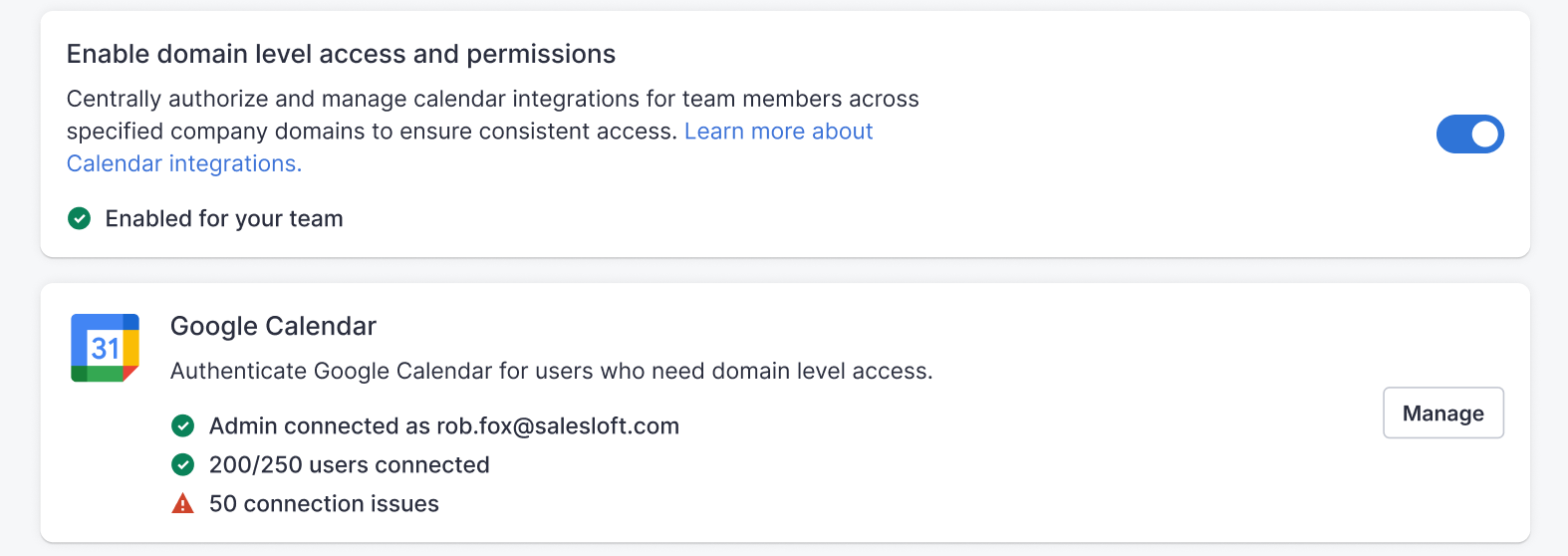
Figure 1: A successfully connected domain.
User Autonomy
Even when domain-level authentication is active, individual users retain control over their own calendar connection. Users can disconnect and reconnect their calendar from their personal settings at any time. A user's individual connection will override the domain-level default for their account.
Connection Status Labels
The user calendar settings screen displays whether a user is connected via user authentication or domain authentication, so admins can easily identify how each user is connected.
Managing Individual Users
After enabling domain-level authentication, admins can selectively disconnect and reconnect individual users from the Google Calendar section. Click Manage in the Google Calendar or Microsoft Outlook section to:
- Disconnect or reconnect individual users
- Auto-apply default policies to new user accounts
- View and modify user management statuses
Single Provider at a Time
The system supports one domain-level calendar provider at a time. When domain-level authentication is active for Google Calendar, you cannot set up Outlook Calendar, and the reverse is also true. To switch providers, disconnect the active provider first.
Default Sync Rules
When a user is first connected via domain authentication, their default calendar sync setting will initially be in a disabled state. Users can update this from their personal settings.
Next Steps
After enabling Domain Level Access, your team members can begin booking meetings through Salesloft. For more information, see the following articles: Book Meetings in Salesloft
Related Articles
