Regulations have been put in place to protect call recipients from spam calls. Since phone calls are an important channel in the sales process, it's necessary to stay compliant with federal regulations and follow call deliverability best practices.
Dialer providers are using technologies similar to Trust Hub as a method to know their customers and route verified callers. Salesloft admins can use the Trust Hub area of the platform to obtain a Trust Score and verify their business for the STIR/SHAKEN regulation.
Things to Note: Only US/domestic outbound dialer and SMS traffic from Salesloft (Twilio) purchased numbers require Trust Hub. International customers with no US numbers assigned do not need Trust Hub.
To access Salesloft's Trust Hub, a Salesloft admin (or user with the Manage Dialer permission) will go to the Dialer Settings under your Settings and select the Trust Hub tab.
In this article you will learn about the Salesloft's Trust Hub, including:
For additional information, check out our Call Deliverability Best Practices and STIR/SHAKEN Regulations Guide.
By registering for Shaken/Stir verification, your organization will opt into the trusted community of callers. Once you apply and are approved, you will receive a call verification score of A or B based on your registered number and usage.
If your organization does not comply with these new regulations, call delivery and connection rates may decrease due to unverified call traffic being filtered out. Also, your team is at a greater risk of being mislabeled as "spam" which can significantly impact future call deliverability.
On the Trust Hub page, you can submit to be a part of the Shaken/Stir community on behalf of your company. This page contains fields that will complete the required details in the Trust Hub form.
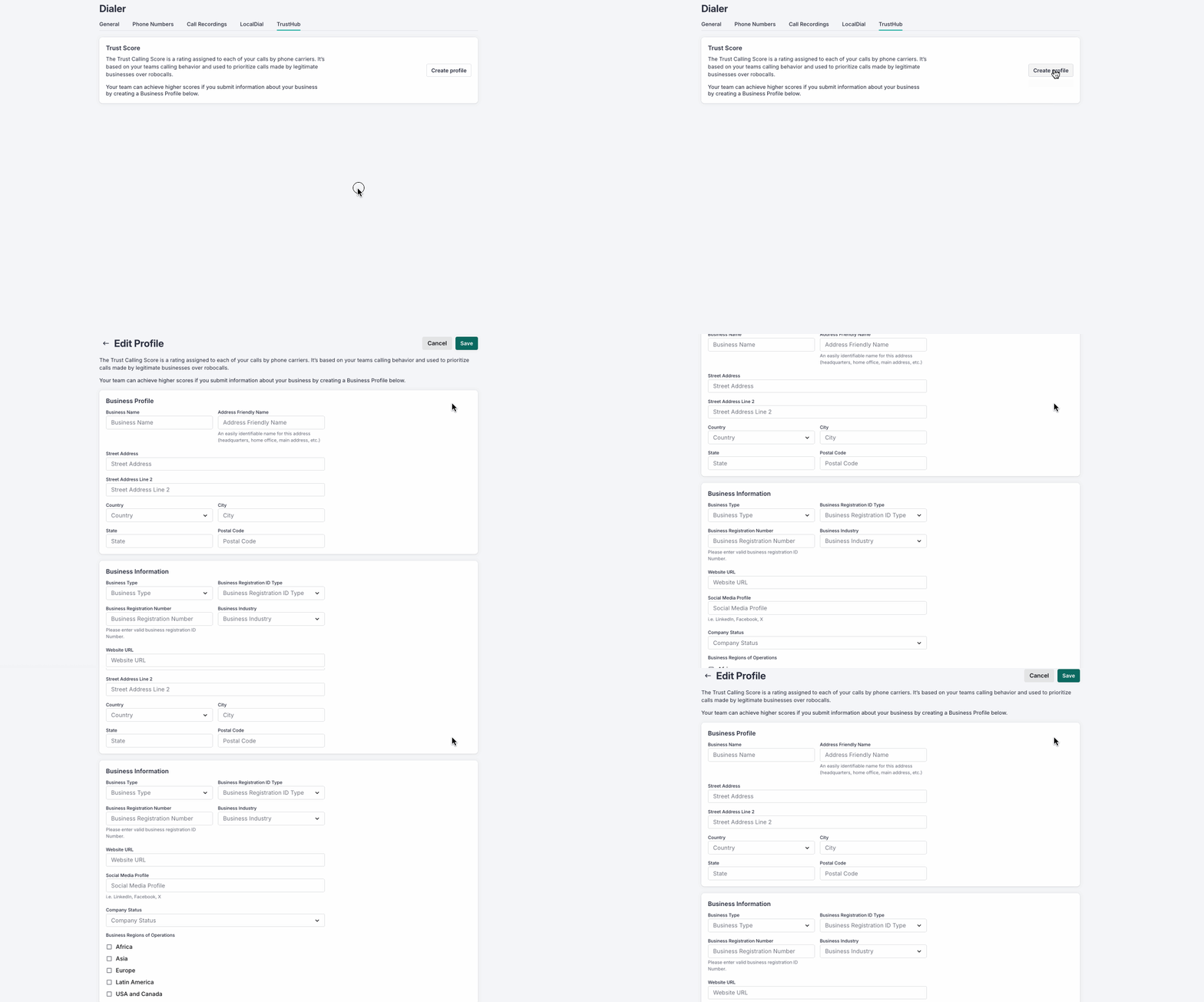
To set up your Trust Hub Business profile, follow these steps:
- Go to your Dialer Settings.
- The Dialer Settings are visible to Salesloft Admins and user roles with the Dialer permissions enabled.
- Select the Trust Hub tab.
- Click Create Profile. This will open the Edit Profile page.
- Complete the fields by inputing the required details.
- Hit Save.
- After saving, your information will be sent to our third party Dialer provider. Your Trust Hub page will be updated with a status of Pending and the Date/Time the submission was sent. Your submission will then be reviewed for either approval or rejection.
- Expect 7-10 business days for the application review.
Once your team's profile submission is reviewed, Salesloft will send an update to users with the 'Manage Settings for Dialer' permission that their application was either Approved or Denied via email notification and an update of the Trust Hub page in the Salesloft app.
Approved customers will receive a verification score of A or B based on your number registration. The score can change over time depending on call behavior.
Denied customers will need to resubmit the form based on feedback from our third party Dialer provider.
