You can effectively use your time, prevent scheduling conflicts, and maintain control over your availability for meetings and other commitments by managing how your team interacts with your calendar.
The Team Permissions inside your Salesloft Calendar Settings allow you to manage your team’s access to your calendar. From these settings, you can decide whether meeting info should be visible to other team members, prevent or allow double-booking, and more.
In this article, you will learn how to manage your team’s access to your calendar. This article includes:
Watch this quick video to see how to manage your team’s access to your calendar:
To manage your team’s access to your calendar, you will enable or disable settings on the Calendar Team Permissions Settings. Follow these steps to review and determine all of the available settings:
- Navigate to the Calendar Settings Team Permission tab: Go to your Settings. Select Calendar from the left menu options. Click the Team Permissions tab.
- Enable your preferred settings: Use the toggles to turn on your settings. When the toggle area is blue, the setting is enabled. When the toggle area is gray, the setting is disabled.The settings include:
- Assign You as Meeting Owner: Allows your team to schedule time on your calendar and assign you as the meeting owner. If you do NOT want other users to make you a meeting owner, we recommend turning this setting OFF.
- See Event Details on Your Calendar: Makes meeting event info visible to other team members. If this setting is turned off, your team will not be able to see meeting details on your calendar, and instead, the scheduled event will be marked "Busy".
- Double-Book: Allows more than one meeting to be booked at a time. This means you may have overlapping meetings.
- Schedule a Meeting During Your Off-Hours: Allows your team to book meetings on your behalf outside of your working hours.
- Double Check status: Once a setting is enabled/disabled, confirm the status in the setting panel. Enabled settings will show a green check mark with an affirmative message. Disabled settings will show a gray X with a message that the setting is disabled.
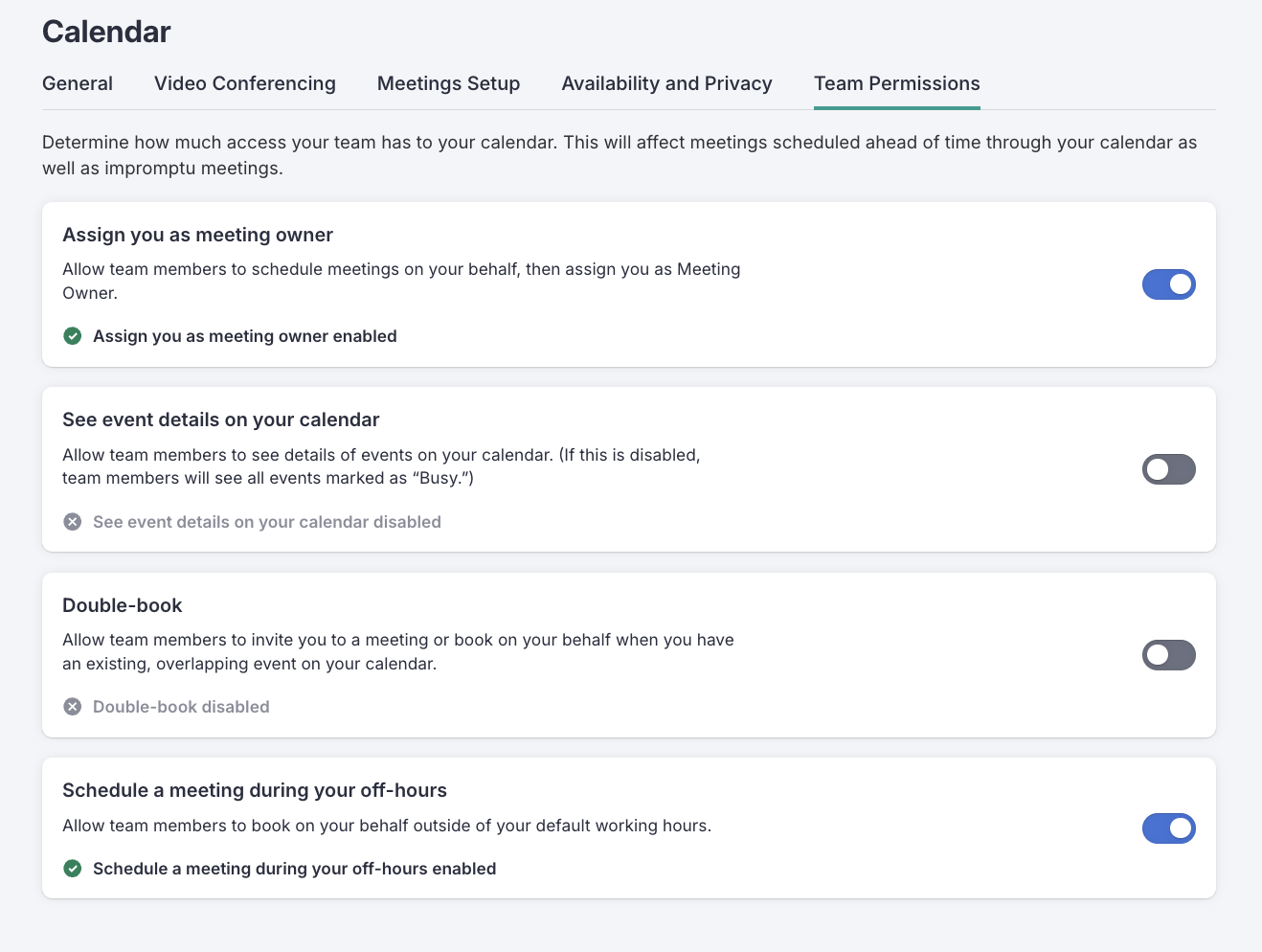
Figure 1: Manage your team's access to your calendar from the Team Permissions settings.
Salesloft integrates with calendar providers to sync events and availability. If you prefer not to have overlapping meetings should ensure your calendar is properly synced to avoid double-booking or missing appointments.
