Microsoft Exchange Web Services (EWS) is a native API built by Microsoft that allows server/client applications to integrate with Exchange Servers and Office 365. Connecting Salesloft to Office 365 or Exchange Server through Microsoft’s EWS API provides access to calendars and emails.
EAS is a protocol, EWS a web service. Both are endpoints for mail to be sent and calendars synced. EAS requires the protocol to be turned on the customer's end, EWS should be the default.
Exchange ActiveSync (EAS), was introduced in 2003 to specifically sync Exchange with mobile clients (high-latency, low-bandwidth connections). It was very innovative at the time and introduced a lightweight procedure for email data synchronization. Salesloft has been able to sync to users’ on-prem and hosted Exchange environments for years thanks to Nylas’ EAS offering.
EWS is the most commonly used protocol to integrate with Exchange user data, supplanting EAS which was built in the early 2000s for pocket PCs. EWS was introduced in the late 2000s and received wide adoption because it was built for modern, web-based applications.
Still, the protocol didn’t receive widespread adoption until recently, though it’s now the clear front-runner.
Nylas also recently built an EWS integration through which Salesloft can sync to an EWS environment. Both of Nylas’ client options are available in one place within Salesloft.
This article will guide you through setting up the Salesloft native Microsoft Exchange integration for connecting to Exchange Server. Please work with your internal IT team to complete the setup (or send them this article and they can take care of everything for you!)
This will be a step-by-step guide in the following order:
- Test the Exchange Server Connection
- Enable TLS 1.1 or Higher
- Enable Autodiscover on the Exchange Server
- Enable Exchange HTTP Protocol (EXPR) as an Outlook Provider
- Put the Autodiscover Domain as the Hostname
- (Optional) Set Up Microsoft Exchange via Service Account
Once these steps have been completed, each Salesloft user can in one of the following ways:
We recommend that any customers migrating to the Salesloft native Microsoft EWS integration test their Exchange Server connection using Microsoft’s remote Connectivity Analyzer.
To test your connection:
- Navigate to the Exchange Server.
- Select Synchronization, Notification, and Automatic Replies.
- Fill out the requested information.
- Click Perform Test.
The test will result in a successful or failed connection.
Successful Connection
If the test is successful, there is a high probability that you will be able to connect using Salesloft’s native Microsoft EWS integration.
Failed Connection
If you encounter an error, check the error message for additional information to help guide you through the tasks to reach a successful connection.
Confirm TLS 1.1 or higher is configured on your Exchange Server (2010,2013, 2016).
We have seen some evidence that customers using TLS 1.0 are more susceptible to experiencing connectivity challenges.
Things to Note: TLS 1.0 and 1.1 are deprecated. It is recommended that Microsoft Exchange users use TLS 1.2 or higher if possible.
Enable
autodiscover on your Exchange Server.
To learn how to check if autodiscover is working correctly,
find the Outlook section on this site.
Things to Note: This also checks if EXPR is enabled (see below).
Enable Exchange HTTP protocol (EXPR) as an Outlook provider.
Salesloft uses autodiscover to determine the EWS API location for the Exchange Server. The autodiscover file must have Outlook Anywhere RPC over HTTP (EXPR) enabled.
In the event that your autodiscover domain is different from your mail domain (e.g. the mail domain is
example.com but the autodiscover is at
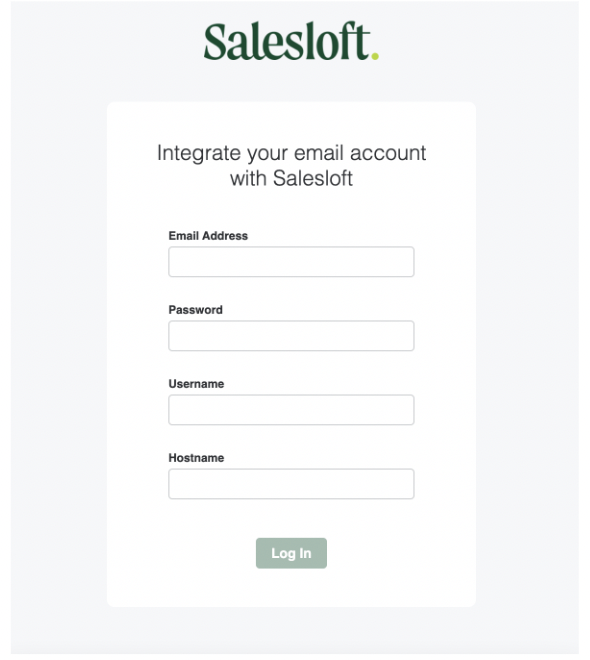
ec3.example.com), when you are connected to EWS in Salesloft put the autodiscover domain as the hostname.
For example, in the image below, the hostname field is where you would put the autodiscover domain.
A
service account is an account that is created to provide a security context for services running on Windows operating systems. Within Salesloft, service accounts may be used to provide a single source of credentials to connect to Microsoft EWS email servers.
Service Accounts provide more controls and security for teams connecting to Microsoft Exchange Server. That means that as an individual user you can connect to this email server securely since your credentials (usernames and passwords) will not be stored.
An admin configures Salesloft to use a service account to connect to their company Microsoft Exchange Server via EWS. Once the setup is complete, your users will be able to connect to their Microsoft EWS email securely, without using their personal login credentials.
To setup Microsoft Exchange via a service account, follow these steps:
- Create a service account in Microsoft. The service account needs full access, impersonation, and send as access to each user inbox and calendar.
- Once the service account is setup, a team admin will complete the process in Salesloft.
- From the Salesloft platform, go to the Team Settings. Under the Communication section, select the Email tab to go to the Team Email page.
- Scroll to the Microsoft Exchange EWS Service Account section. Click Edit. The EWS Service Account module will appear.
- Select how EWS will access the inbox from one of the following options:
- Impersonation
- Things to Note: Impersonation is recommended for larger teams as delegation requires permissions for each delegate.
- Delegation.
- Enter the following information from your service account credentials:
- Accessible Email Address: Enter an email address your service account can access.
- Things to Note: This address will only be used to test the connection to your Exchange Server and will not be saved.
- Service Account Password
- Service Account Username
- Either a hostname or EWS URL is required:
- Hostname: If you enter the Hostname without EWS URL, we will use Microsoft autodiscover to find the EWS URL.
- EWS URL: If you enter an EWS URL, Salesloft will not use Microsoft's autodiscover to find the EWS URL.
- Click Log In.