Templates are pre-formatted emails that include standardized text, structure, and placeholders for personalization. You can insert templates into any email you send from Salesloft, including: cadence email steps, email tasks, and one-off emails.
By inserting templates into emails, you can maintain consistency, save time, and communicate more efficiently.
In this article, you will learn how to insert templates into emails. This article includes:
- All default roles have the ability to insert templates into emails.
- The View Team Templates permission is automatically enabled for default admin and user roles. This permission allows you to view all team templates when choosing one to insert into an email..
- Things to Note: If you have a custom role, you may need to enable the View Team Templates permission before you can access all of your team’s templates to insert them into emails.
- To create templates, you must have the Manage Team Templates permission. This permission is automatically enabled for default admin roles.
- Check out the Roles and Permissions article to learn more about default and custom roles.
- The steps to insert a template in one of our extensions may be different than the in-app setup.
For a tutorial on how to insert a template into an email, check out this video:
Anywhere you can Send Emails from Salesloft (from the platform, Salesforce, Gmail, or Outlook), you can access your templates.
To insert a template into an email, follow these steps:
- Open an email window:The email window will open when you create an email cadence step, run a cadence email step, run an email task, or a create one-off email.
- Select “Insert”: Click Insert at the bottom of the email window.
- Select “Template:: The Insert a Template modal will appear.
- Search for your Template: From the modal, you can search for a template using the following methods:
- Select the Personal Templates or the Team Templates tab at the top of the modal to refine your view.
- Search for a specific template by name.
- Search for templates by tags.
- Select the Template: Click the template you want to add, then hit Insert. The template will appear in the email window.
- Things to Note: You can view a preview of the selected template in the Preview panel on the right of the module.
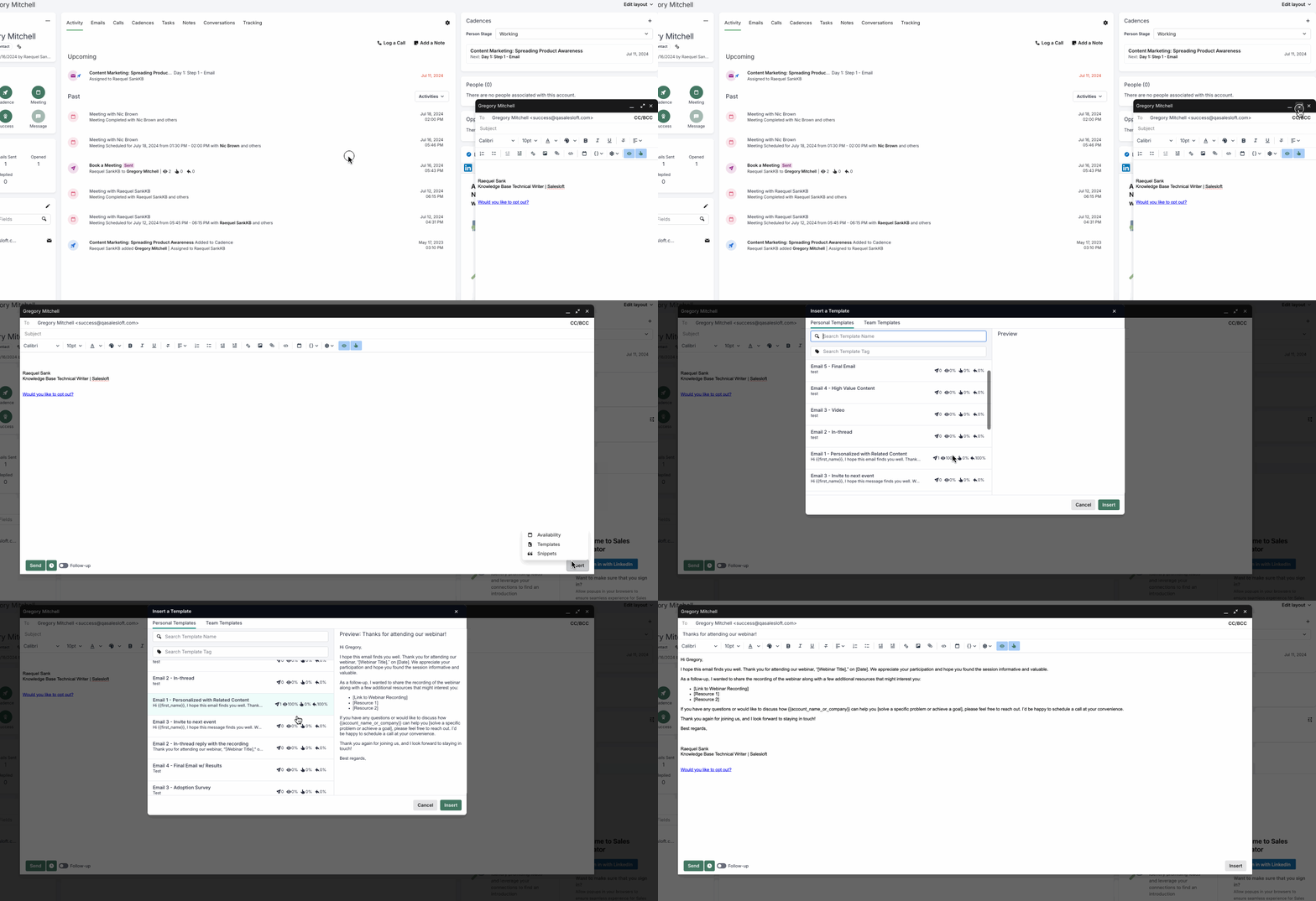
Figure 1: Insert an email template from the email composition window.
- Templates in a Cadence: Put your templates to work within your consistent sales process. By adding templates to your Cadence emails, you ensure that your messages are well crafted with the added benefit of being able to track any metrics the template will accumulate. To add a template to your Cadence, start by creating a Cadence, then follow these steps:
- Add an Email Step. Stop when you get to the Create Email Step Module (aka the Email Editor window).
- Select the Insert Template button. The Insert a Template module will appear.
- Consider A/B testing your email templates to identify which communication style connects with your audience. Check out our resources on A/B testing:
