A/B Testing allows you to experiment with different variants to see which one performs best in a Cadence. Variants are similar but different versions of your sales messaging, like email templates or call scripts.
Here’s a best practice tip, straight from the scientific method. While it may be tempting to test completely different emails, you will get the most out of A/B testing by adjusting one piece of your emails. Since only one aspect of your email changes, you can clearly determine the messages that generate responses. For example, change just your subject line or just the first sentence of your template.
Salesloft will randomly divide people that are added to a Cadence between the enabled variants, like a flip of the coin.
In this article, you will learn how set up AB testing in your Cadences and prepare your step variants, including:
- You must have a Salesloft account with permission to edit Cadences.
- Deleting a variant will also delete its associated Cadence metrics.
- If you delete a variant with People assigned to it, they will be moved to the next step in the Cadence.
Watch this quick video to learn how to use A/B testing.
Set up A/B Testing in Your Cadences Instructions
To test similar types of Cadence actions, you will set up AB testing in a Cadence step.
To set us A/B testing, follow these steps:
- Access the Cadence: Go to the Cadences page and select an existing Cadence or create a new one. You will land on the Cadence Overview page.
- Locate the Step: Find the step you want to A/B test.
- Add a Variant: Click the ellipsis (...) icon on the right side of the Cadence step. Select Add Variant from the menu. The Create Variant box will appear. For email steps, you can select a different template for the variant.
- Enable A/B Testing: Toggle on the second variant to activate A/B testing. Salesloft will randomly distribute People added to the Cadence between the enabled variants. To disable A/B testing, toggle the variant off.
- Things to Note: You must have at least one variant toggled.
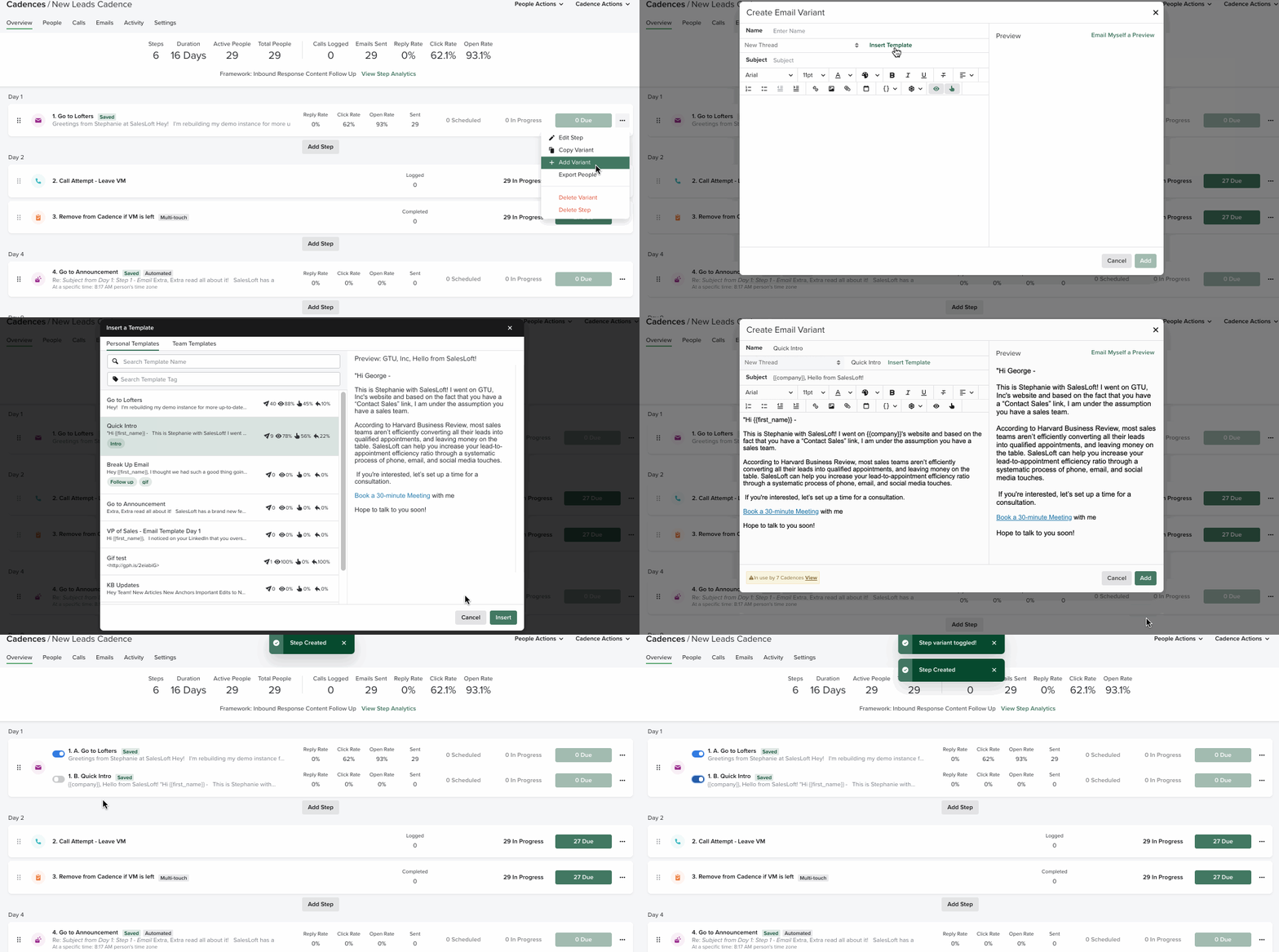
Figure 1 (GIF): Set up A/B testing example
Copy a Variant Instructions
As we mentioned in the previous sections, A/B testing works best if you adjust one piece of your step so you can test inside an otherwise controlled environment.
Adding an entire new variant is great for existing templates. However, if you would like to A/B test one aspect of your original Cadence step, copy the variant and edit the copy. This way you create a second variant with all the same information, and you can change the piece you would like to test.
For example, let’s say you have a call script. Script A starts with a casual greeting. You’re curious if prospects would respond better to a more formal introduction. Copy this variant. Edit the second variant script to start with a formal greeting. Then, see if your call results improve with the casual vs the formal greeting.
To copy a variant for A/B testing, follow these steps:
- Access the Cadence: Follow Step 1 from the Set Up AB Testing instructions.
- Locate the Step: Find the step containing the variant you want to copy.
- Copy the Variant: Click the ellipsis (...) icon on the right side of the Cadence step. Select Copy Variant from the menu. A copy of the variant will be added to the step, and the Edit window will open.
- Edit the Variant: Make the necessary changes to the copied variant (e.g., update the email template or call script). Click Save when you're finished editing.
- Enable the Copied Variant: Toggle on the new variant to include it in the A/B test.
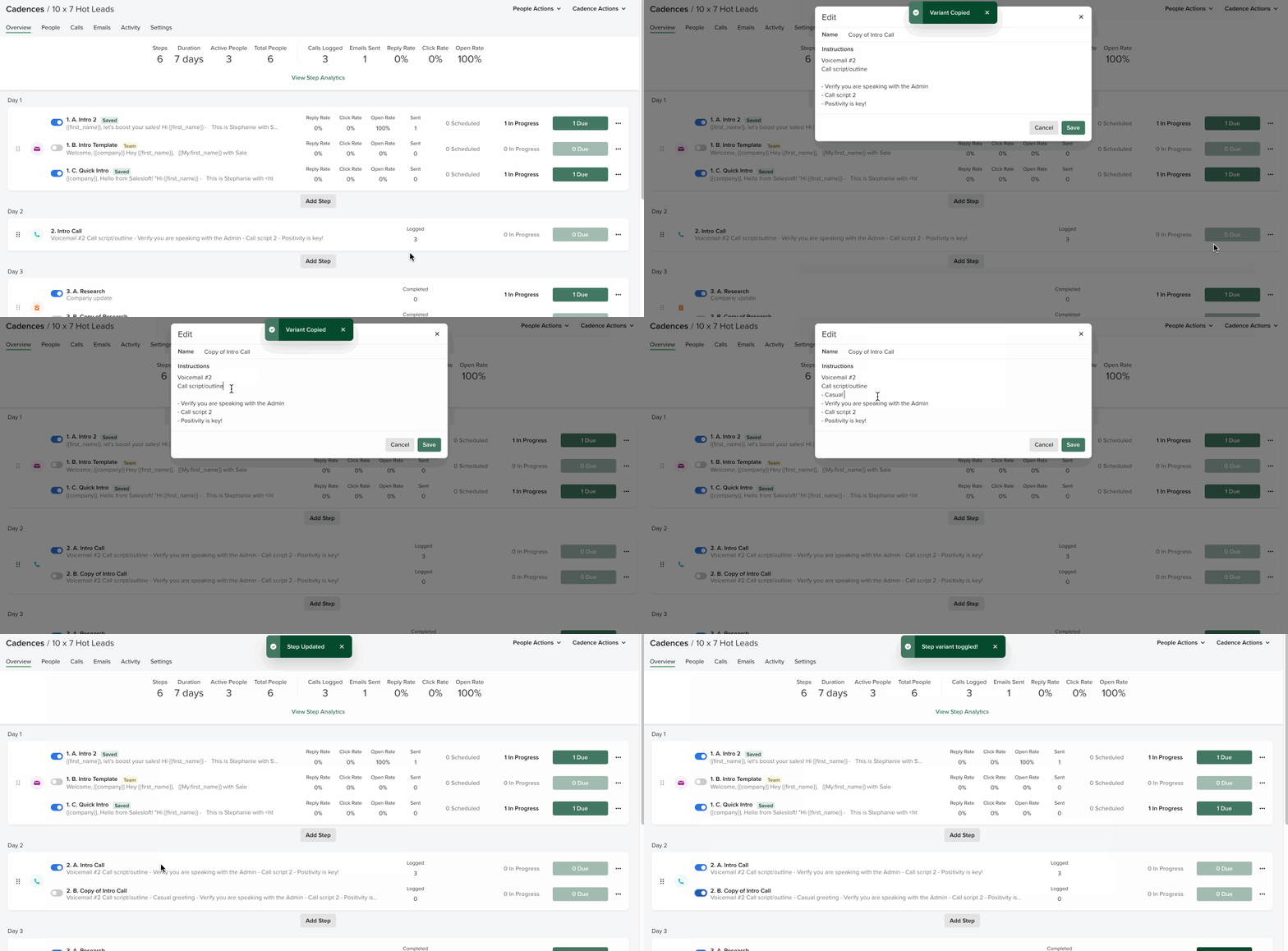
Figure 2 (GIF): Copy Variant
Delete a Variant Instructions
If you created a variant by mistake, or added too many variants to a step, you can delete a variant.
To delete a variant, follow these steps:
- Access the Cadence: Follow Step 1 from the Set Up AB Testing instructions.
- Locate the Step: Find the step containing the variant you want to delete.
- Delete the Variant: Click the ellipsis (...) icon on the right side of the Cadence step. Select Delete Variant from the menu. Confirm the deletion.
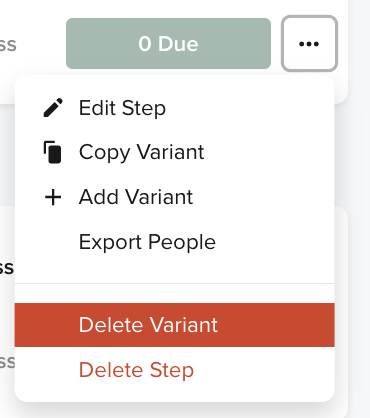
Figure 3: Delete Variant option
Additional Information: A/B Testing Using Cadence Step Variants
AB testing is useful for comparing data like introduction emails with different templates or different call scripts during a demo.
It may be tempting to add multiple variants. AB testing literally means comparing two kinds of similar items (item A and item B). We encourage you to keep your variants to a minimum and compare two things at a time.
Keeping your AB tests to two items allows you to compare the performance of your action and gives you a clear indication of which item works best based on which variant produces the best result.
Next Steps
- Set up A/B tests in your Cadences to optimize your messaging and improve engagement.
- Analyze the performance of your variants to identify the most effective approaches.
- Utilize the copy and delete functions to manage your variants effectively.
