CC (Carbon Copy) and BCC (Blind Carbon Copy) are common email fields used to send copies to recipients.
It’s common for sales teams that work collaboratively on accounts to want to include more than one point of contact on an email thread.
Teams can CC or BCC additional recipients when sending emails to loop in additional team members in or out of their organization.
In this article, you will learn how to add CC/BCC to Emails. This article includes:
- The ability to add CC/BCC to Emails is available inside the email compose window within the Salesloft platform. This applies to one-off emails, email tasks, andemail types Personal and Team Cadences.
- People included as a Cc/BCC will be added for any user executing said step within the cadence. For example, if values are added values for a Team Cadence and deployed to users, all executors of the step will include the same CC/BCC.
- CC recipients will be visible to all recipients, while BCC recipients will remain hidden.
- If a CC'd or BCC’d recipient opens your email or clicks a link within the email, Salesloft will register the action as an opened email or clicked link by the primary recipient.
- Salesloft respects all existing contact restrictions and privacy settings.
- To use Dynamic Account Team Roles, you must be a Salesforce CRM customer with Salesforce Account Teams configured.
To add CC/BCC to your emails, follow these steps:
- Start an Email: Open an email tasks, create a one off email or create a new Cadence or navigate to an existing one and access an email step. Regardless of which method, you will need to access an email compose window.
- Open C//BCC Fields: In the email compose window, click the Cc/Bcc button in the upper right-hand corner. This will open the Cc and Bcc fields in the email composer.
- Enter Addresses: Type the email addresses or search for a Salesloft user by name.
- Complete the action: Complete the action based on your task:
- One off email or email task: Send your email.
- Adding a Cadence Email Step: Click Save Step. These recipients will now be automatically included whenever this Cadence step is executed.
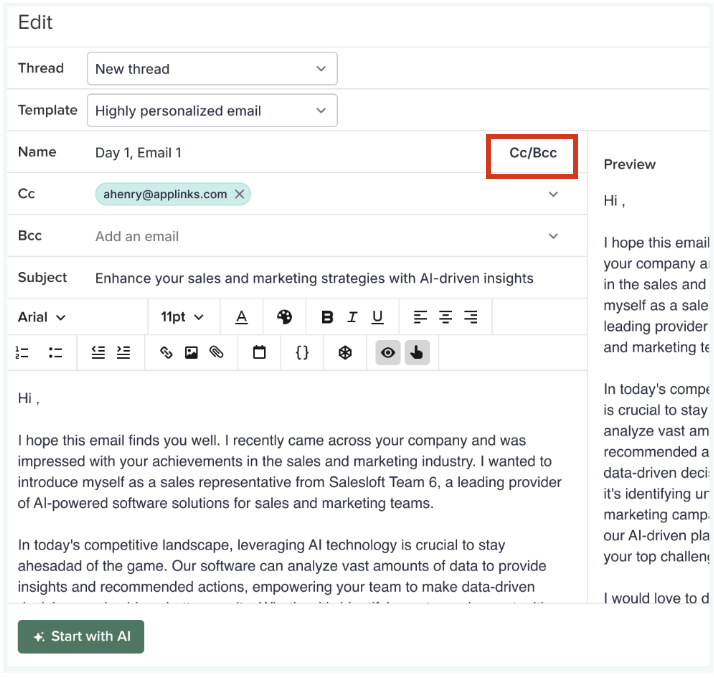
Figure 1: Example: Include Cc/Bcc on Cadence Email Step
Instead of manually typing addresses, you can use dynamic tags based on the roles defined in your CRM (e.g., "Customer Success Manager" or "Sales Engineer"). This ensures the right person for that specific account is looped in automatically.
- Edit the Cadence Email Step: Create a new Cadence or edit an existing cadence. Create or select an email step. You will open the email compose window.
- Add a person to the CC/BCC field: In the compose window, click the CC/BCC field dropdown. The dropdown will display your team members by role. Click a contact to add it to the field.
- Save and Review the email: Review the contents of the email and tweak where necessary.
- Run the Cadence Email Step: When the email is sent, Salesloft will pull the email address of the person assigned to that role for that specific Account in Salesforce.
Visibility and Tracking Behavior
It is important to understand how Salesloft handles engagement when multiple people are on an email:
- Engagement Tracking: If a CC’d recipient opens the email or clicks a link, Salesloft registers that action as an "Open" or "Click" for the primary recipient.
- Reply All: If the primary recipient uses "Reply All," the CC’d/BCC’d stakeholders will remain on the thread for subsequent replies.
- Automation: For automated Cadence steps, CC/BCC recipients are fixed. For manual steps, you can review and remove recipients in the side panel before hitting Send.
