Hopefully, your email communication is the start of a conversation and does not stop after you send that first email. In order for this conversation to flow, you must be able to quickly reply to email responses.
Salesloft allows you to reply to an email from the Salesloft platform. This way, you can spend your day completing tasks in Salesloft, and then answer emails as they are received.
In this article, you will learn how to reply to emails using Salesloft. This article includes:
- Ensure the email recipient is already a Person record in Salesloft to reply directly within the app. If not, you may need to create a Person record first.
- If you need to create a Person while replying, confirm you have the "Manage People" permission enabled for your role. This permission is enabled by default for the standard Salesloft admin and user roles.
There are many different places within Salesloft where you can respond to an email. We’ll walk through each one below.
Reply in an Email Thread
Whether you are responding to a prospect or following up on a previously sent email, you don't have to leave Salesloft to continue your email thread. Simply reply to the email from the individual message.
Replies will take place from the individual email view. This view shows the threaded content from previous emails.
To reply to the email, follow these steps:
- Access the Email Thread: View the individual email thread. You can access the thread from one of these methods:
- Reply or Reply All: Click one of the following icons in the upper right corner of the email:
- Reply: Replies to the individual Person.
- Reply All: Includes any CC or BCC'd individuals when you reply.
- Compose the Email: The email compose window will appear in the bottom right corner. Compose your email.
- Send: Click Send.
Figure 1: (GIF) Insert a Snippet into an email
Reply and Create a Person
If the Person you would like to respond to does not exist as a Person in Salesloft, you will need to create the Person before sending the email.
Why? Salesloft is built to send emails and associate the email activity to a Person record in Salesloft.
When you send emails from Salesloft, the need to create People before replying should not happen often. However, let's say you send an email to a prospect that is forwarded to someone else in their organization. If that other individual answers the email, you will need to create them before responding.
Things to Note: In order to create a Person when replying, the Manage People permission must be enabled. If you don't have the ability to create a Person before you reply in-app, reach out to your team admin about editing your permission set.
To create a Person and reply to an email, follow these steps:
- Reply: From the email message, click Reply or Reply All.
- Fill out Person Details: A Create Person to Reply to Email module will appear. Fill out the Person details.
- Create Person and Reply: Click Create Person and Reply.
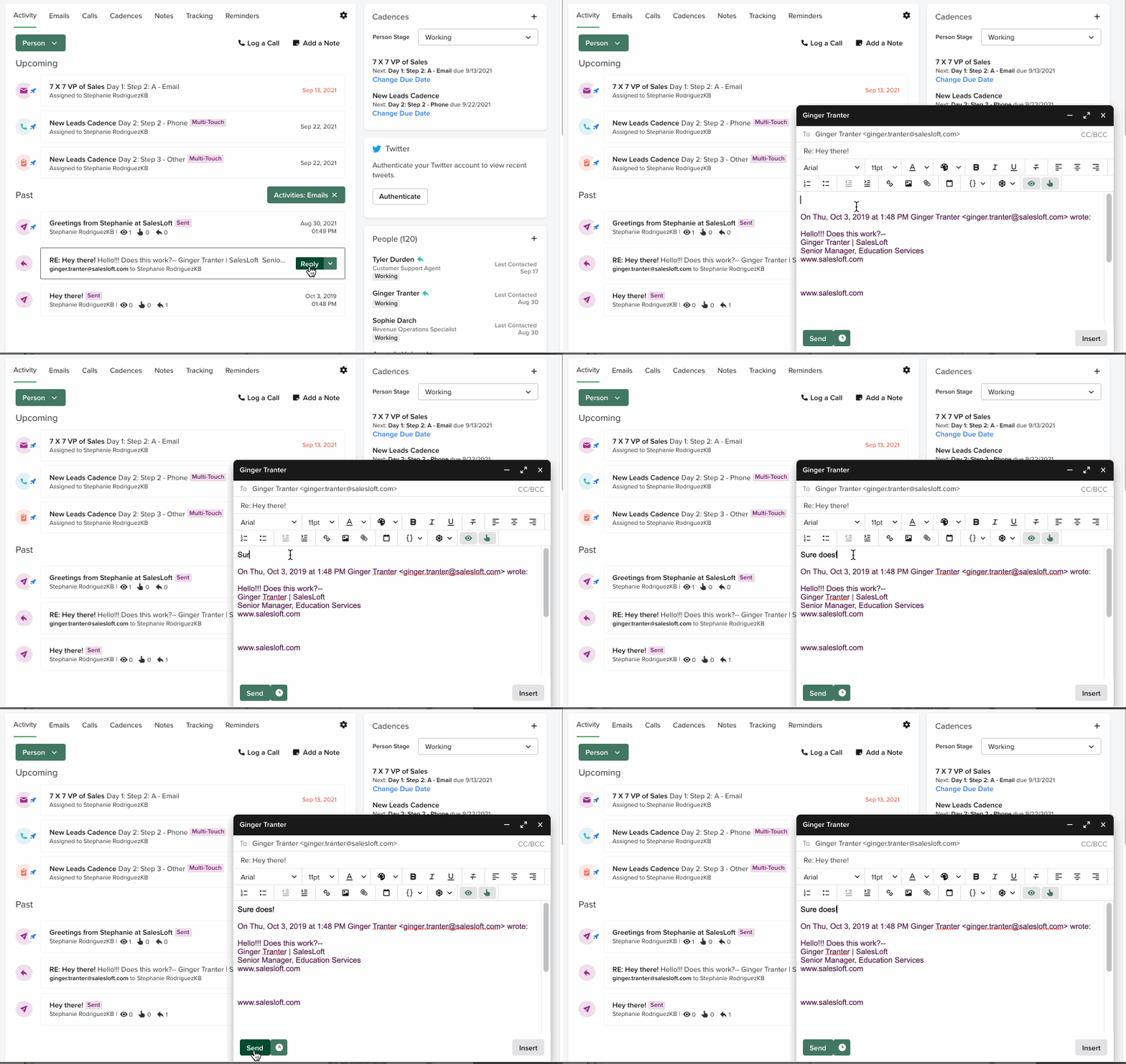
Figure 2: (GIF): Replay and Create a Person
Reply from the Person Profile Page
The activities panel on the Person Profile page dates logs of the actions that have occurred with that specific Person, including replied emails.
In addition to viewing a reply from a Person, you can also reply to an email thread yourself from the activities panel.
To reply to an email from the activities panel on the Person Profile page, follow these steps:
- Select Person: Select a Person to go their Person Profile Page.
- Located Replied Emails: In the center panel (the activities panel), find your replied emails, which will be designated by the green arrow, in one of the following tabs:
- Reply: Below the email, click Reply.
- Compose and Send: The email window will appear in the bottom right corner. Type your message and send the email.
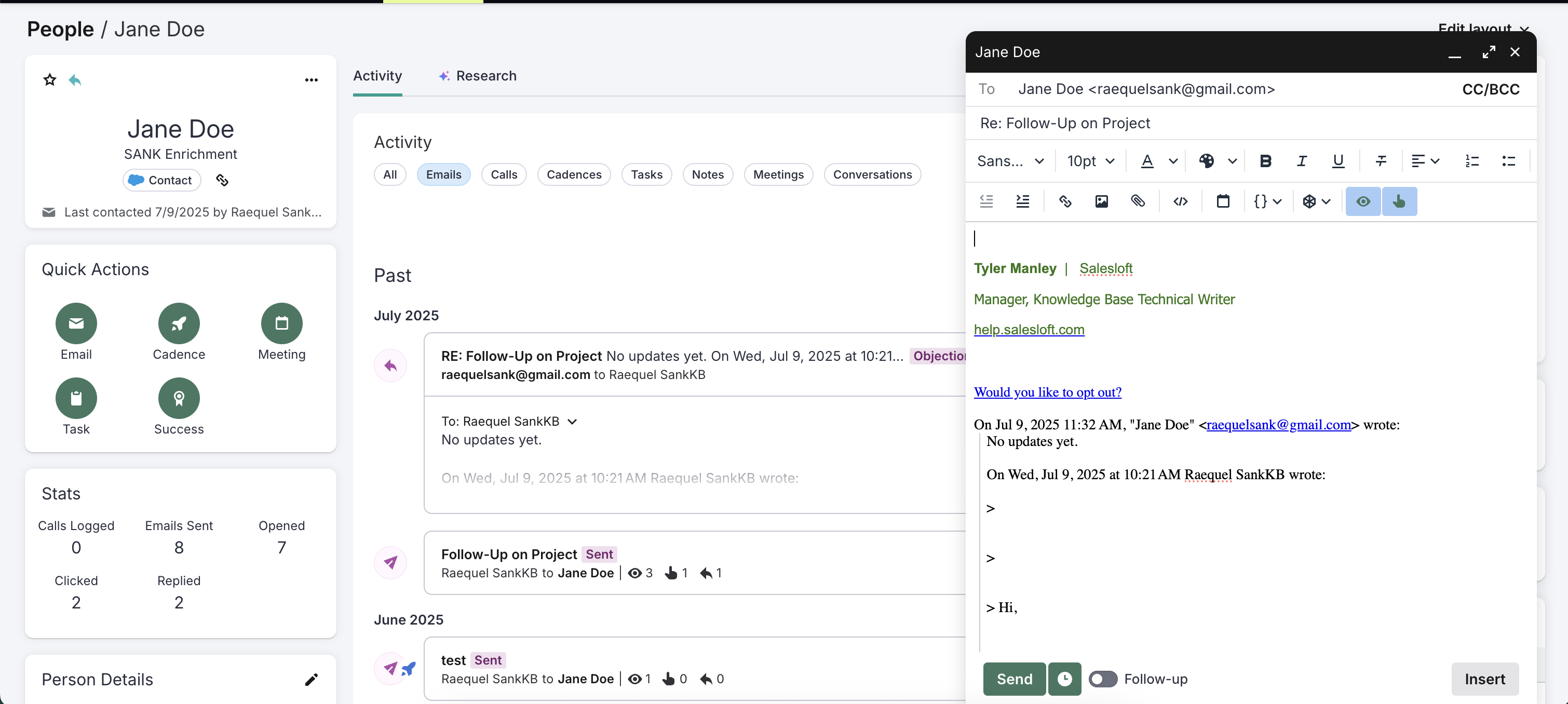
Figure 3: Reply to an email from the Person Profile page
- Replying within Salesloft keeps all email communication associated with the correct Person record.
- The "Reply All" option ensures everyone involved in the original email receives your response.
- Monitor email engagement metrics to understand the effectiveness of your replies.
- Explore other Salesloft features to further enhance your email communication strategy.
