If you created a personal template that you want your whole team to use or one of your reps composed a message that is rolling in the replies, you can convert one or many personal templates into team templates.
In this article, you will learn how to convert personal templates to team templates. This article includes:
- The View Team Templates permission is enabled by default for the standard Salesloft admin and user roles.
- The Manage Team Templates permission is enabled by default for the standard Salesloft admin role. Users without this permission enabled will not be able to create, copy, or convert Team Templates.
- Once converted into a team template, edits may be restricted based on user roles and permissions.
- Converting a personal template into a team template will not remove the original personal template.
For a quick overview of how to convert personal Templates to team Templates, check out this video:
To convert a personal template into a team template, follow these steps:
- Navigate to the “Templates” Page: Hover over the Content tab on the top navigation panel. Select Templates. This will direct you to the Templates page.
- Select Templates to convert: Select the box to the left of the template you would like to convert. The Template Actions will appear above the template list.
- Click “Convert”: Click the Convert (two arrows going in opposite directions) icon under My Templates.
- Determine whether you want to keep the existing stats with the template: A popup will appear asking whether you would like to keep the stats for the template. Click the toggle area to enable it and keep stats. You may also choose to disable this and remove stats.
- Things to Note:
- When the toggle area is blue, the setting is enabled.
- After converting a personal template, if you choose to delete stats the template will still be visible in My Templates for future use. However, if you choose to keep the stats with the converted template, it will no longer be visible under My Templates.
- Hit “Convert”: Click Convert to complete the action. The Personal Template will move into the Team Template view.
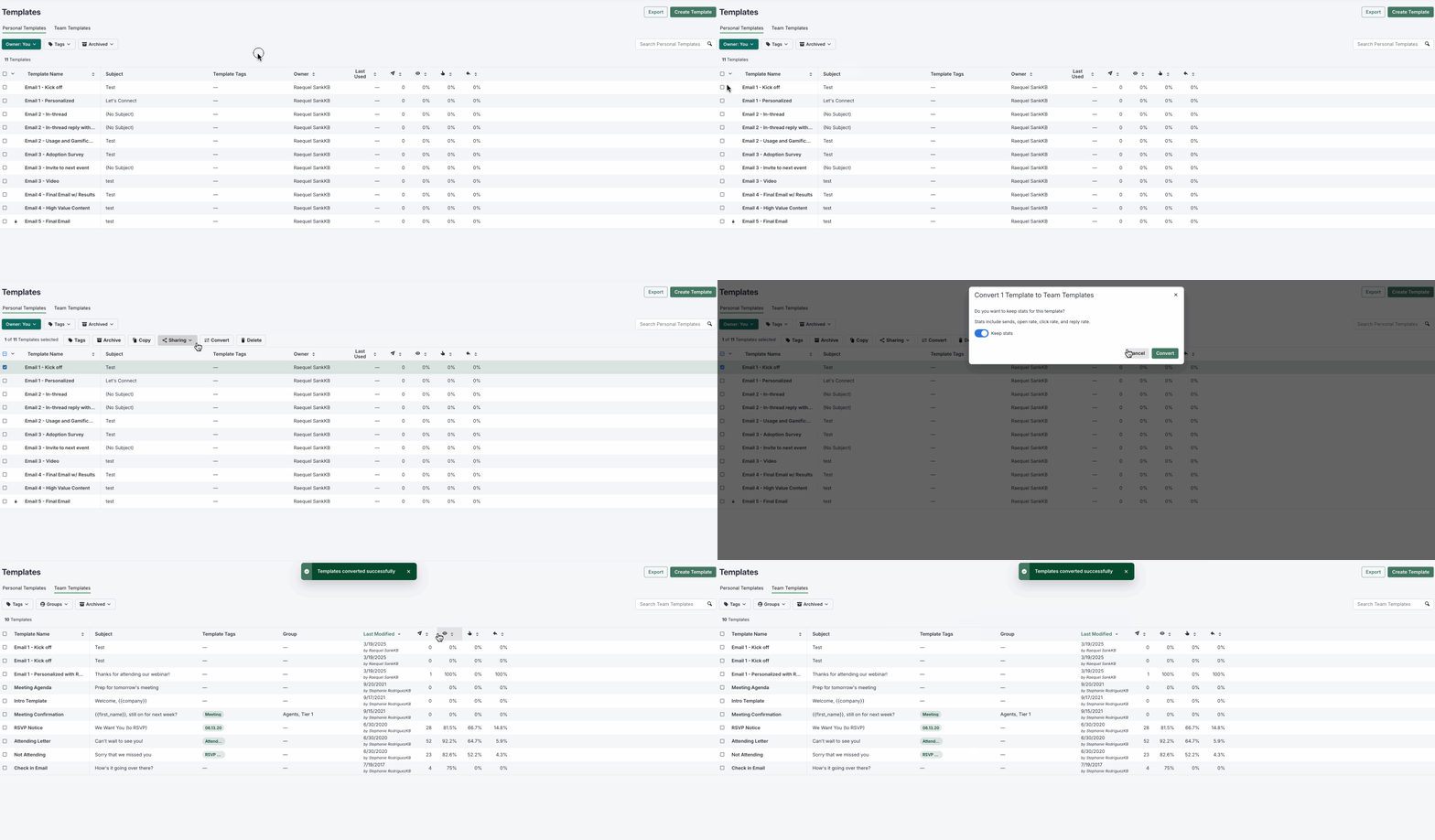
Figure 1: Choose a personal Template to convert it into a team Template.
- Inform team members that the template is now available and provide guidance on how to use it.
- Use tags to organize the template within Salesloft for easy access.
- Monitor Template Analytics to track performance.
