Template Analytics compare the activities of multiple email templates side by side.
Access Template Analytics by clicking on Team Performance in the Analytics drop down and then click Templates.
In this article, you will learn about Template reporting inside Salesloft Analytics, including:
Template Analytics are made up of two reports. Let’s walk through the components that make up Template Analytics.
The Email Template Panel
The Email Template panel provides a list of the top 10 performance of Templates across four metrics based on your Analytics Filters.
The Email Template panel contains the following details from the top of the panel working our way down:
- Panel Name: Email Template
- Metrics: The Email Template is based on one of five sets of metrics. The metrics may be selected by clicking the blue link of the metric name in the Panel name. Click the link to open the dropdown menu and select one of the following metrics:
- Replied (default)
- Opened
- Clicked
- Average (Avg.) Personalization
- Positive
- Total Objections
- Chart: A horizontal bar chart of up to 10 templates ranked in descending order
- Chart hover state: The hover state over each bar shows the total number of the drill down metric for the template. In the chart below, the hover state would show the total replies sent by the rep.
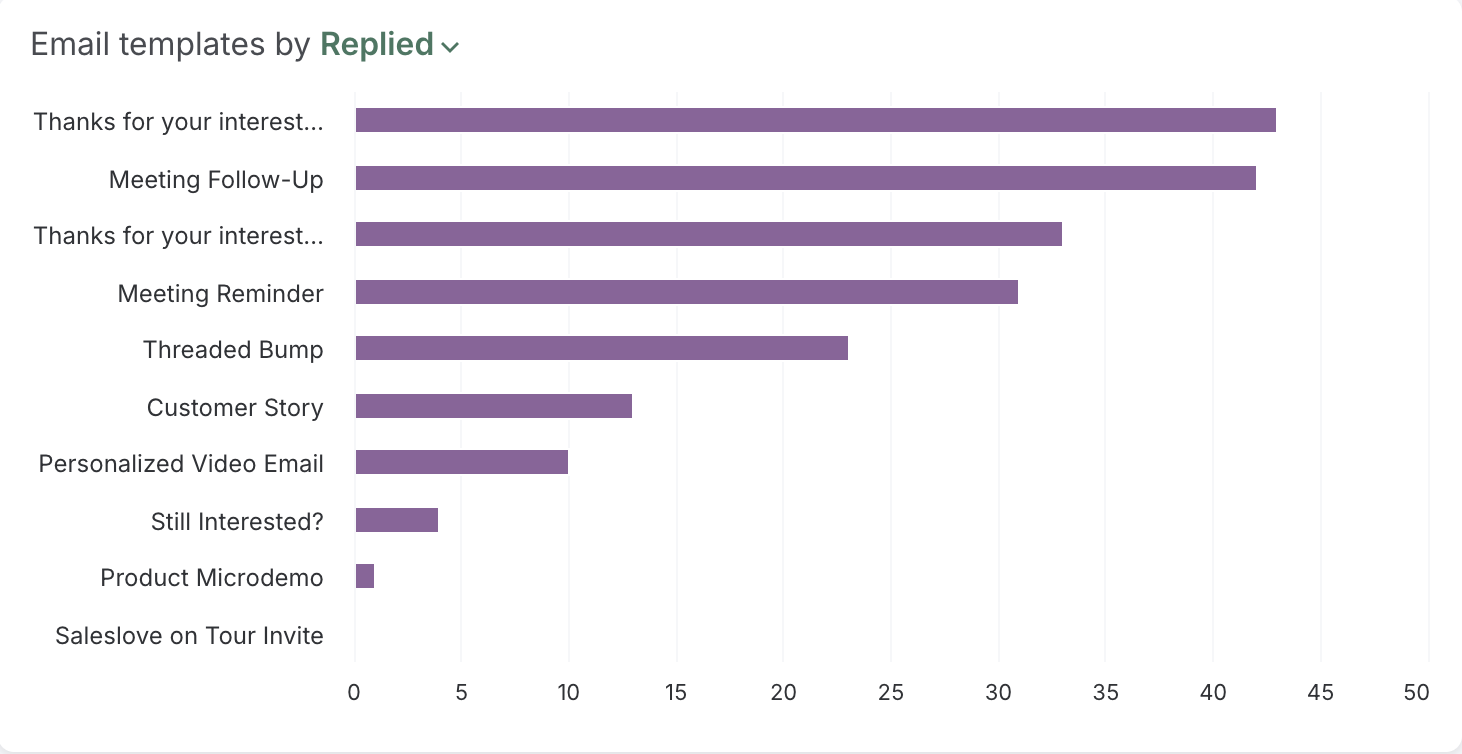
Figure 1: Example: Email Templates By panel
The Positive Reply Change by Template Panel
The Positive Reply Change by Template panel shows the total number of positive replies over a given period compared to the previous period.
The Positive Reply Change by Template panel contains the following details from the top of the panel working our way down:
- Panel Name: Positive Reply Change by Template
- Primary Metric: Positive - the total number of Positive Email Sentiments assigned.
- Primary Metric Graph: The graph is a multi-color bar chart where bars show which template had the greatest absolute change in the number of positive replies. This chart will display the top 10 templates by emails sent for the selected time period, sorted by the absolute change in positive replies.
- Chart Hover: When you hover on a bar, the specific template is highlighted. You can see the template name, change from the previous period, and total number of positive replies in the selected period in the tooltip.
- Period Comparison based on date selection: To the right of any metric, you will see a small percentage in either green or red. This will show how your numbers have increased or decreased over time.
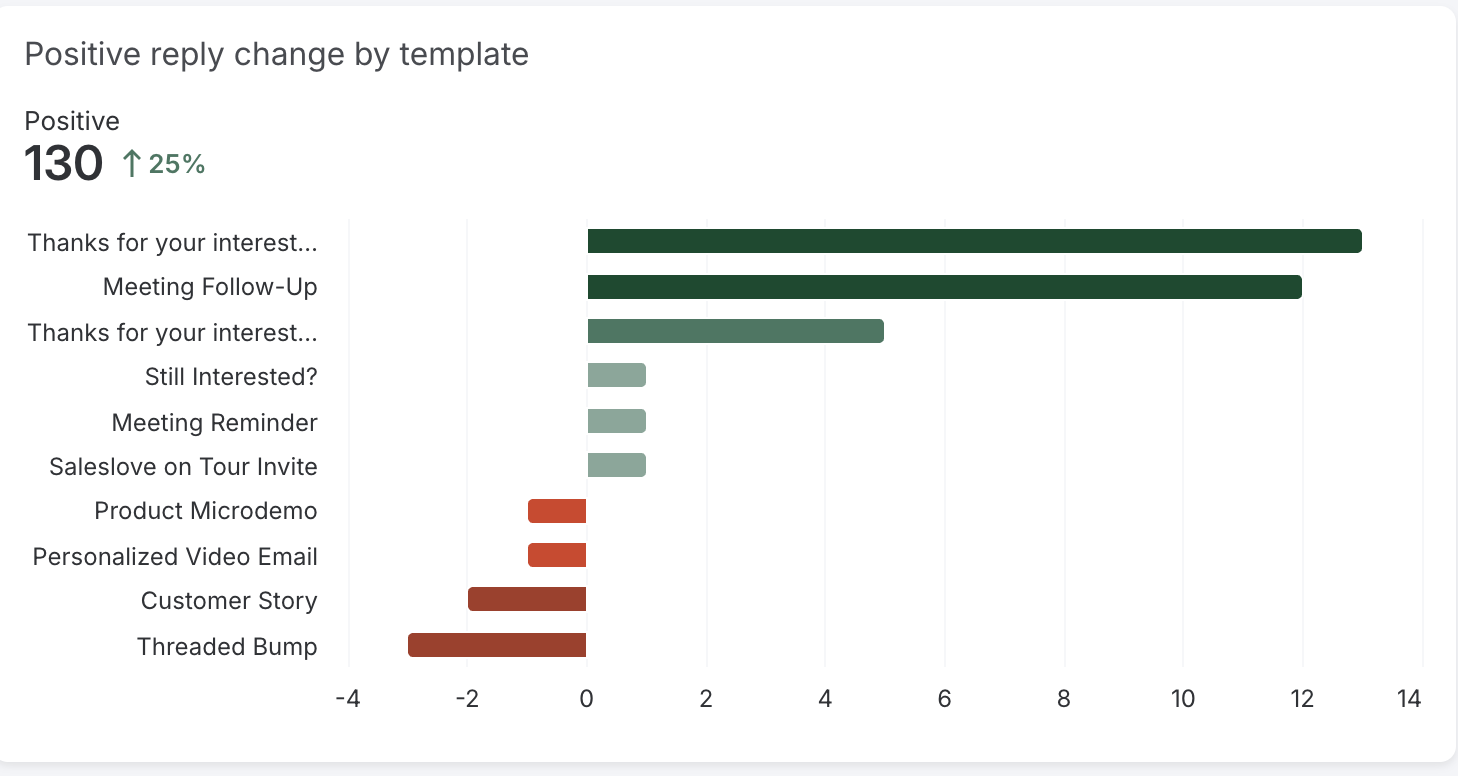
Figure 2: Example: Positive Reply Change by Template panel
Templates Report
The Email Template report is great to compare the activities of multiple templates side by side. This report focuses on metrics that mirror the Email report like personalization, reply rates, and template owner.
The Template Report data can be adjusted by using Analytics Filters. When you change any of these filters, you can save the page view to Create Custom Reports.
Outside of the standard filter options, you can add additional filters to your report. The Template Report's additional filters include:
- Type
- Sent
- Delivered
- % Personalized
- % Opened
- % Replied
To learn more about Template Analytics, check out:
