Team Performance Analytics shows how your reps are performing in regards to their email results, call results, overall activity performance, and outcome and activity leaders. You can use this data to determine what reps are performing well and what reps might need additional coaching.
You can access Team Performance Analytics by clicking on the Team Productivity tab within the Analytics dropdown.
In this article, you will learn about Team Performance Analytics, including:
The Team Performance Analytics include two panel charts and a report. You can adjust the filters at the top of the page to modify the data set included in the view.
Each panel and report contains metrics that are calculated in different ways. Check out the Analytics Metric Calculations for a complete list of metrics.
Let’s walk through the components that make up Team Performance Analytics.
The Email Results Panel
The Email results panel contains the following details from the top of the panel working our way down:
- Panel Name: Email results
- Primary Metric: Emails sent
- Primary Metric Chart: Below the Emails sent, the chart shows the visual representation of the primary metric.
- Secondary Metrics include Average Email Results Per Day:
- % Personalized
- % Opened
- % Replied
- % Positive replies
- Period Comparison based on date selection: To the right of the metrics, you will see a small percentage in either green or red. This will show how your numbers have increased or decreased over time.
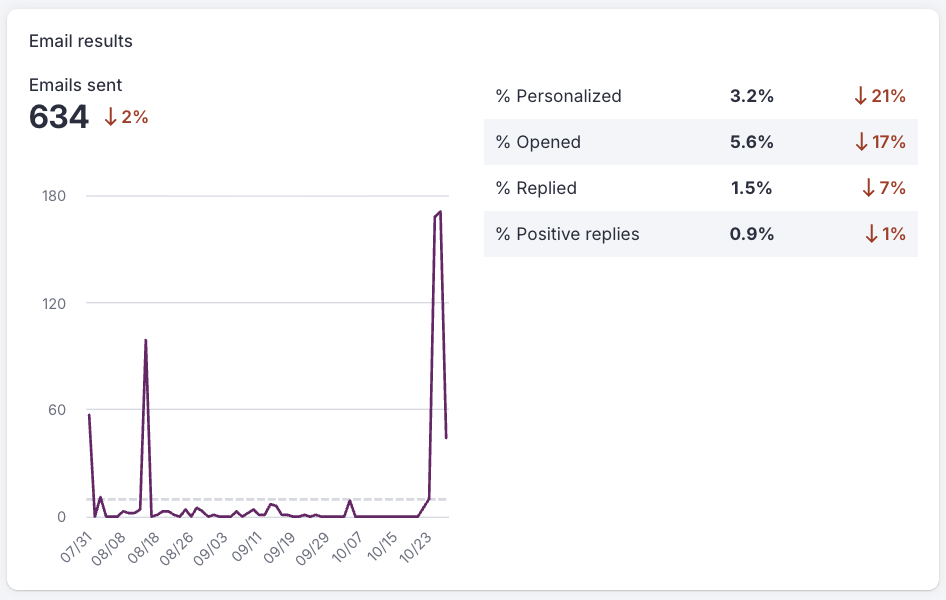
Figure 1: Example: Email results panel
Each panel contains primary and secondary metrics. These metrics are calculated in different ways. Check out the Analytics Metric Calculations for a complete list of metrics.
Calls Results Panel
The Call results panel contains the following details from the top of the panel working our way down:
- Panel Name: Call results
- Primary Metric: Calls logged
- Primary Metric Chart: Below the Total Calls Logged, the chart shows the visual representation of the primary metric.
- Secondary Metrics Include:
- Calls dialed
- Voicemails
- Connected calls
- Positive calls
- Period Comparison based on date selection: To the right of the metrics, you will see a small percentage in either green or red. This will show how your numbers have increased or decreased over time.
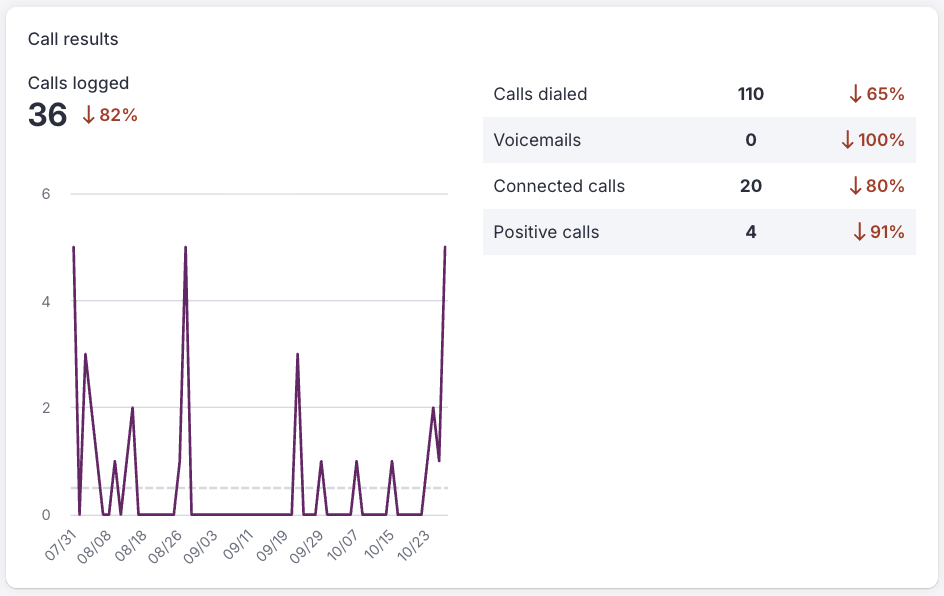
Figure 2: Example: Call results panel
Each panel contains primary and secondary metrics. These metrics are calculated in different ways. Check out the Analytics Metric Calculations for a complete list of metrics.
Outcome Leaders Panel
The Outcome leaders panel allows you to see how team members are performing in comparison to each other. If you want to encourage competition among your reps, this tab will display which rep is at the top of the leaderboard. Let the games begin!
The chart displays the top 10 users on your team who have achieved positive results. By digging into this chart, you can determine which reps are performing well versus the reps that may require more coaching to start reaching their goals.
The Outcome leaders panel contains the following details from the top of the panel working our way down:
- Panel Name: Outcome leaders
- Metrics:
- Opportunities created
- Meetings attended
- Meetings booked
- Successes
- Period Comparison based on date selection: To the right of the metrics, you will see a small percentage in either green or red. This will show how your numbers have increased or decreased over time.
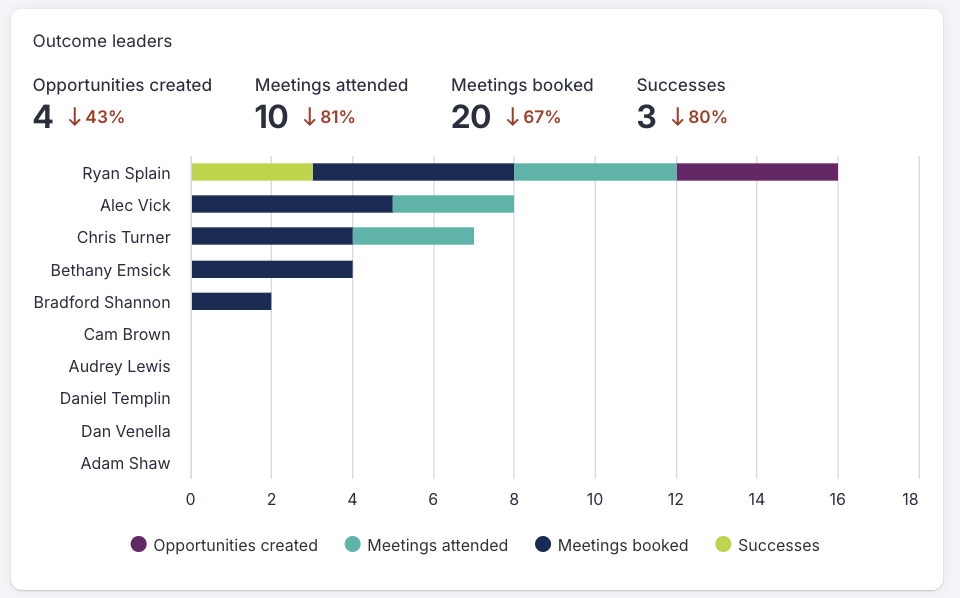
Figure 3: Example: Outcome leaders panel
Each panel contains primary and secondary metrics. These metrics are calculated in different ways. Check out the Analytics Metric Calculations for a complete list of metrics.
Team Performance Report
The Team Performance Table can be exported and customized with saved views. Column management only applies to the table and not the panels. Filters include meetings booked, meetings attended, and meeting no-shows.

Q: How am I ranked against my peers based on my activities?
A: The “Activity Leaders” panel shows you how you are performing against your peers based on your activities. Use the filter to change the activity you are viewing.
Q: How is my recent rep hire performing against my established team?
A: Use the “User” filter to select the recently hired rep as well as the users in the established team to see how they are performing against each other.
Q: Over the past month, has a rep improved their ranking?
A: Use the “User” filter to filter by a specific rep and see how their performance has changed.
Q: Are we logging calls?
A: The “Team Performance” report contains a Calls Logged column that you can use to ensure your reps are logging calls.
Q: Are we hitting our call activity targets?
A: Use the call metrics in the “Team Activity” report to determine if you are meeting your call activity targets.
Q: How many emails are we sending?
A: The “Email Results: Cadence and One-Off” panel can be used to determine how many emails your reps are sending over a given time.The “Team Performance” report contains a Calls Logged column that you can use to ensure your reps are logging calls.
Q: Have we increased the number of emails being sent?
A: Use the date filter and the “Email Results: Cadence and One-Off” panel to view how the number of emails being sent has changed over time.
Q: Is our email performance and quality improving?
A: The “Email Results: Cadence and One-Off” panel can be used to determine how your email performance and quality are performing over a given time.
To learn more about Team Performance Analytics, check out:
