The Deals Analytics dashboard enables frontline reps to view charts and take actions specific to their personal pipeline and quota.
To access Deals Analytics Overview, hover over Analytics in the Salesloft top menu. A dropdown menu will appear. Select Pipeline Review. The Pipeline Review tab will take you to the Deal Analytics Overview dashboard. This dashboard holds six tiles full of data relating to your Opportunities and Pipeline.
Before you can fully reap the rewards of Deals Analytics Overview, a team admin must configure your team's Goal Settings. These settings determine rep goals and define your organization's goal period.
Things to Note: The standard Deals Analytics Overview page dashboard does not include the ability to filter. That functionality is exclusive to users with the Filter Deals Summary permission. To learn more, check out the Deals Analytics Overview for Frontline Managers view.
In this article, you will learn about Deals Analytics, including:
The Deal Analytics include two panel charts and a report. You can adjust the filters at the top of the page to modify the data set included in the view.
Each panel and report contains metrics that are calculated in different ways. Check out the Salesloft Metrics Glossary for a complete list of metrics.
Let’s walk through the components that make up Deal Analytics.
Two Sentence Summary Tile
At the top of the Deals Analytics Overview page, the Two Sentence Summary Tile provides an intro summary that lets you know where your sales projections are at for a given time period. Specifically, this tile says whether or not you are on target to hit your quota for a given goal period.
The projection, as well as any recommendations, are based on both personal and group average win rate and deal size.

Figure 1: Example: Two Sentence Summary tile
You can hover over the tooltip to view the values along with an explanation of how Saleslofts calculates these values.
Projection Tile
The Projection Tile gives you a look into what Opportunities you are projected to close in the given goal period. This tile highlights your Projected Difference. The Projected Difference is the calculation that shows the Projected Amount minus the Goal amount.
The chart offers insight into how you have been trending toward your overall goal throughout the goal period. If data points are above the line, you're projected to exceed your goal. If the data points are below the line, you are not projected to meet your goal.
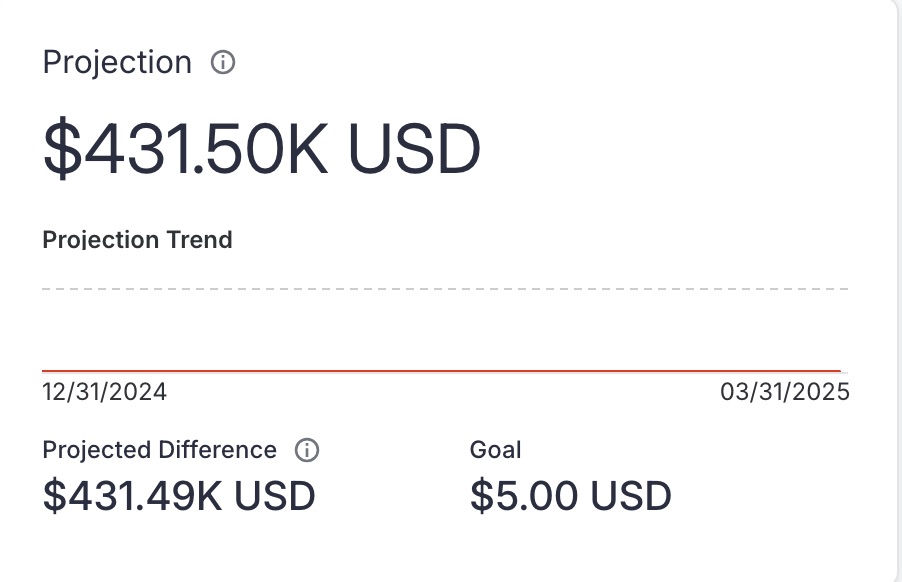
Figure 2: Example: Projection tile
Hover over the chart to learn the trend data. This will specify the date, projection, and projected difference.
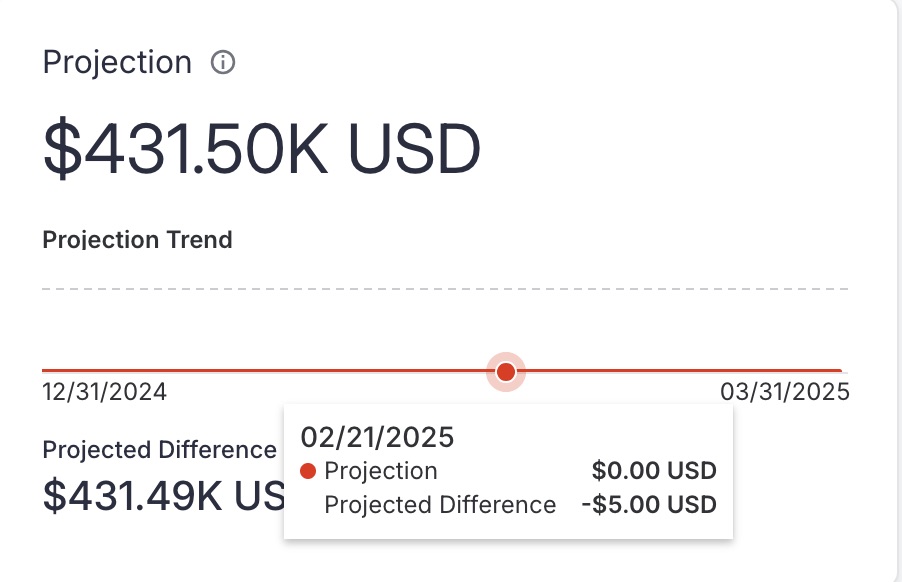
Figure 3: Example: Projection Tile hover state
Weighted Pipeline Tile
The Weighted Pipeline Tile looks at what the weighted and unweighted pipeline coverage is for a given goal period.
The Weighted Pipeline value is based on the percentage value of deals in each stage. For example if the full amount of a deal is $1,000, and you are viewing weighted pipeline values, then it will show at 50% (probability to close the deal) of the deal, which is $500.
The Unweighted Pipeline value will display the full amount of the deal regardless of what stage it's at. For example if the full amount of the deal is $1,000, and you are viewing unweighted pipeline values and the deal is at 50% (probability to close), then the value will still be displayed at $1,000.
Things to Note: The visible information is directly related to your Goal Settings. Charts and data may appear different based on your team and individual goals.
The Weighted Pipeline tile shows the weighted and unweighted trends for your pipeline, your unweighted pipeline amount, and the pipeline coverage for your goal period.
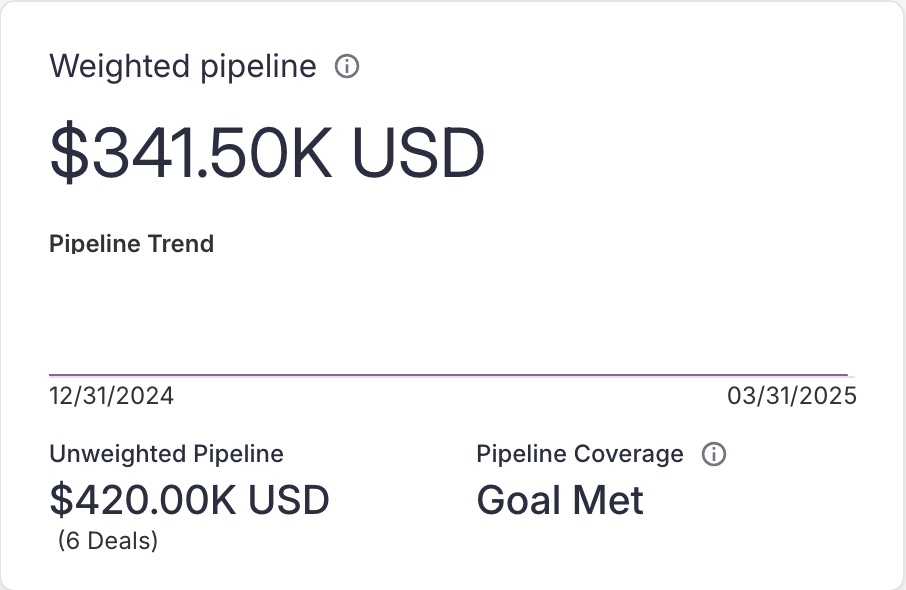
Figure 4: Example: Weighted Pipeline tile
Hover over the chart to gain insight into the trend data. It will show the date, unweighted pipeline amount, and weighted pipeline amount. Additionally, tooltips help the rep understand how we are calculating the values in the tile.
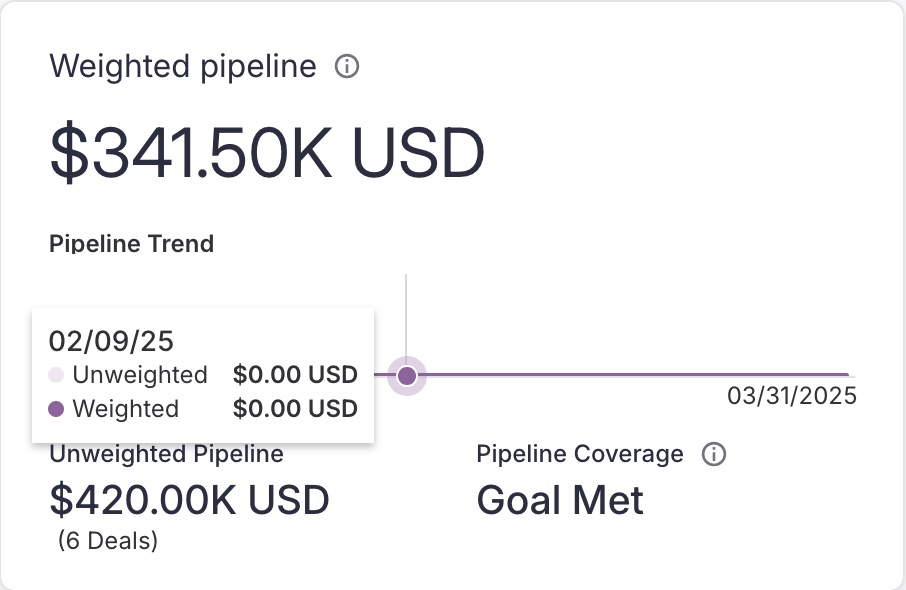
Figure 5: Example: Weighted Pipeline hover state
Closed Won Tile
The Closed Won Tile shows how much you have closed in the given goal period. You can also see how you are trending toward your overall goal. The Close Won Tile even highlights the number of deals closed and the average deal size for those closed-won opportunities.
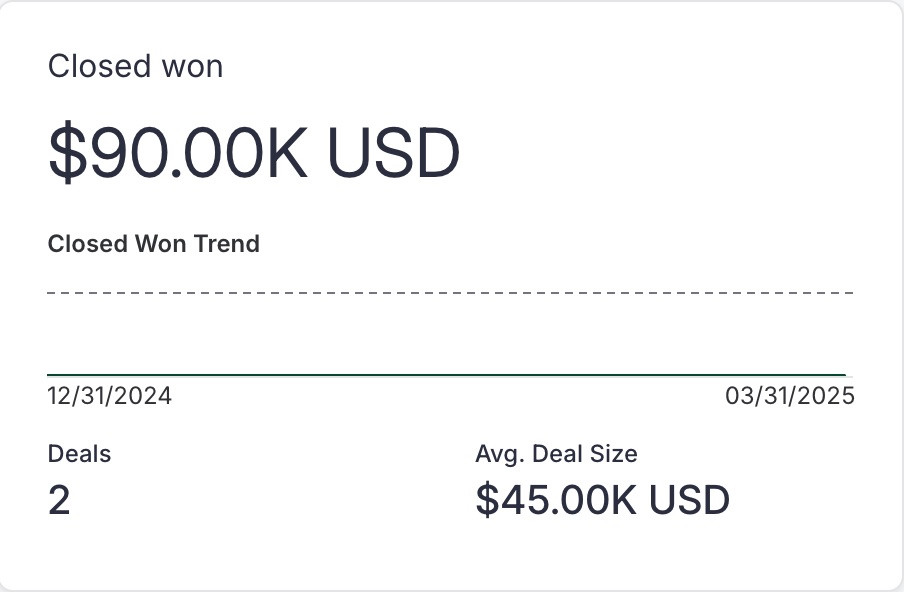
Figure 6: Example: Closed Won tile
By hovering over the chart, you can view the date, closed-won amount, number of closed won deals, and the percentage of goal data.
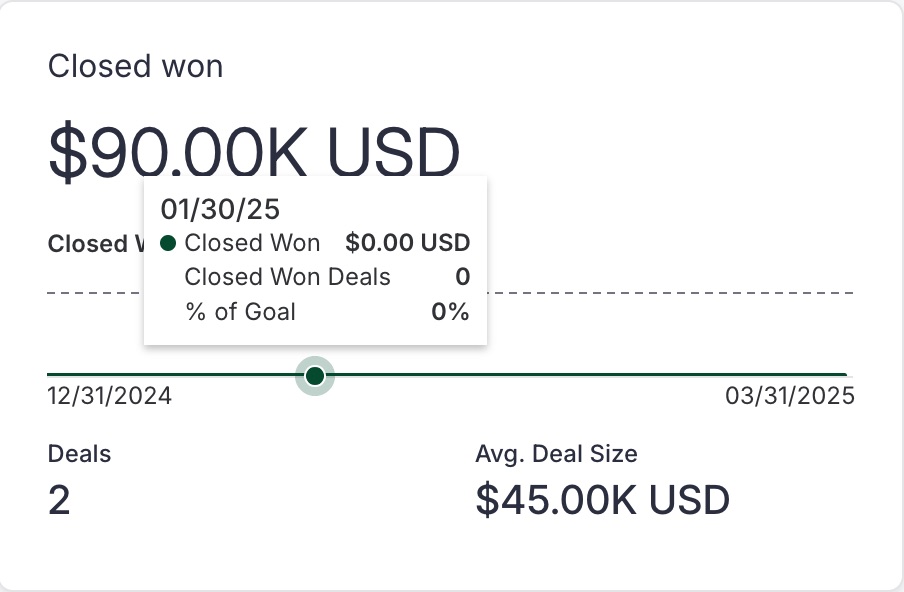
Figure 7: Example: Closed Won hover state
Pipeline Health Tile
The Pipeline Health Tile shows a heat map of your deal amounts based on the number of days in a stage or the number of Deal Gaps.
Each square on the heat map varies in color based on the amount within each square. The darker the color, the larger the amount. Hover over each square to see how many deals make up the data. Click on the title to open the Pipeline Health Details.
Pipeline Health Tile Days in Stage Heat Map
The Pipeline Health Tile displays a heat map to help you understand how long the deals in your pipeline have been sitting in certain stages. The display shows deal amounts plotted against the number of days in a Stage, as well as the Stages themselves. Each square on the heat map displays variations of colors that indicate the amount within each square.
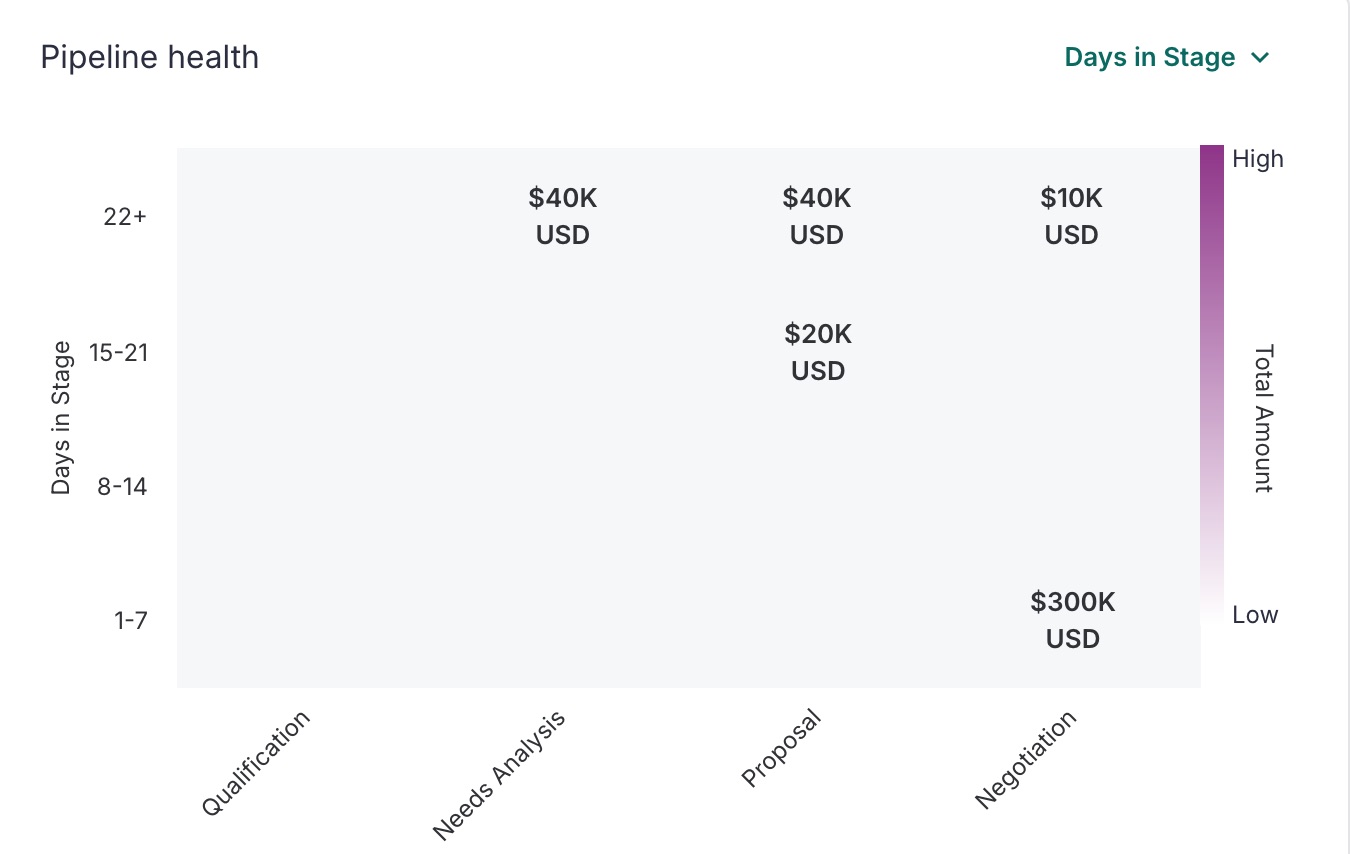
Figure 8: Example: Pipeline Health tile Days in Stage view
Pipeline Health Tile Deal Gaps Heat Map
The Deal Gaps heat map creates an at-a-glance view to help you learn which deals have gaps so you can act.
For example, when deal gaps are present on deals in later stages (like negotiation), there is an increased risk that the deal won't close. With the heat map, you can identify deals with gaps that need to be addressed so you can ultimately hit your number.
You will find the Deal Gap heat map in the Pipeline Health tile on the Deals Analytics Overview page. If your team has multiple record types set up in your Salesforce instance, select the dropdown to view the heat map based on a specific record type.
Things to Note:
- Deal Gaps must be created by a team admin.
- If no gap settings are configured, Salesloft will show an empty state notifying the user that these settings need to be set up.
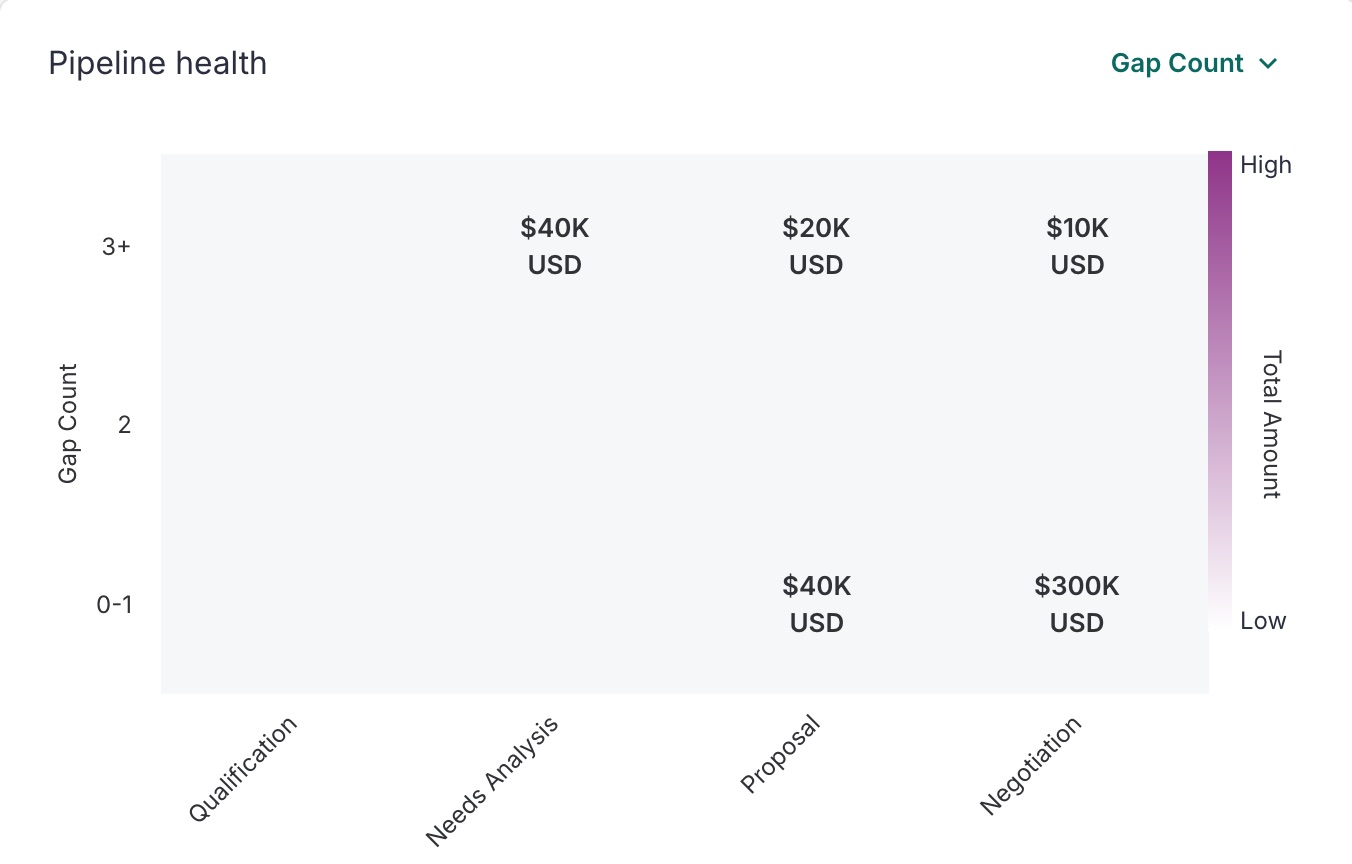
Figure 9: Example Pipeline Health tile Deal Gaps View
Pipeline by Closed Date Tile
The Pipeline by Close Date Tile shows a breakdown on your pipeline. The insight are available in two different chart views:
- The Weight Pipeline
- Pipeline by Stage
You can change the chart view by clicking the selector in the top right of the tile.
Pipeline by Closed Date Tile Weighted Pipeline View
The Weighted Pipeline View shows a breakdown of the closed-won amount versus the weighted pipeline amount for given time periods. The the chart will be accessible as an additional option on the Pipeline By Close Date Tile on the Deals Summary page.
The total amounts can be viewed above each bar. Hover over the chart to view the following details:
- Date
- Weighted amount if hovering over weighted pipeline
- Closed-won amount if hovering over closed won
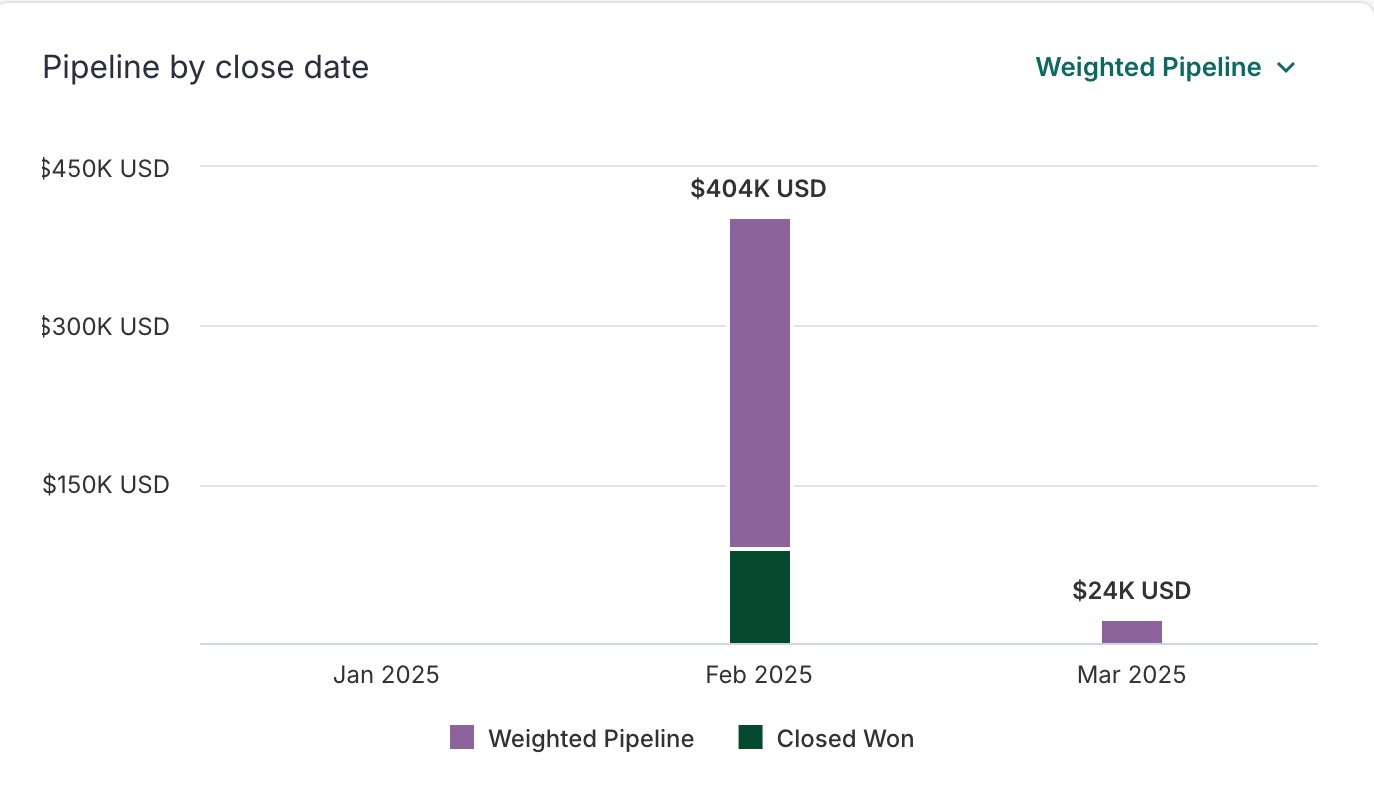
Figure 10: Example: Pipeline by Closed Date tile Weighted Pipeline view
Pipeline by Closed Date Tile Pipeline By Stage View
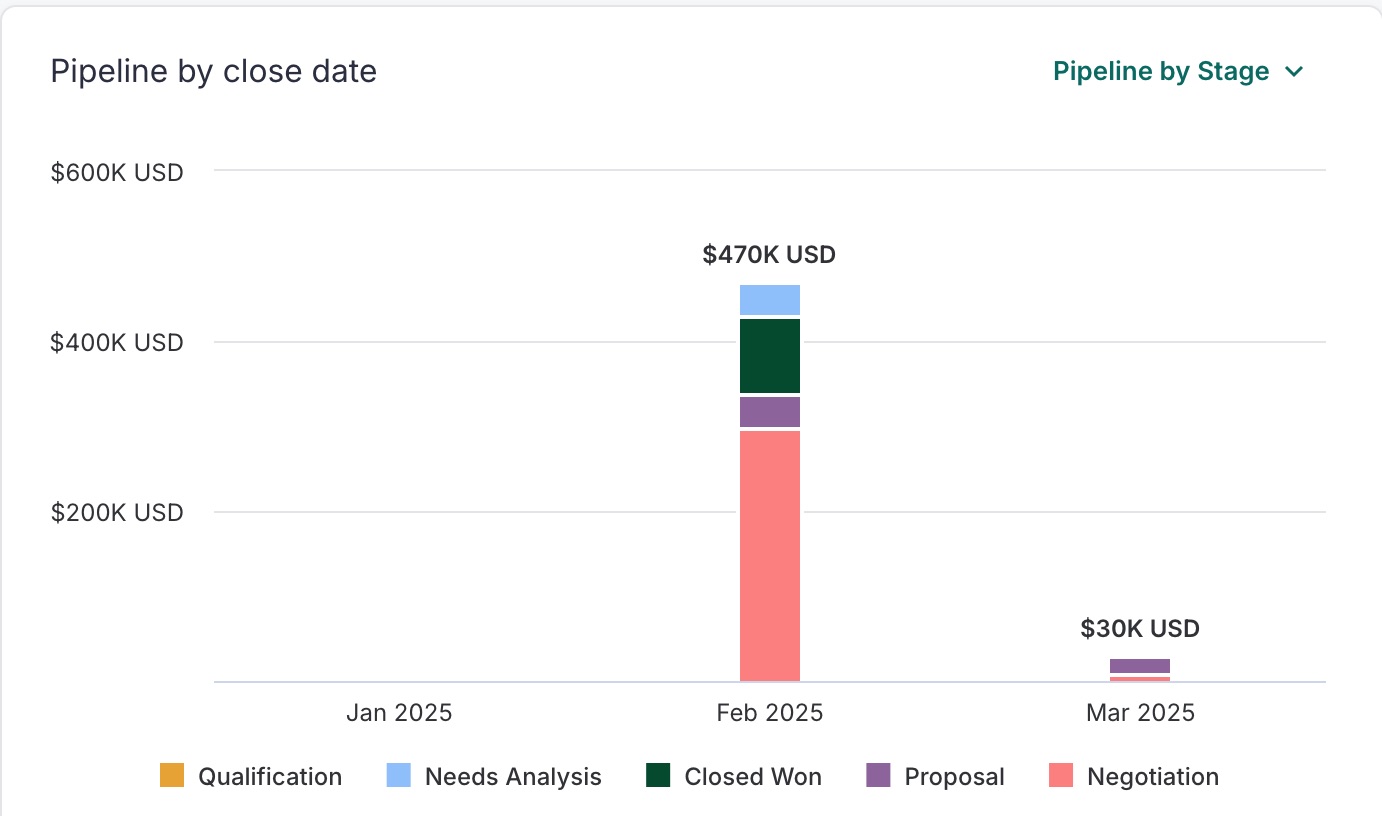
The Pipeline by Stage View shows the pipeline broken down into each Opportunity stage across time periods of their goal. The the chart will be accessible as an additional option on the Pipeline By Close Date Tile on the Deals Summary page.
To learn more about Deal Overview Analytics, check out:
Metrics Glossary
Create Custom Reports
Filter Salesloft Page Views
