Cadences offer a systematic method to manage and master your sales process. But consistent use of Cadences can leave you asking one very important question, "How are my Cadences performing?".
The Cadence Analytics centralizes a list of all Cadences, which you can filter and sort to your viewing preference. This visibility allows for comparison of Cadences so that you can see which campaigns are performing the best based on open rates, clicks, replies, and more in one list view.
To access the Cadence Report, click on Content Performance in the Analytics drop down. You will land on the Cadence Report by default.
Cadence Analytics is made up of a series of different reports. Let’s walk through the components that make up Cadence Analytics.
Cadence Outcomes Chart
The Cadence Results panel looks at the total number of times Salesloft users have clicked the Success button as well as the total number of meetings scheduled.
The Cadence Results panel contains the following details from the top of the panel working our way down:
- Panel Name: Cadence results
- Primary Metric: Influenced opportunities
- Primary Metric Chart: Below the Cadence results, the chart shows the visual representation of the primary metric.
- Secondary Metric:
- Influenced meetings
- Things to Note: Meetings does not exclude meetings that are canceled.
- Influenced pipeline
- Influenced revenue. Influenced revenue shows how many activities (calls, emails or other steps) it takes to get a single success
- Period Comparison based on date selection: To the right of the metrics, you will see a small percentage in either green or red. This will show how your numbers have increased or decreased over time.
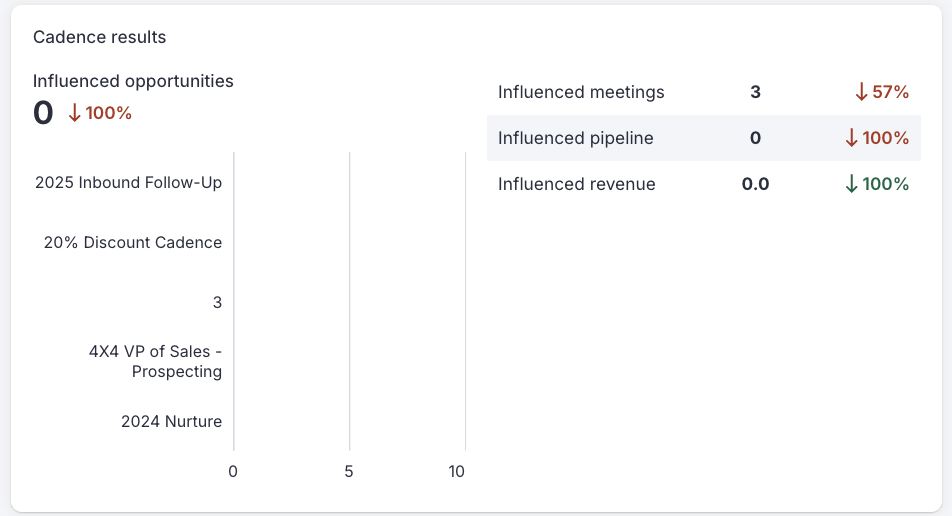
Figure 1: Example: Cadence results panel
The Cadence Process Panel
The Cadence Process panel looks at the total completed steps, the total skipped steps, overdue steps, and new People added to Cadences.
The Cadence Process panel contains the following details from the top of the panel working our way down:
- Panel Name: Cadence process
- Primary Metric: Completed steps
- Primary Metric Chart: Below the Completed steps, the chart shows the visual representation of the primary metric.
- Secondary Metric: Average Cadence Process Results
- Enrolled
- Activated
- Replied
- On-time steps %
- Period Comparison based on date selection: To the right of the metrics, you will see a small percentage in either green or red. This will show how your numbers have increased or decreased over time.
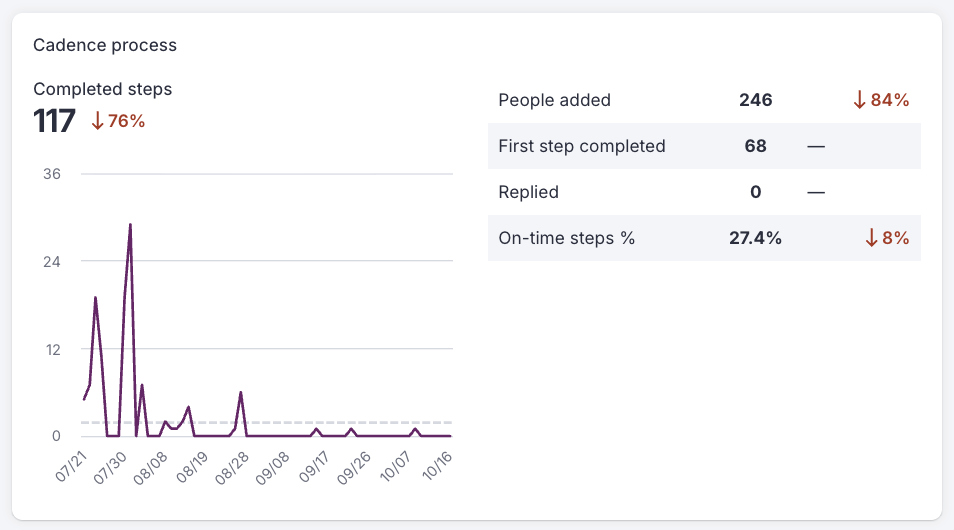
Figure 2: Example: Cadence Process panel
Cadence Effectiveness Panel
The Cadence Effectiveness panel shows the top reps sorted in descending order based on the number of successes they have logged, meetings they have booked, and opportunities they have created.
The Cadence Effectiveness panel contains the following details from the top of the panel working our way down:
- Panel Name: Cadence effectiveness
- Top Metrics:
- Emails sent
- Calls logged
- LinkedIn Steps
- Chart Metrics:
- Successes
- Meetings Booked
- Opportunities Created
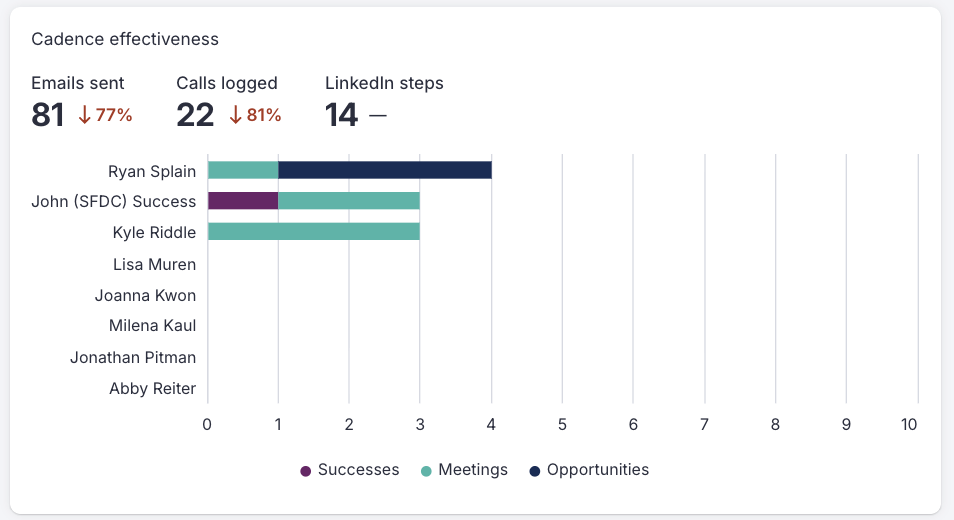
Figure 3: Example: Cadence Effectiveness panel
Cadence Analytics Report
The Cadence Analytics show a detailed report of your team's Cadences. This way admins and users alike can report on the success of campaigns used by all team members and figure out which Cadences are most effective.
Ideally, your report would be full of awesome metrics. However, if you are new to Salesloft, or testing Cadences, or just haven't gotten the ball rolling, your metrics may show a lot of disheartening zeroes.
By default, your Cadence Report only shows Cadences with data for the previous seven days. This gives you a simple list that is more manageable to digest, and you avoid needing to scroll through entries of Cadences that have no data.
Now, if there is no data to be found, Salesloft will show an "empty state" message. The empty state message will prompt you to adjust your Time Range filter to bring in more results. Clicking the Learn More button will bring you to this article (if you clicked that already, welcome!).
Things to Note:
- All Cadences listed will contain results in at least one column (i.e., there will not be a full line of zeros).
- Cadences lacking any results for the specified date range will be excluded from the list and won't be displayed on the report. You can change your data range by using sorting and filtering options.

Figure 4: Example: Cadence Analytics Report
To learn more about Cadence Analytics, check out:
