Cadence Throttling lets admins set daily email limits per cadence or user, automatically queuing overflow outreach to protect domain reputation and prevent task spikes. Use this guide to enable throttling, set daily sending caps, and monitor your team's throttled queue.
After completing this guide, you will be able to:
- Enable Cadence Throttling for your organization in Salesloft Admin Settings
- Set global or user-specific daily sending caps
- Monitor throttled outreach volume
In this article:
Before starting, make sure you have the following:
- Account access: An active Salesloft account.
- Permission / Role: Admin access is required to enable throttling and configure limits.
to enable Throttling and set a daily cap, follow these steps:
- Navigate to Cadence Limits settings: From the top navigation, click Settings, then select Cadences and Tasks from the left sidebar, and find the Cadence Throttling Rules section.
- Enable Cadence Throttling: Toggle the Cadence Throttling switch to On.
- Set the Default Limits: In the Cadence Throttling Rules section, click Edit to open the Cadence Throttling Rules setitngs. In the Default Daily Limit field, enter the maximum number of outgoing emails allowed per cadence or per user per day. Then in the Default total active people limit field, enter the number of people that can be active in this cadence at one time.
- Save your settings: Click Save to apply the configuration.
- Confirm reps are notified at the limit: When a rep adds prospects to a cadence that would exceed the daily cap, they will see an in-product notification that some emails have been queued for the next available slot.
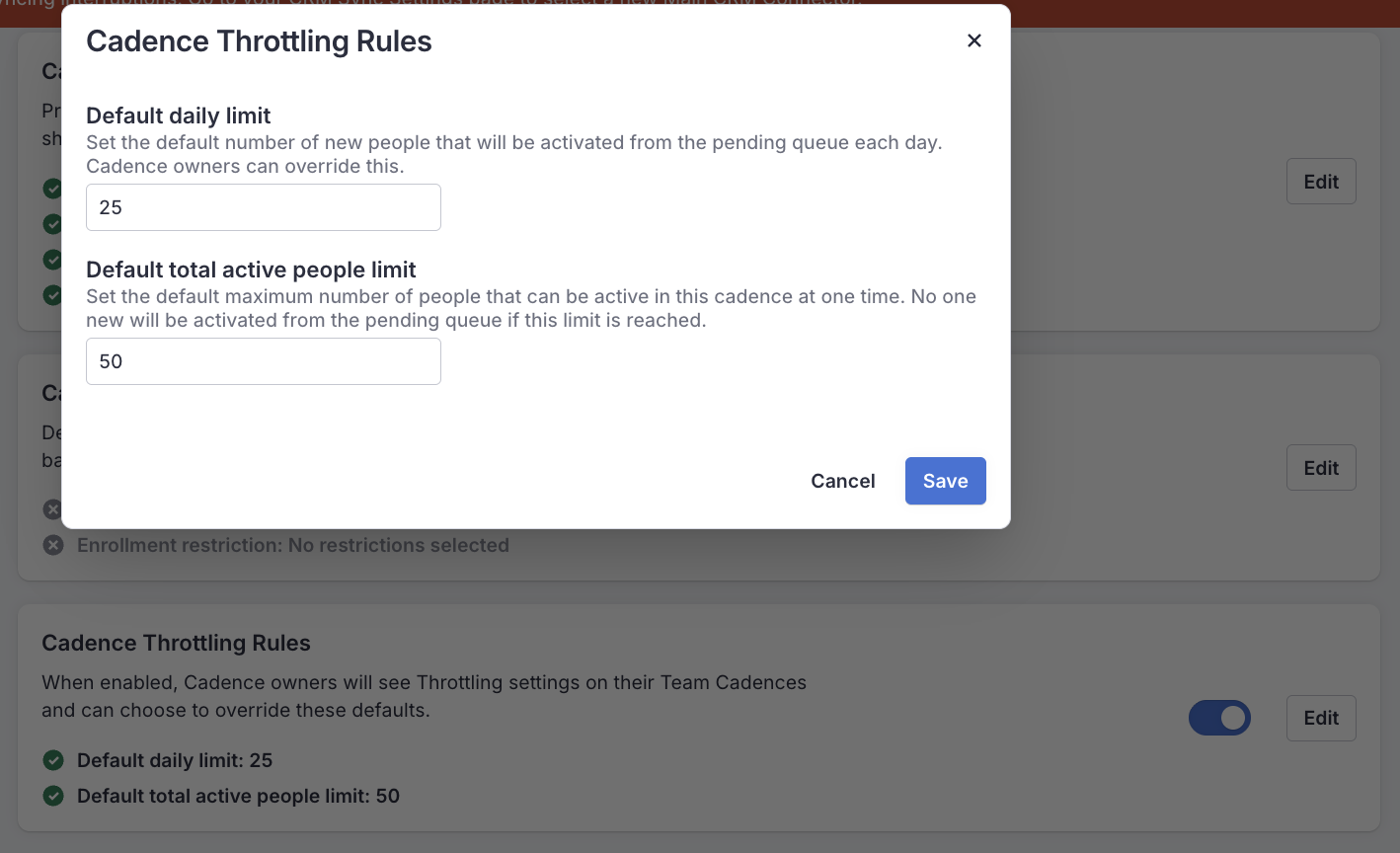
Figure 1: Admin Settings page with the Cadence Throttling Settings open and (background) Cadence Throttling toggle highlighted in the On position
You've successfully configured Cadence Throttling when:
- The Cadence Throttling toggle shows as On in Settings > Cadences and Tasks > Cadence Limits
- Reps adding prospects to cadences that exceed the daily cap see an in-product notification that some emails have been queued for the next available slot
- Throttled tasks appear in the rep's queue with a scheduled send time
Things to Note: There may be up to a 5-minute delay between a rep reaching their limit and the Throttled status appearing in the UI. This is expected behavior.
Automated steps only
Throttling applies exclusively to automated cadence email steps. Manual one-off emails and LinkedIn or call steps are not subject to daily caps and will continue to appear in the work queue immediately.
Overflow queuing, not failure
When a daily limit is reached, pending outreach is automatically pushed to the next available slot — tasks are never dropped or left in an error state.
Time zone dependency
Sending limits reset at midnight based on your individual configured time zone. Verify your time zone is correctly set in Settings to ensure resets happen when expected.
Avoid
Increasing limits reactively without checking sender reputation first. If a rep is consistently hitting their cap, review their lead volume with them before raising the limit — high send volume without engagement signals can accelerate domain blacklisting.
|
Problem
|
Likely cause
|
Fix
|
|---|
|
Throttling resets at the wrong time
|
The time zone is incorrectly configured
|
Navigate to your Settings and verify the Time Zone matches your operating hours
|
|
Cadence Limits is not visible in Admin Settings
|
Insufficient role permissions or feature access
|
Confirm that the user has Admin role
|
Next: Create a Cadence Collection in Salesloft: Group cadences with the same settings including Cadence throttling.
Related: Manage Cadence and Tasks Settings: Overview of all settings available in the Cadences and Tasks area of Salesloft Admin.
Related: Run an Email Cadence Step: execute emails from your cadence workflow.
Related: Cadence Analytics: Use Salesloft reporting to track deliverability and sender reputation over time.
