Every interaction with a prospect shapes how they perceive your team, your product, and your ability to help them solve real problems. Intentional communication builds trust and reinforces credibility, while engagement without clear limits can quickly become muddled and overwhelm your prospects.
Cadence Enrollment Rules allow you to limit the number of cadences a Salesloft Person record can be added to—and define how different types of cadences interact. These settings help your team manage volume, avoid overlap, and maintain a thoughtful engagement strategy.
In this article, you will learn how to manage the Cadence Enrollment Rules setting as an Admin, including:
Salesloft Admins can configure the Cadence Enrollment Rules setting to manage how many cadences a Person can be added to.
The Override Cadence Enrollment Rules permission is enabled by default for standard Admin roles. This means that Admins can bypass the limits and restrictions, unless acting on behalf of a user without this override. To experience the settings as your team would, assign a user to a custom role without this permission and use the “Act on behalf” function.
Things to Note: If you have reps who shouldn't be subject to Cadence Enrollment Limits—like an AE who handles highly personalized communication—you can assign this permission to their role to give them the flexibility to enroll contacts in multiple cadences.
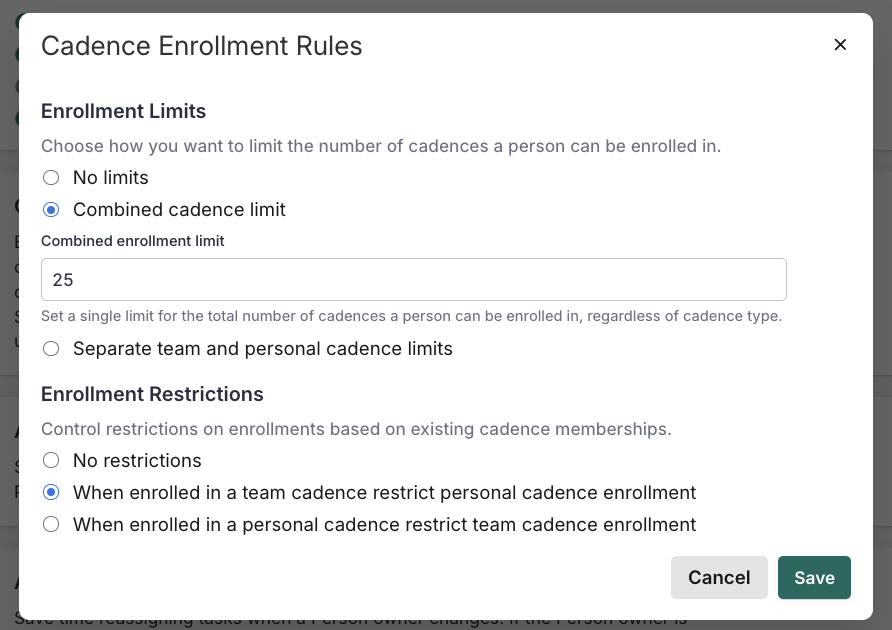
The Cadence Enrollment Rules setting allows you to control how many Cadences a Person can be enrolled in at once—and under what conditions. There are two main controls you'll configure:
- Enrollment Limits: General rules for how many cadences a person can be in at once. You can choose from the following Enrollment Limit options:
- No limits: Users can be enrolled in any number of cadences, with no restrictions based on type (team or personal). This option gives sellers full flexibility to manage outreach across multiple workflows without system-imposed caps.
- Combined cadence limit: This is the total number of cadences—team and personal combined—that a person can be enrolled in at the same time.
- Separate team and personal cadence limits: This option allows admins to set individual limits for team cadences and personal cadences separately. For instance, a person might be allowed in up to 4 team cadences and 2 personal cadences at the same time, giving more granular control over enrollment types.
- Enrollment Restrictions: Rules that add specific conditions—or act as exceptions—to the general limits. Choose from the following Enrollment Restriction options:
- No restrictions
- When enrolled in a team cadence restrict personal cadence enrollment
- When enrolled in a personal cadence restrict team cadence enrollment
Things to Note: Enrollment rules are applied at the contact level—not based on the rep. A Person’s cadence limit is based on how many cadences that individual contact is in, regardless of who enrolled them.
To configure the Cadence Enrollment Rules setting, follow these steps:
- Go to your settings.
- Select Cadences & Tasks from the left menu panel.
- Scroll down to the Cadence Enrollment Rules setting. Click Edit.
- Select your Enrollment Limit. Choose from the following options:
- No Limits: Skip to Enrollment Restrictions
- Combined cadence limit: If you select Combined cadence limit, enter the total number of Cadences a Person can be enrolled in.
- Separate team and personal cadence limits: If you select Separate team and personal cadence limits, enter the maximum number of team cadences a person can be enrolled in at the same time (Team Cadence Enrollment Limit) and the maximum number of personal cadences a person can be enrolled in at the same time (Personal Cadence Enrollment Limit).
- Set your Enrollment Restrictions. Choose from the following options:
- No restrictions
- When enrolled in a team cadence restrict personal cadence enrollment
- When enrolled in a personal cadence restrict team cadence enrollment
- Hit Save.
How Enrollment Limits & Restrictions Interact
Enrollment Limits set the ceiling for how many cadences a contact can be in—team, personal, or both.
Enrollment Restrictions add a layer of logic that controls how those limits apply, based on the type of cadence the contact is already in.
Think of Limits as your capacity control, and Restrictions as smart filters that avoid overlap.
How They Interact in Practice
Think of Enrollment Limits as the ceiling—and Restrictions as the filters.
Example 1:
You set a Personal Cadence Limit of 2.
You also check “Restrict personal cadence enrollment when in a team cadence.”
→ Now, even if a person is in only 1 personal cadence, they can’t be added to another if they’re already in a team cadence.
Example 2:
You set a Team + Personal Combined Limit of 3.
But you don’t apply any restrictions.
→ A person could be in 2 team cadences and 1 personal cadence at the same time—no problem.
Example 3:
You set No Limits and No Restrictions.
→ That means Salesloft won’t enforce any system-based limits on cadence enrollment. Contacts can be added freely across cadences.
Use Enrollment Limits to control volume.
Use Restrictions to prevent overlap that could confuse your prospect or create internal friction.
Things to Note:
- Archived cadences do not count toward the limit.
- Deleted cadences are ignored.
- Operational cadences are excluded from both limits and restrictions.
- If you unarchive a cadence and a contact is still active in a step within it, that cadence will start counting again toward the contact’s enrollment.
- When you enable limits or restrictions, Salesloft does not retroactively remove contacts from existing cadences that exceed the new rules. The settings apply only to future enrollment attempts.
For more detailed guidance and related resources, check out:
