The Model Context Protocol (MCP) is an open standard that allows AI hosts (like ChatGPT) to safely connect to external data sources. The Salesloft MCP Server allows ChatGPT to query your live Salesloft revenue data directly.
In this article, you will learn how to configure the Salesloft MCP Server with ChatGPT, including:
Prior to connecting Salesloft's MCP Server for ChatGPT, there are some important things you need to know:
- Salesloft's MCP Server is available for teams that have purchased one of Salesloft's Agent packages.
- A team admin must enable the Salesloft MCP Server before users can connect to ChatGPT.
- Connecting via ChatGPT requires a ChatGPT Business or Enterprise plan. The Custom Plugin option used for this connection is not available on personal or free ChatGPT plans.
To connect the Salesloft MCP Server through ChatGPT:
- Open ChatGPT and navigate to Plugins: In ChatGPT, click on Plugins and then click the + icon to add a custom plugin.
- Enter the Salesloft MCP Server URL: In the plugin setup field, enter the following details:
- Configure OAuth settings: Click Advanced OAuth Settings and select Dynamic Client Registration (DCR) as the registration method.
- Accept the OpenAI warning and create the plugin: Check the box to accept the warning from OpenAI, then click Create.
- Sign in to Salesloft: Once the plugin is added, click Sign in to Salesloft and authenticate using your standard Salesloft user credentials.
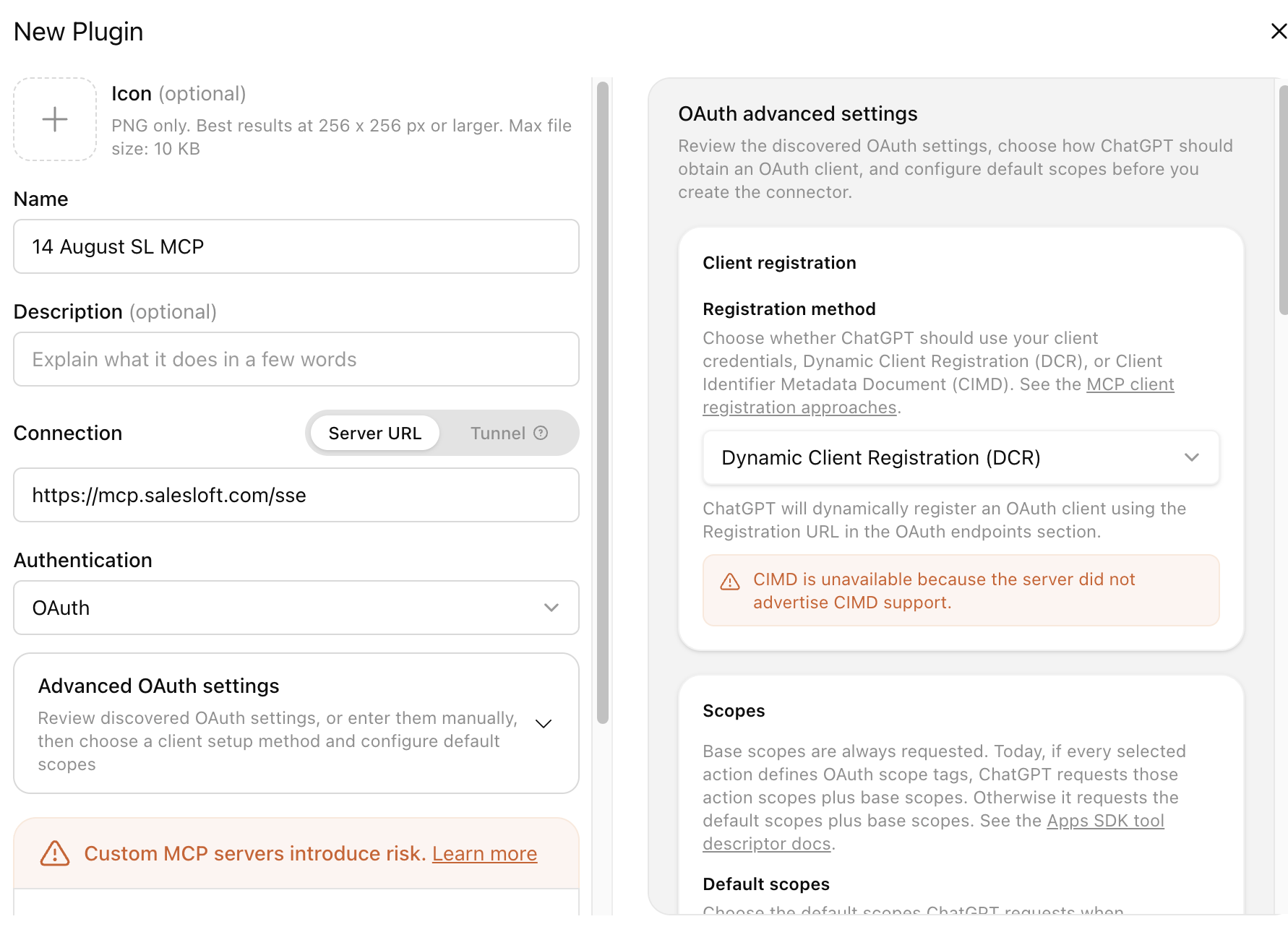
Figure 1: ChaptGPT Plugin Setup Fields with Salesloft MCP Server URL
FAQ
Q: Can I use this on the ChatGPT mobile app or web browser?
A: Currently, MCP support via Custom Plugin is primarily available on ChatGPT Business and Enterprise plans accessed through the browser. Mobile app support is limited.
Q: Do I need Salesforce connected to Salesloft to get value from the MCP?
A: No. ChatGPT will interact with whatever data you have in Salesloft. A CRM connection is not required, though it may open up additional use cases.
Using the Plugin Effectively
Once connected, follow these best practices to get the best results from Salesloft data in ChatGPT:
- Name the plugin explicitly: @mention Salesloft or reference it by name in your prompt so ChatGPT knows which source to query (e.g., "@Salesloft, summarize my last call with Acme.").
- Include relevant filters: Add names, dates, accounts, owners, or keywords to narrow results.
- Specify your output format: Tell ChatGPT how you want the information returned — a summary, a table, a list, etc.
- Ask ChatGPT to cite its source: Request confirmation of where data came from so you can verify the answer. If no matching results exist, ChatGPT should say so rather than relying on general knowledge.
For suggested prompts by persona, see the AI-powered Revenue Query Examples in the Salesloft MCP Server Overview article.
Troubleshooting
- ChatGPT is not pulling Salesloft data: Confirm the plugin is enabled and the Salesloft MCP Server toggle is active for your org in Salesloft Admin Settings. Verify you completed the Sign in to Salesloft step after creating the plugin.
- Plugin option not visible: The Custom Plugin feature requires a ChatGPT Business or Enterprise plan. Upgrade your plan if the + icon is not available in the Plugins section.
Resources
Next Steps
Once connected, start a new chat in ChatGPT and @mention Salesloft to begin querying your live revenue data.
