Goals are the targets your team is trying to achieve. To some, your organization’s goals may seem obvious (bring in more business, make more money, and so on), but teams need clearly defined target values in order to reach those higher outcomes.
Managers should define group and individual goals that measure your team’s progress. Whether that be closed deals, pipeline, number of meetings, or total amount of activities, determining the specific metric in a specific timeframe can help you assess the productivity of your teams.
In Salesloft, your team’s goals can be assigned and updated from the Goals Settings. The Goals Settings page is available to all Salesloft admins by default and any user role with the Manage Goals permission enabled.
The Goals Settings page determines the goals that are referenced throughout the Salesloft platform. Once goals are added to the settings page, you can track a user’s progress inside Deals, to assist in Forecast or gauge deal progress, and Coaching, to assess performance and guide conversations between managers and reps.
Things to Note:
- The Goal Settings are the centralized location to edit your team’s goals. Goals can also be edited inside Coaching.
- Deals goals were previously edited from the Goal Management inside of Deals. Starting November 2023, Deals goals are also managed from the Goals Settings page. The Goal Management page inside Deals will no longer be accessible after January 12, 2024.
When it’s time to set goals across your team, you have a few options: set goals manually one at a time, edit goals in bulk, upload goals from a CSV.
In this article, you will learn about managing your team's goals from the Goal Settings page, including:
Goals should reflect the performer. Meaning, if you have a high performing rep or team, you want to set high goals for them, while a lower performing rep or team may need goals that set them up for continued success.
The Goal Table is where you specify goals for groups and individual reps. You can manually update an individual reps' goals for the current or future periods. Once a rep has a specified goal, the goal will update across Salesloft to reflect that goal.
Things to Note:
- Goals can be set for parent groups and all levels of groups. However, we do not recommend setting goals at the parent level. The child groups are summed up throughout the platform.
- Goals for the past periods are not editable.
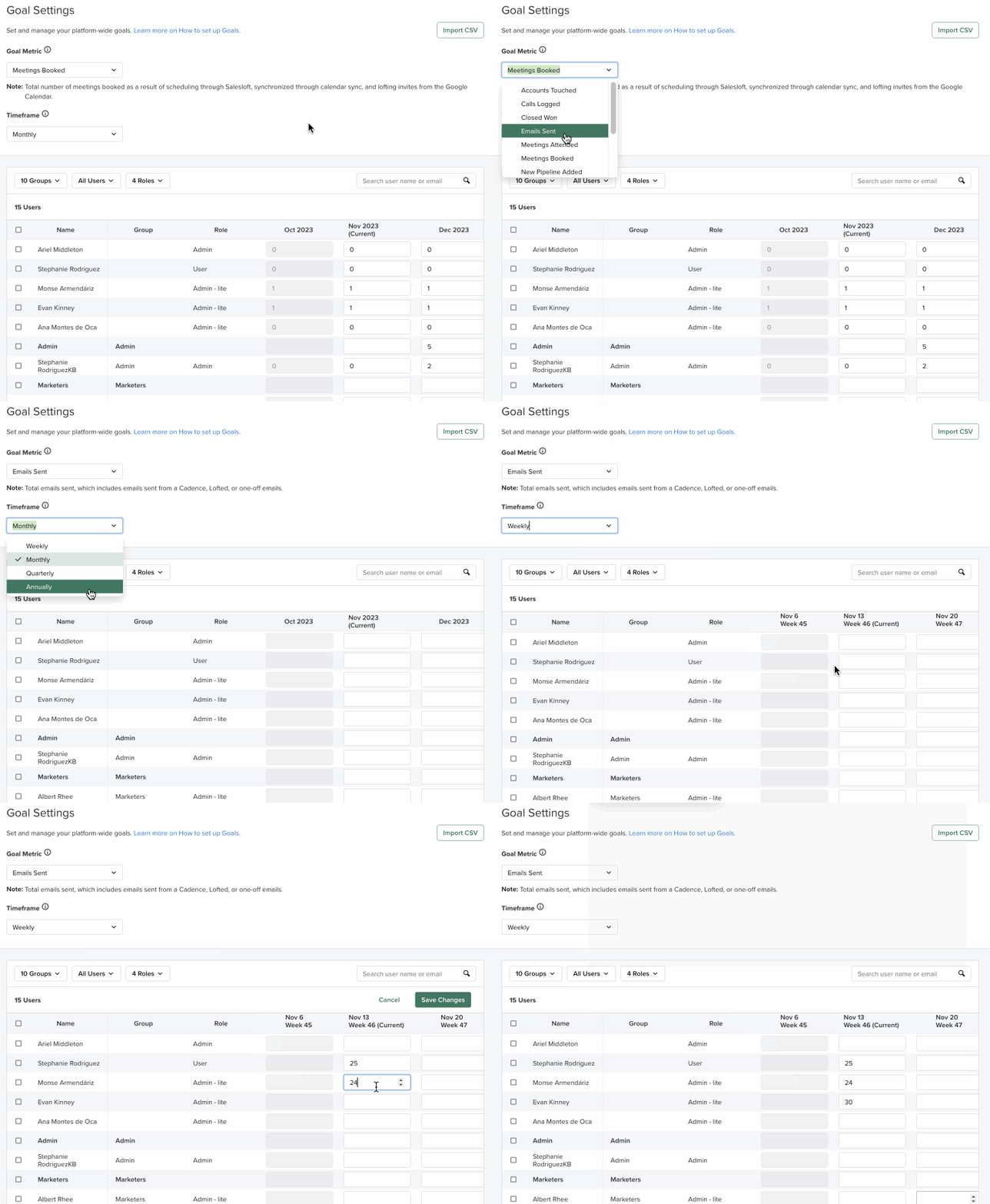
To update the goals table and add goals, follow these steps:
- Go to the Goals Settings page under your Settings.
- Select the Goal Metric you wish to edit. This will determine the goal you see in the table layout. If you select a Forecast goal, you can select which segment the goal will apply to.
- Select a Timeframe. The columns in the table layout will adjust based on the timeframe you’ve selected. For example, if you select Weekly, you will see columns reflecting the weeks where you can add goals.
- (Optional) Filter the Goal table. You can filter to view specific groups and user types.
- Things to Note:
- The table defaults the following filters:
- Your assigned group and any children groups will be selected.
- All Users. Inactive users will appear in the list by default. You can select to only view only Active or Inactive users inside the Users filter.
- Managers will be able to delete goals for the current and upcoming periods for the inactive users.
- In the "current" or "future" items, enter a number in the text box. As you enter text, a Save Changes button will appear in the upper right corner of the table.
- Once you have added all Goals where you like, click Save Changes. A confirmation notification will appear.
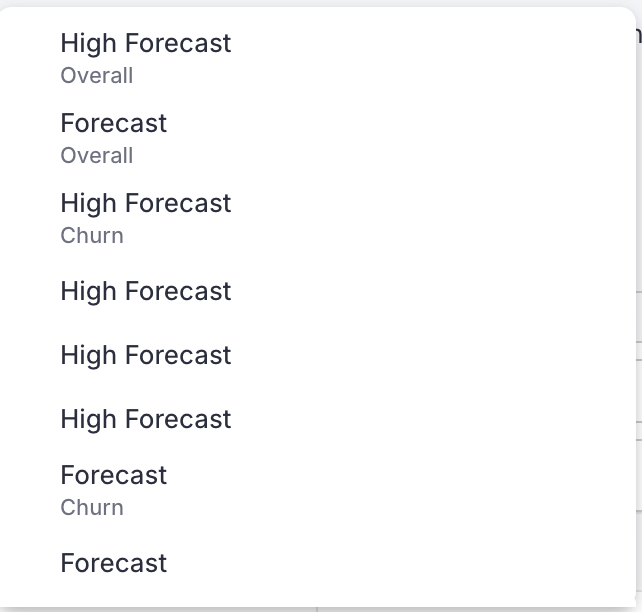
You can set different Forecast goals for each of your segments by selecting each Forecast type from the drop down.
Notice in the screenshot below the “Bookings” segment has two different Forecast types, “New Business” and “Renewals”. Both fall under the same Forecast Segment, but you can set goals for each one individually.
To set different goals for different segments, follow these steps:
- Go to the Goals Settings.
- Select the Goal Metric you wish to edit.. Scroll to the Forecast metrics in the available Goal metrics.
- Follow steps 3-6 in the Edit Goals section to configure the goal for the Forecast metrics and save the goal.
- Repeat for the different segments that need a goal included.
The Goals Settings allow you to manage your Salesloft user's goals. The page itself includes various options to add goals and information pertaining to the goals being set.
Here's a walkthrough of the Goals Settings page:
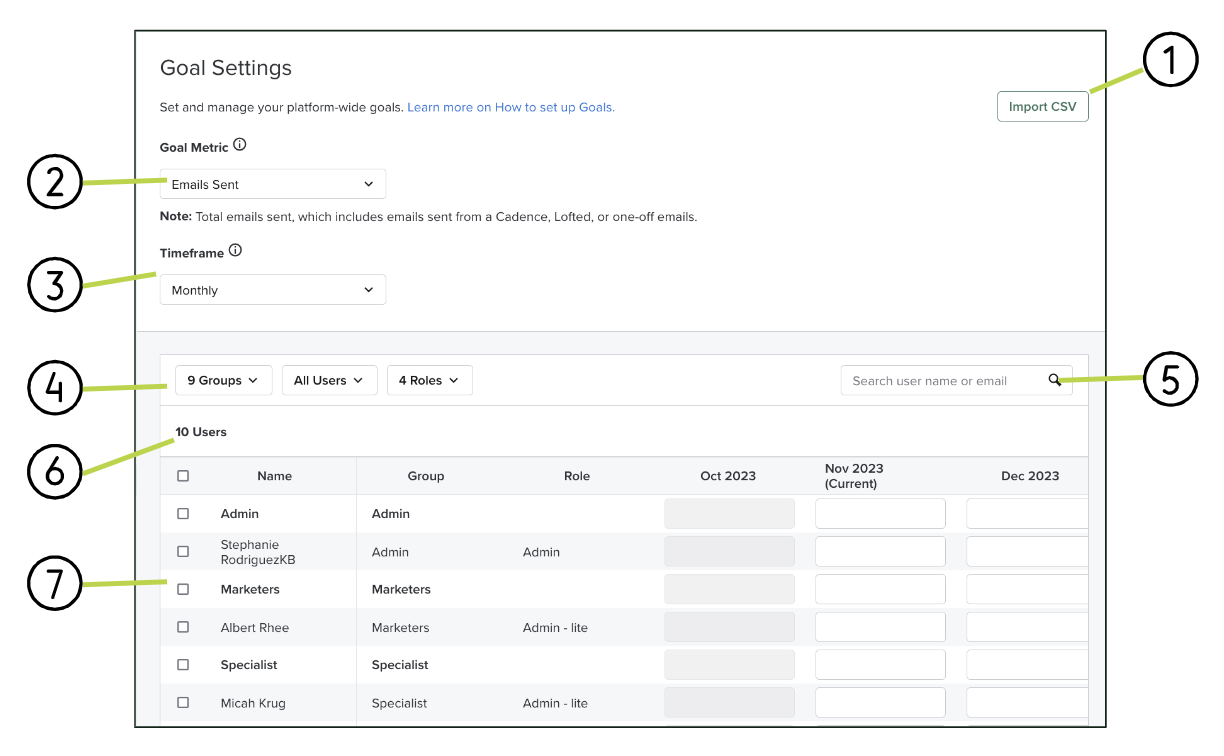
- Import CSV: Option to import goals via a CSV file.
- Goal Metric: Defines the metric that you will see in the table below. You will need to select each metric you wish to include as a goal for your team. Below the selected metric, you can see a Note that includes a definition of the metric. The metrics currently available for Goals include:
- Standard Goal Metrics:
- Accounts Touched
- Calls logged
- Closed won (Deals users)
- Emails Sent
- Meetings Attended
- Meetings Booked
- New Pipeline Added (Deals users)
- Opportunities Created
- People Added
- People Touched
- Success
- Total Activities
- Things to note: You must input Goals for the “Closed Won” goal metric in order for it to reflect the amount in the Goal column via Forecasting.
- Calls Dialed
- Connected Calls
- Positive Calls
- LinkedIn Completed
- Personalized
- SMS Convos
- Tasks On-Time
- First Step Completed
- Forecast Goal Metrics:
- High Forecast (Overall)
- High Forecast
- Forecast (Overall)
- Forecast
- New Business (Bookings)
- Renewals (Bookings)
- High Forecast (Churn)
- Forecast (Churn)
- Timeframe: The time period of a given goal. Goals can be set for the following timeframes:
- Weekly
- Monthly
- Quarterly
- Annually
- Things to Note: Quarter and Annual time is set to the calendar year, by default. You have to manually input the Goals separately for each Timeframe if you want to see those Goal amounts reflected in Forecasting based on the corresponding Close Date filters (i.e. Quarterly = Q2 CY 2025; Annually = CY 2025)
- If your team uses the fiscal year, the time period will adjust when you enable CRM sync based on the calendar settings in your CRM.
- The fiscal year setting is only captured during initial setup and cannot be modified later.
- You have to manually input the Goals separately for each Timeframe if you want to see those Goal amounts reflected in Forecasting based on the corresponding Close Date filters (i.e. Quarterly = Q2 CY 2025; Annually = CY 2025)
- Goal Settings Filters: Refine the list of users in the Goals table.
- Search users: Located to the top-right of the Goals table, search to quickly find a user within the table based on their username or email.
- Number of Users: The amount of users visible inside the Goals table based on the filters.
- Goals Table: Where you can view and manage goals. Table layouts will change based on the Goal metric and timeframe.
- Checkbox
- Name: Name of the group or user. Group names will appear in bold for distinction from user names.
- Group
- Role
- Previous Time period
- Current Time Period
- Future Time Periods
